Overview
XPath uses path expressions to select nodes or node-sets within an XML document. The node is selected by following a path or a set of steps.
Query Examples
The following chart displays a list of the Query example elements that can be used in the below example.
| Query Example | Description |
|---|---|
| /bookstore/book[last()] | Selects the last book element that is the child of the bookstore element |
| /bookstore/book[last()-1] | Selects the last but one book element that is the child of the bookstore element |
| /bookstore/book[position()<3] | Selects the first two book elements that are children of the bookstore element |
| //title[@lang] | Selects all the title elements that have an attribute named lang |
| //title[@lang='en'] | Selects all the title elements that have a "lang" attribute with a value of "en" |
| /bookstore/book[price>35.00] | Selects all the book elements of the bookstore element that have a price element with a value greater than 35.00 |
| /bookstore/book[price>35.00]/title | Selects all the title elements of the book elements of the bookstore element that have a price element with a value greater than 35.00 |
| /bookstore/ | Selects all the child element nodes of the bookstore element |
| // | Selects all elements in the document |
| //title[@*] | Selects all title elements which have at least one attribute of any kind |
Example
The following example will demonstrate how to use the XPath Query step to query an XML document on books.
- In the Designer Project, click CREATE FLOW and select Flow. Provide a Name and click CREATE.
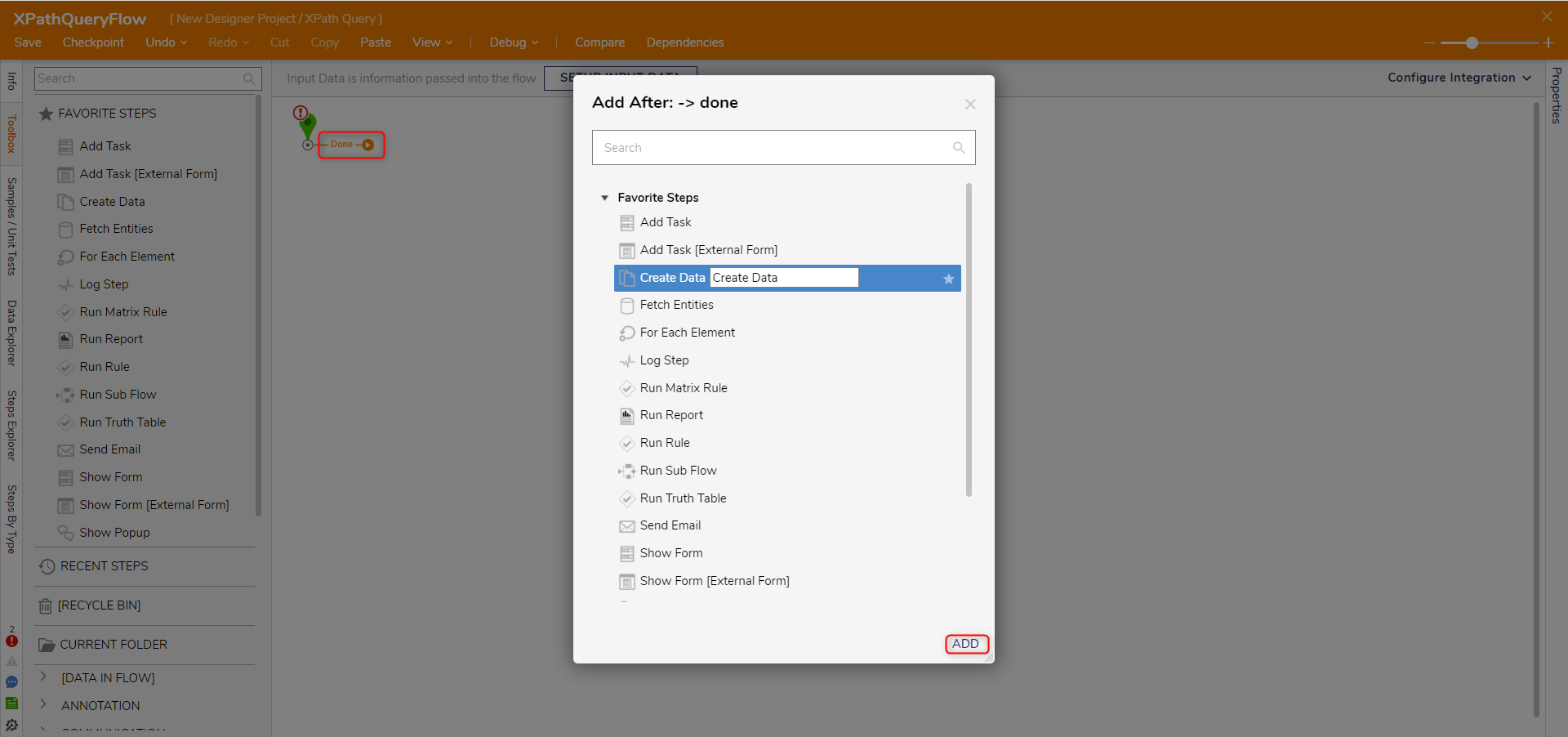
- Click the Done path of the Start step. Select the Create Data step and click ADD.
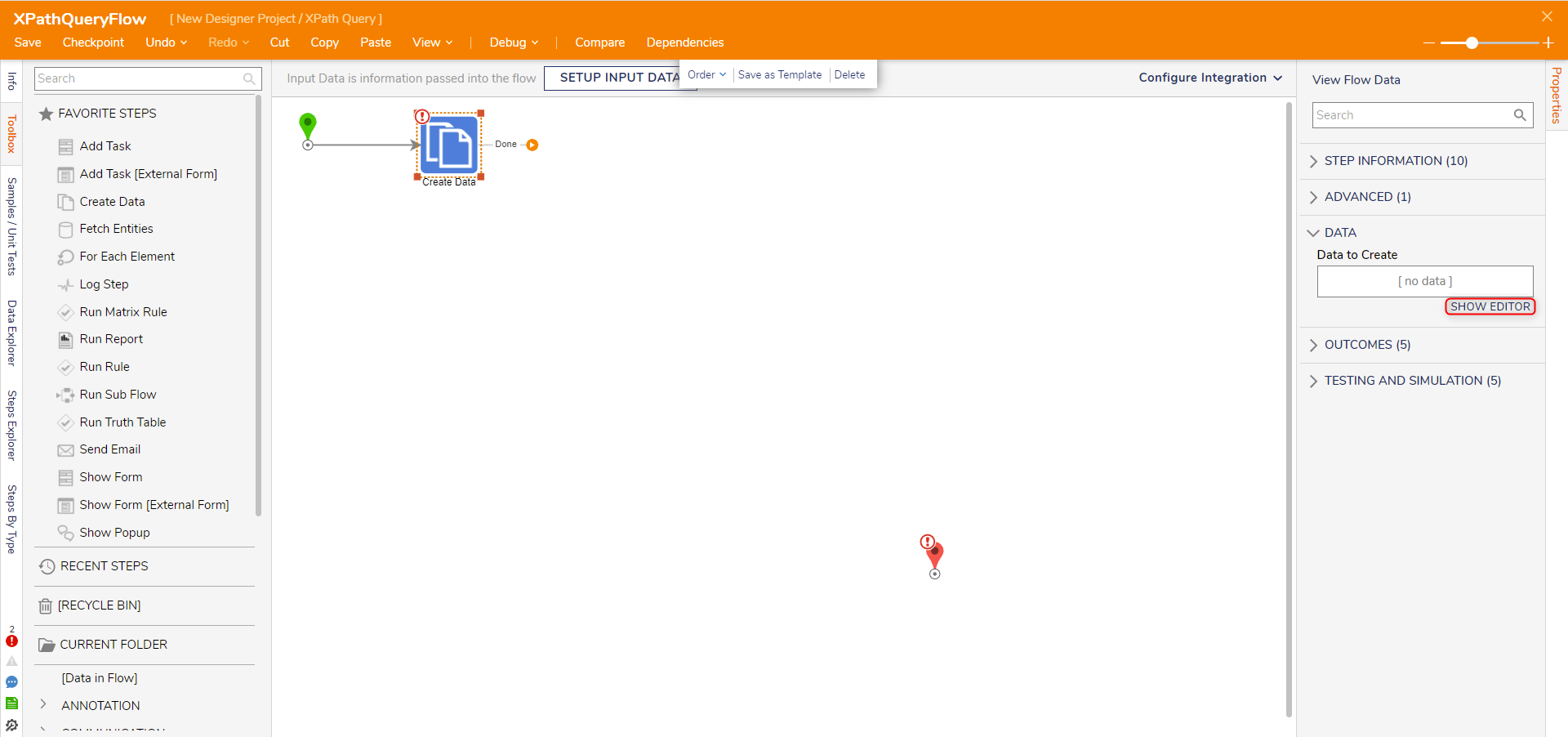
- On the Properties panel, click SHOW EDITOR under the Data To Create field.
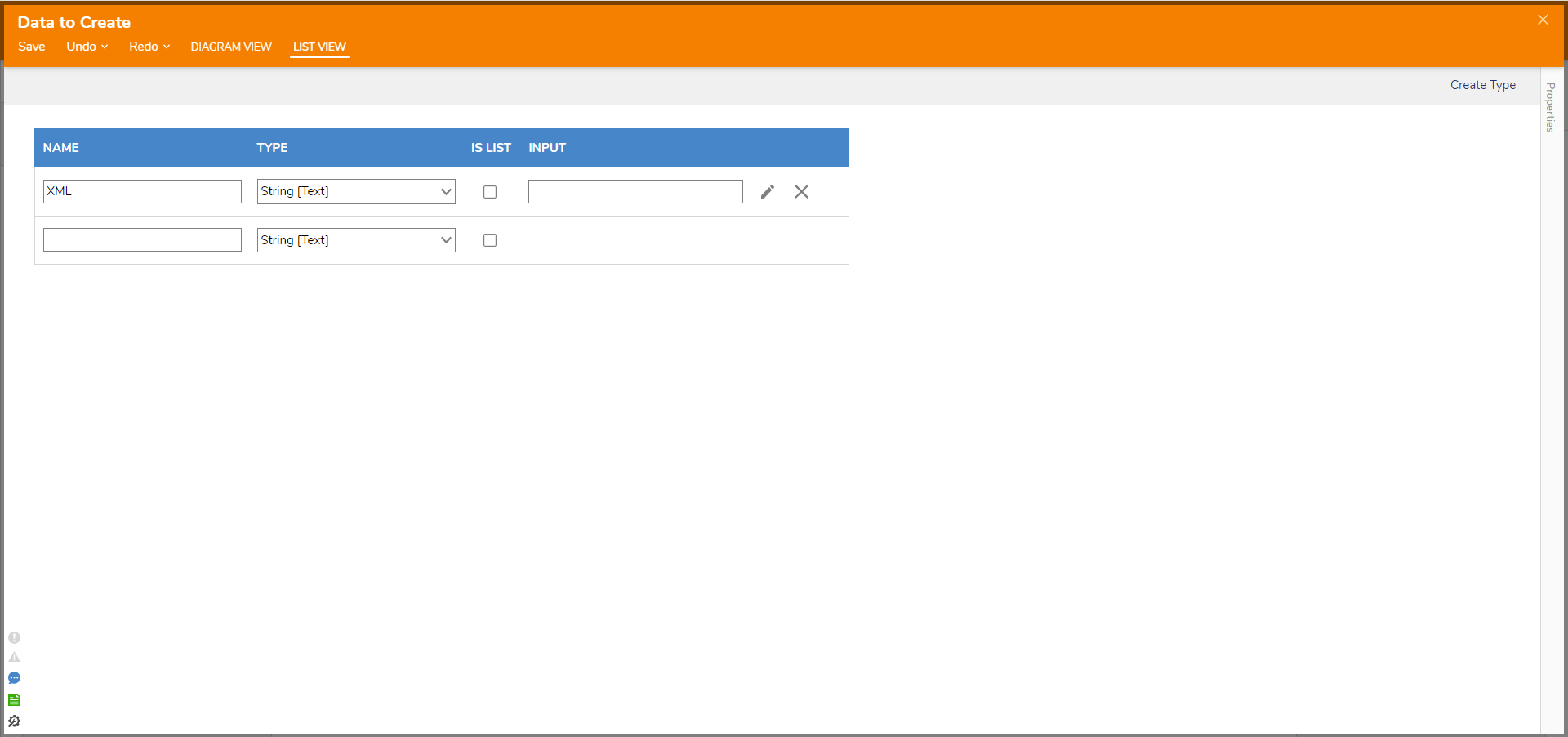
- On the Data Definition window under NAME, enter "XML" and select String [Text] as the TYPE. Click Save and close the window.
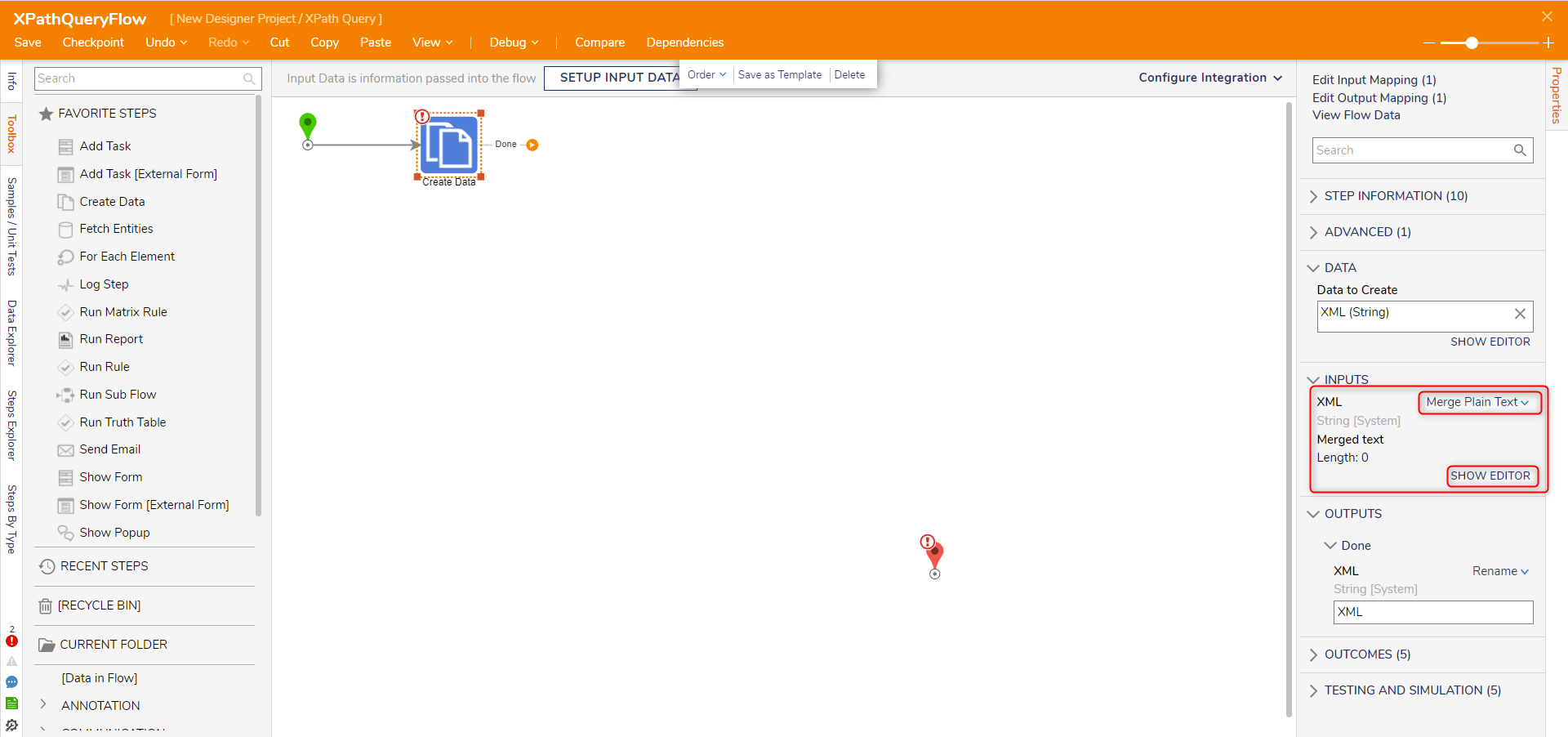
- From the Properties panel of the Create Data step, under INPUTS, change the mapping for XML to Merge Plain Text. Click SHOW EDITOR.
- Copy and paste the following XML into the Merge Text Editor window. Click SAVE.
<?xml version="1.0"?>
<bookstore>
<book>
 <title lang="en">Harry Potter</title>
 <price>29.99</price>
</book>
<book>
 <title lang="ru">Russian Book</title>
 <price>10.95</price>
</book>
<book>
 <title>Unknown</title>
 <price>55.95</price>
</book>
</bookstore>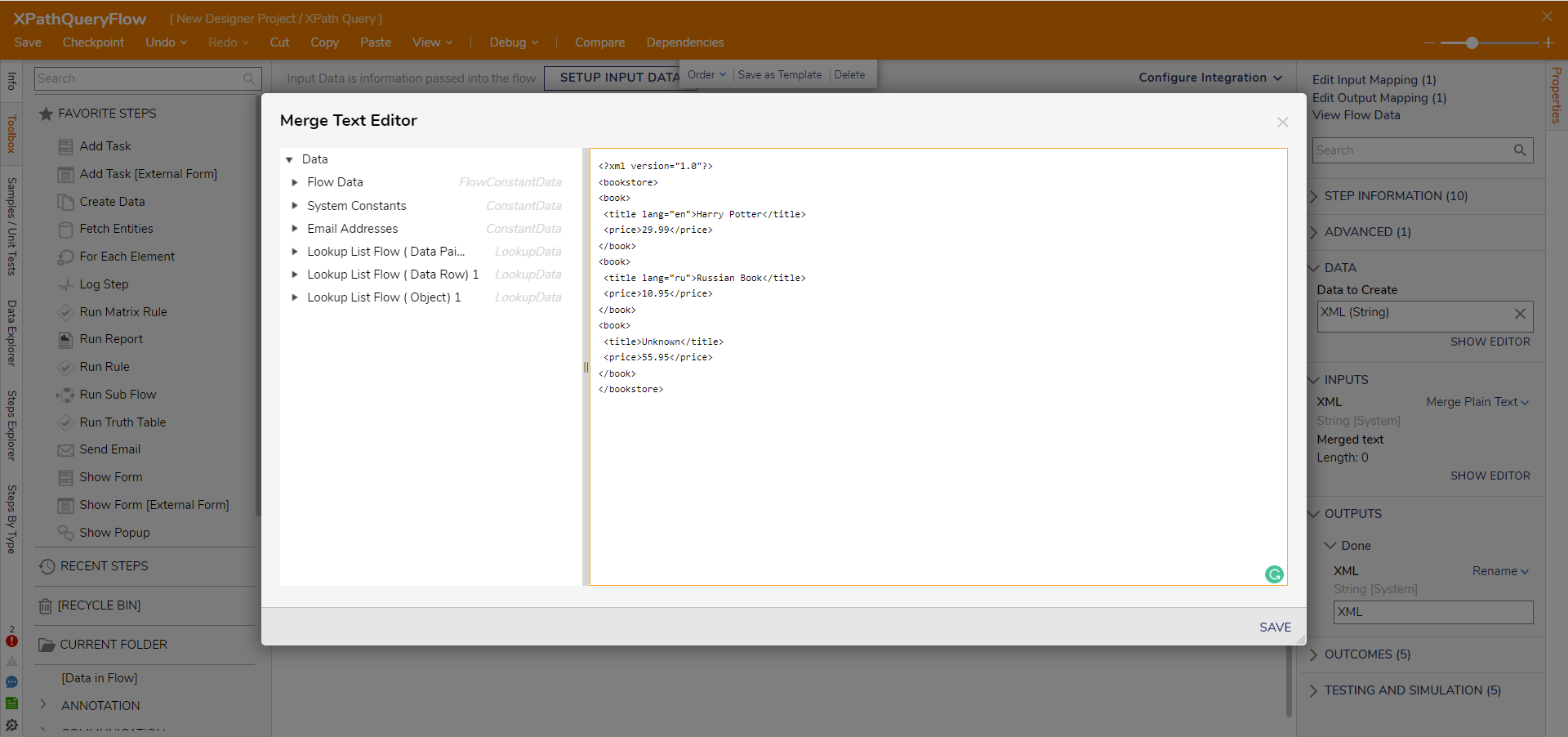
- Attach an XPath Query step from the DATA > XML category in the Toolbox panel to the Done path of the Create Data step.
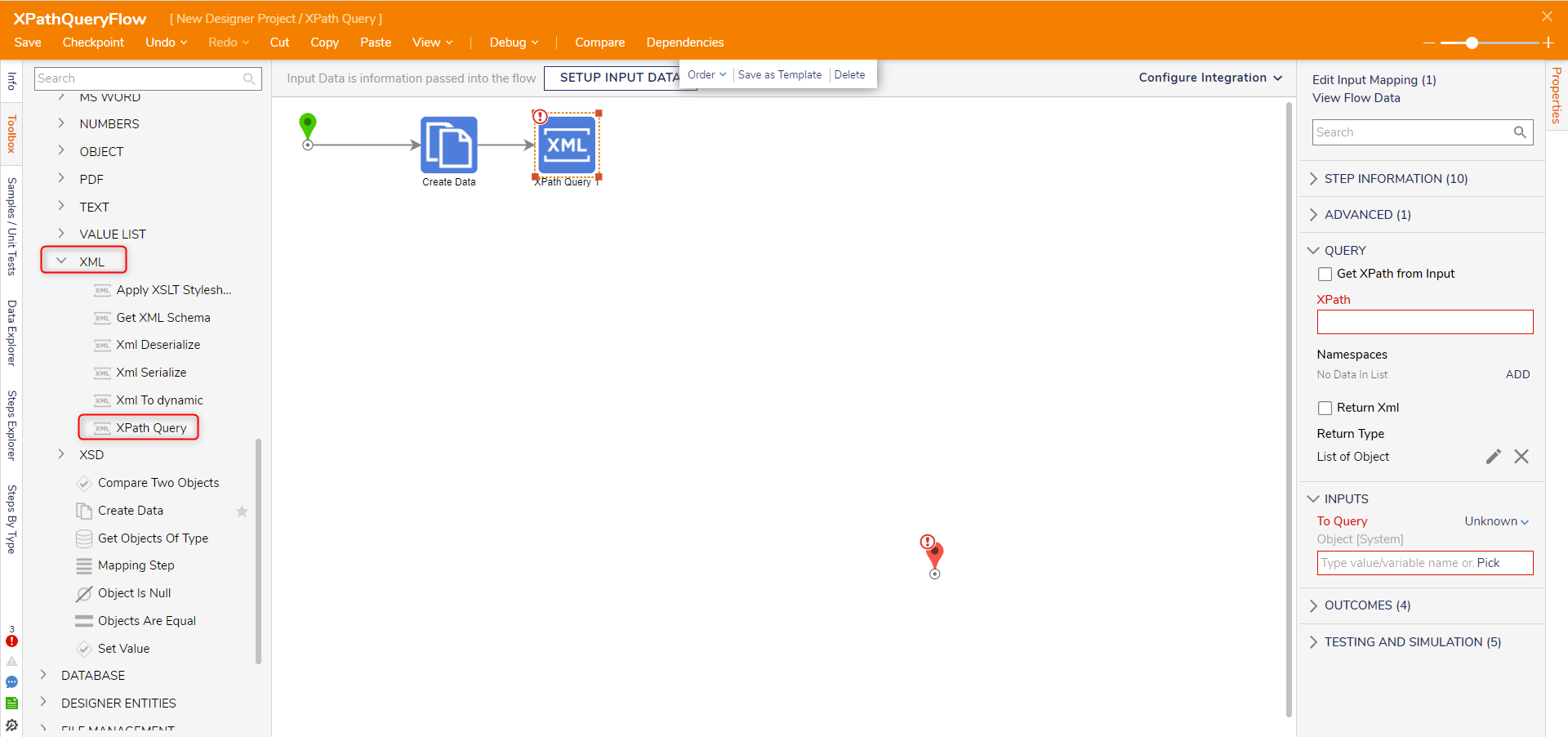
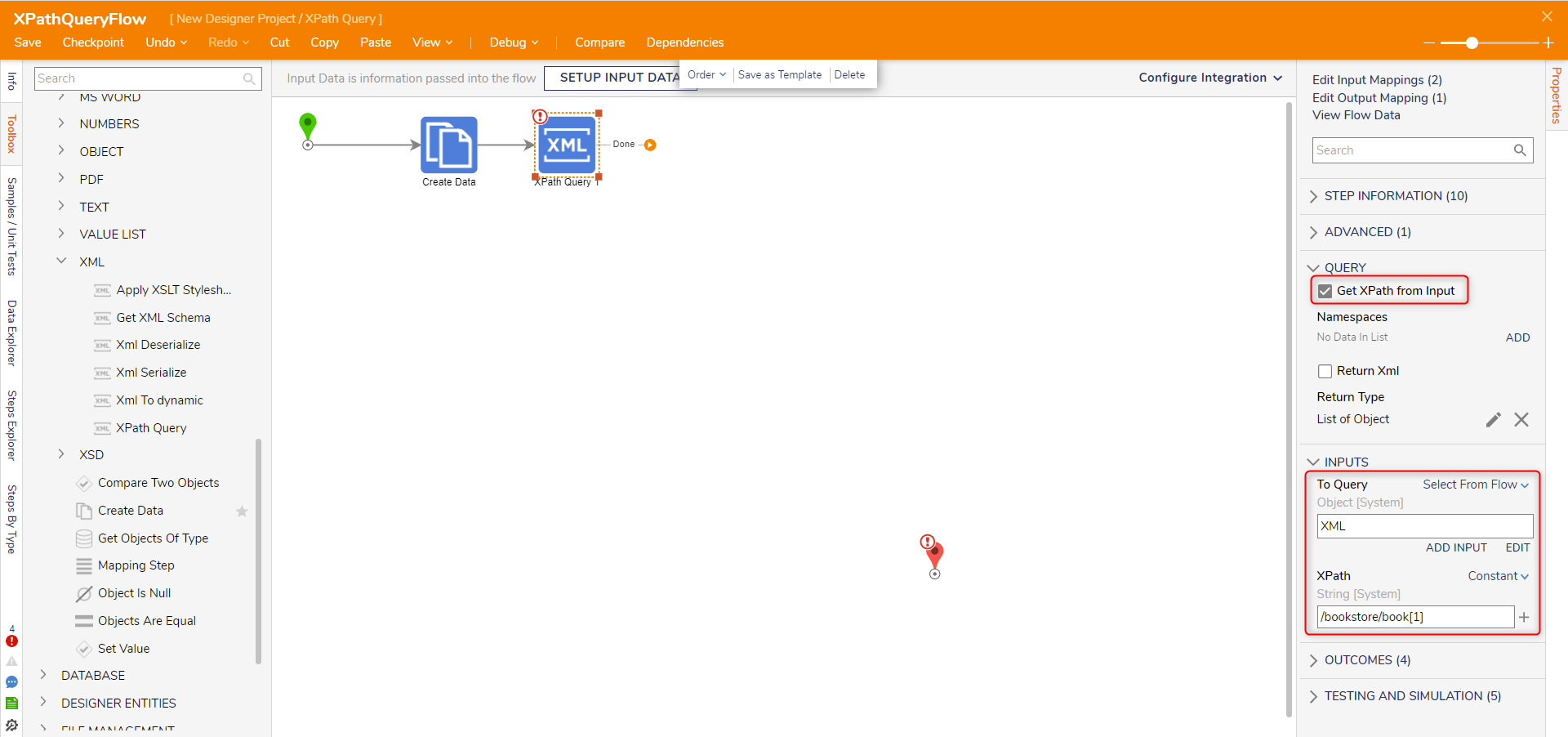
- Check the Get XPAth from Input option under the QUERY category on the Properties panel.
- Under the INPUTS category, map XML to To Query and enter "/bookstore/book[1]" to the XPath field.The /bookstore/book[1] query selects the first "book" element that is the child of the "bookstore" element.
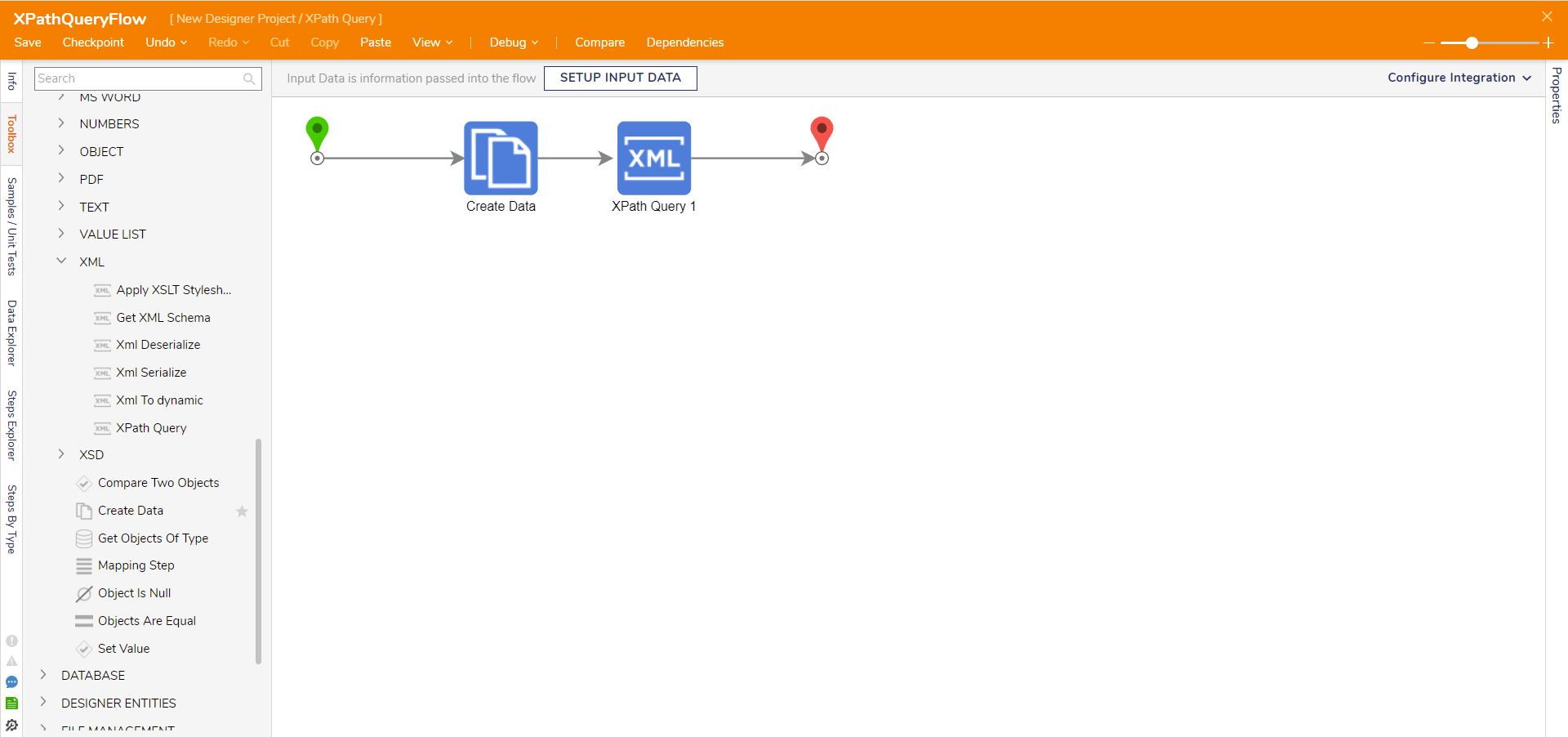
- Connect the Done path from the XPath Query step to the End step. Click Save to save changes to the Flow.
Debug
- Click Debug from the top action bar.
- Click START DEBUGGING.
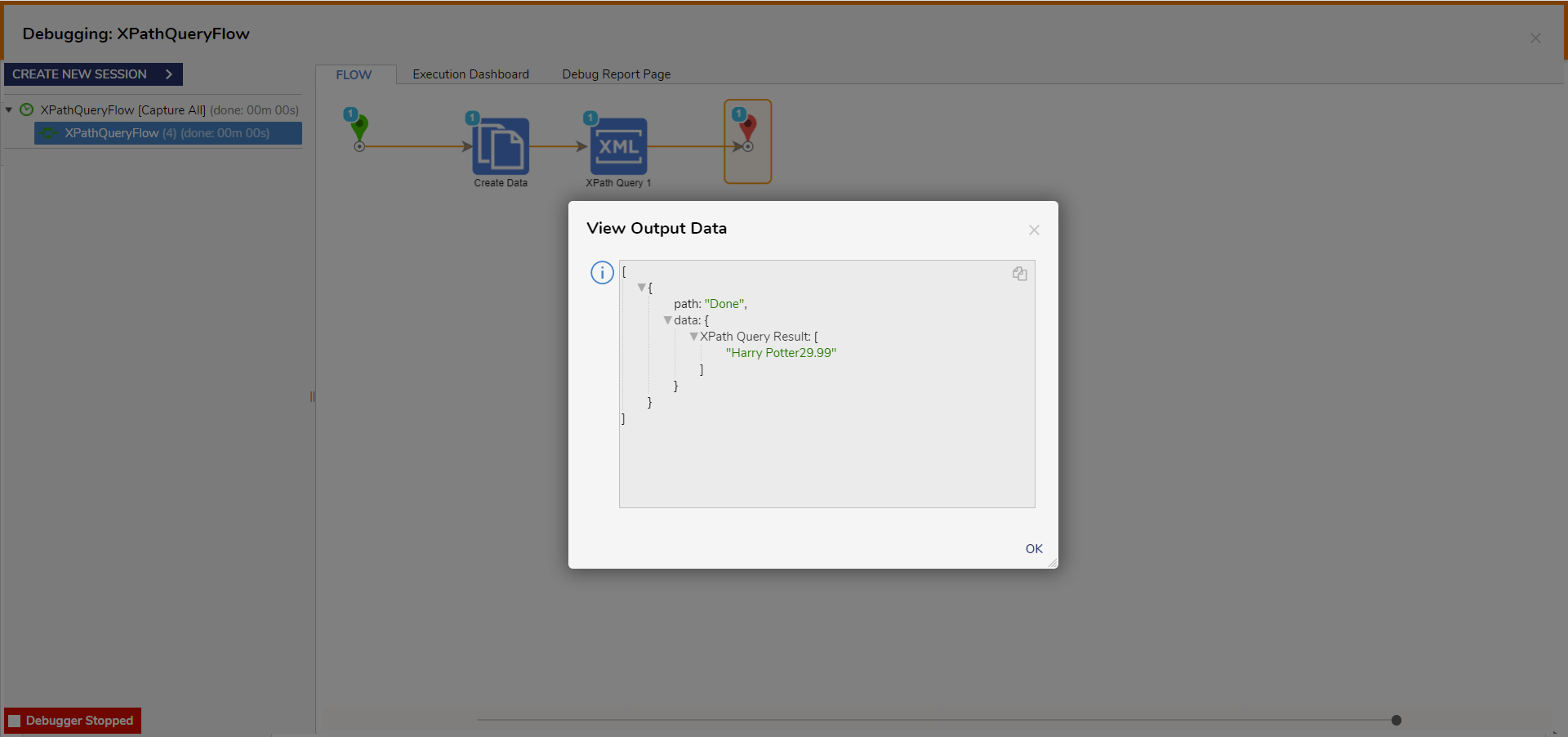
- Select the XPath step, select Execution 1, and select View Output Data.The XPath Query output will display the result from the query.
For further information on Flows, visit the Decisions Forum.