Overview
Virtual Folders in Decisions version 10 change how folder-related data is stored for Case Entity and Flow Execution Extension structures. In earlier versions, associated folder data for these structures was stored in the shared entity_folder table.
With Virtual Folders, folder records for each applicable data type are moved into a dedicated Virtual Folder table. The new table contains the same folder data and columns that were previously stored in entity_folder, but the data is now separated by data type.
This change improves how folder data is organized and maintained and supports better scalability and performance as folder data grows. However, existing reports, dashboards, SQL views, Raw SQL steps, Fetch Entities steps, or relationships that directly reference entity_folder may need to be reviewed and updated after migration.
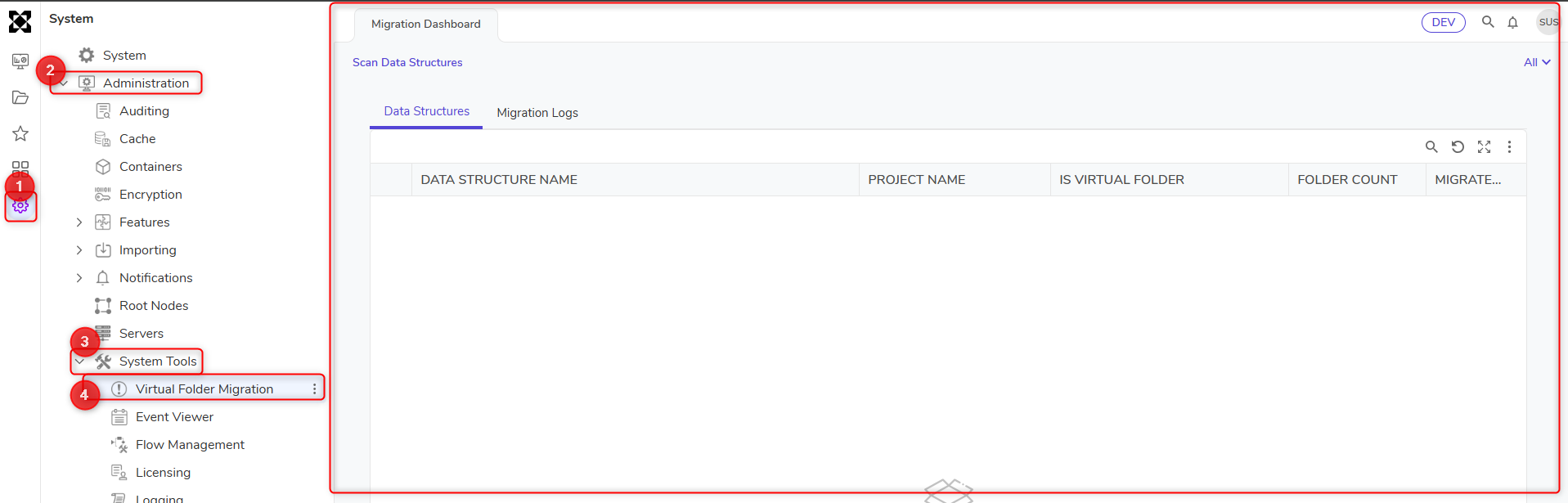 Migration Dashboard
The Problem Virtual Folders Solve
In earlier versions, folder-related data for multiple Case Entity and Flow Execution Extension structures was stored together in the shared entity_folder table. Because this table may contain folder records across many data types, it can be difficult to isolate, query, and maintain folder data for a specific structure.
Virtual Folders solve this by moving folder records for each applicable data type into its own dedicated Virtual Folder table.
How Virtual Folders Change Data Storage
Before migration, folder data for Case Entity and Flow Execution Extension structures is stored in the shared entity_folder table.
After migration, records for each migrated data type are moved from the entity_folder into a dedicated Virtual Folder table. The new table name is displayed in the migration report after the migration completes.
Example migration path:
- Old: FolderState -> Entity Folder
- New: FolderState -> Virtual Folder table
SQL views, Raw SQL steps, and relationships that directly reference entity_folder are not automatically updated and must be reviewed after migration.
When Virtual Folders Apply
Virtual Folders are included in Decisions version 10. Starting with version 10, the Virtual Folder property is enabled by default on all newly created Case Entity and Flow Execution Extension structures.
For upgraded environments, existing folder data is not automatically converted during the version 10 upgrade. The migration only occurs when an administrator runs the Migrate to Virtual Folders action.
Upgrading to version 10 does not automatically move existing folder data into Virtual Folders. Existing data is moved only after the migration action is run.
Preparing Data for Conversion
Before running the Virtual Folder migration, review the environment for configurations that reference folder-related data.
Review the following areas before migration:
- Reports that display Case Entity or Flow Execution Extension data
- Dashboards that use reports, charts, report views, or SQL views
- SQL views that query entity_folder
- Raw SQL steps that reference entity_folder
- Fetch Entities steps that use folder-related data
- Relationships built directly against the entity_folder
- Custom workflows that query or display folder data
If the environment contains older project structures or legacy configurations, review and update those dependencies before running the migration when possible. Complete project-related updates separately from the Virtual Folder migration to avoid promoting too many large changes at the same time.
Before migration, complete the following preparation steps:
- Back up the environment.
- Identify references to entity_folder.
- Confirm which Case Entity and Flow Execution Extension structures need to be migrated.
- Test the migration in a lower environment using recent data when possible.
- Prepare any fixed flows, reports, SQL views, or relationships so they can be applied after production migration.
Running the Virtual Folder Migration
Administrators can run the Virtual Folder migration from the Virtual Folders administration page.
Use the Scan Data Structures option on the Virtual Folders administration page to list the Case Entity and Flow Execution Extension structures that are eligible for migration. 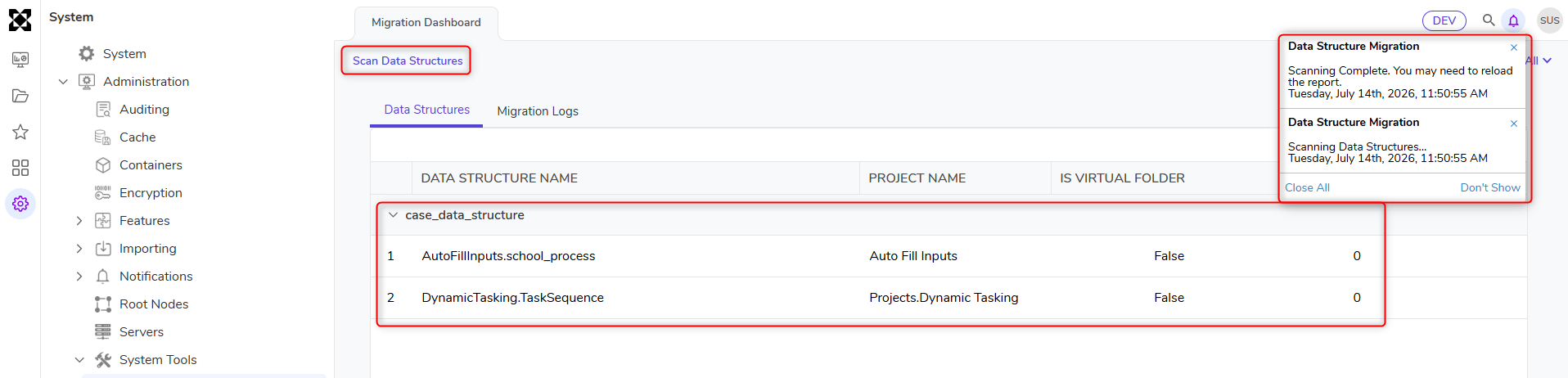 Scan Data Structures option on the Virtual Folders administration page
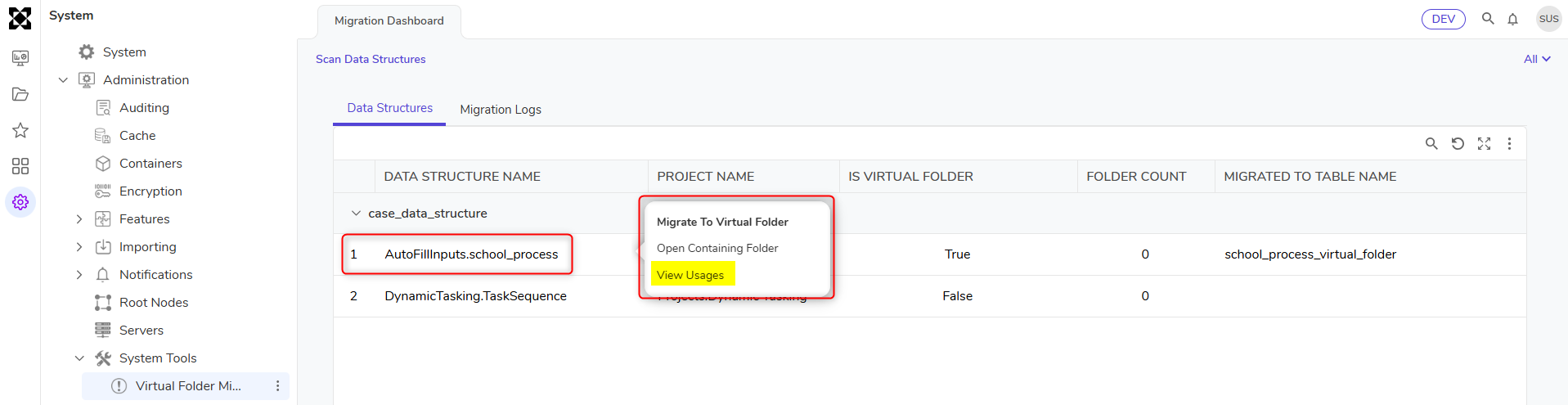
Before migrating, right-click a Case Entity or Flow Execution Extension structure in the report and select View Usages. This opens a report on a new page listing the entities where the selected data structure type is used, which can help confirm the scope of impact before running the migration.
 View Usages action
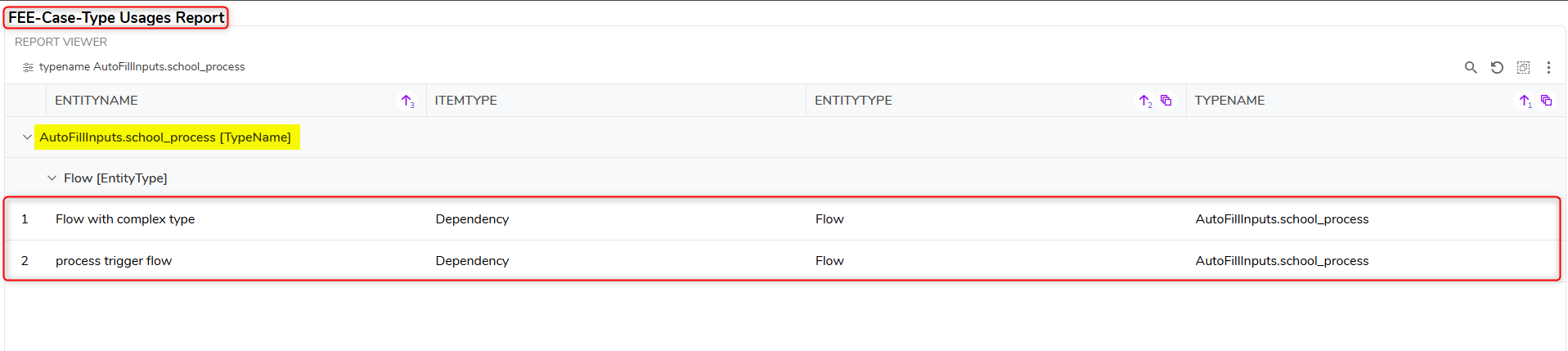 Usages report displaying entities using the data structureTo migrate a structure, run the Migrate to Virtual Folders action by right-clicking on the displayed data structure. This action moves the associated folder records for the selected data structure from the shared entity_folder table into a dedicated Virtual Folder table.
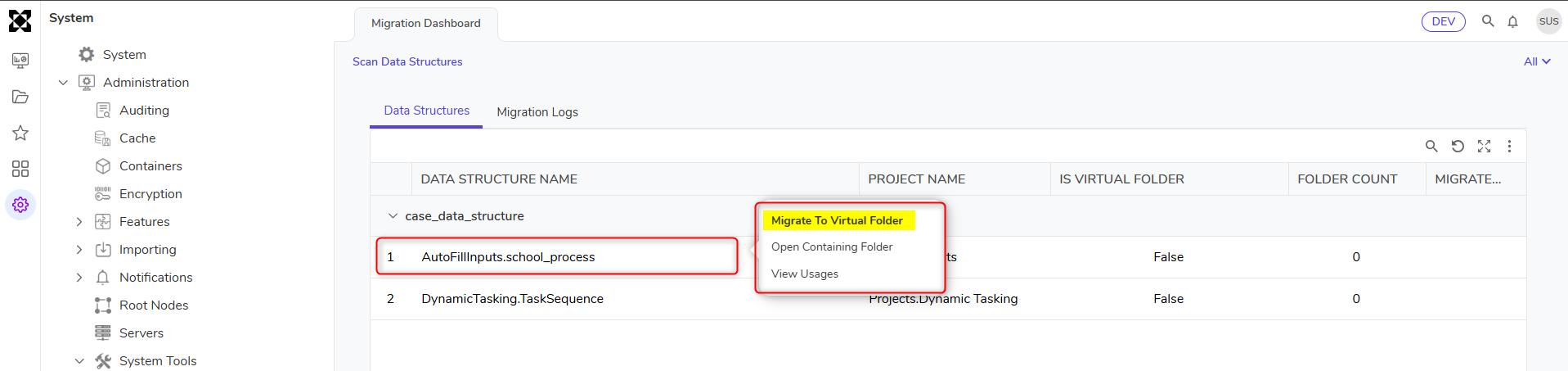 Migrate to Virtual Folder action
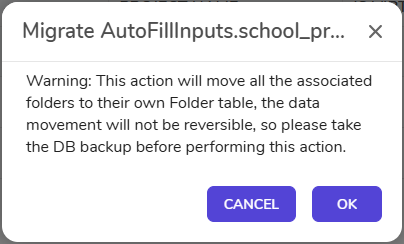 Migration warning dialog
The migration action must be run in each environment where the data exists. Running the migration in a lower environment does not migrate production data. The migration must also be run in production when production data is ready to be moved.
After the migration completes, review the migration logs and migration report. A Migration Logs tab is available next to the report and shows the migration progress, status, and completion details. The migration report (Data Structures) displays the new Virtual Folder table name created for the migrated data type.
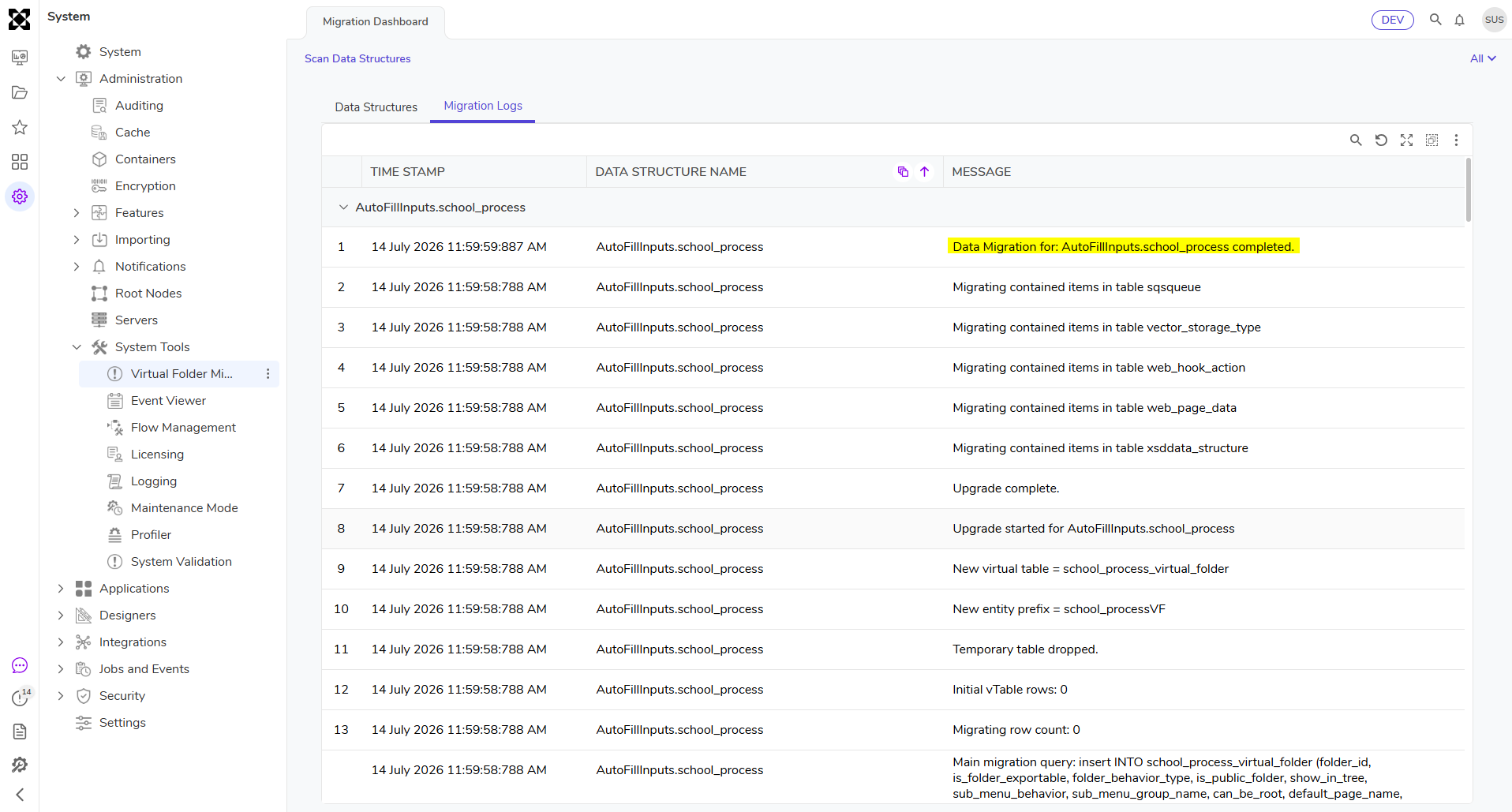 Migration logs
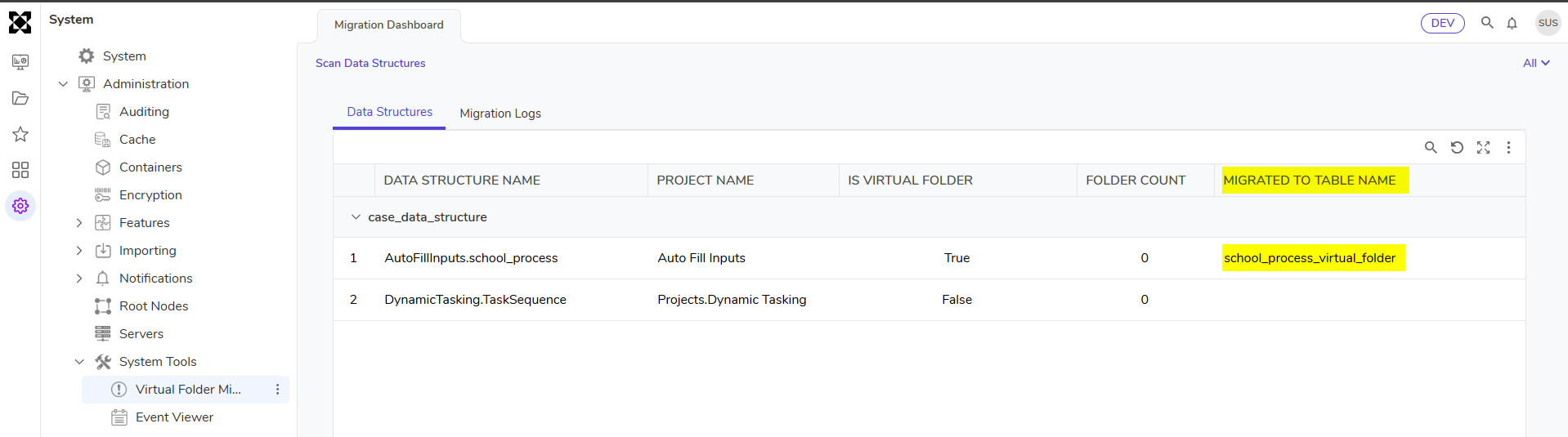 Migration report (Data Structures tab) displaying new Virtual Folder table name
A Decisions service restart is required once the migration completes successfully.
For a data structure that has been successfully migrated, right-clicking it in the report shows the Revert to Use Entity Folder and Migrate Data action. Running this action reverts that structure's data to the shared entity_folder table.
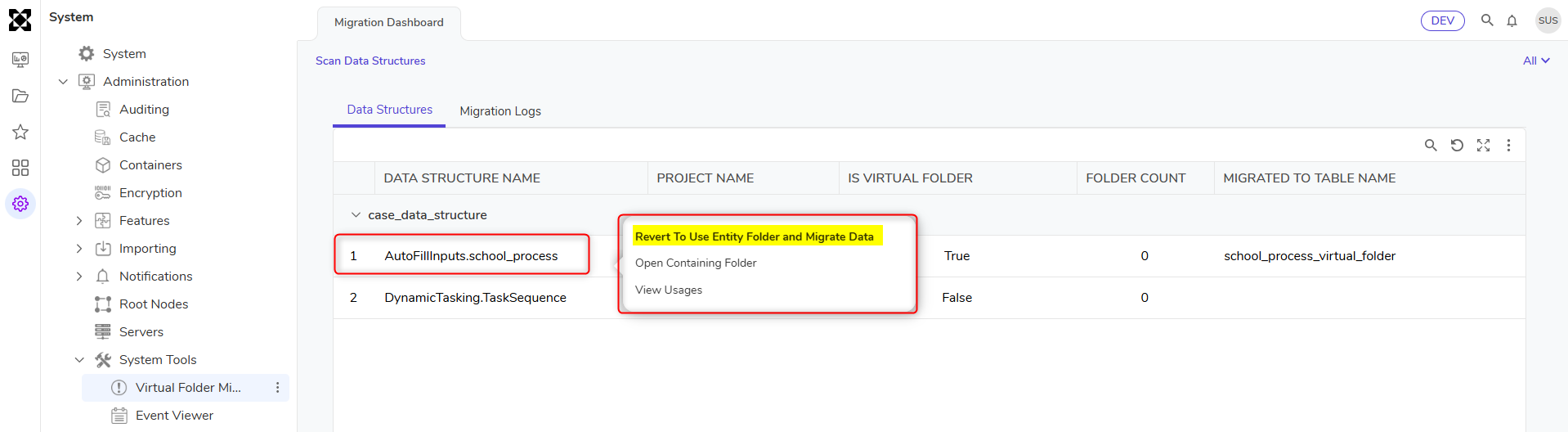 Revert to Entity Folder action
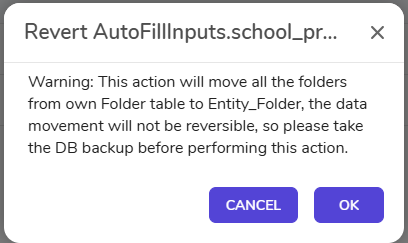 Revert Migration warning dialog
What Updates Automatically
Some configurations may continue to work after migration or may be updated automatically when the system can determine which data type the configuration belongs to.
The following areas may be updated automatically:
- Generated report data sources for the migrated data type
- Fetch Entities steps configured directly against the migrated data type
- System-generated SQL used by supported report data sources
For example, if a generated report data source was created for a specific data type, the system may update the underlying SQL so it references the new Virtual Folder table instead of the old entity_folder table.
Automatic updates only apply when the system can identify the related data type. Custom SQL, SQL views, manually configured relationships, and direct references to entity_folder must be reviewed and may require manual updates.
Areas That May Require Manual Updates
After migration, review any configuration that directly references the old entity_folder table, the Associated Folder entity, or relationships built against Entity Folder.
Reports and Dashboards
Reports and dashboards may stop displaying expected data if their underlying report data source, chart, report view, SQL view, or relationship still references entity_folder.
Action required: Review affected reports and dashboards after migration. If data is missing or incorrect, update the underlying report, SQL view, or relationship to use the correct Virtual Folder table shown in the migration report.
SQL Views and Raw SQL Steps
SQL views and Raw SQL steps that directly query entity_folder must be updated after migration. These references are not automatically changed.
Example:
- Old table reference: entity_folder
- New table reference: The Virtual Folder table name shown in the migration report
Action required: Replace references to entity_folder with the correct Virtual Folder table name.
Fetch Entities Steps
Fetch Entities steps configured directly against the migrated data type may continue to work or may be updated automatically. However, Fetch Entities steps configured against a general folder or Associated Folder entity may need to be reviewed.
Action required: Review Fetch Entities steps that use folder-related data. If the step no longer returns the expected data, update it to use the appropriate migrated data type or Virtual Folder table.
Relationships Referencing Entity Folder
Relationships built directly on the entity_folder table may no longer be valid after migration. This can happen when another entity is related directly to the Entity Folder.
Because entity_folder previously contained folder records for multiple data types, the system may not be able to determine which new Virtual Folder table should replace the original relationship.
Example relationship:
- Old: FolderState -> Entity Folder
- New: FolderState -> Virtual Folder table
Action required: Identify relationships that reference entity_folder and update them to the corresponding Virtual Folder relationship or table structure.
Dashboards
Dashboards should be tested carefully after the Virtual Folder migration because dashboard issues may come from reports, charts, report views, SQL views, or relationships that still reference entity_folder.
After migration, review dashboard components that display Case Entity or Flow Execution Extension data. If a dashboard no longer displays the expected results, review the underlying report, data source, SQL view, Raw SQL step, or relationship and update it to use the correct Virtual Folder table.
Integration views may also be affected in some cases, depending on how they were built. Review integration views along with dashboards after migration.
Post-Migration Validation
After running the migration, validate the environment to confirm that reports, dashboards, workflows, and integrations continue to work as expected.
Review the following areas:
- Reports that display Case Entity or Flow Execution Extension data
- Dashboards that use report views, charts, or SQL-based views
- Raw SQL steps that reference folder data
- SQL views that reference entity_folder
- Relationships built directly on entity_folder
- Fetch Entities steps that use folder-related data
- Custom workflows that query or display folder-related data
- Integration views that depend on folder-related data
Run and validate the migration in a lower environment before running it in production. Fix affected reports, dashboards, SQL views, steps, and relationships in the lower environment first, then prepare those changes for promotion before running the migration in production.
Troubleshooting
Use the following guidance to resolve common issues after the Virtual Folder migration.
Reports or Dashboards No Longer Display Data
Cause: The report, dashboard, chart, or view may still reference the old entity_folder table or an Entity Folder relationship.
Resolution: Review the underlying report data source, SQL view, Raw SQL step, or relationship. Update the configuration to reference the correct Virtual Folder table shown in the migration report.
SQL Views or Raw SQL Steps Fail After Migration
Cause: The SQL query may directly reference entity_folder.
Resolution: Replace the old table reference with the new Virtual Folder table name created for the migrated data type.
Relationship-Based Reports Return Incorrect or Blank Results
Cause: Relationships built directly against the Entity Folder may not be automatically updated because the system cannot determine which Virtual Folder table should replace the original relationship.
Resolution: Reconfigure the relationship to use the corresponding Virtual Folder table or relationship structure.
Fetch Entities Steps Return Unexpected Results
Cause: The Fetch Entities step may be configured against a general folder or an Associated Folder entity instead of the migrated data type.
Resolution: Update the step to use the appropriate migrated data type or adjust the related report or workflow configuration.
Integration View Behaves Unexpectedly
Cause: The integration view may reference entity_folder depending on how the view was built.
Resolution: Review the integration view definition and update references to the new Virtual Folder table where needed.
Migration Completed, But Production Still Uses Old Data
Cause: The migration was run only in a lower environment.
Resolution: Run the Migrate to Virtual Folders action directly in production when production data is ready to be moved.
Need to Undo a Virtual Folder Migration
Cause: A data structure was migrated in error, or issues were found after migration that require moving the data back to entity_folder.
Resolution: Right-click the migrated data structure in the report and select Revert to use Entity Folder and Migrated Data.
Recommended Migration Approach
Use the following approach when preparing for Virtual Folder migration:
- Back up the environment.
- Review reports, dashboards, workflows, SQL views, Raw SQL steps, Fetch Entities steps, and relationships for references to entity_folder.
- Run the migration in a lower environment when possible.
- Review the migration logs and migration report.
- Note the new Virtual Folder table names.
- Restart the Decisions service once the migration completes successfully.
- Validate reports, dashboards, SQL views, workflows, relationships, and integration views.
- Update any references that still point to entity_folder.
- Prepare fixed flows, reports, SQL views, or project changes for promotion.
- Run the migration in production when ready.
- Apply or promote the required fixes after the production migration completes.
Because the migration moves existing data into new tables, fixes made in a lower environment should be validated before production migration. However, the production migration action must still be run directly in production to move production data.