Overview
In the Flow Designer, most steps are used to navigate within a Flow but some are used to control Studio/Portal navigation. The End Form Session step allows users the ability to use a variety of behavior options to determine where a Flow navigates to when the step is reached at runtime.
Glossary Entry
The inputs of the End Form Session step depend upon which item is selected from the Options dropdown.
| Step Name | Description |
|---|---|
| End Form Session | Acts as an End Form that provides an additional action depending on the selected BEHAVIOR Option (e.g. can be used to navigate to a specified Page within the Studio) |
End Form Session Behavior Settings
| Behavior Options | Description |
|---|---|
| Display a Message | Displays the message presented within the Form. |
| Close Dialog/Window | Closes the window when the step is reached. |
| Display a Message and Navigate | Shows a message prompt alerting the user or asking for confirmation before navigating to a designated page within Decisions. |
| Navigate | Navigates to a designated page within Decisions. |
| Open Url | Directly links and opens the provided URL hyperlink. |
| Display a Report | This will result in an assigned report to display data. |
| Open Portal in New Window | A separate window will display the Portal. |
Example
The following example will demonstrate how to use an End Form Session step to navigate to a Designer Project.
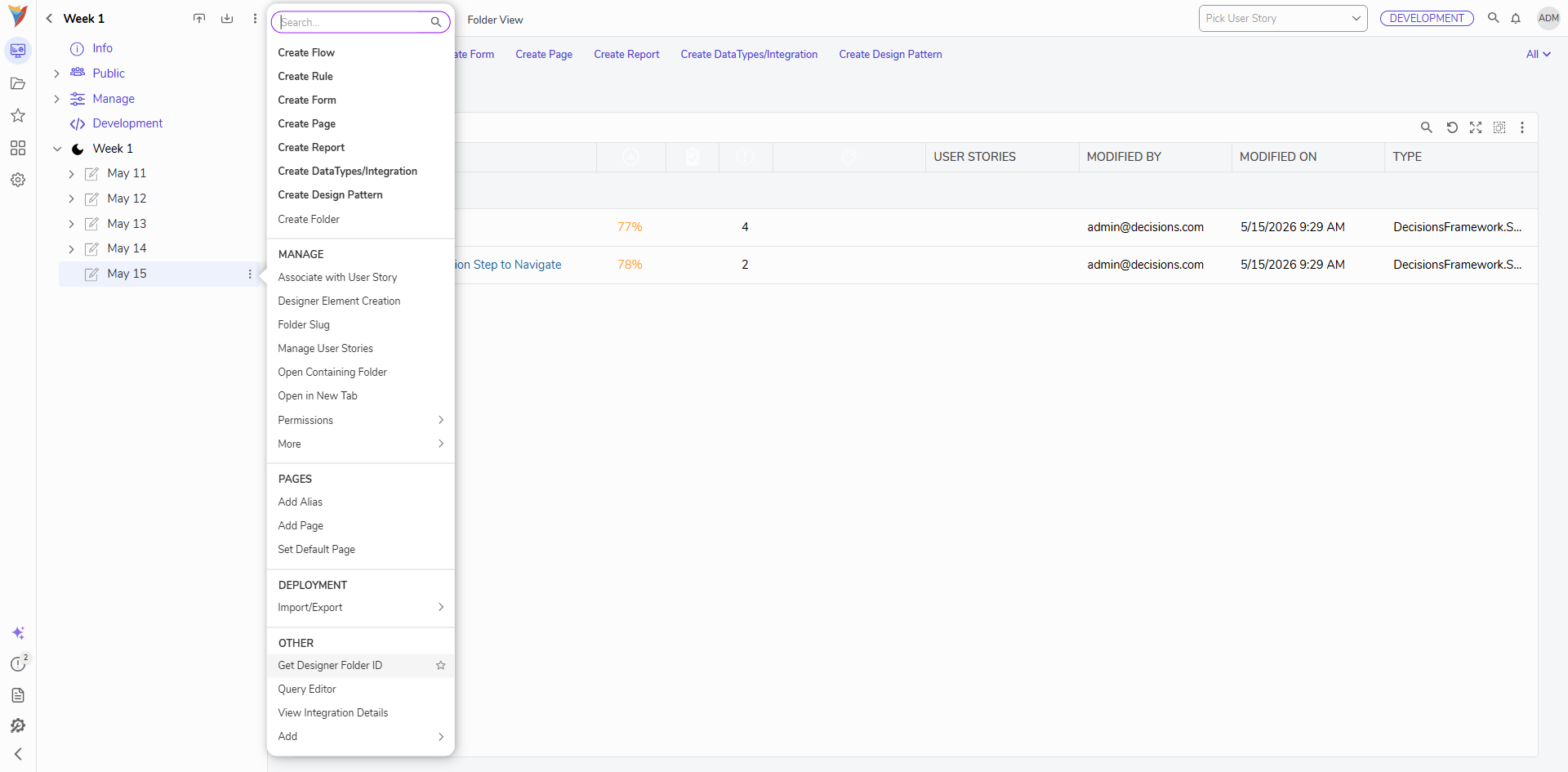
- Right-click on a Designer Project. Navigate to OTHER and select Get Designer Folder ID.
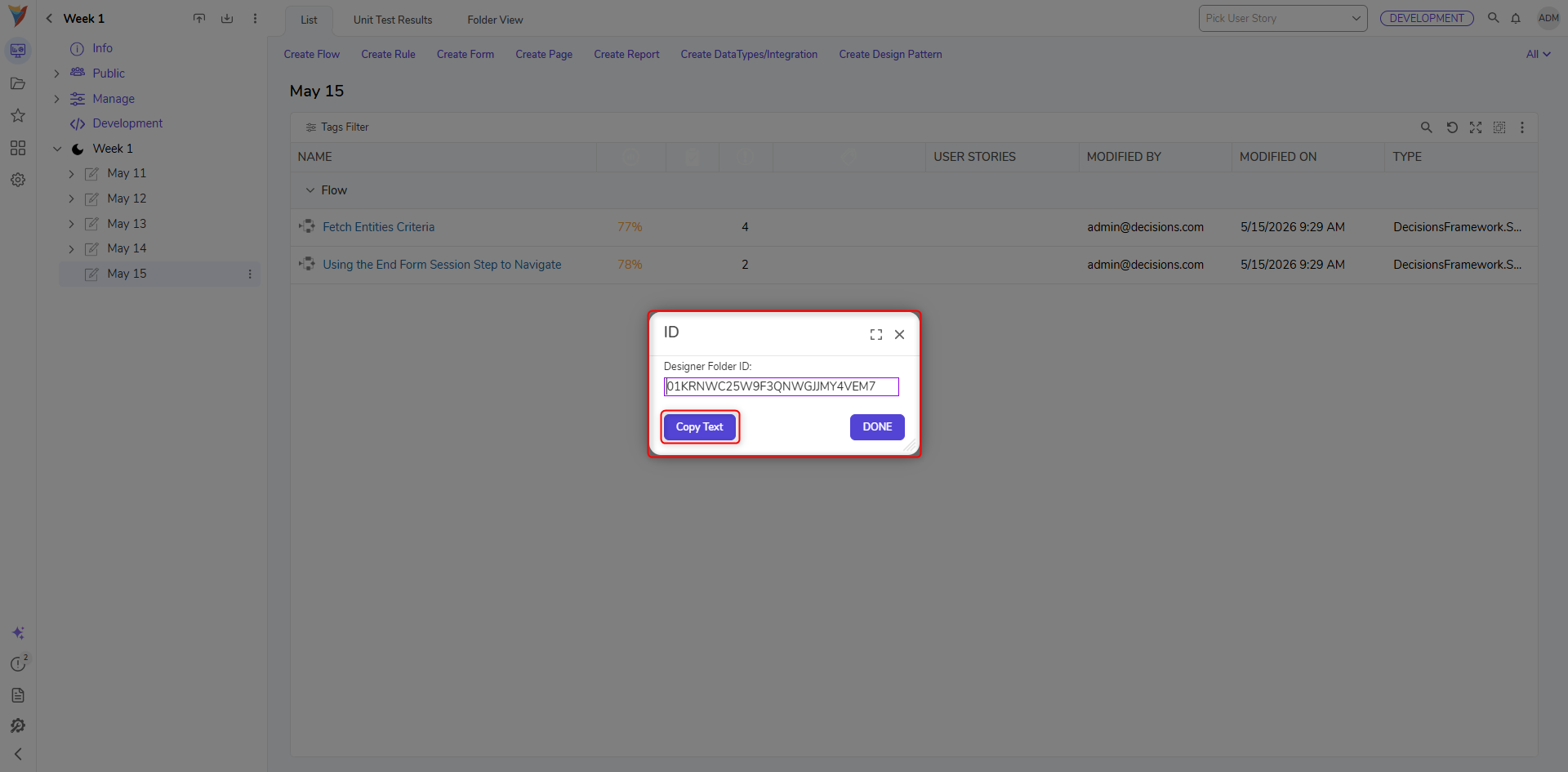
- In the ID window, click Copy Text and click DONE.
- Create another Designer Project. Click CREATE FLOW from the Global Action Bar and select Flow. Name the Flow and click CREATE.
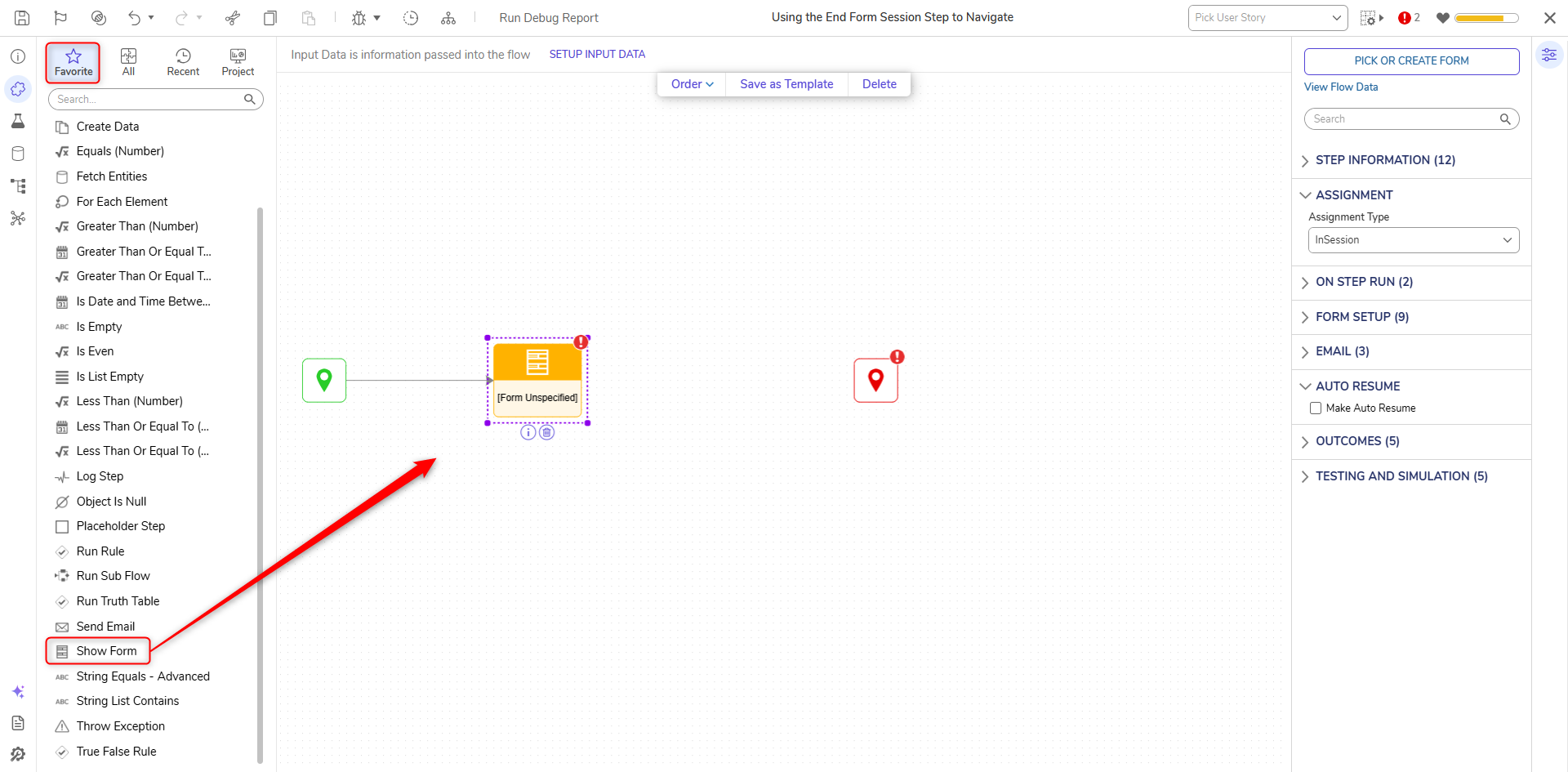
- Attach a Show Form step from the FAVORITES category of the Toolbox panel to the Done path of the Start step.
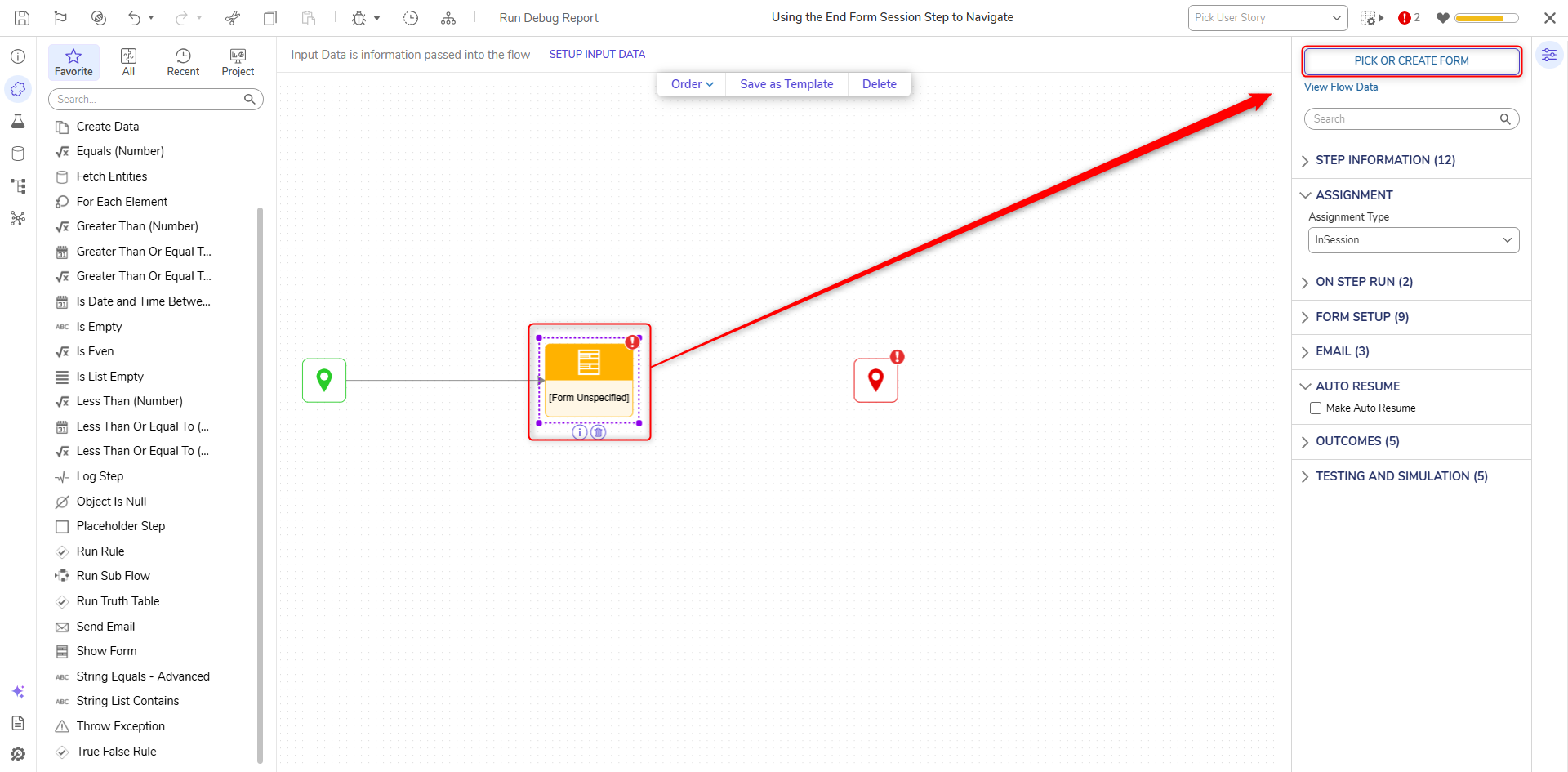
- On the Properties panel, click the PICK OR CREATE FORM button and select CREATE. Select Form, name the Form and click CREATE.
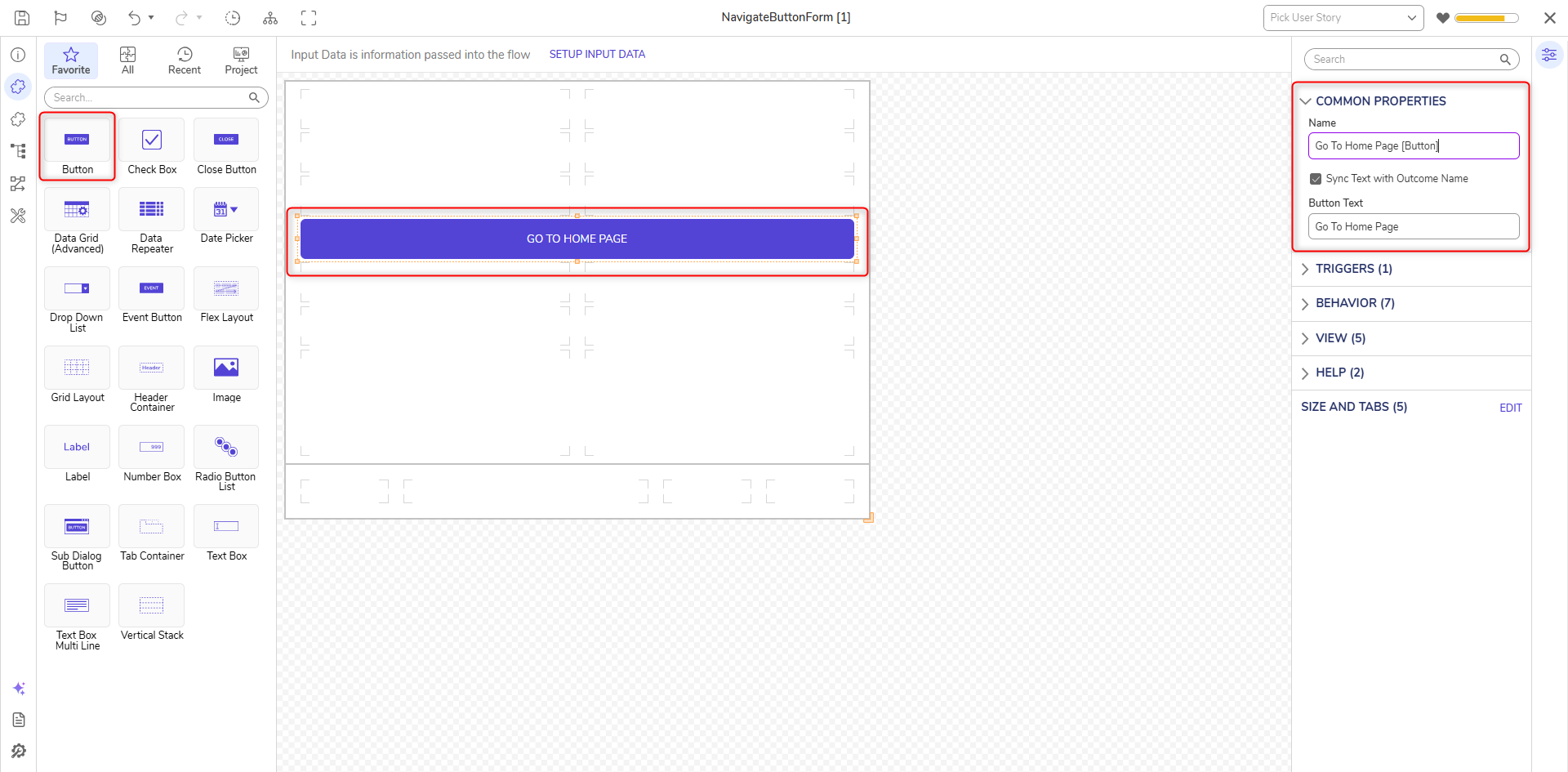
- Add a Button component (Go To Home Page). Click Save and close the Form Designer.
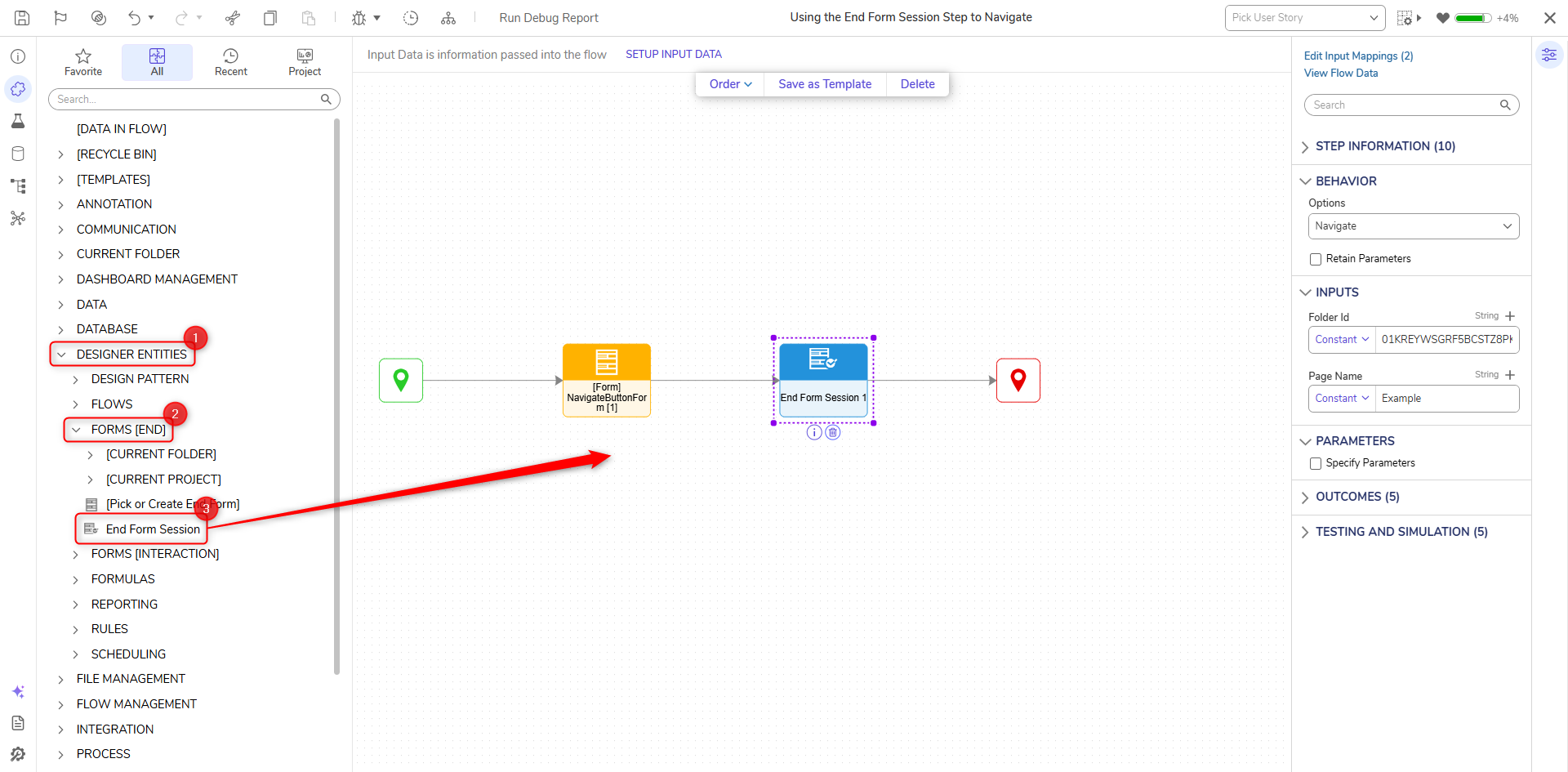
- Attach an End Form Session step from the Toolbox panel from the FORMS [END] category to the Go To Home Page path.
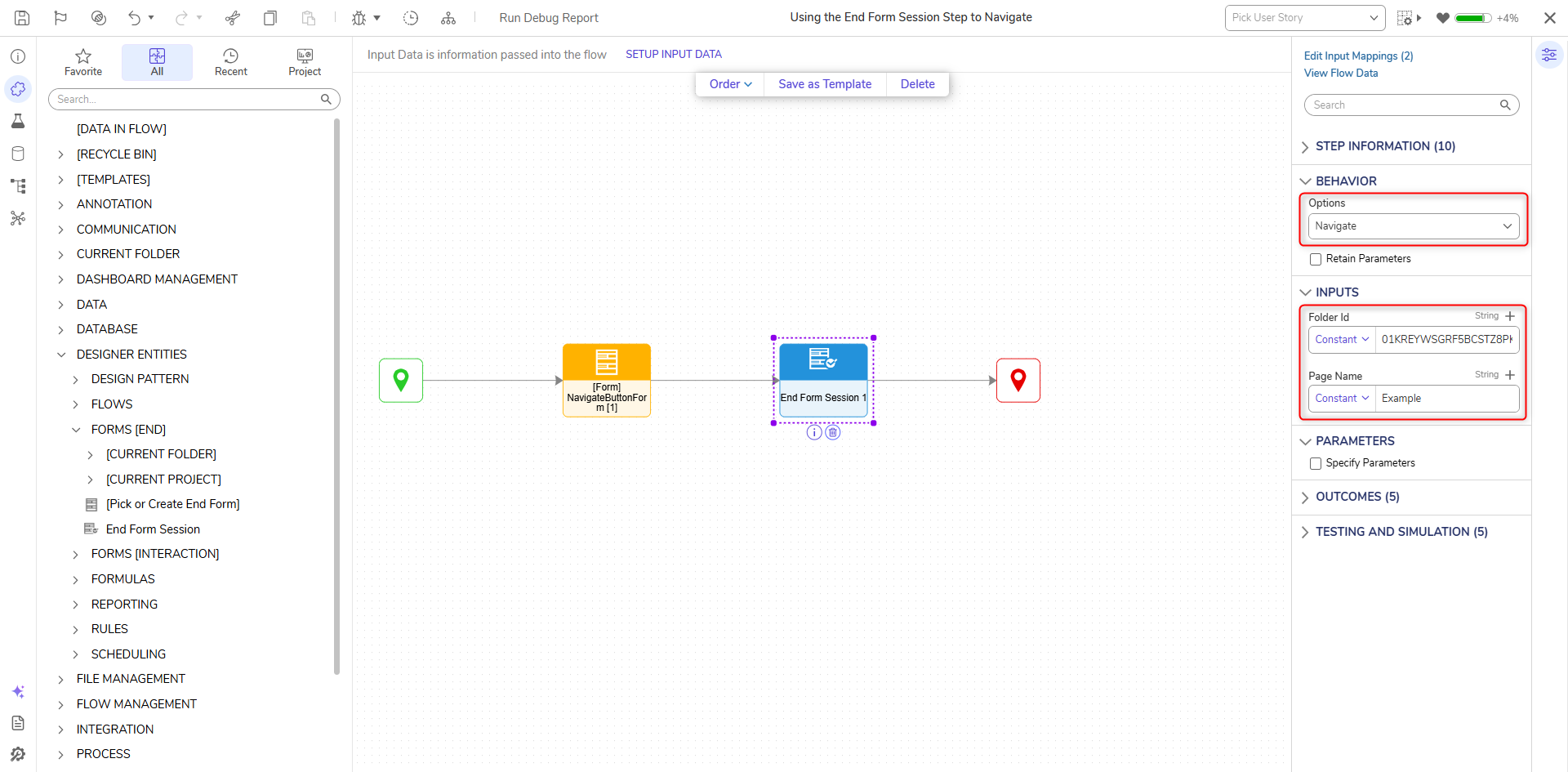
- Under the BEHAVIOR category, select Navigate from the dropdown list under Options. Paste in the Folder Id into the Folder Id field and enter "Example" in the Page Name field.
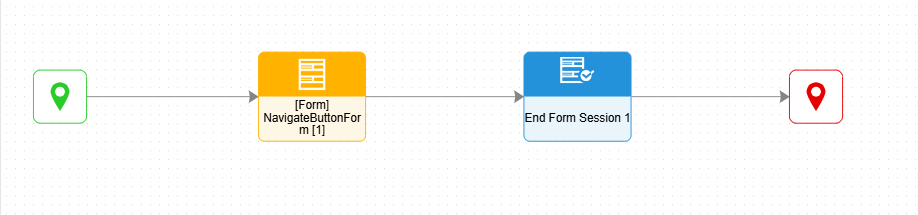
- Connect the End Form Session step to the End step. Click Save to save changes to the Flow and close the Flow Designer.
Debug
- Right-click the Flow and select Run Flow. Click the Go to Home Page Button.Selecting the button closes the Form and navigates to the Folder that corresponds with the input Folder id.
For further information on Flows, visit the Decisions Forum.