Overview
Rules evaluate a data input and can be configured to return an outcome that is dependent on whether the input satisfies the Rule's conditions. Actions, such as changing the input value or initiating a Flow can be assigned and will run alongside the true or false outcomes that are outputted by logical Rules.
This article requires prior knowledge of creating Rules and Flows. Please visit Creating a Rule and Creating a Flow for more information on these subjects.
Example
This example will use two Flows (Admin Flow, Non Admin Flow) that will send a Popup Notification when successfully ran. The Rule will test whether the Email for the user contains "@admin". If it does, the Admin Flow will run. If it does not, the Non Admin Flow will run. The example below will cover how to add a Flow to the Rule's outcome and how to test the action.
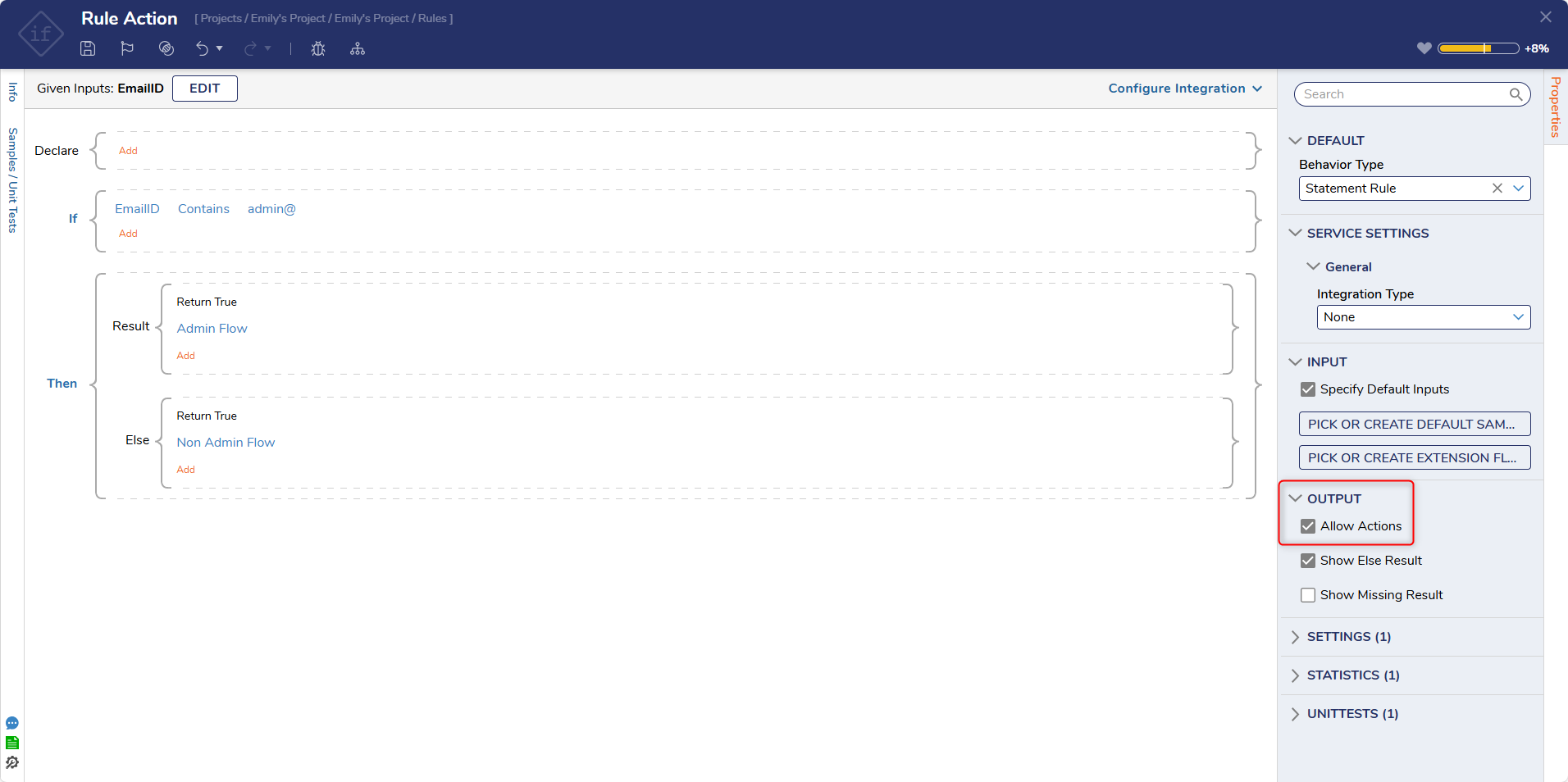
Actions are not available if Allow Actions is not enabled for the rule. To enable actions, check Allow Actions in the properties panel.
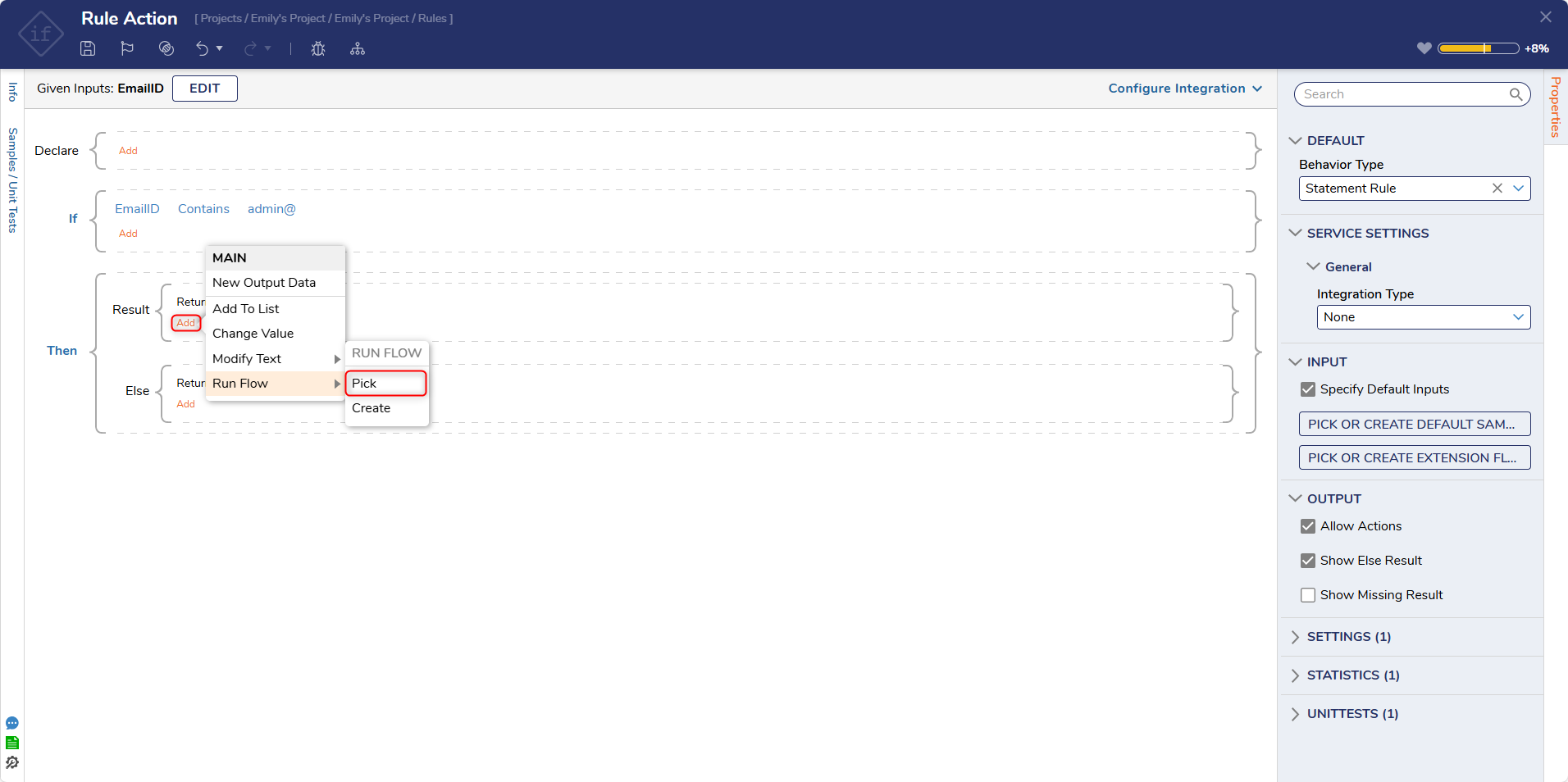
- Once Rule Actions have been enabled, in the Result block, select Add
- A context menu will appear, allowing us to select various actions for the Rule. For this example, Run Flow is used.
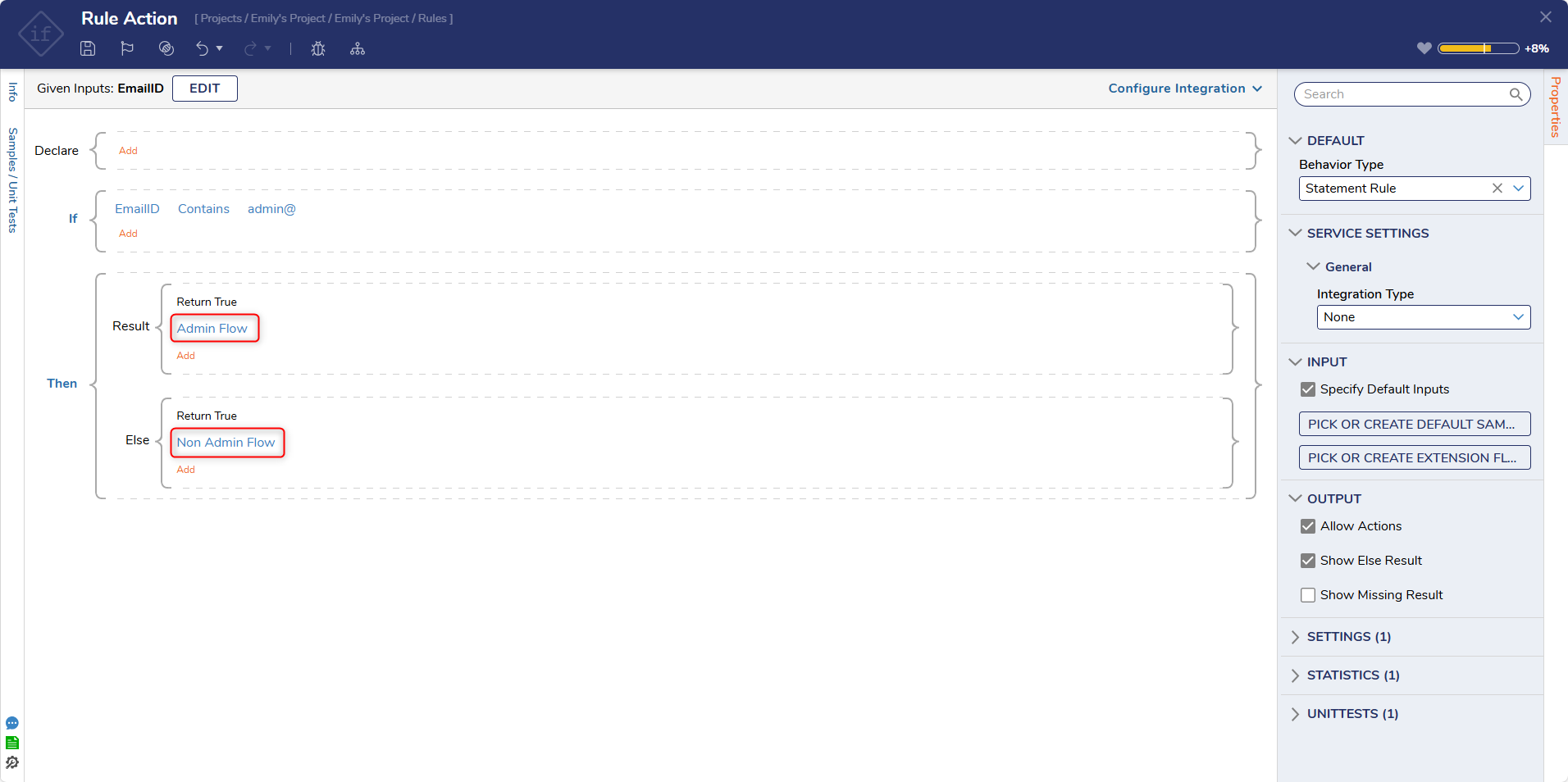
- Create or pick the desired flow for each outcome path.
If creating a Unit Test for a Rule, select the Run Actions option under UnitTests on the Properties panel. This will allow any Flow actions added to a Rule's output to run when debugging using a Unit Test. To learn how to create a Unit Test, see Running Unit Tests on a Flow.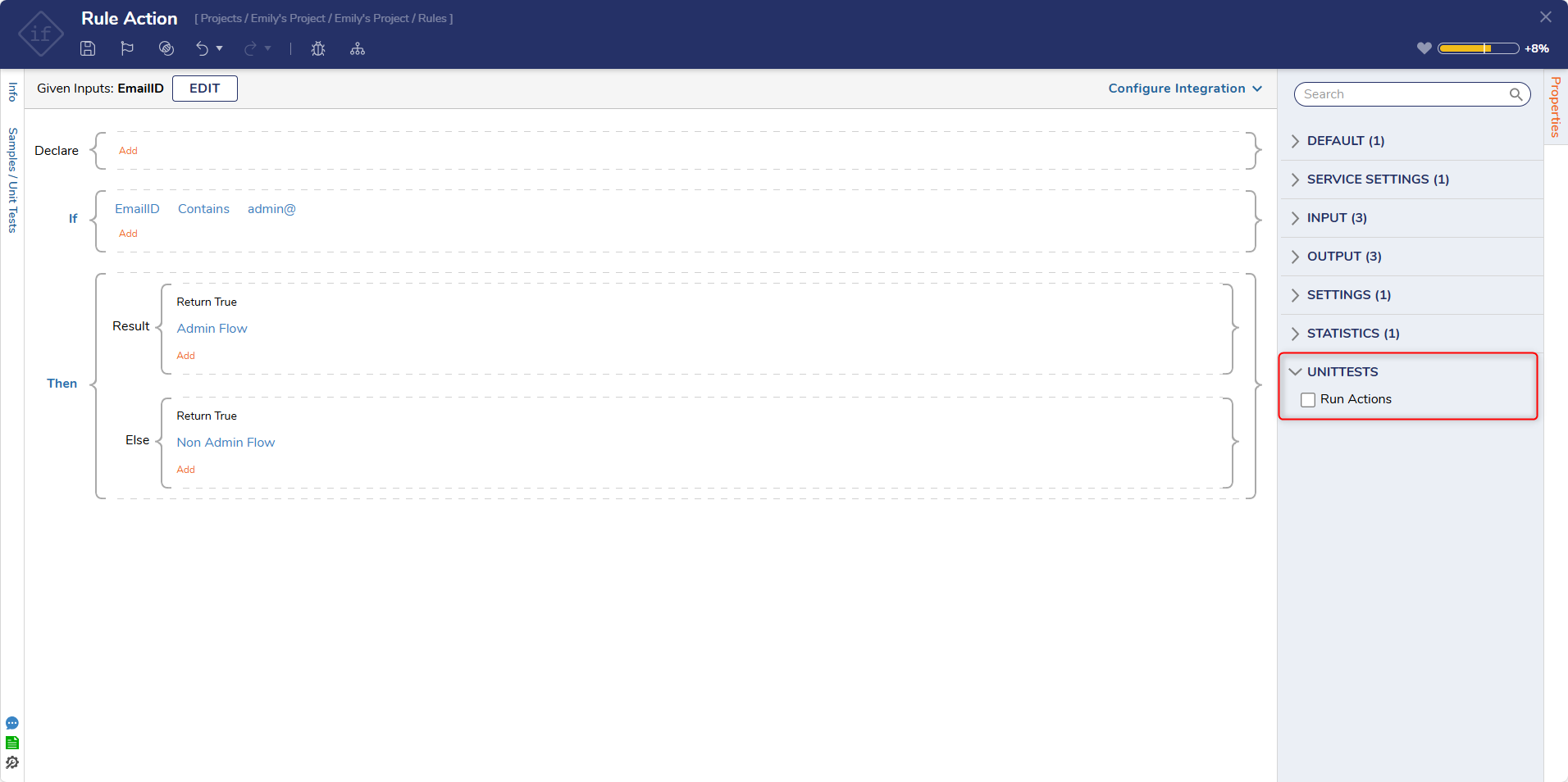
Debug
- To ensure the Rule works, select Debug on the top panel of the Rule Designer.
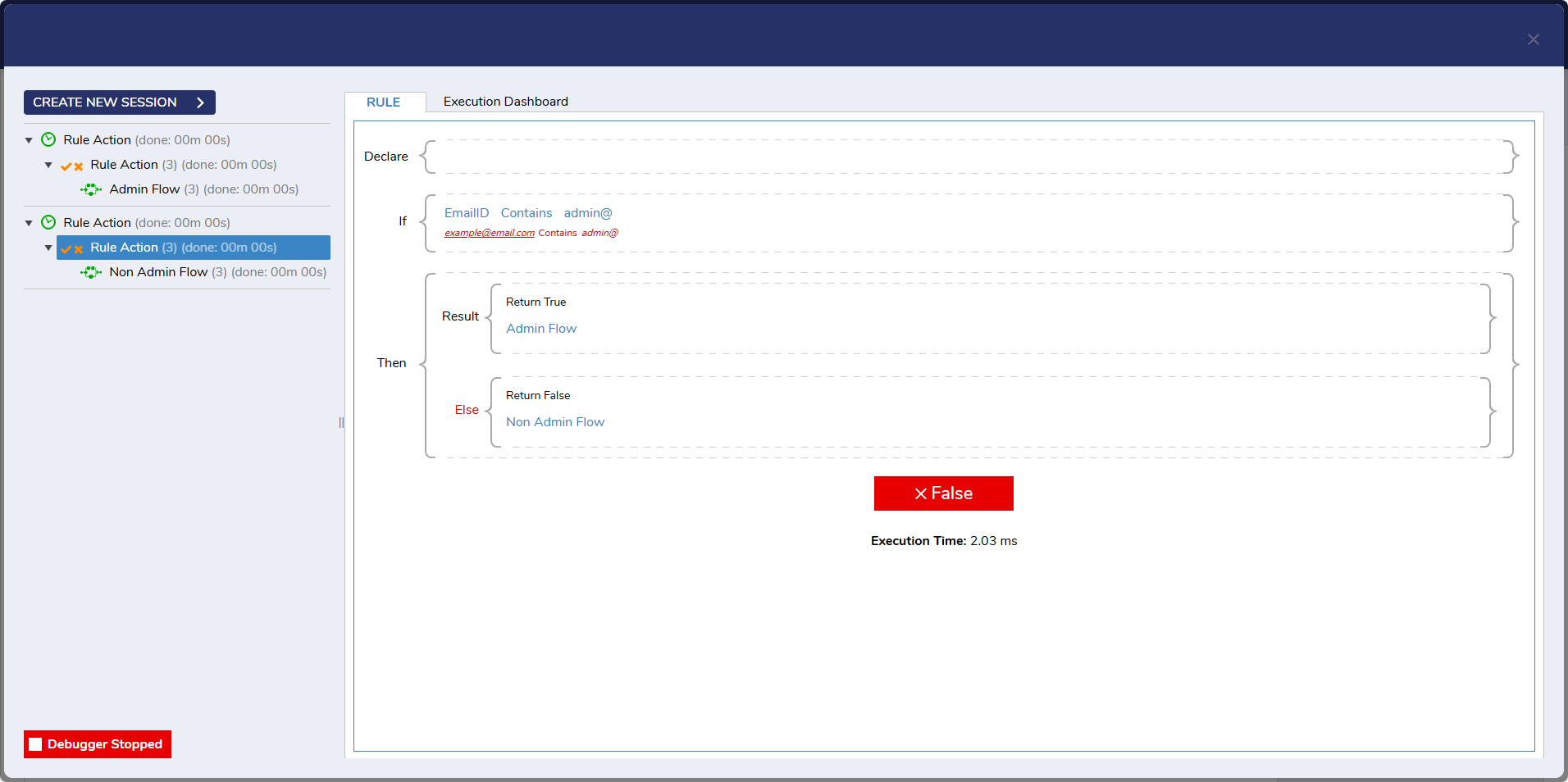
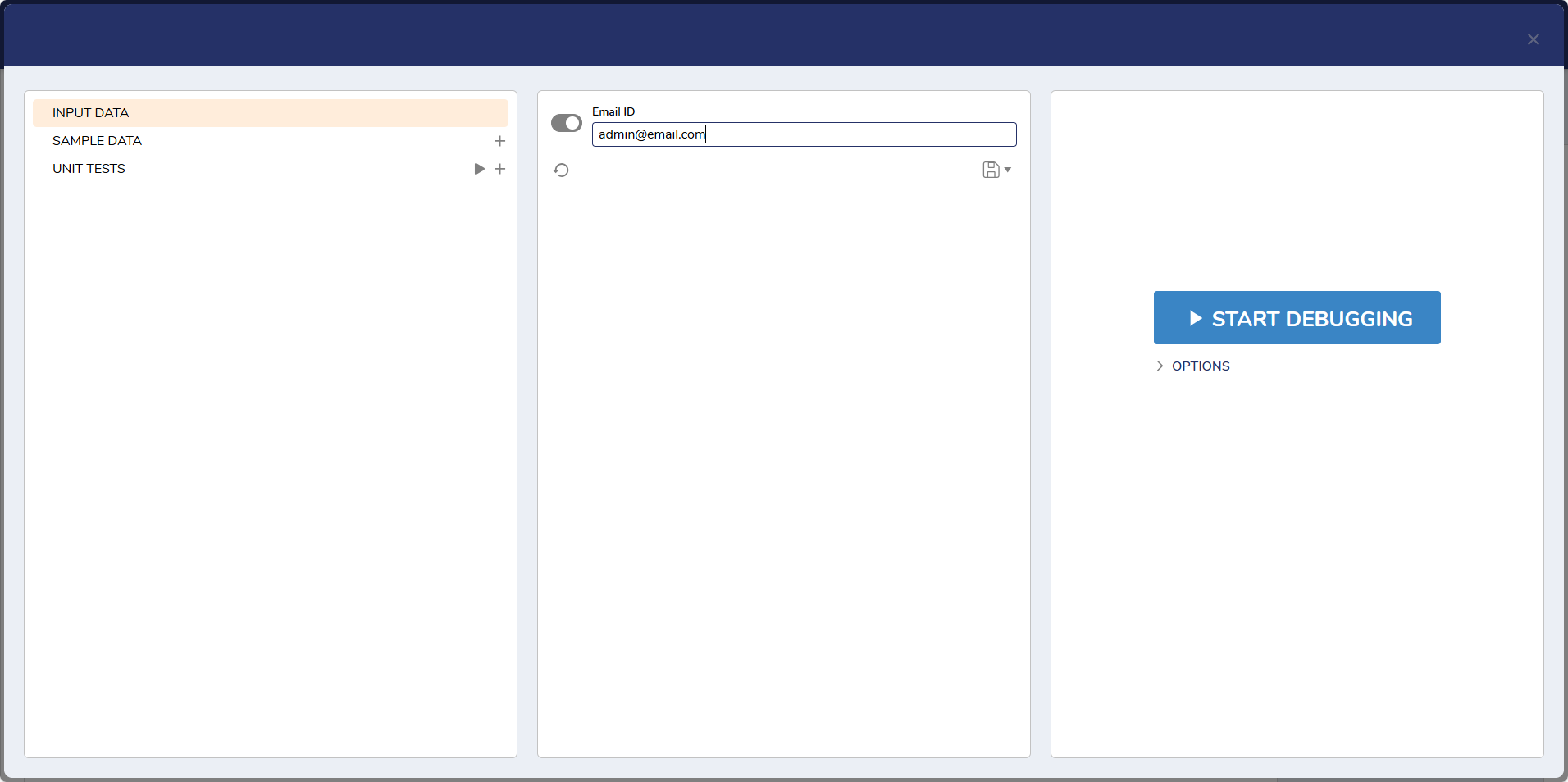
- In the Email ID textbox, enter an email address with "admin@" (admin@email.com) and click START DEBUGGING.
 The Rule will evaluate as True and run the Admin Flow since the email provided contained admin@.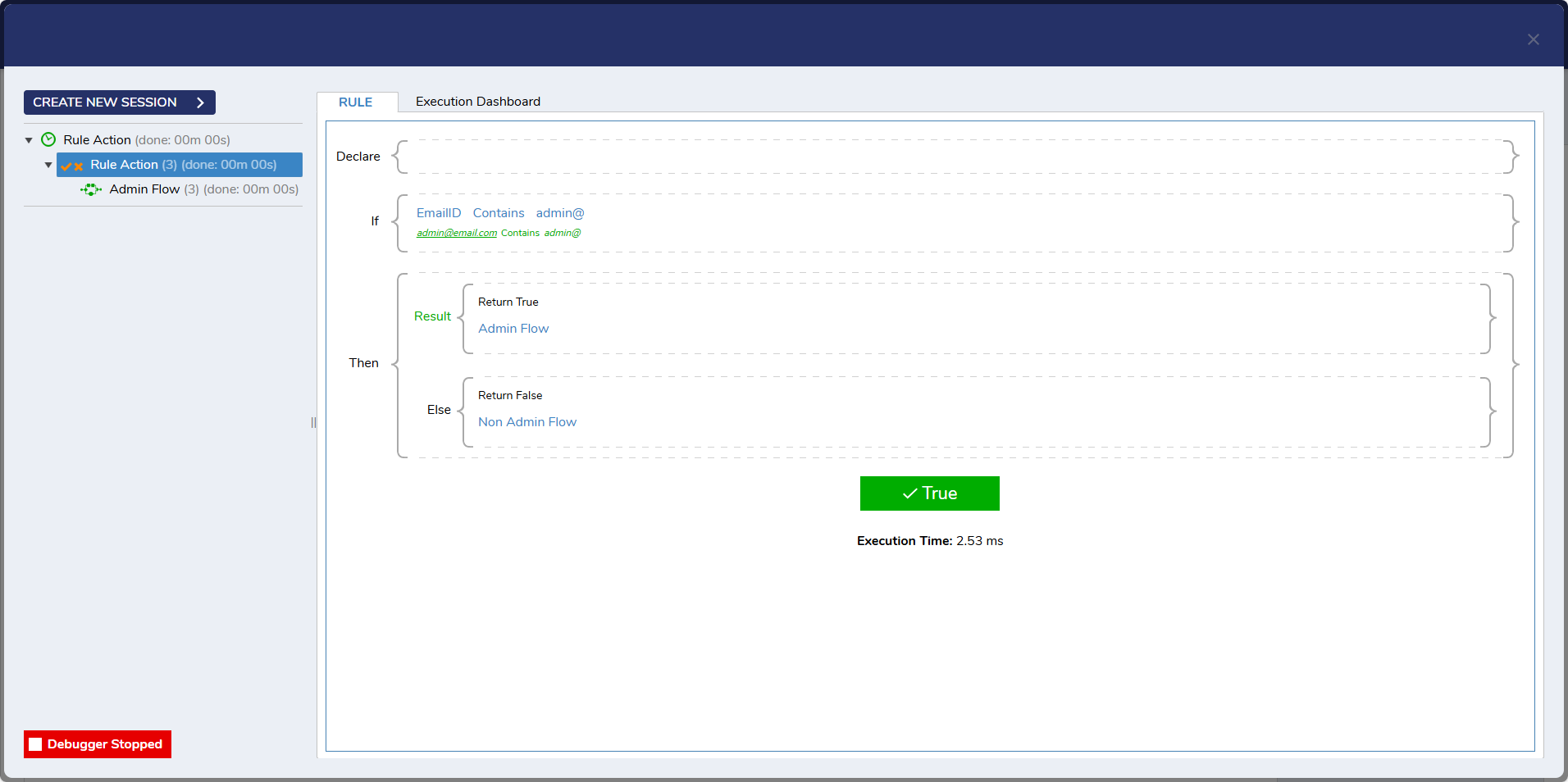
- Click CREATE NEW SESSION and enter an email address that does not contain admin@ (example@email.com) and click START DEBUGGING. Notice that the Rule evaluates as false