Overview
A user with Administrator permissions can create custom permissions which can be used when managing account permissions or to group the default permissions.
Configuration
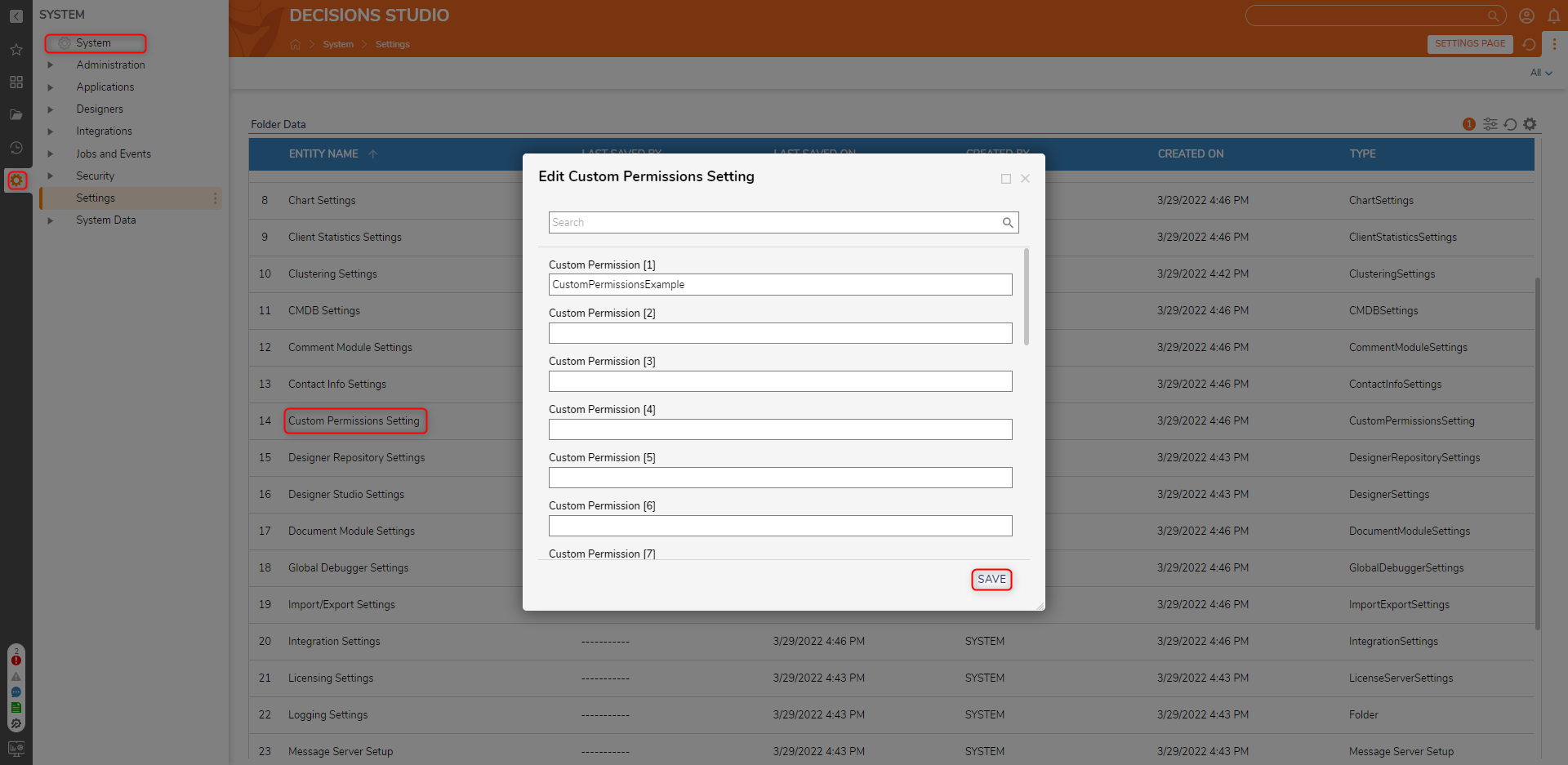
- In the Studio, navigate to System > Settings and select Custom Permissions Setting.
- In the Edit Custom Permission Setting window, multiple value fields exist to add a custom permission name. After adding a name and click SAVE.
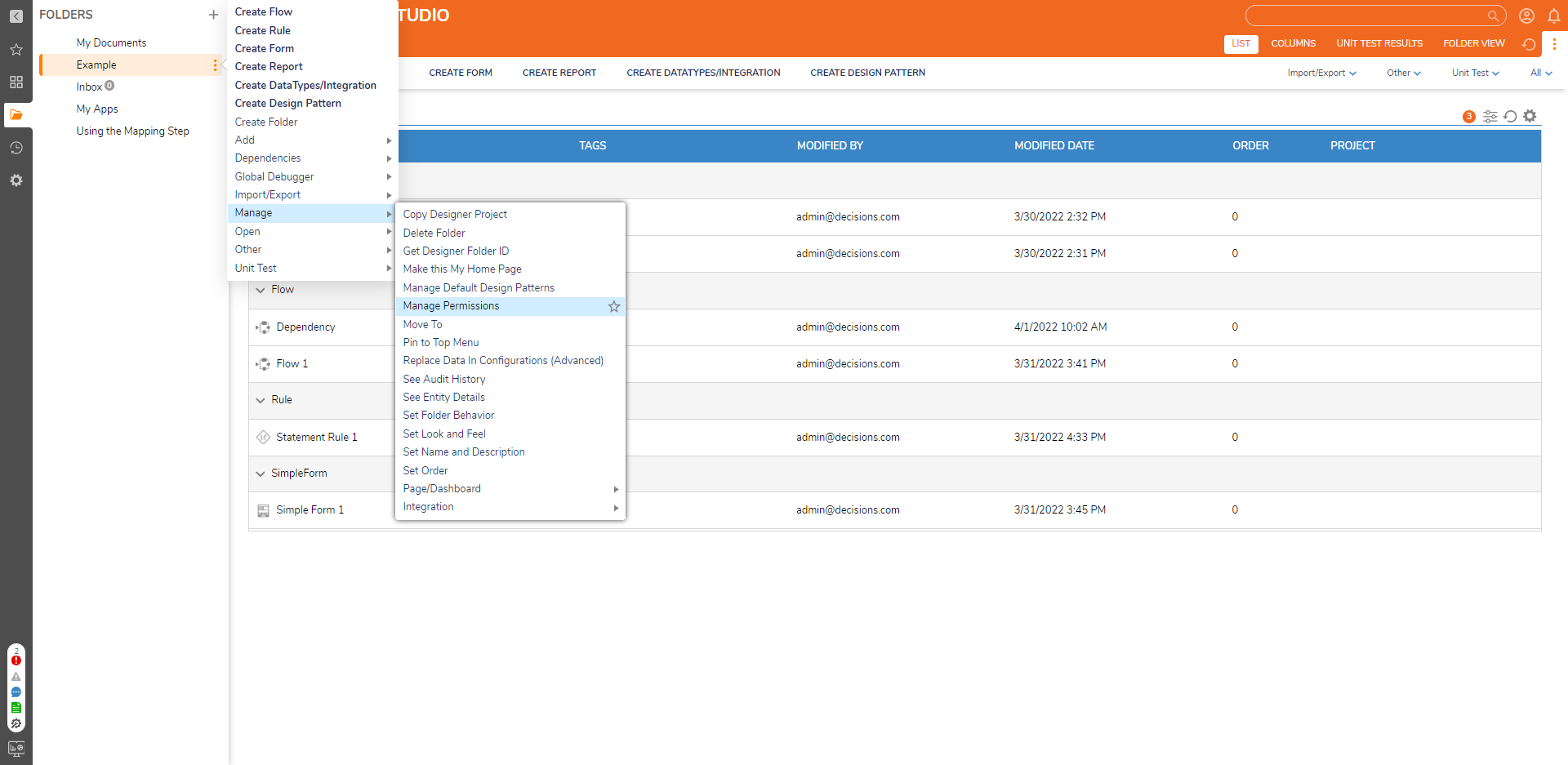
- Right-click on a folder in the Sidebar and navigate to Manage > Manage Permissions.
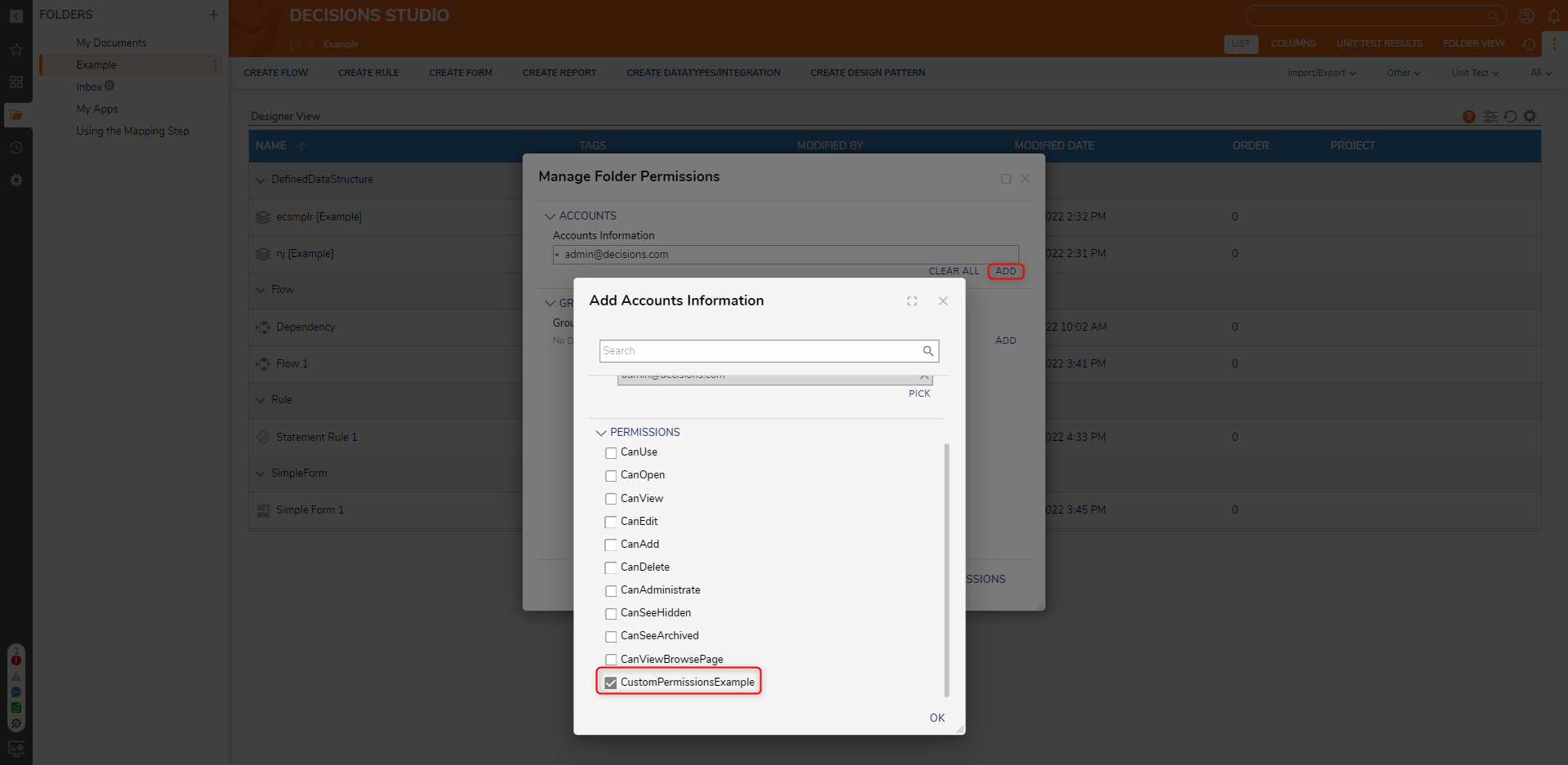
- In the Manage Folder Permissions window, click ADD under ACCOUNTS.
- In the Add Accounts Information window, select the custom permission under the PERMISSIONS category.
Applying Custom Permissions to User Actions
In a Data Structure's Configuration Folder, once a User Action has been created, the Custom Permissions can also be checked to use the User Action.
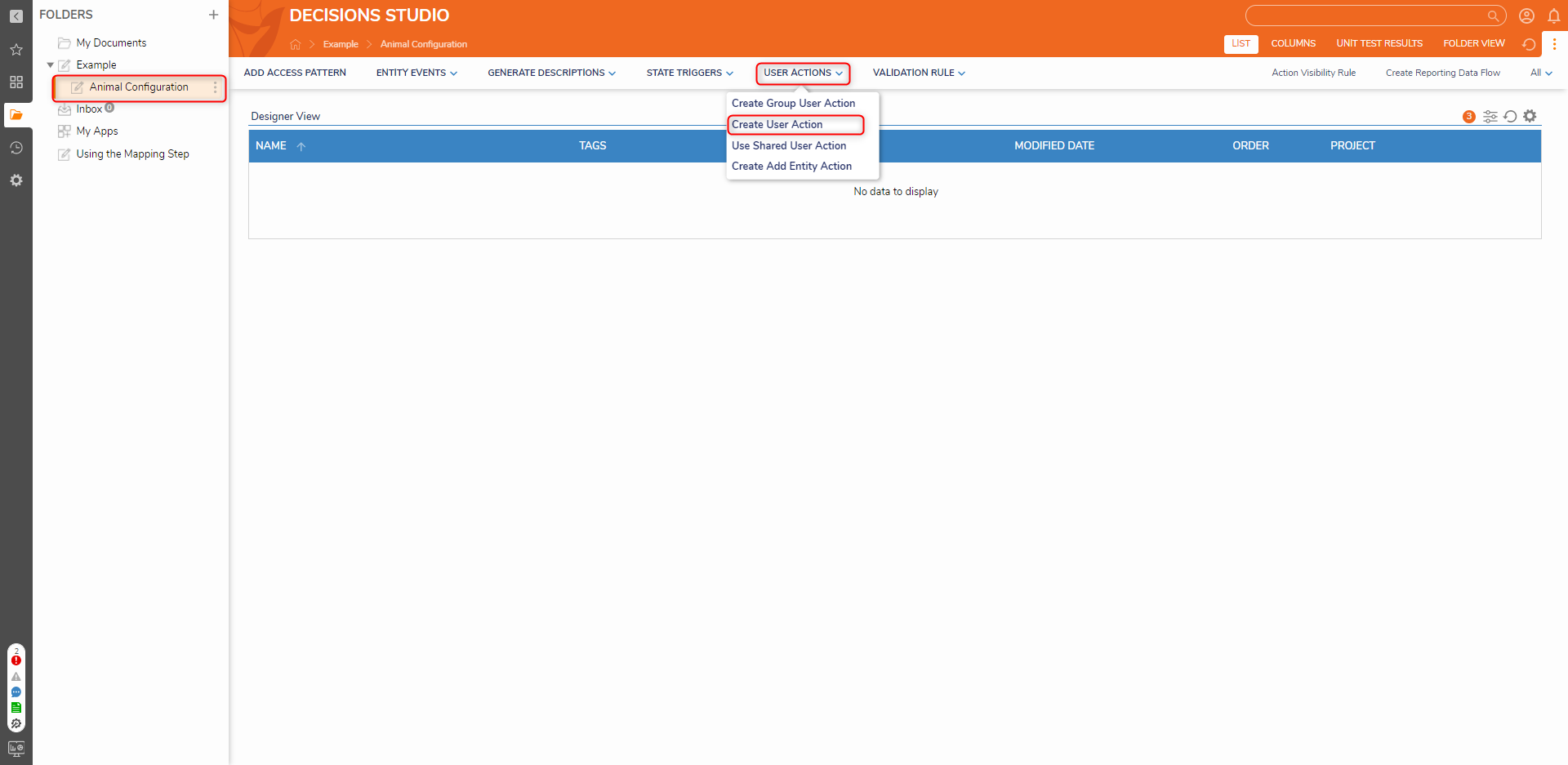
- In the Designer Studio, select a Configuration folder, click USER ACTIONS and select Create User Action.
- Name the action and click CREATE.
- In the Flow Designer, click the Properties panel. Navigate to the PERMISSION and select the desired permissions.
- Navigate to Creating User Actions to learn how to create actions.
.png)