Overview
Rules can be created and modified not just through Decisions, but via POST calls. This article will discuss how to use Postman to create new Rules, call them, and modify existing Rules.
Prerequisites
- Import “Create Rule Collection” into Postman.
- Import “TestApiChangeProject” into Decisions.
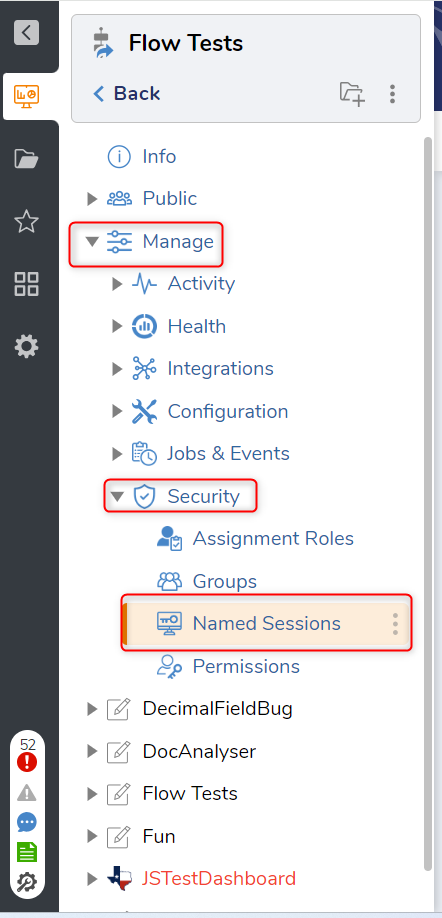
- Named Session created for Project under [Project Name] > Manage > Security > Named Session.
The Postman call will need to point toward the user's BasePortalURL. This will differ depending on the action. To view all actions and associated URLs go to System >Administration > Features > All Services > right-click ProjectConversionServices > View Integration Details.
The methods used in this article are CreateRuleFromDefinition, GetRuleDefinition, and UpdateRuleFromDefinition.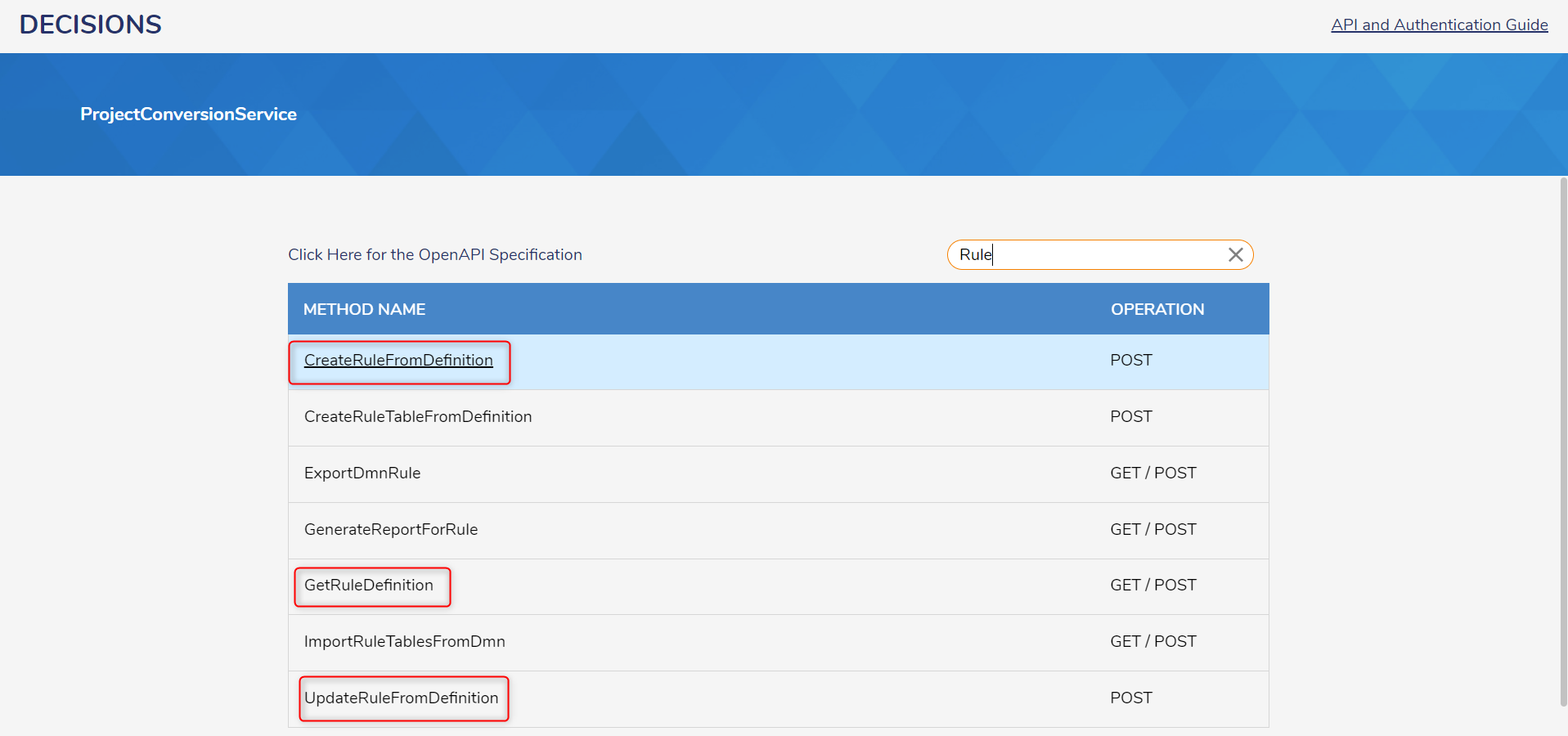
Creating a Rule
A Rule can be created using the "Create Rule" Post call from the Postman Collection JSON. This example is creating a "String equals" statement rule that will check if the inputted string equals "Decisions".
- Point the Postman call to BasePortalURL/Primary/REST/ProjectConversionService/CreateRuleFromDefinition.
- The following information must be set as an input in the JSON Postman call:
- “sessionid” – Named Session ID from the prerequisites.
- “folderid” - Folder ID that will hold the rule inside Decisions
- “ruleid” - Unique ULID to represent the rule.
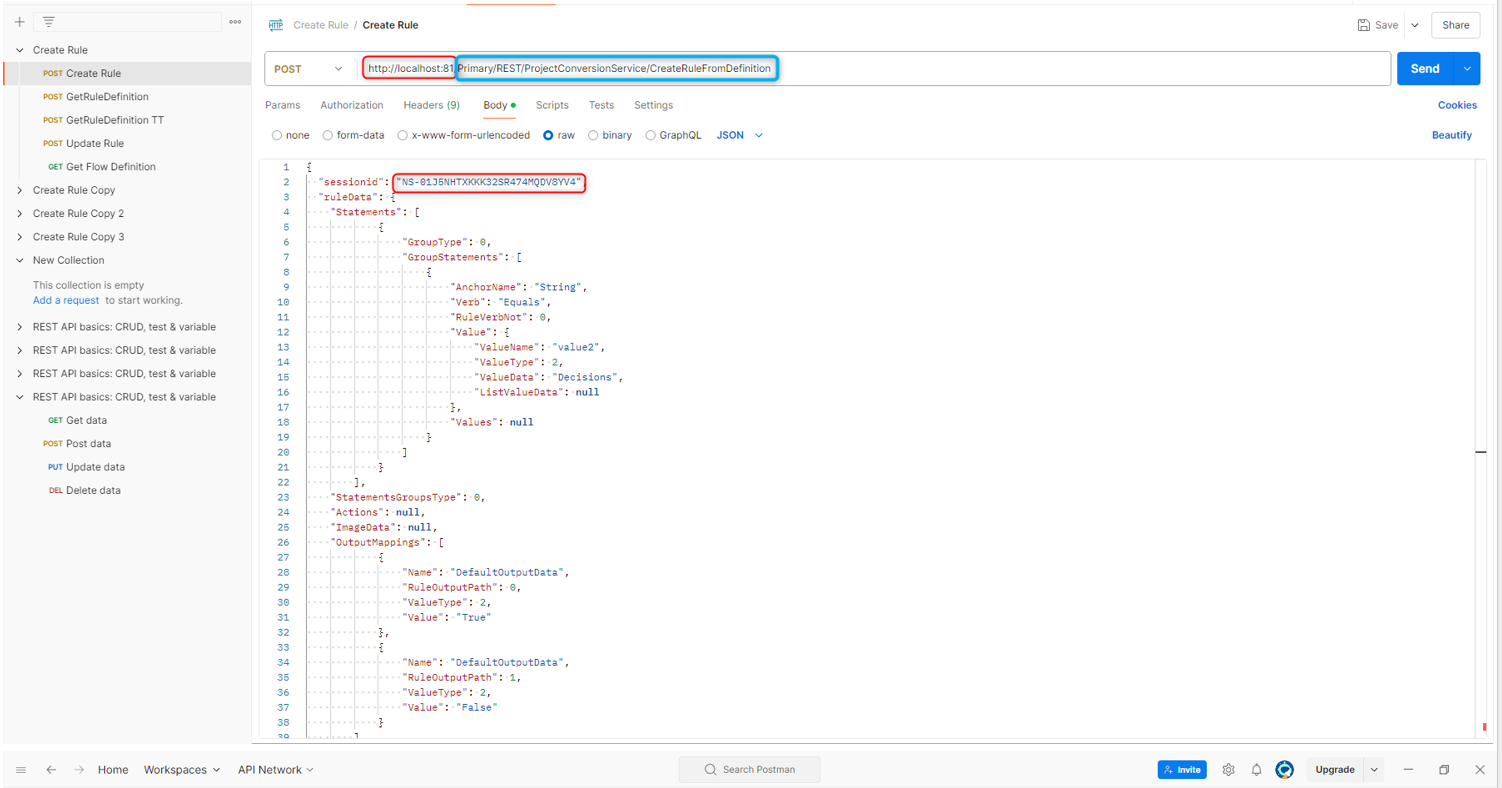 Notice that ValueData contains "Decisions".
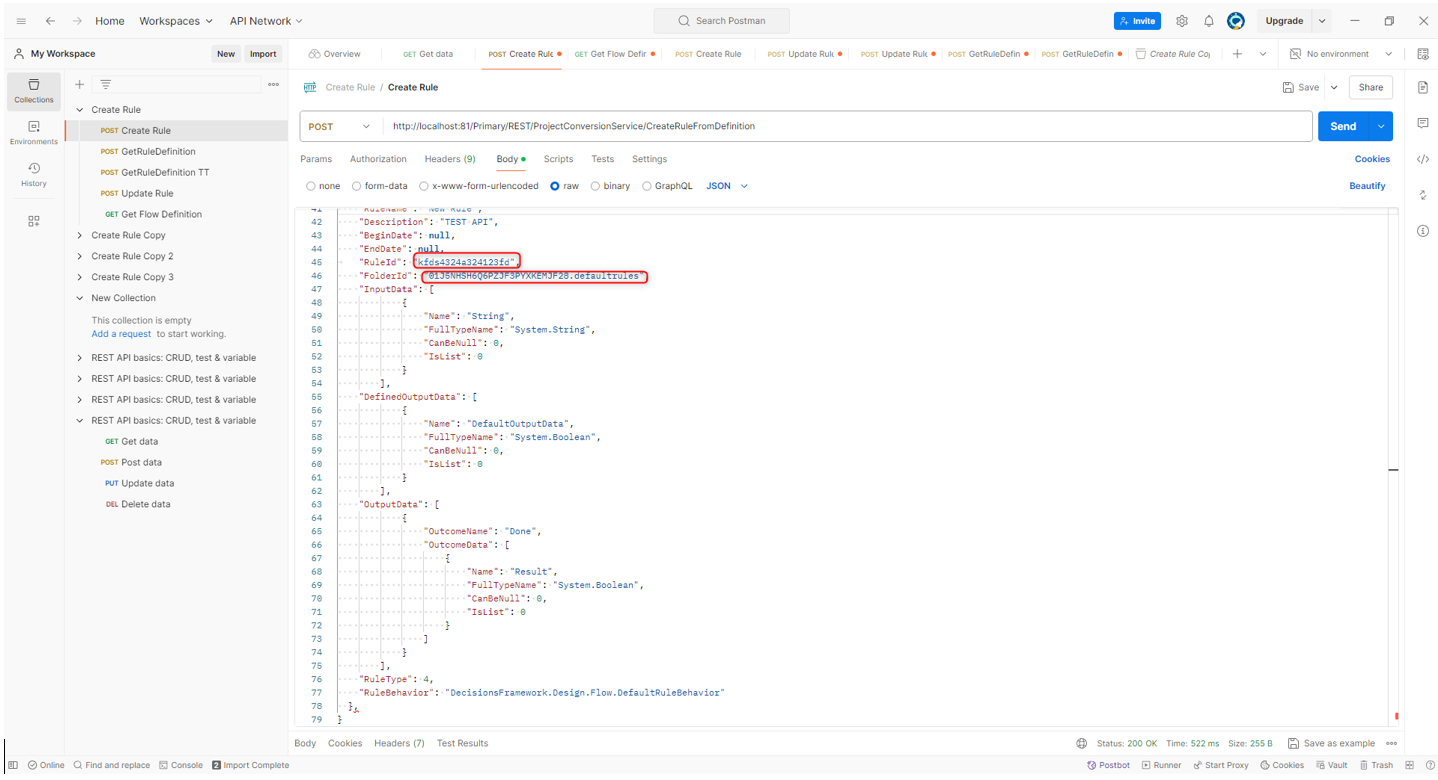 RuleID can be found by right-clicking the Rule, then selecting Manage > More Get Rule ID. The same process works for Folders.
- Enter in the information for RuleID, FolderID and SessionID.
- Depending on the use case there may be additional configurations needed.
- Give the Rule a name by altering the "RuleName" parameter.
- Send a Postman call. The call will output the following: "{CreateRuleFromDefinitionResult":"ruleid"}
- A Rule will appear in Decisions in the Folder with the specified FolderID. The Rule can now be added to any Flow.
Get Rule Definition
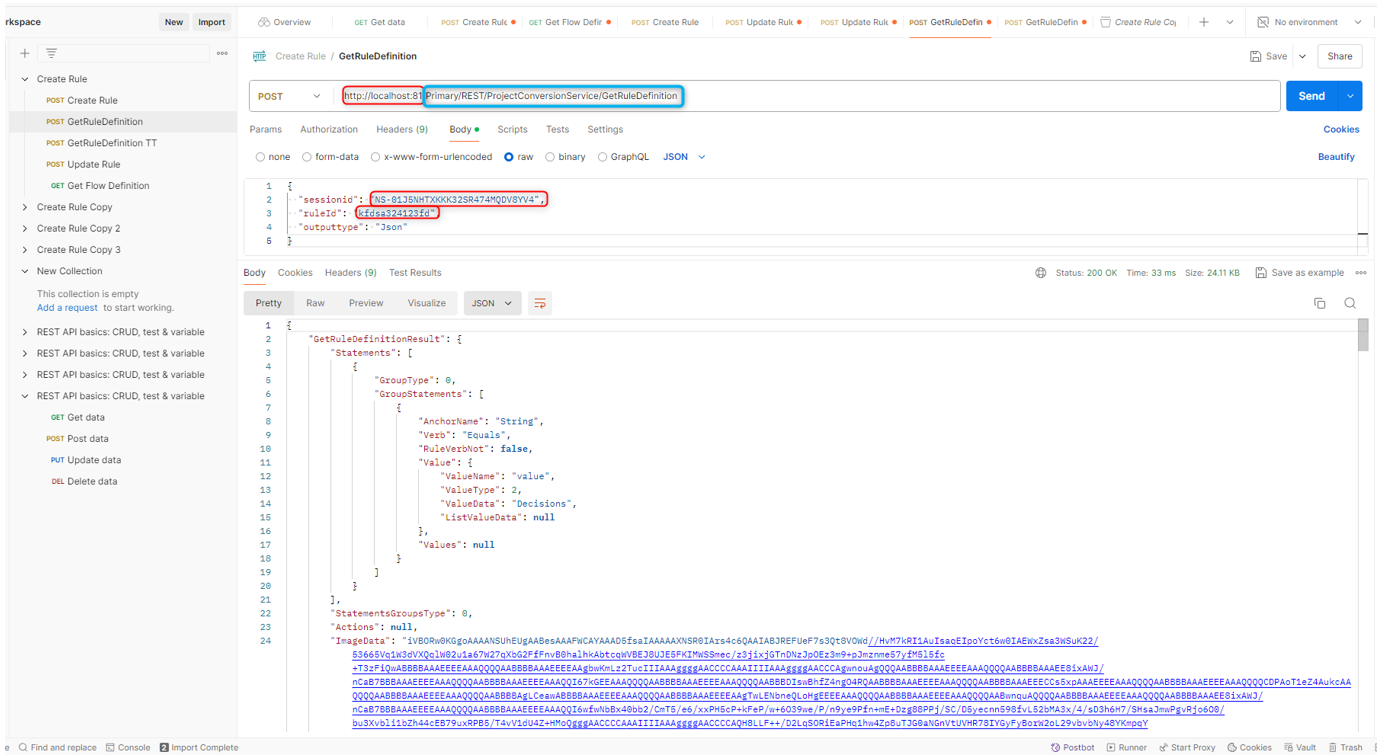
This next example shows how to take an already existing Rule in Decisions and convert it to JSON.
- Point the Postman call to BasePortalURL//Primary/REST/ProjectConversionService/GetRuleDefinition
- The following information is needed for this action:
- “sessionid” - Named Session ID from the prerequisites.
- “ruleid” - Already existing rule ID.
- Send the Postman call.
- The call will convert the rule into JSON format, which can be used when updating or creating a similar rule.
Updating a Rule
- Updating a Rule can be done by using the "Update Rule" Postman call.
Point the Postman call to BasePortalURL /Primary/REST/ProjectConversionService/CreateRuleFromDefinition.
The same information from creating a rule is needed here:- "sessionid" - Named Session ID mentioned above
- "folderid" - Folder ID that ill hold the Rule inside Decisions.
- "ruleid" - the ID of the Rule to be updated.
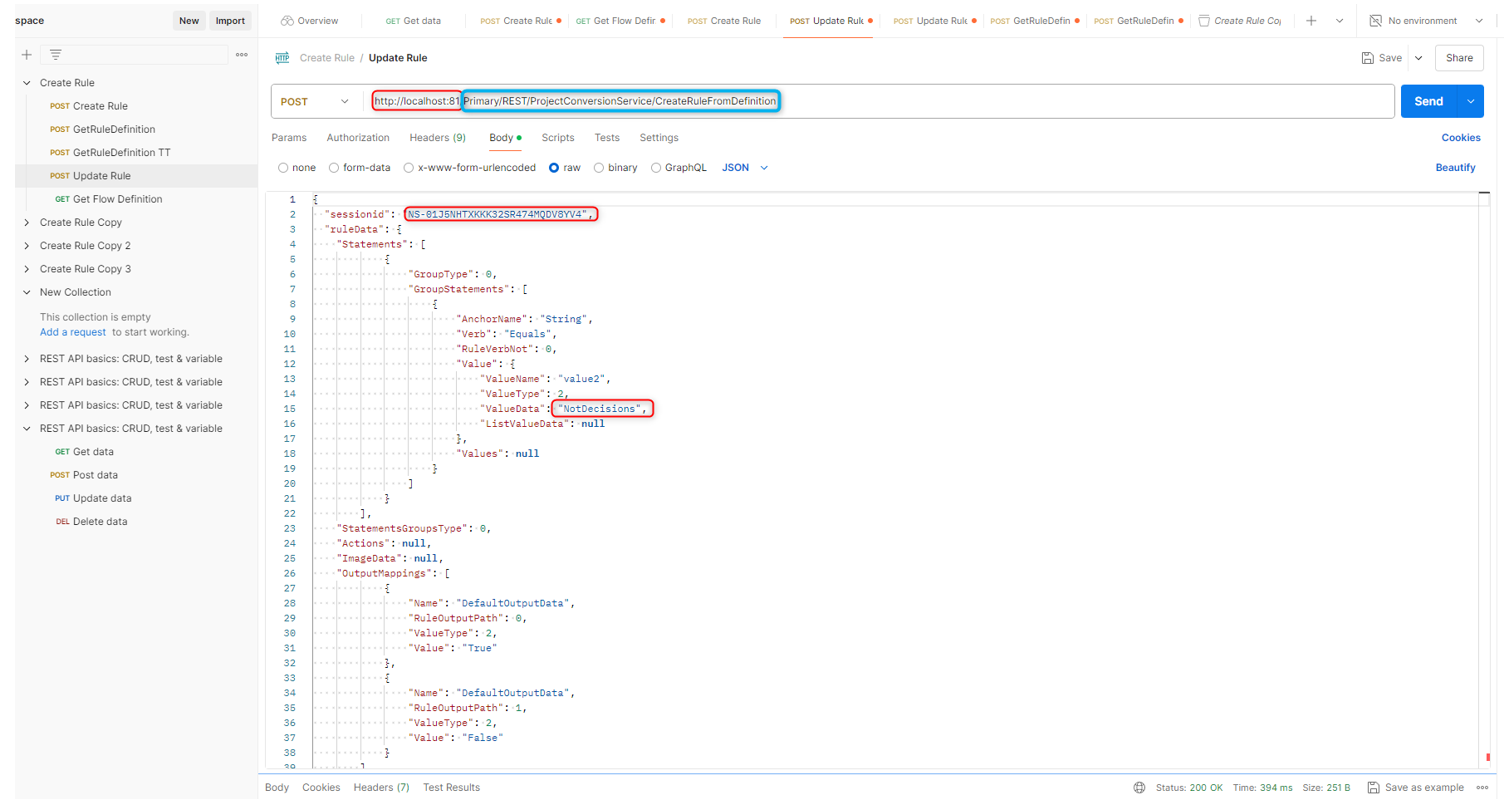
- Make changes in the JSON depending on the use case. For example, changing the “Value” > “ValueData:” will change what value is being checked in the “String Equals” statement rule.
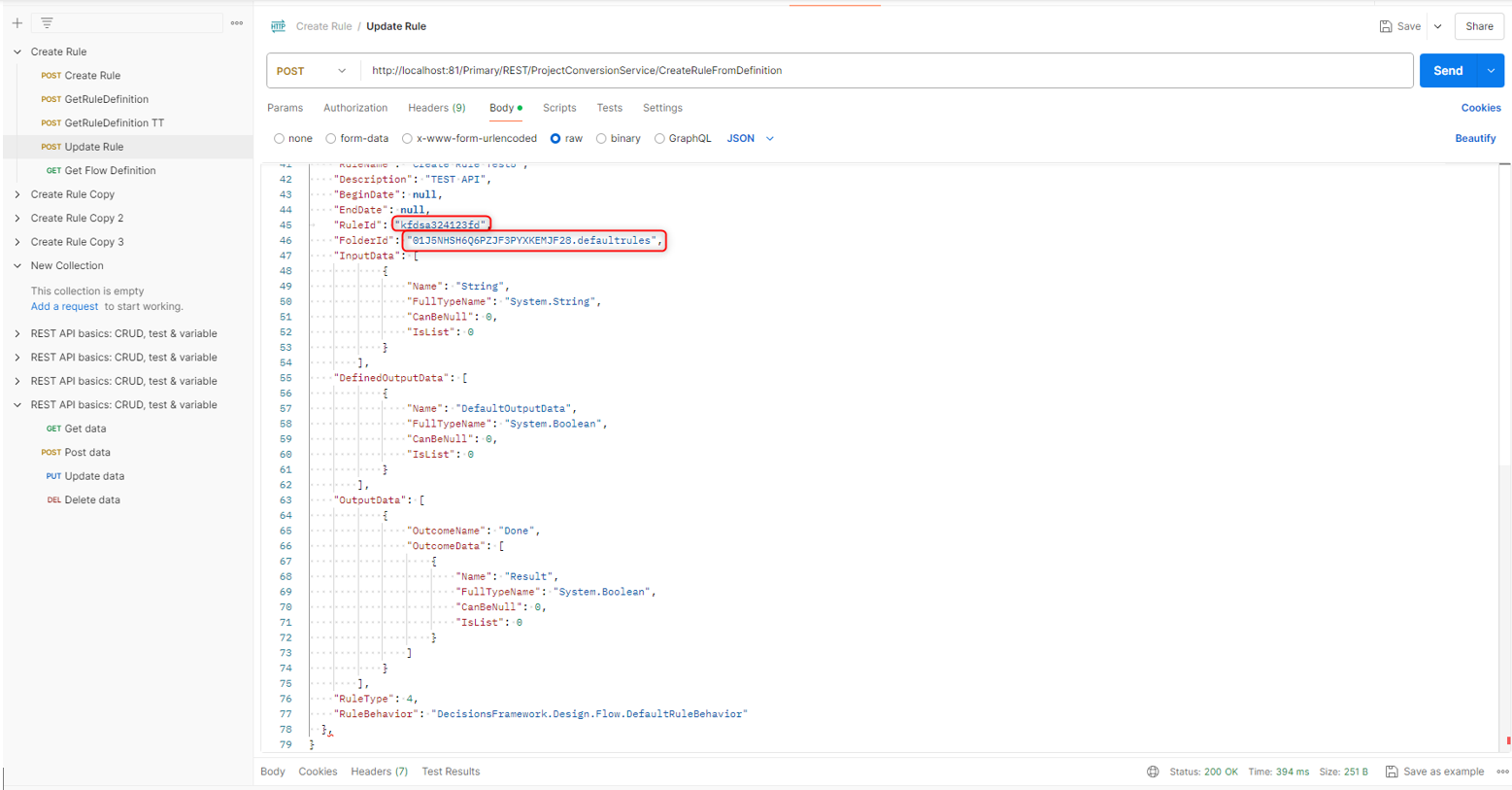
- Send the Postman call.
- The Rule will now be updated in Decisions with the changes made in step 4.