Overview
The Create Data component can be used to create or copy Data Objects (or lists of objects). These objects can be used elsewhere within a Flow. For example, by using a Create Data component, and then by Using the Mapping Editor, add a list of assets such as a computer, monitor, and printer to a hardware catalog. This List can then be used on a Hardware Request Form that opens when the Flow runs.
Another useful application of the Create Data component is for error handling. A True/False flag can be set when an error occurs.
Example
- Navigate to a Designer Project and select CREATE FLOW from the top Action bar.
- Select CREATE, Flow, Name the Flow, and then CREATE once more.
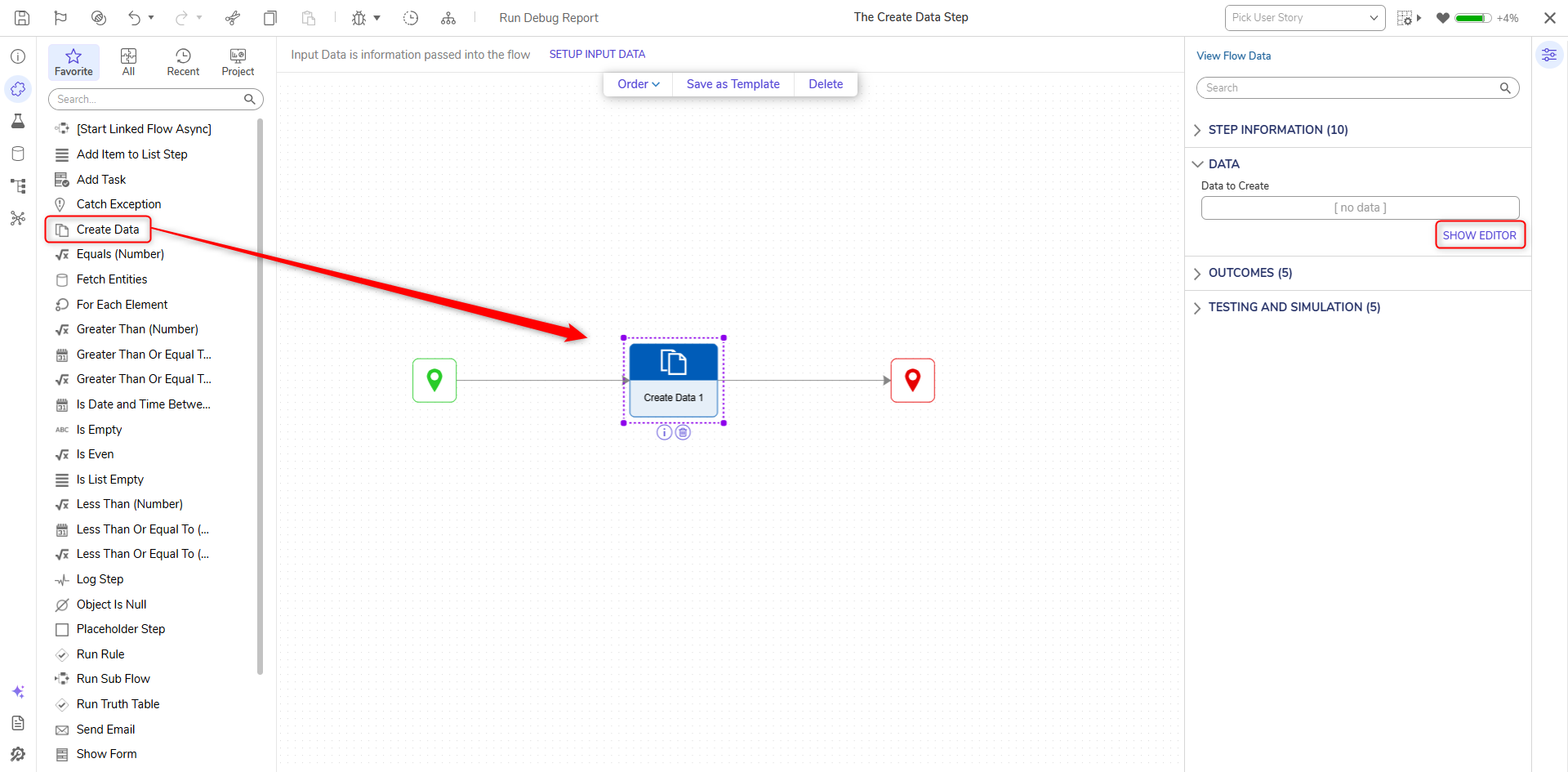
- Attach a Create Data step from the FAVORITE STEPS section of the Toolbox tab, to the Done path of the Start step.
- Select the Create Data step, then select the SHOW EDITOR link under Properties > DATA.
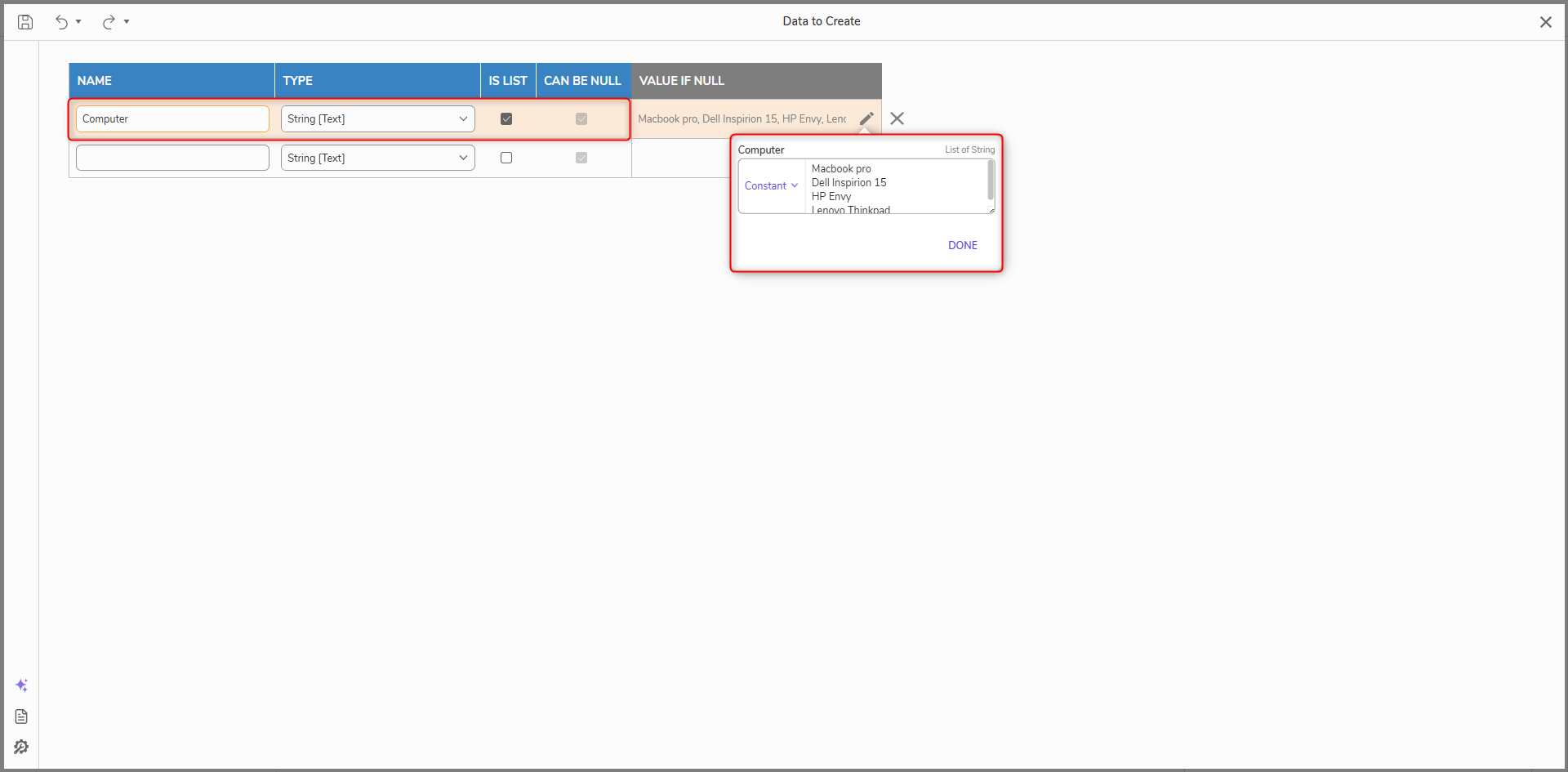
- In the Data Definitions window, Name the Data (for example: Computer), select String [Text] from the Type dropdown, and check the Is Listbox.Configuring the Data as such will generate a String List. The Is List checkbox is used to allow multiple items (hardware items) to be used as the Input.
Note: Data values can also be created through the Flow's Input Editor in the Properties tab.- Constant map in a variety of names representing different computers.
- CLOSE the Input value, then the Data Definitions panel to save the Data and return to the Flow Designer.
- Constant map in a variety of names representing different computers.
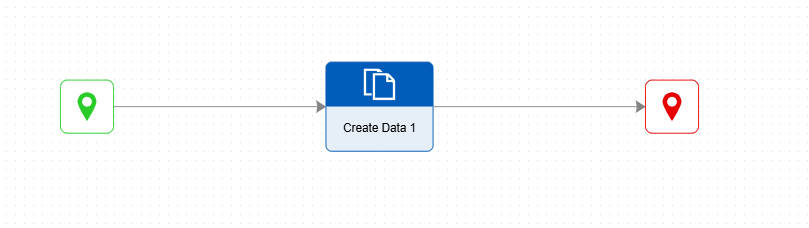
- Connect the Done path of the Create Data step to the End step.
- Save the Flow, then close with X if desired.
Debug
- From the Flow Designer, click the Debug link from the top Action bar.
- Click the START DEBUGGING button.
- After the Flow runs, select the Create Data step.
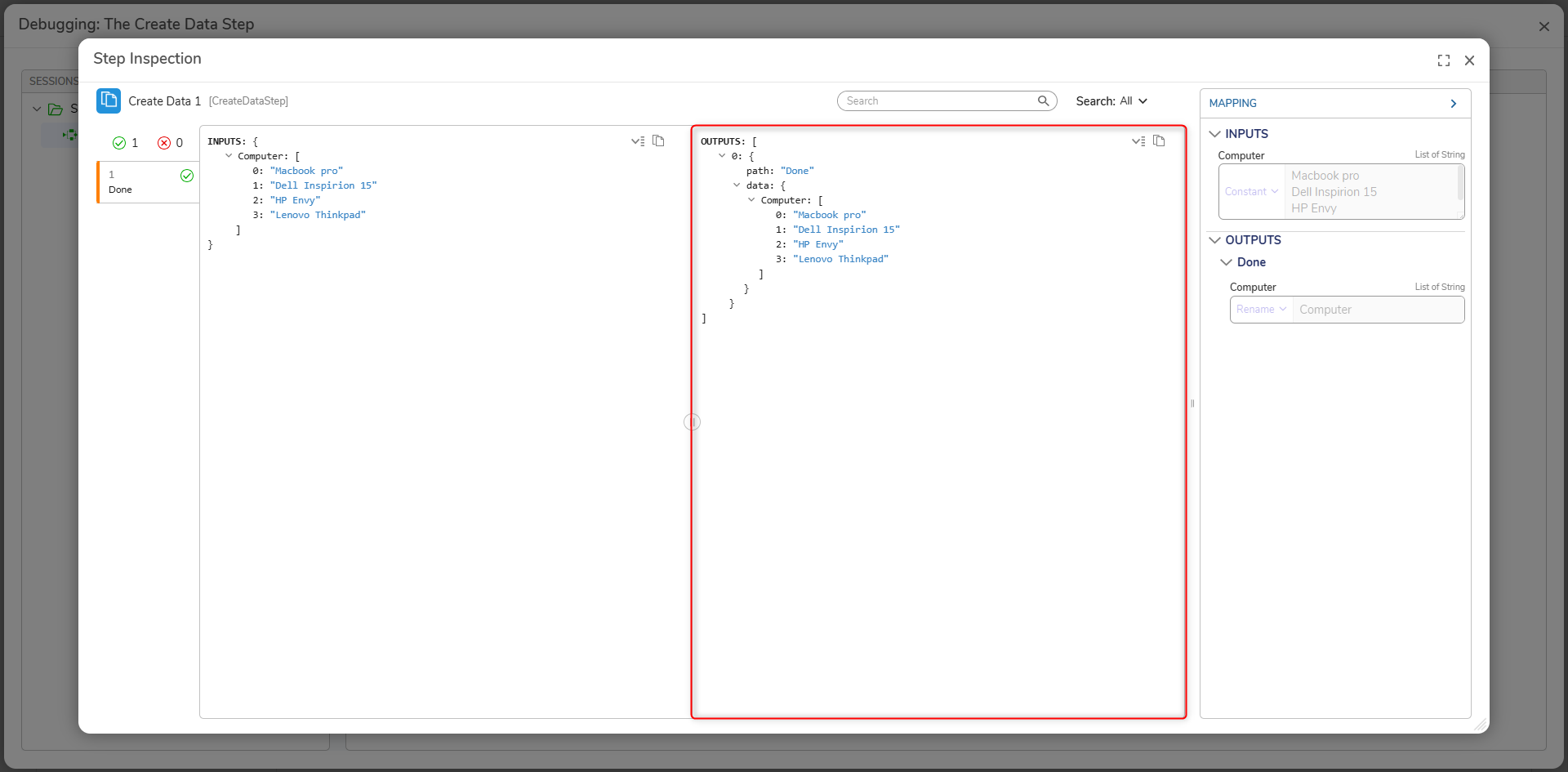
- Click Execution 1 and then View Output Data.The View Output Data dialog displays the Data that was created and passed by the Create Data step. This Output data can then be used within the rest of the Flow.
- Click Execution 1 and then View Output Data.