| Module Details | |
| Installation Location | Administration > Features |
| Restart Required? | No |
| Step Location | AI > Azure Foundry |
| Settings Location | Settings > Azure Foundry Settings |
| Prerequisites |
|
The Azure Foundry Module can be used to incorporate AI into your workflows. By using the Chat Completion step that comes with this module you will be able t
Adding a SharePoint List
This example will demonstrate how to configure SharePoint and connect to a SharePoint list in Decisions.
In this example, a custom List was created in SharePoint named Customer Contacts.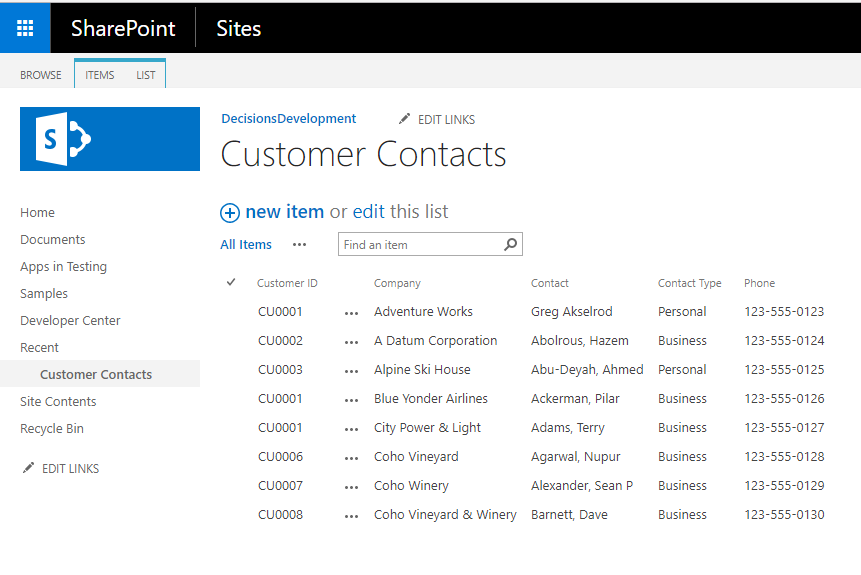
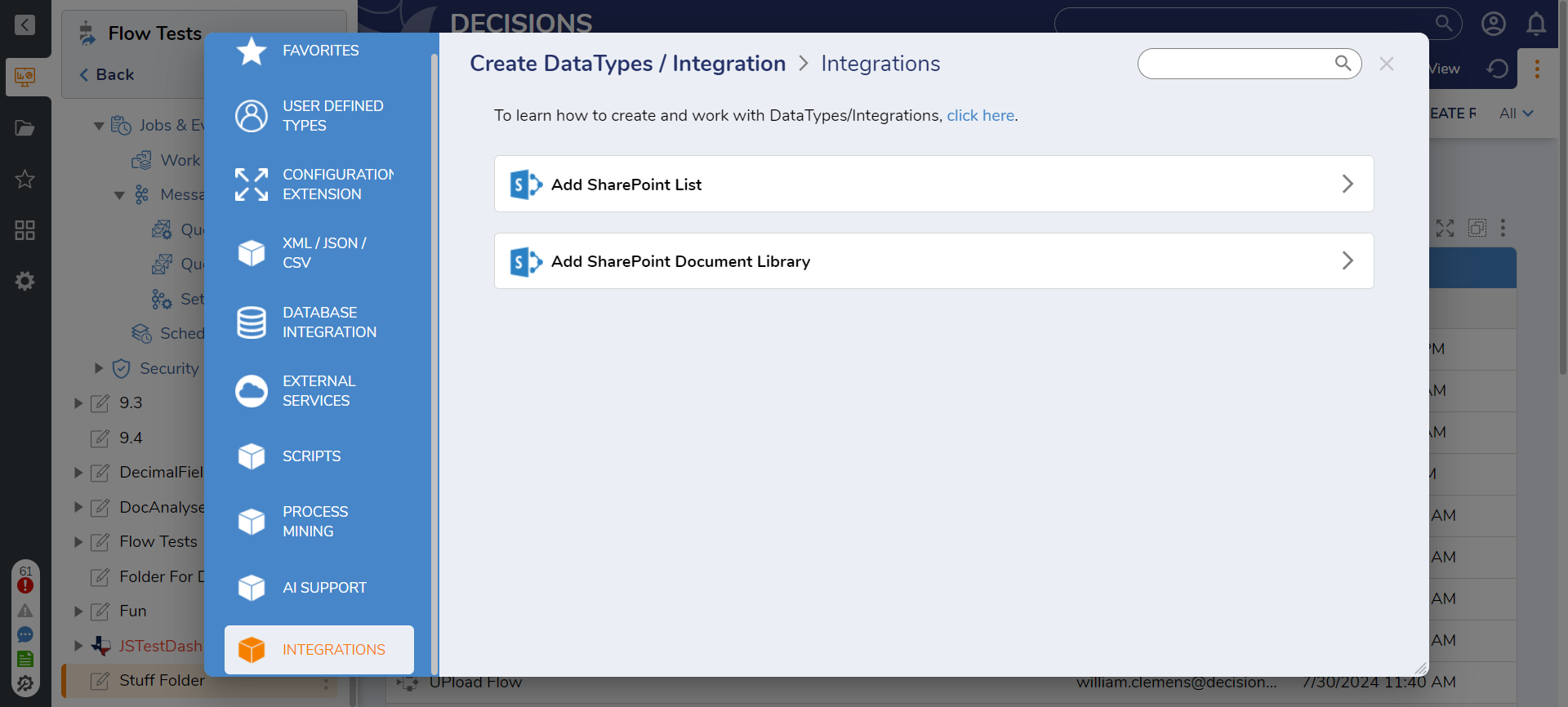
- In the Decisions platform, navigate to a Project. Then press Create DataTypes/Intergration, select INTEGRATIONS. Then click ADD SHAREPOINT LIST.
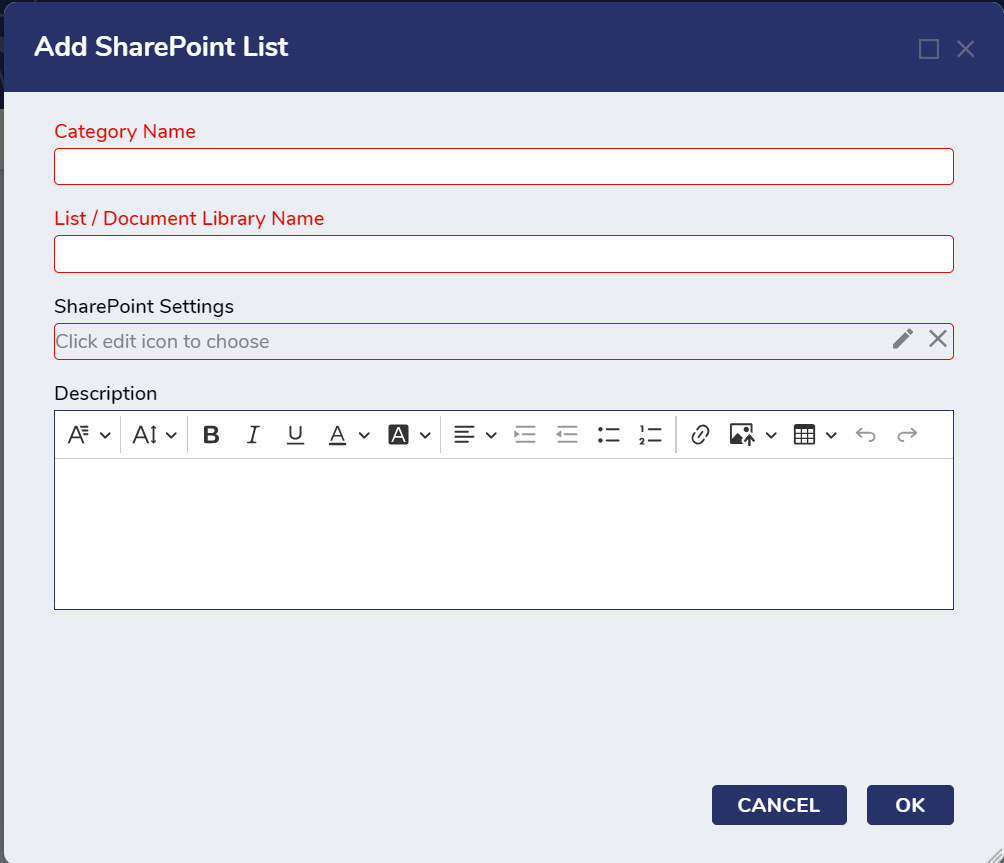
- From the Edit Entity window, set the Category Name and List/Document Library Name. A description can also be added.
- Under SharePoint Settings, select the Edit icon to configure the connection to SharePoint. Click OK.Proper SharePoint Integration requires the SharePoint Settings to be 100% accurate; these must match the details associated with the integrated document. Below is a list of settings that need to be defined:
Configuration Option Description Authentication Authentication to connect to Sharepoint Sharepoint Site The SharePoint site URL, likely either "https://<domain_here>.sharepoint.com" or a self-hosted URL. If using SiteMinder, this is the SiteMinder URL. OAuth Token Token for connecting to Sharepoint site If using Sharepoint Online, there are three additional options to configure:- User Agent - String value of either ISV|CompanyName|AppName/Version (ISV Application) or NONISV|CompanyName|AppName/Version (Enterprise Application)
- Retry Count - Number of calls to retry
- Retry Delay (in seconds) - Time a retry will occur
After saving the information, the Configuration Data and a Decisions Defined Data Structure is auto-generated in the SharePoint Folder. Additionally, users will now be able to access steps in the step toolbox via Integrations > SharePoint.
Sharepoint Add Document step
The Sharepoint Add Document step allows users to upload documents to SharePoint via Flow.
| Inputs | Description |
|---|---|
| Document | The File that will be added onto Sharepoint. |
| Document Library | The location the document will be added in Sharepoint. |
| Folder Name | The name of the folder within the Document Library where the document will be added. |
| SharePoint Settings | The settings used to connect to the SharePoint environment. |
.png)
SharePoint Get Document Step
The SharePoint Get Document step allows users to obtain pre-existing documents from their site and access the information in a Flow.
| Configuration Option | Description |
|---|---|
| Authentication | Authentication to connect to Sharepoint. |
| Sharepoint Site | The SharePoint site URL, likely either "https://<domain_here>.sharepoint.com" or a self-hosted URL. If using SiteMinder, this is the SiteMinder URL. |
| OAuth Token | Token for connecting to SharePoint site. |
.png)
SharePoint Delete Document Step
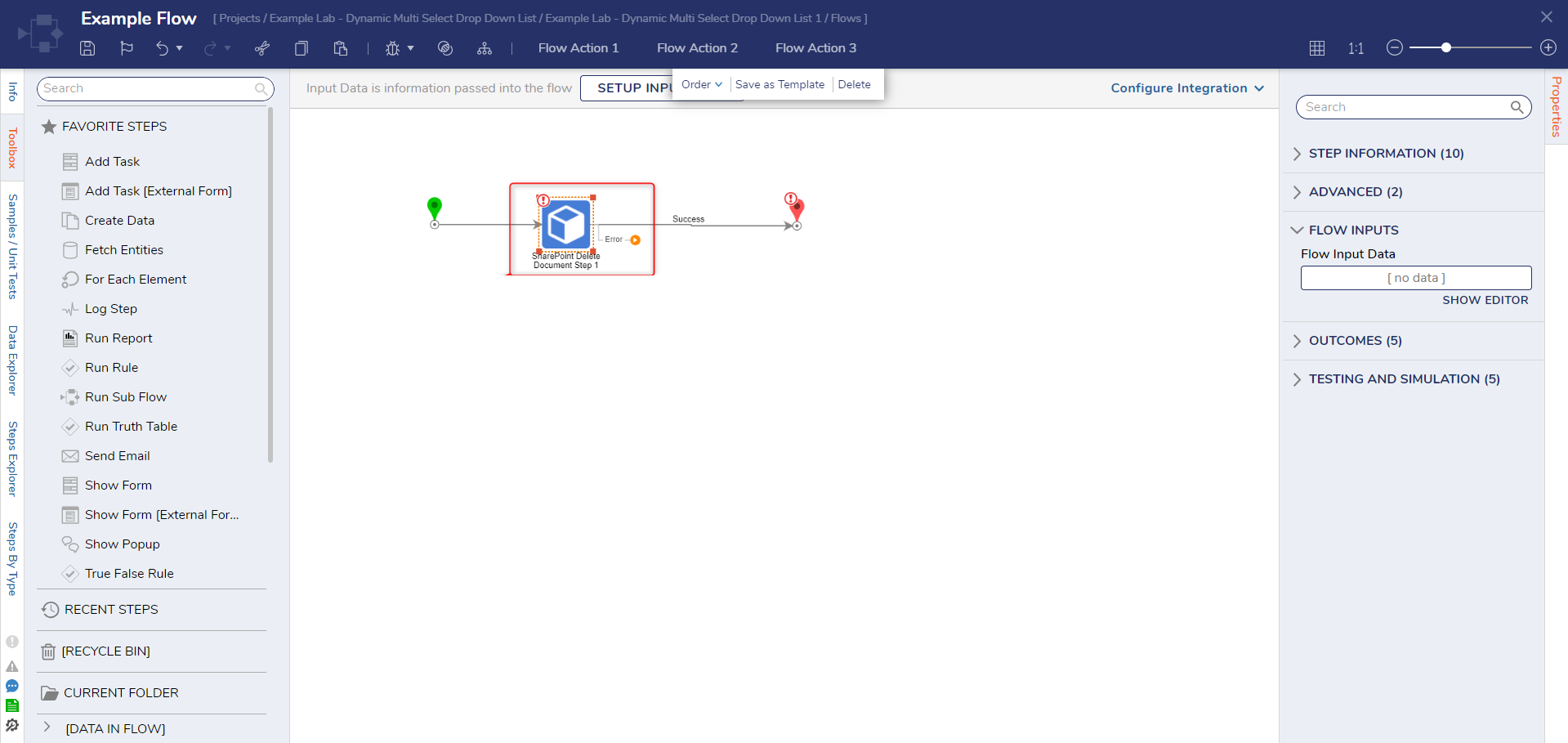
The SharePoint Delete Document step is used to delete a file from the SharePoint site using a Flow.
| Configuration Option | Description |
|---|---|
| Authentication | Authentication to connect to SharePoint. |
| SharePoint Site | The SharePoint site URL, likely either "https://<domain_here>.sharepoint.com" or a self-hosted URL. If using SiteMinder, this is the SiteMinder URL. |
| OAuth Token | Token for connecting to SharePoint site. |