Requests store files associated differently depending if the File Manager is installed. See the following sections regarding how Requests store files:
File Manager is not installed: The Files tab displays Request files.
File Manager is installed: The File Manager tab displays Request files.
View Files Associated to a Request
Follow these steps to view files associated with a Request:
Ensure that you are logged on to ProcessMaker Platform.
Click the Cases option from the top menu to see cases.
Click My Requests card.
From the Request cards on top, click one of the following cards:
My Requests. See View Your Requests That You Started.
In Progress. See View Requests That Are In Progress.
Completed: See View Completed Requests.
All Requests. See View All Requests. (Note that your user account must have the Requests: View All Requests permission to view the All Requests page.)
Click the Case # or Case Title column link to view in-progress tasks for the case.
Click Files or File Manager tab. A table displays all associated files.
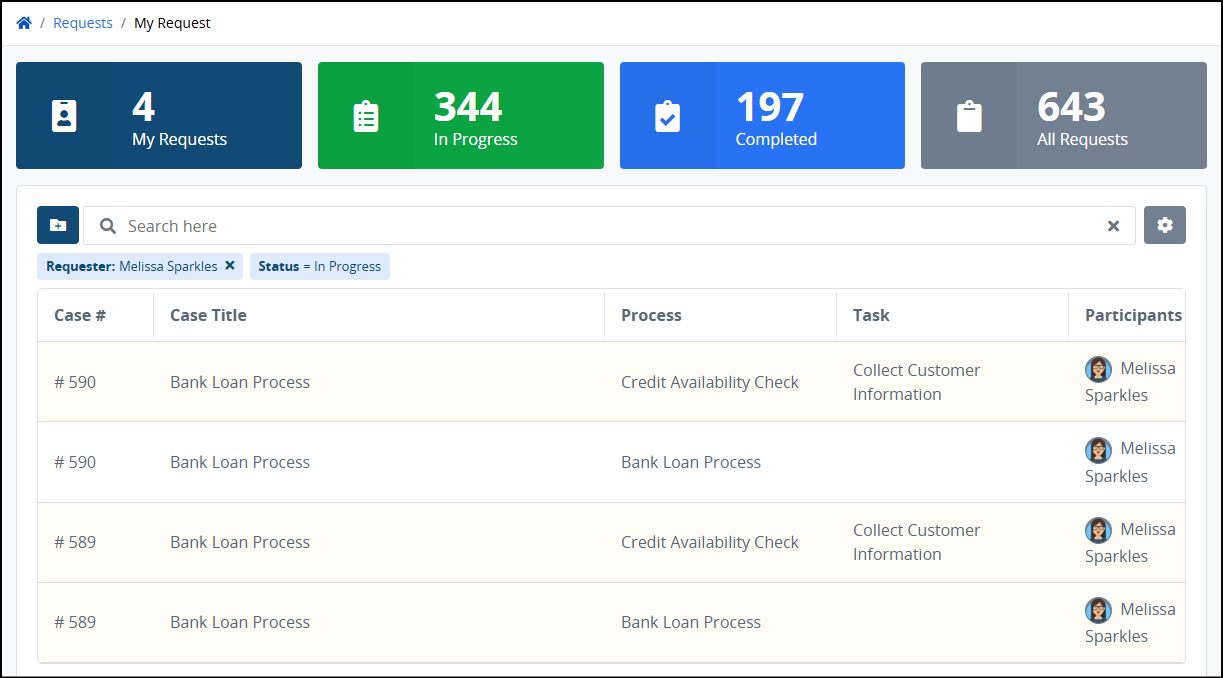
Files Tab
When the File Manager is not installed, the Files tab displays all files associated with the Request to that time. The Files tab only displays in that Request summary if one of the following occurs:
At least one file has been uploaded to that Request.
A PDF Generator connector in that Request has automatically generated a PDF of a Display-type Screen.
.png)
"Files" tab for an in-progress Request's summary (File Manager package not installed)
The Files tab displays the following summary in tabular format about the files associated with the Request:
File Name: The File Name column displays the name of each file associated with the selected Request. Click the file name to download it to your local computer or network location.
MIME Type: The MIME Type column displays the MIME type for the associated file.
Created At: The Created At column displays the date the file became associated with the selected Request. The file became associated with the Request when the person who attached it submitted the Screen to which the file was uploaded. The timezone setting to display the time is according to the ProcessMaker Platform instance unless your user profile's Time zone setting is specified.
File Manager Tab
When the File Manager is installed, the File Manager tab displays all files associated with the Request to that time.
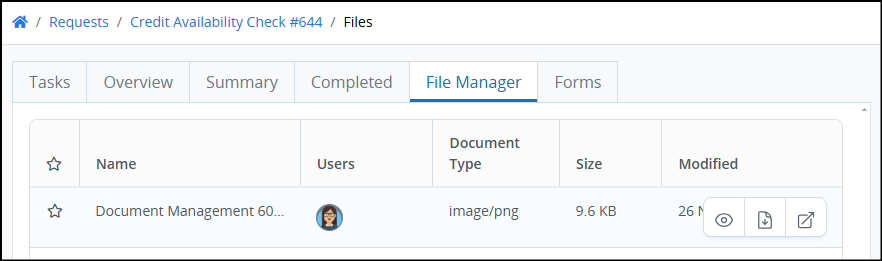
The File Manager tab displays the following summary in tabular format about the files associated with the Request:
Name: The Name column displays the name of each file associated with the selected Request. Beside each file's name is its MIME type.
Users: The Users column displays the avatar for the Request participant that uploaded each file associated with the selected Request. The file became associated with the Request when the person who attached it submitted the Screen to which the file was uploaded. Hover your cursor over a user's avatar to view that person's full name.
Size: The Size column displays the size of each file associated with the selected Request.
Modified: The Modified column displays the date that was modified. The file became associated with the Request when the person who attached it submitted the Screen to which the file was uploaded. The timezone setting to display the time is according to the ProcessMaker Platform instance unless your user profile's Time zone setting is specified.
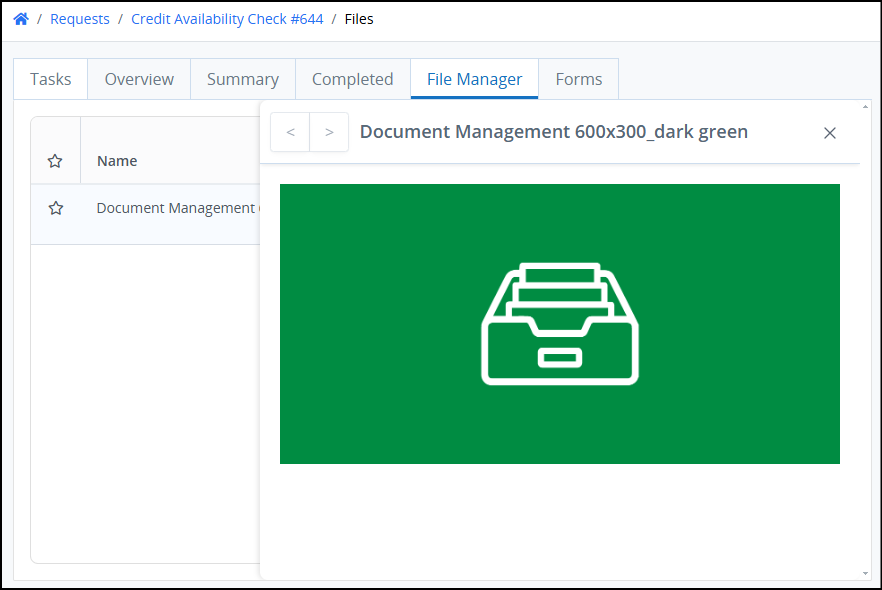
Preview a File
Click the Preview icon
to preview the file.
Download a File
Click the Download icon
for the file to download to your local computer.
Open a File
Click the Open icon
to open the file. See Open a File.
Open a File
Follow these steps to open a file:
Hover over the file selected to see options for the file.
Click the Open icon
to open the file.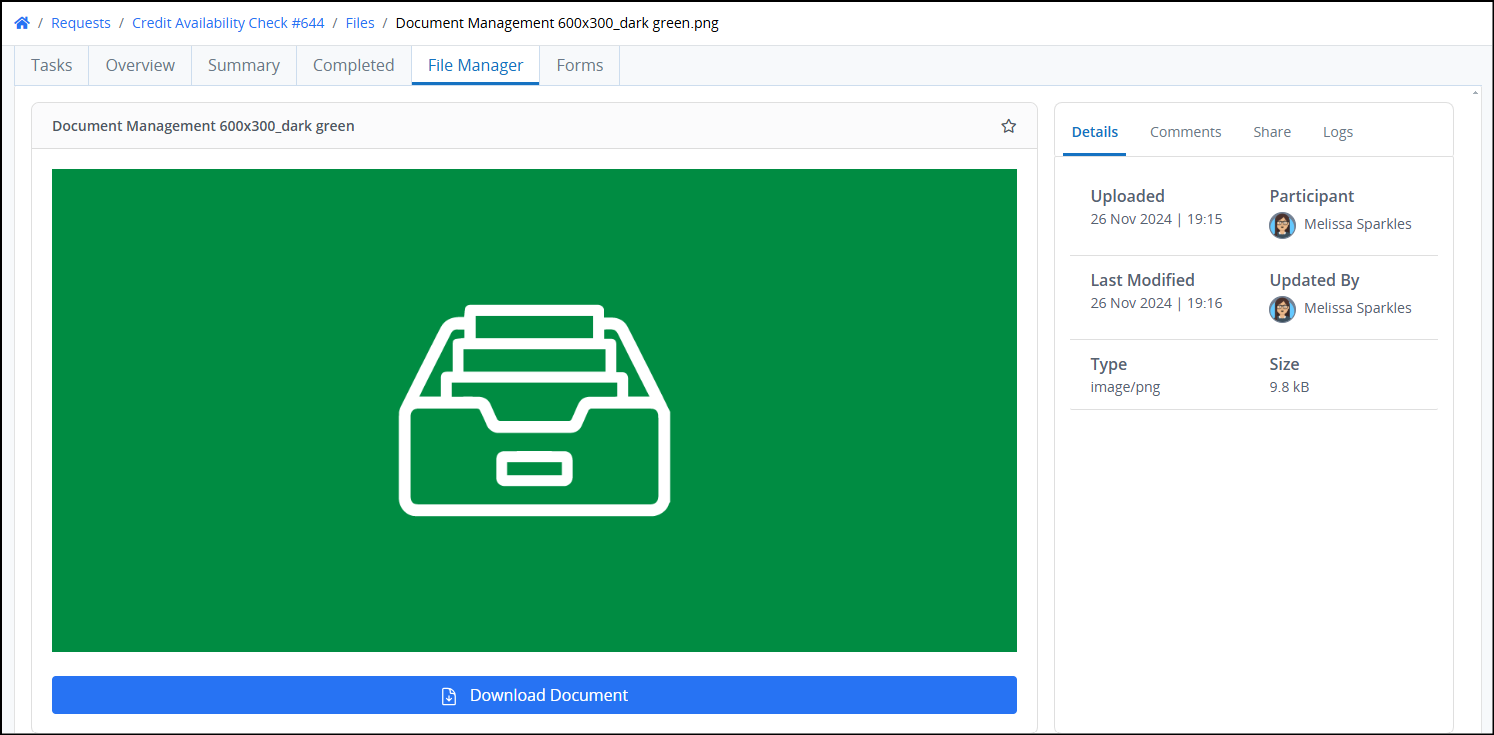
Follow these steps to share a file with one or more users:
Click the Share tab for the file. The Share screen displays.
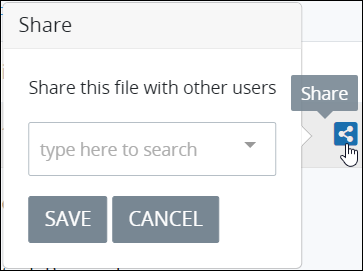
In the Share screen, enter with which user(s) to share this file.
Click Save. The following message displays: Shared users successfully updated.. The user(s) with which the file is shared receives a notification of the shared file.
Files that have been shared with you are in File Manager's Shared With Me folder.