Overview
The ability to use a Flow as a Data Source in a Report adds greater flexibility to the Report Designer, particularly for complex data scenarios, but may introduce performance overhead. The Data Source Flow must be a synchronous Flow and must also output a Data Type List on the End step. This synchronous Flow operates on the backend to fetch data of a specified type, then the Flow Behavior allows it to be referenced in a Report as the Data Source. In the Data Source Flow, the data can come from multiple sources and be combined. When the Report appears at Runtime, the Flow executes and passes in the respective data.
Additionally, any logic within the Flow (such as rules, loops, or subflows) executes each time the report runs, which can increase load times and server resource usage.
Using filters on large datasets can further impact performance, as all records are still processed before filtering is applied. Testing Flow-sourced reports with large data volumes in a development environment can help evaluate performance before releasing to end users.
In many cases, datasets exceeding approximately 1,000 records may begin to show noticeable performance degradation, depending on the complexity of the Flow logic. Larger datasets (for example, tens of thousands of records or more) are generally not suitable for Flow-sourced reports.
When to Use a Flow as a Data Source
Using a Flow as a Report Data Source should generally be used only when standard report data sources are not sufficient. Standard report data sources that query directly from the database are more efficient and scalable.
Flow-sourced reports are best suited for:
- Small datasets
- Complex data that cannot be retrieved through a single query
- Scenarios requiring aggregation from multiple systems or sources
Avoid using Flow-sourced reports when:
- Working with large datasets
- Reports are accessed frequently or by many users
- Performance and scalability are critical
If a Flow is required to generate report data, it may indicate that the underlying data model could be optimized to better support reporting needs.
Limitations
- Inline editing is not supported for Flow-sourced reports.
- Data is fully loaded into memory at runtime rather than retrieved incrementally.
- Report execution depends on Flow logic, which may impact performance for complex implementations.
Example
This example contains a Flow using the Get All step to receive all of the Account data in the Decisions environment. This Flow Behavior will be changed so that the Report will recognize it as a working source of data. The Report will then be able to use data fields as columns based on the fetched data from the Flow.
There are two ways to create a Report Data Source Flow.
Create Report Data Source Flow
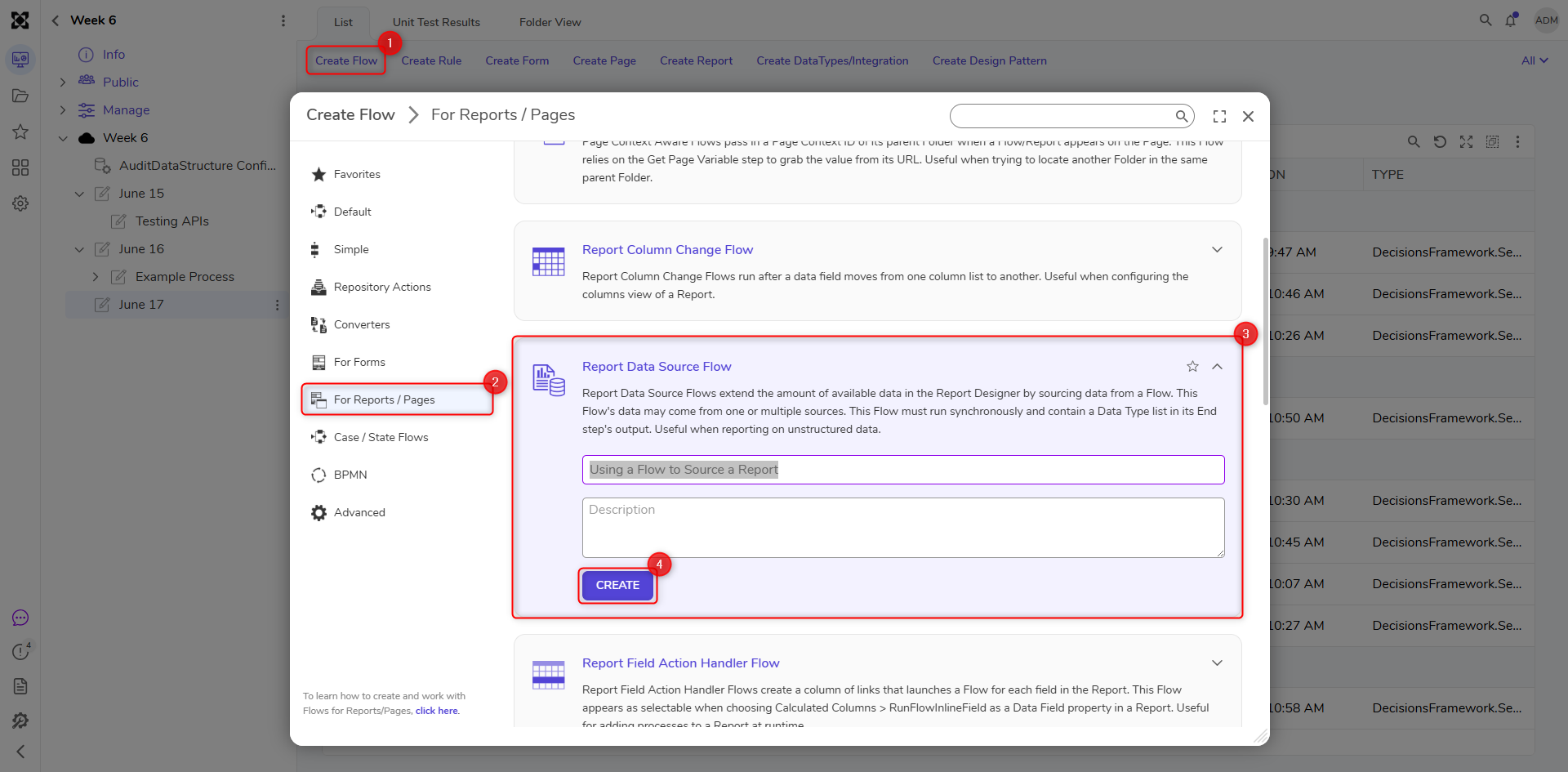
- In a Designer Project, select CREATE FLOW on the top bar.
- Choose the For Reports/Pages category.
- Select Report Data Source Flow.
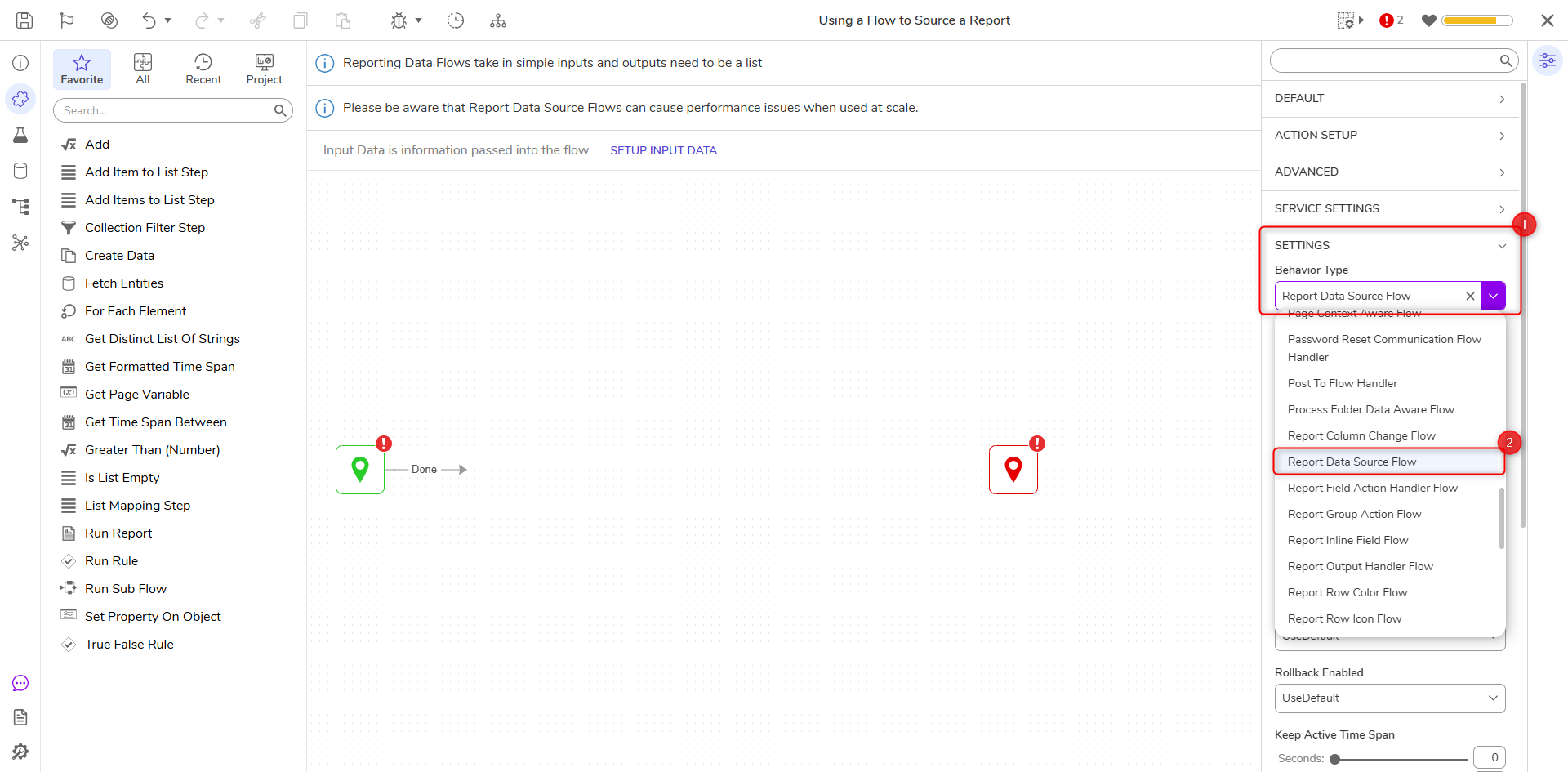
Change Behavior Type on an existing Flow:
- In a Designer Project, select CREATE FLOW on the top bar.
- Select the large Flow tile and provide a name, then select CREATE.
- In the Flow Designer, locate the SETTINGS section of the Properties.
- Expand the Behavior Type dropdown and choose Report Data Source Flow.
Then to set up the connection between the Flow and the Report:
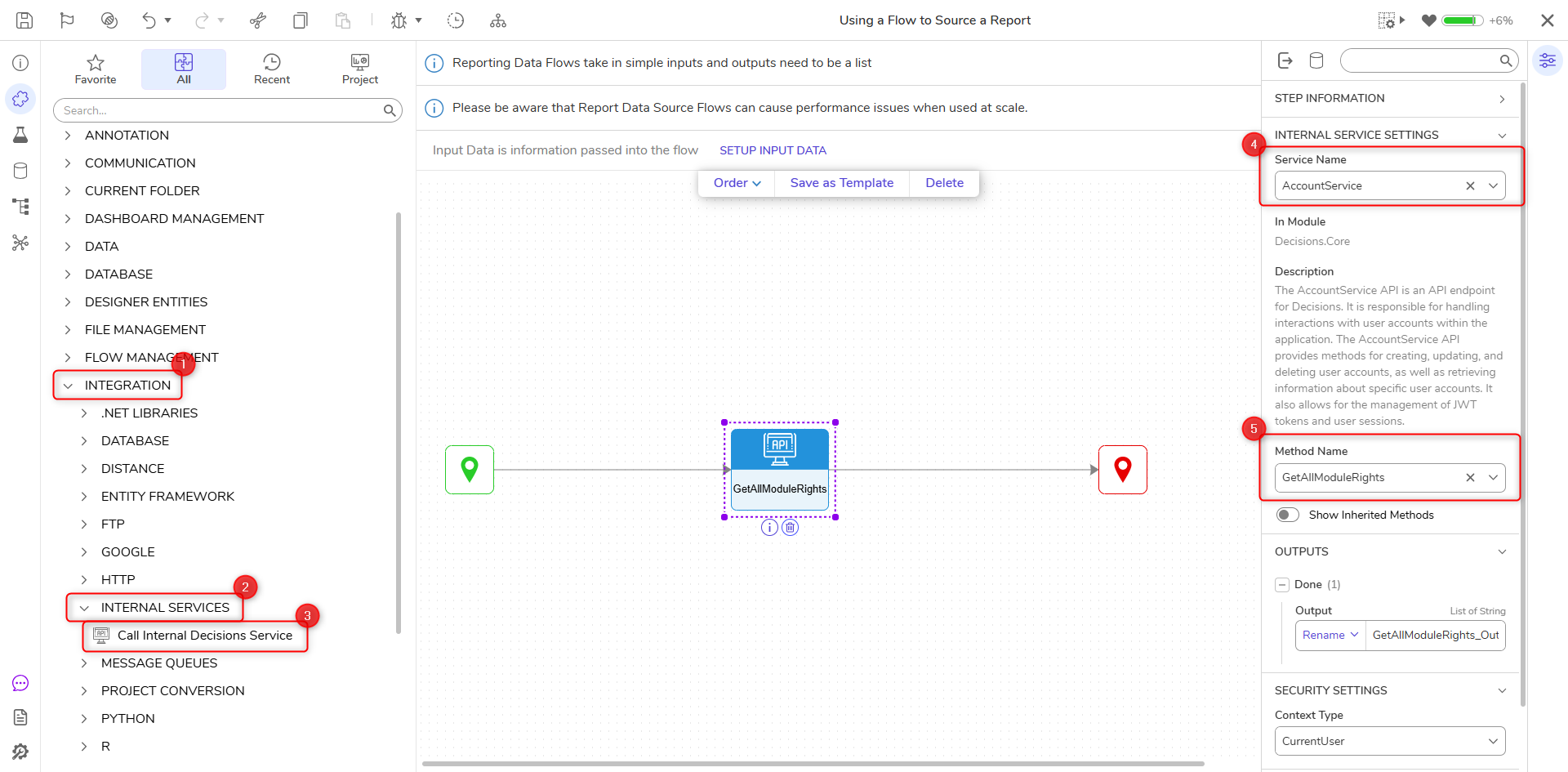
- In the Toolbox, navigate to INTEGRATION > INTERNAL SERVICES > ACCOUNTSERVICE and locate the Get All step, then move it to the workspace.
- Connect the steps in succession as shown below.
- Select the End step so that the Properties for it appear.
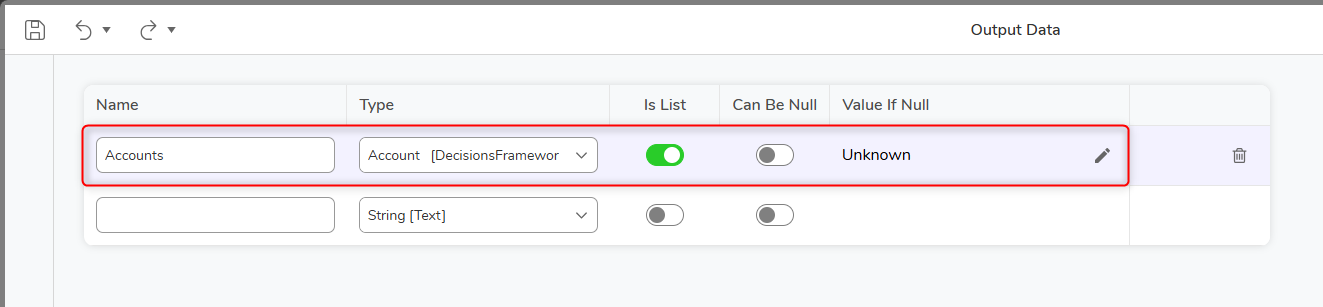
- Locate the DATA section and select SHOW EDITOR under the Output box.
- Enter Accounts for Name and search the Account type, then check the Is List box.
- Locate the INPUTS section, select Pick in the Accounts box and choose the Get All Output Results. This will send the output results out of the Flow, to be received by the Report.
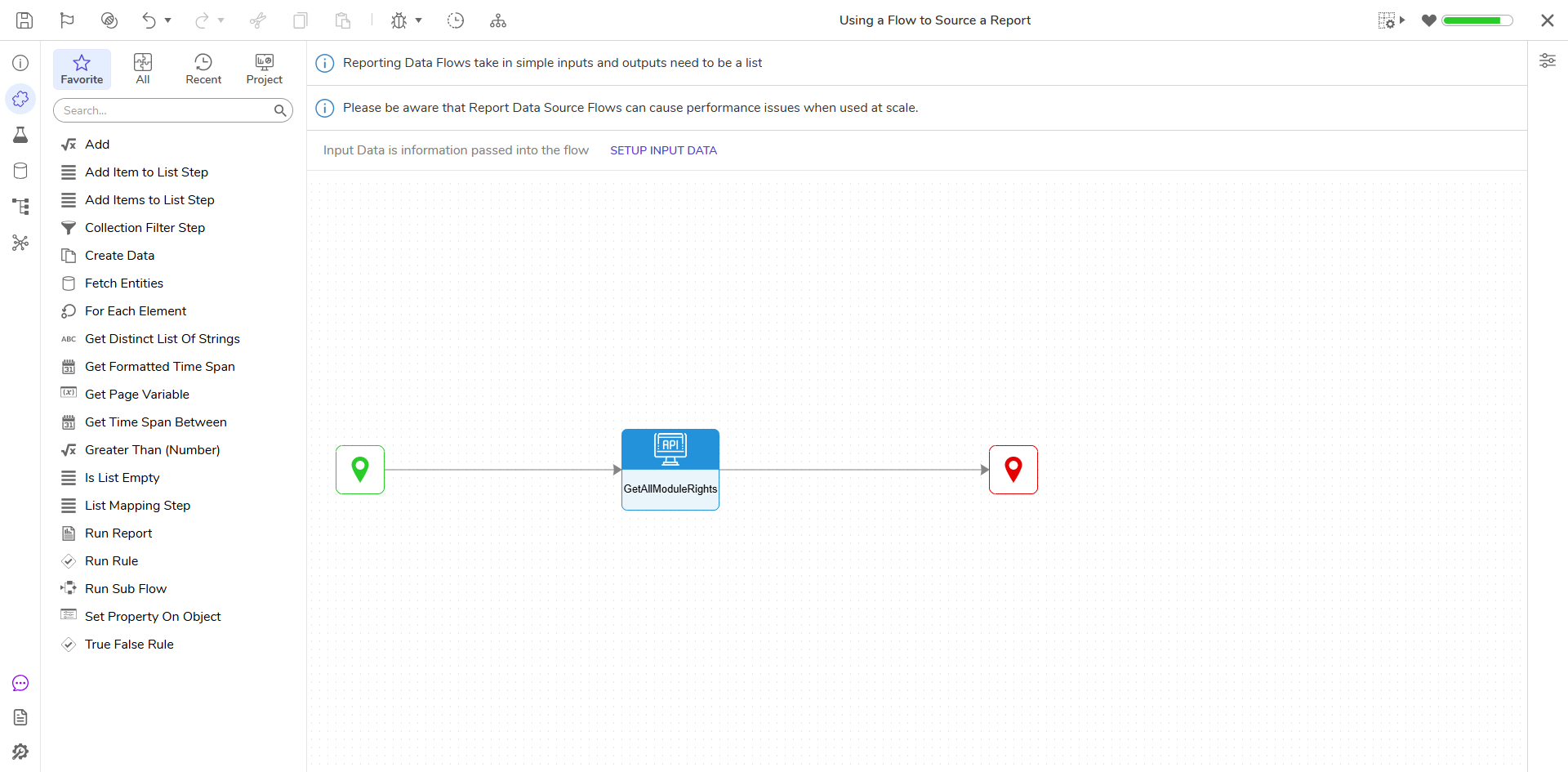
- Save and close the Flow Designer once complete.
- Back in the Designer Project, select the CREATE REPORT button from the top.
- Choose the large Report tile and provide a name, then select CREATE.
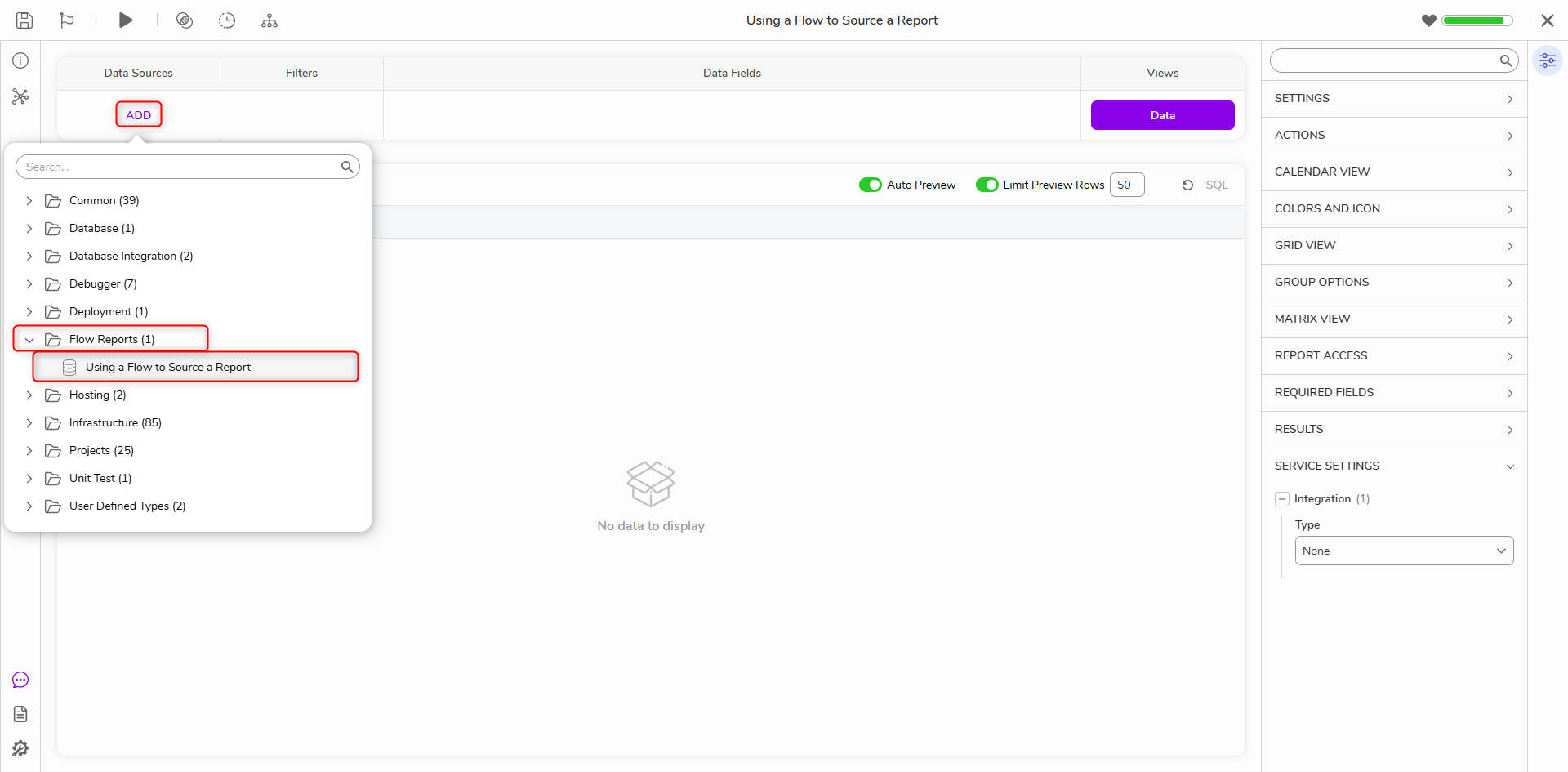
- Select the Add button under the Data Sources section and expand Flow Reports, then choose Report Source Flow. This is now telling the Report to pull data from the Flow running on the back-end.
- Selecting the Add button in the Data Fields section will reveal that properties from the Account type are shown as if the data were being pulled in as a direct source.
- The Report will update in real-time as fields are added.
Feature Change
| Description | Version | Release Date | Developer Task |
|---|---|---|---|
| Warnings now appear on Report Data Source Flows about their performance impact. | 9.7 | February 2025 | [DT-028324] |