Overview
Regular Expressions (Regex) are patterns written in a formal language that can be interpreted by a regular expression processor to serve the function of text validation. Listed below are steps that use specific Regular Expressions to validate text input such as a phone number or email.
Regular Expression Steps
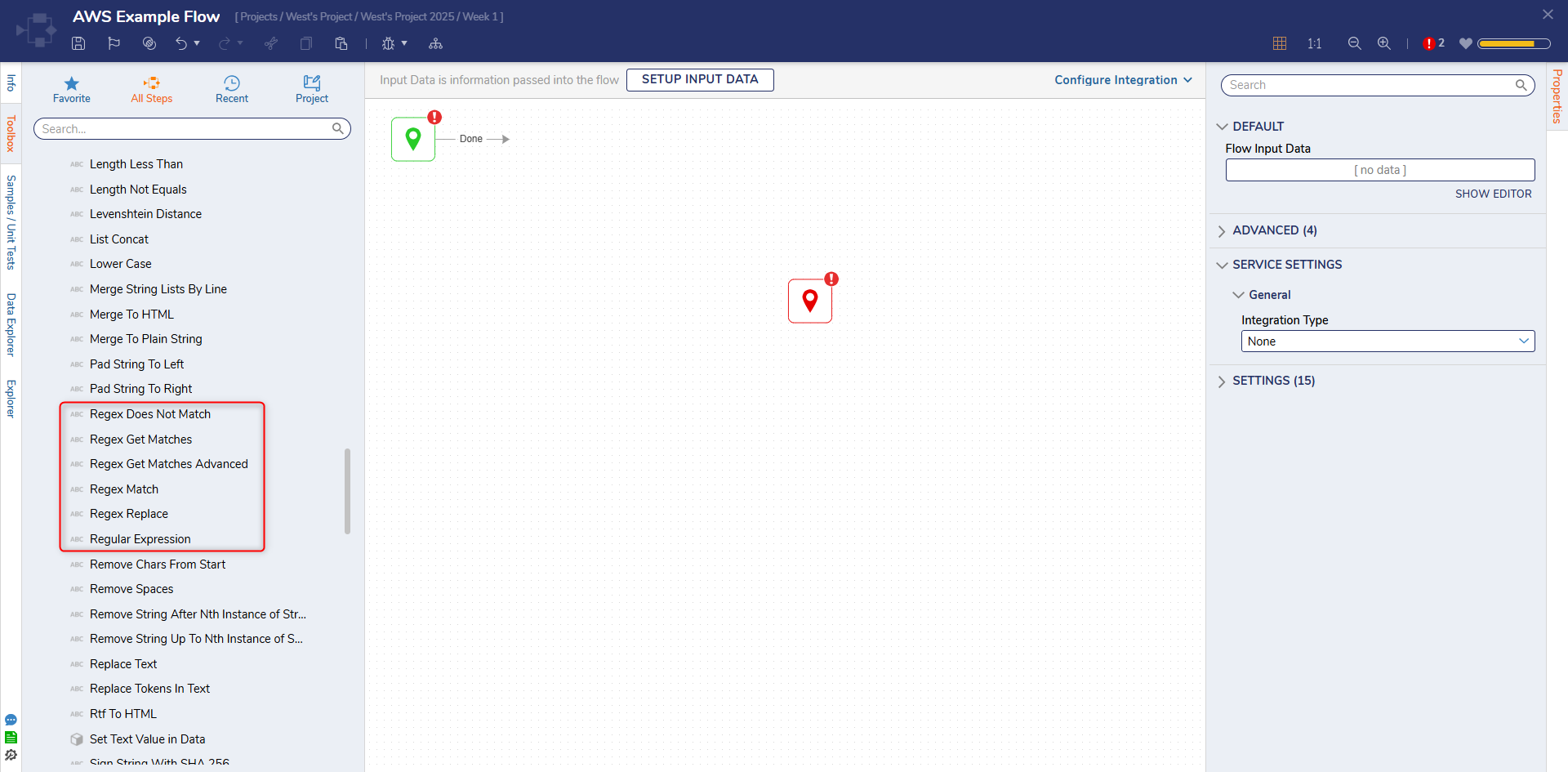
The Regular Expression Steps are located in the Toolbox panel under DATA > TEXT.
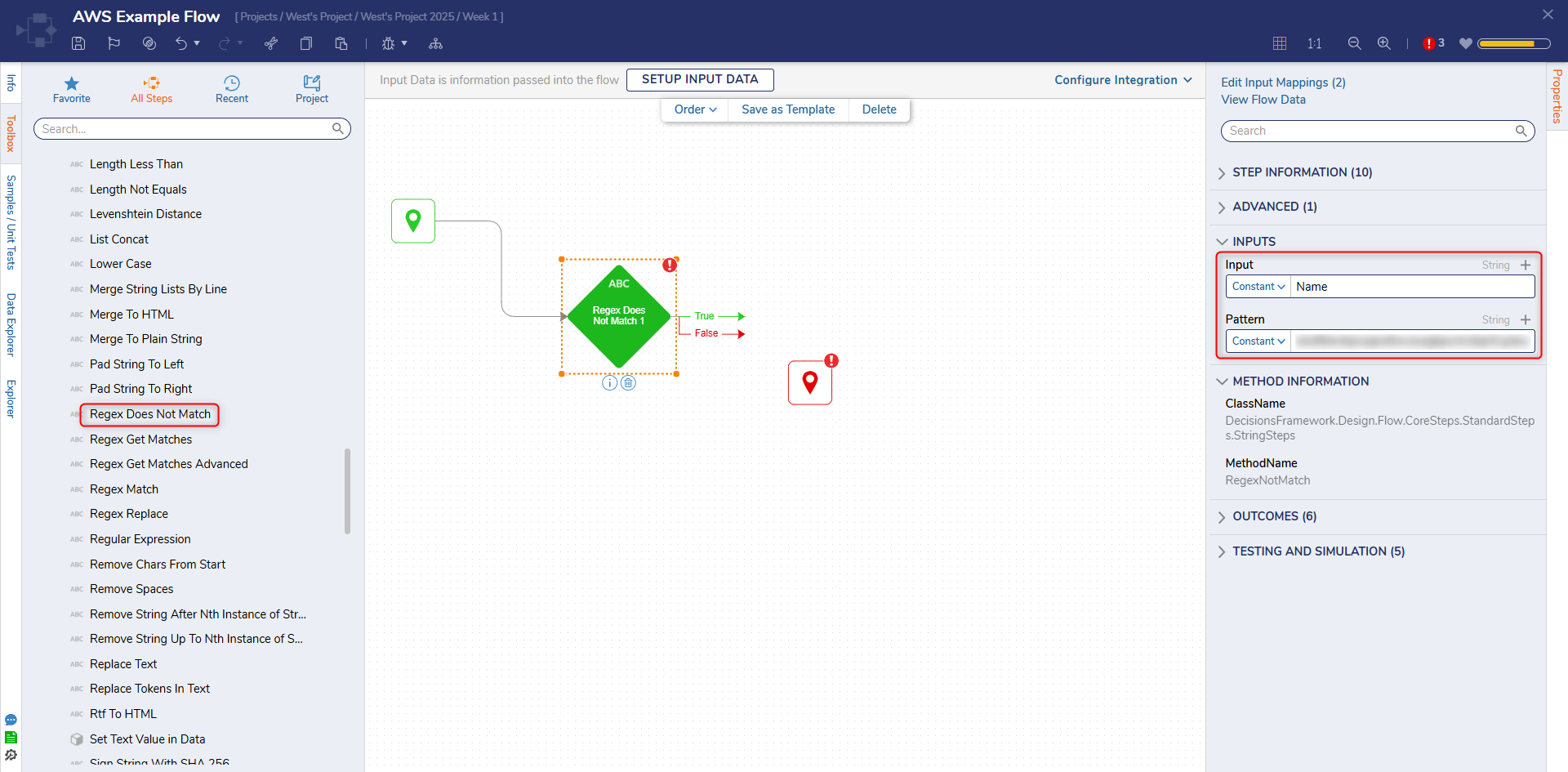
Regex Does Not Match
The Regex Does Not Match step returns a true or false result if the validated String does not match the Input/Regex Patter.
| Input Parameter | Description |
|---|---|
| Input | String value |
| Pattern | Regular expression pattern |
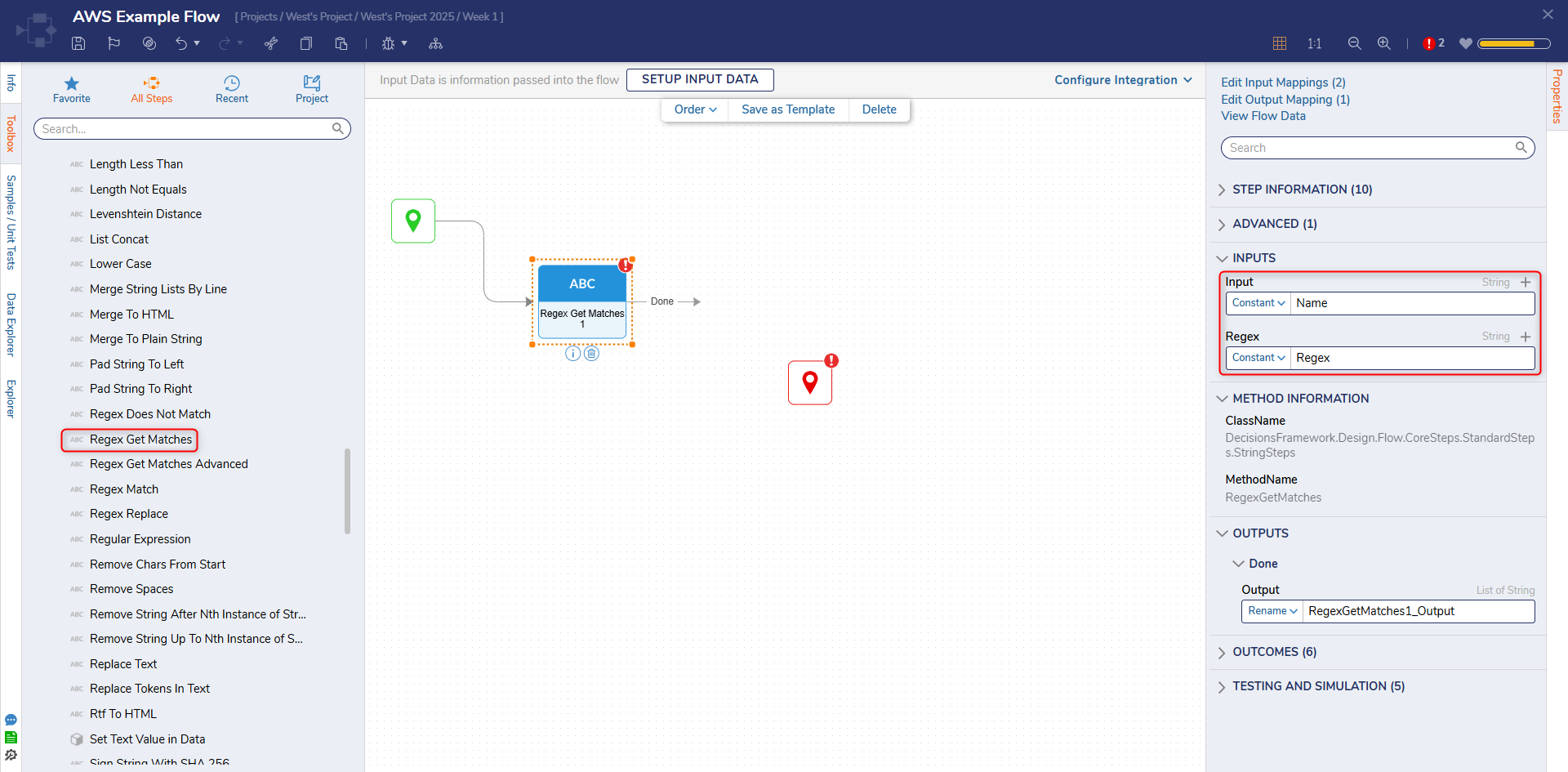
Regex Get Matches
The Regex Get Matches step returns a count of matched results against a Regex text validation.
| Input Parameter | Description |
|---|---|
| Input | String value |
| Regex | Regular expression pattern |
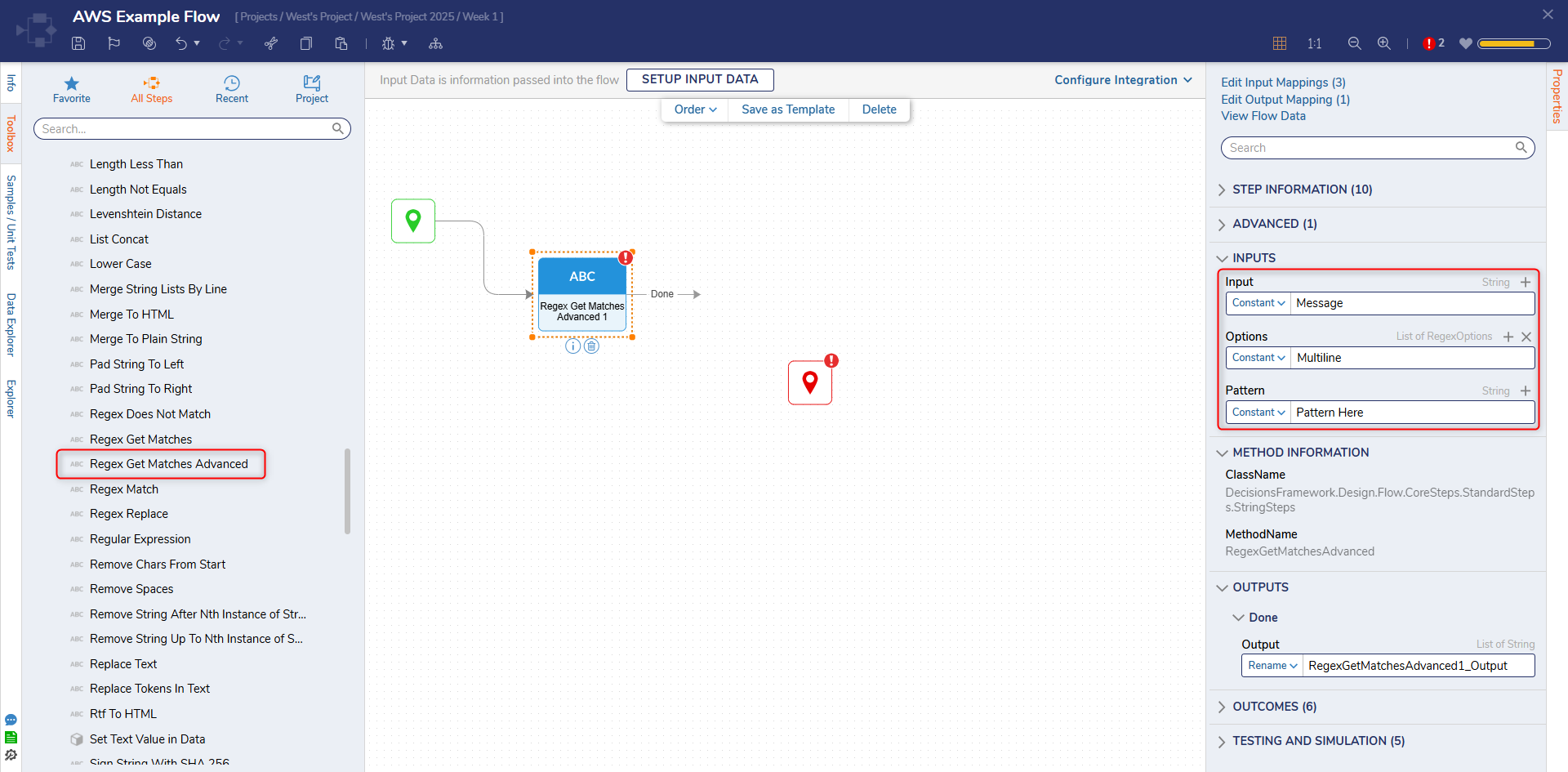
Regex Get Matches Advanced
The Regex Get Matches Advanced step returns a list of matched validations utilizing a Regex pattern, a text input, and additional Regex options if desired.
| Input Parameter | Description |
|---|---|
| Input | String value |
| Options | Additional options to use with the Regular Expression |
| Pattern | Regular Expression |
Regex Match
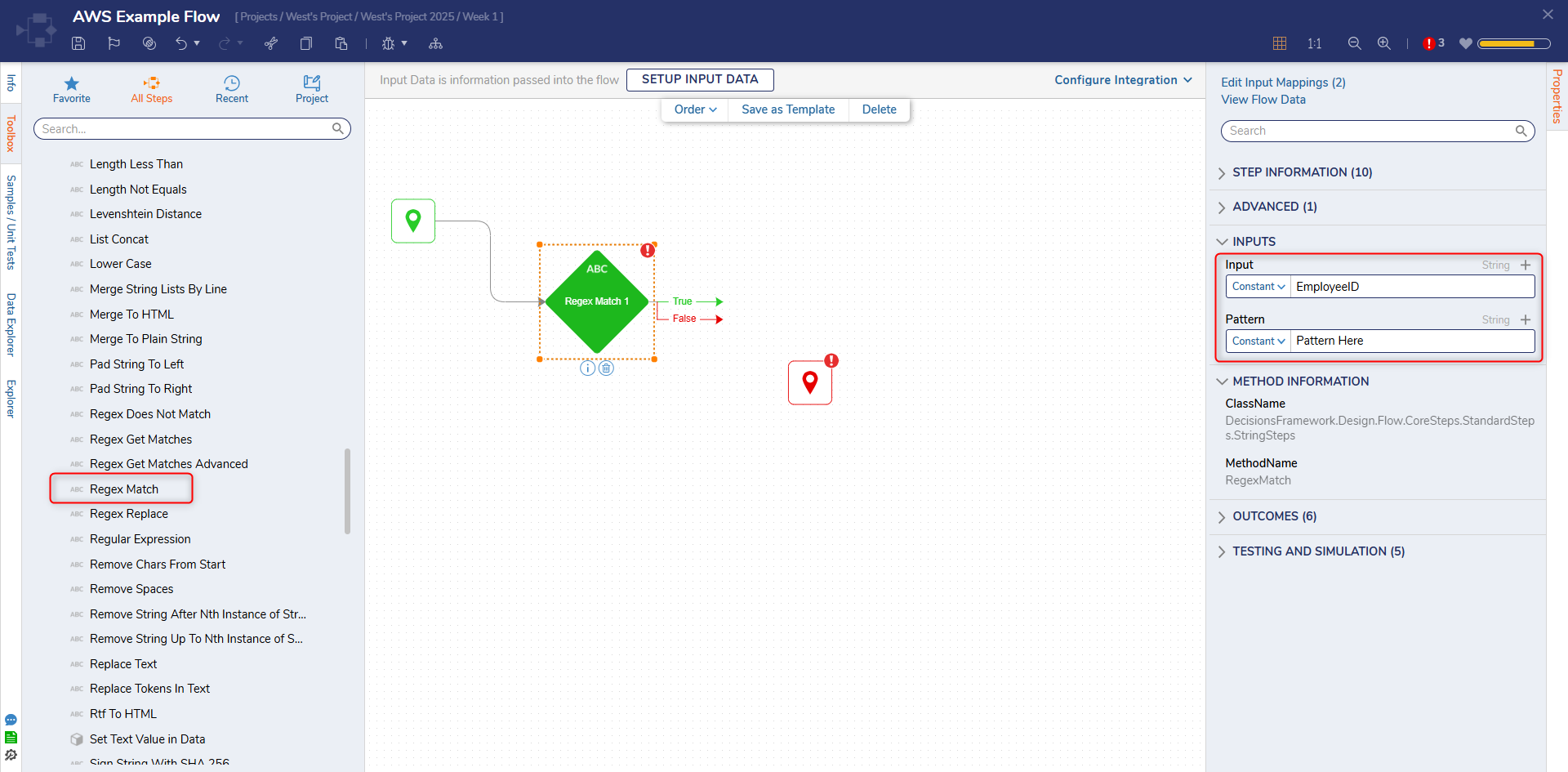
The Regex Match step returns a true or false as the result of Regex validation.
| Input Parameter | Description |
|---|---|
| Input | String value |
| Pattern | Regular Expression pattern |
Regex Replace
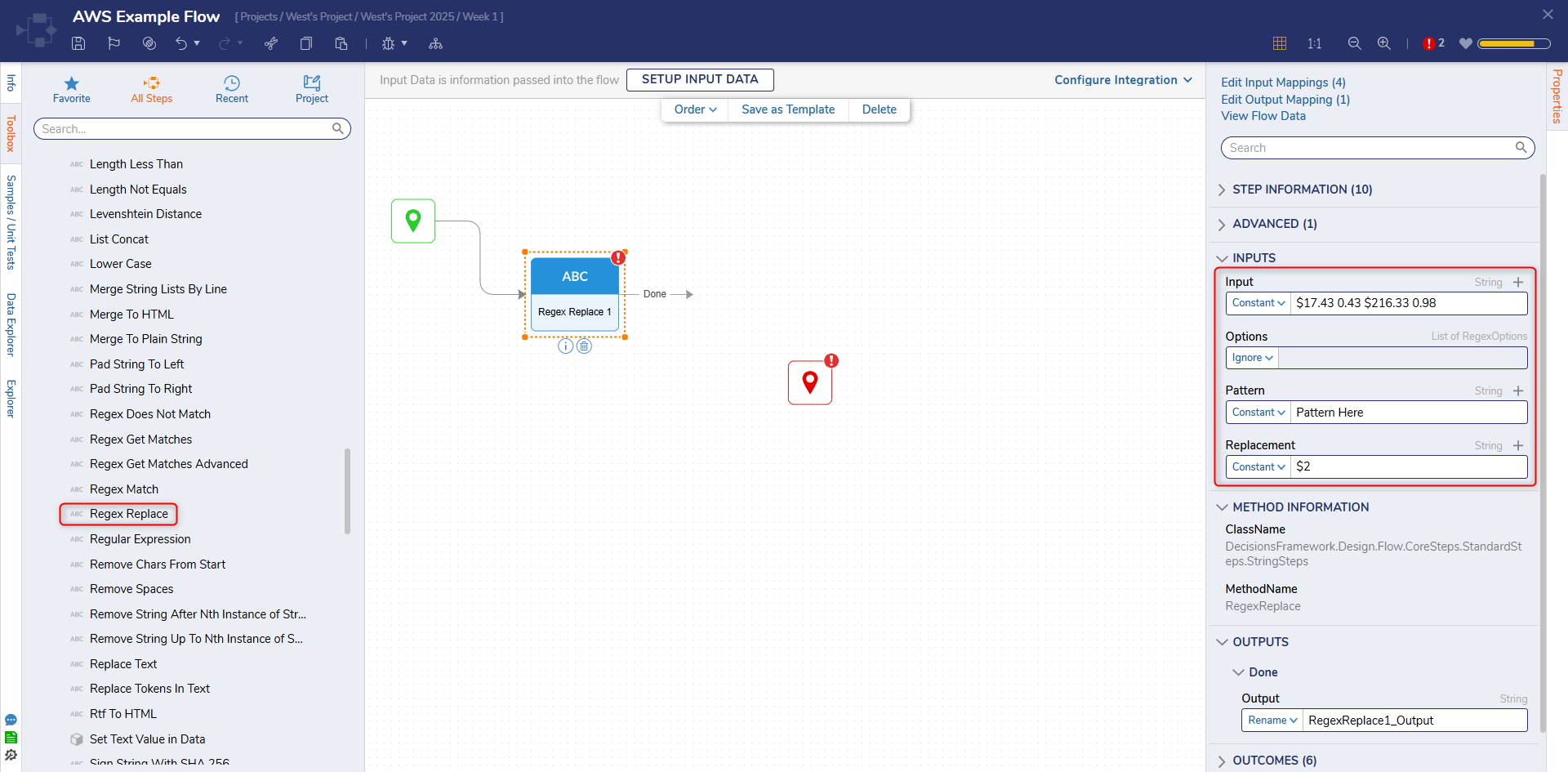
The Regex Replace step looks up text input by the Regular Expression pattern and replaces text that matches the pattern.
| Input Parameter | Description |
|---|---|
| Input | String value |
| Options | Additional options for the Regular Expression |
| Pattern | Regular Expression pattern |
| Replacement | String value to replace input |
Regular Expression
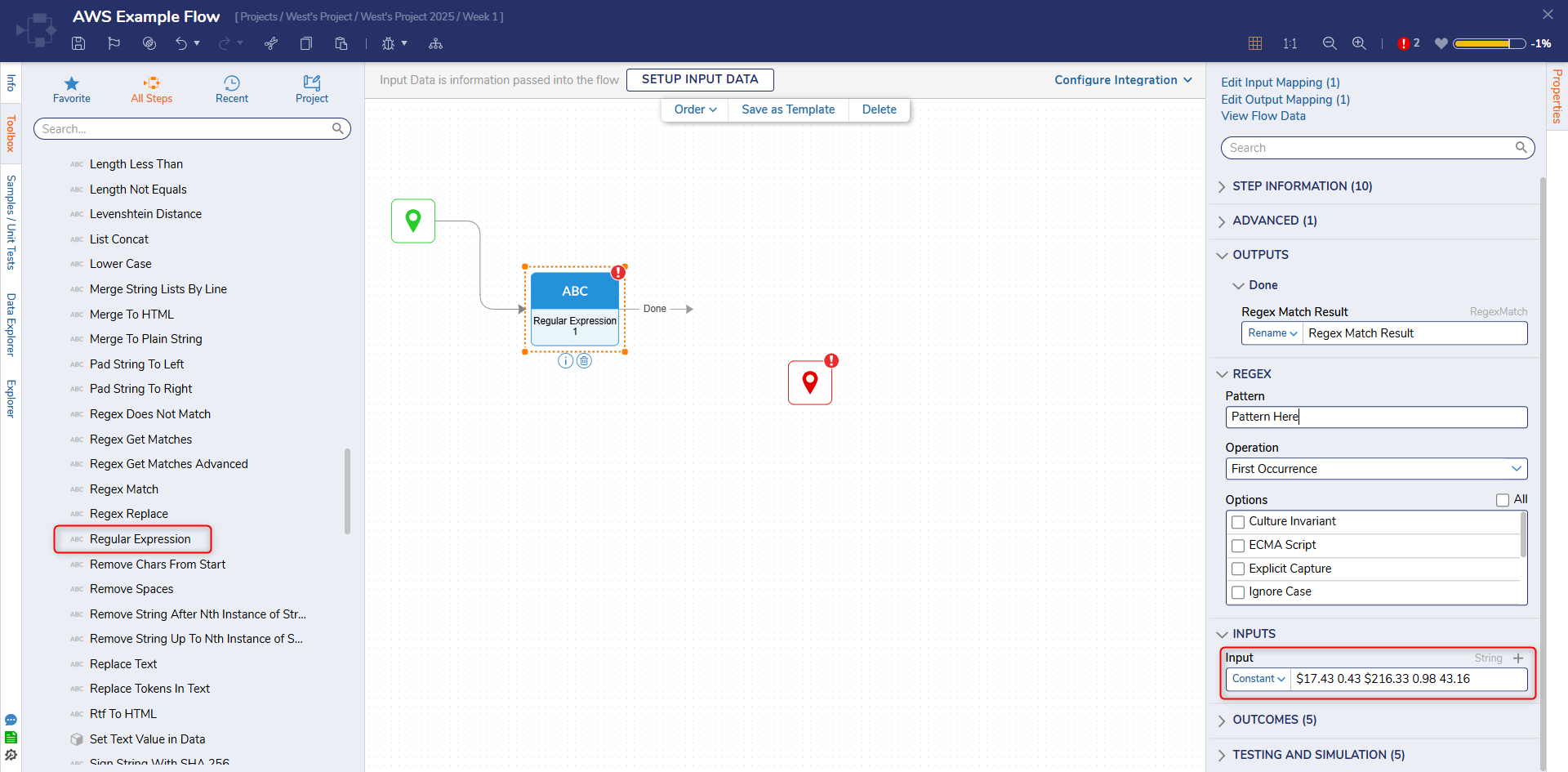
The Regular Expression step is used to identify patterns within Strings
| Input Parameter | Description |
|---|---|
| Input | String input value |
Common Use Case Patterns
| Type of Validation | Regex Pattern |
|---|---|
| ^\w+([-+.']\w+)*@\w+([-.]\w+)*\.\w+([-.]\w+)*$ | |
| Routing Number | ^((0[0-9])|(1[0-2])|(2[1-9])|(3[0-2])|(6[1-9])|(7[0-2])|80)([0-9]{7})$ |
| Phone Number | \(?\d{3}\)?-? *\d{3}-? *-?\d{4} |
| String (Only Numbers) | ^[0-9]+$ |
| Zip Code | ^\d{5}(?:[-\s]\d{4})?$ |
Regex Match Example
The following example demonstrates the Regex Match step to see if a user inputted String is a zip code.
- Create a Flow
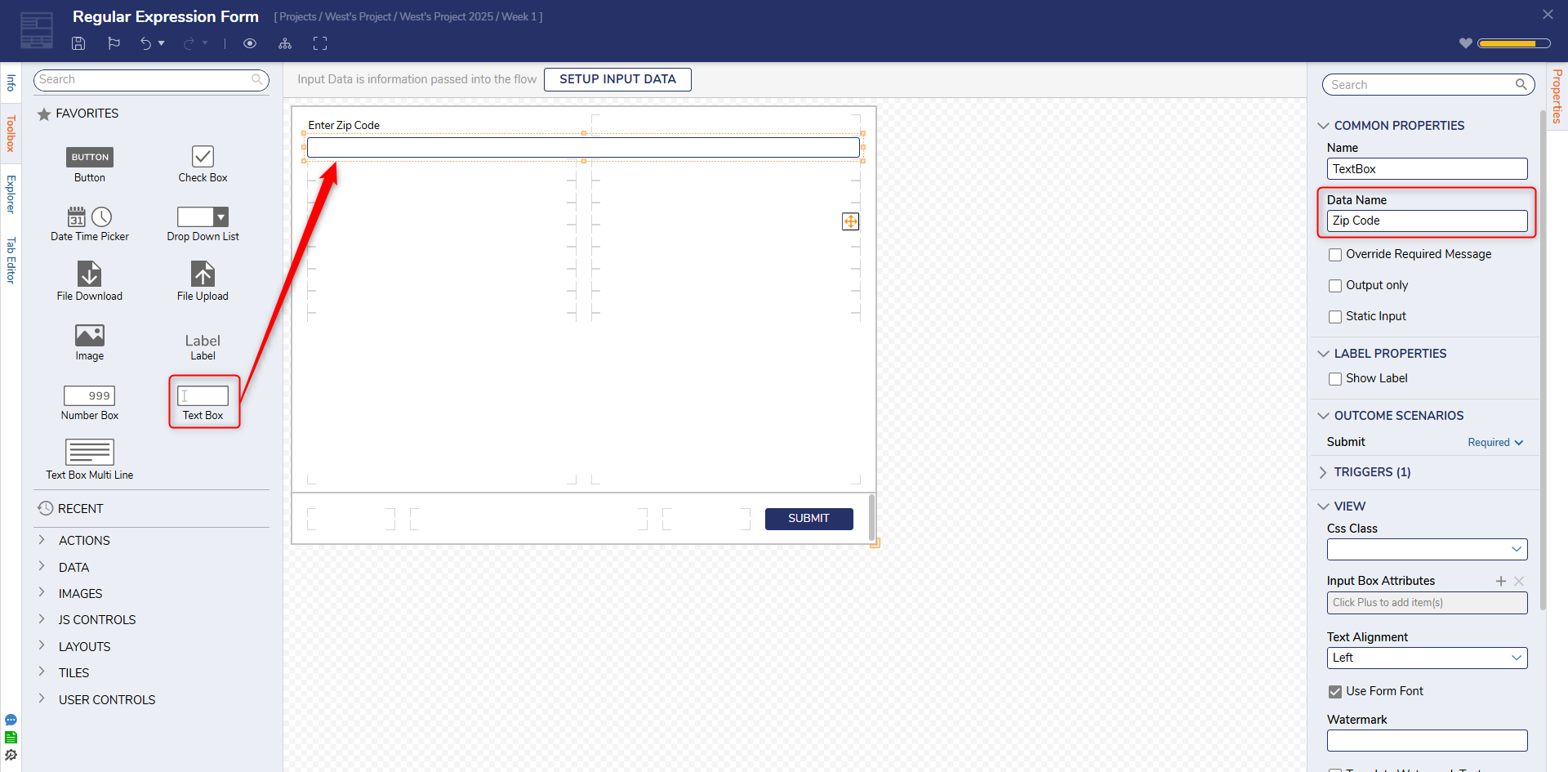
- Create a Form that takes in a user input using a Textbox control.
- Define a Data Name for the Textbox control
- In the Toolbox, expand Data > Text and place the Regex Match step onto the workspace.
- For the steps inputs, select the Form's output for the Input field and set Pattern as a constant.
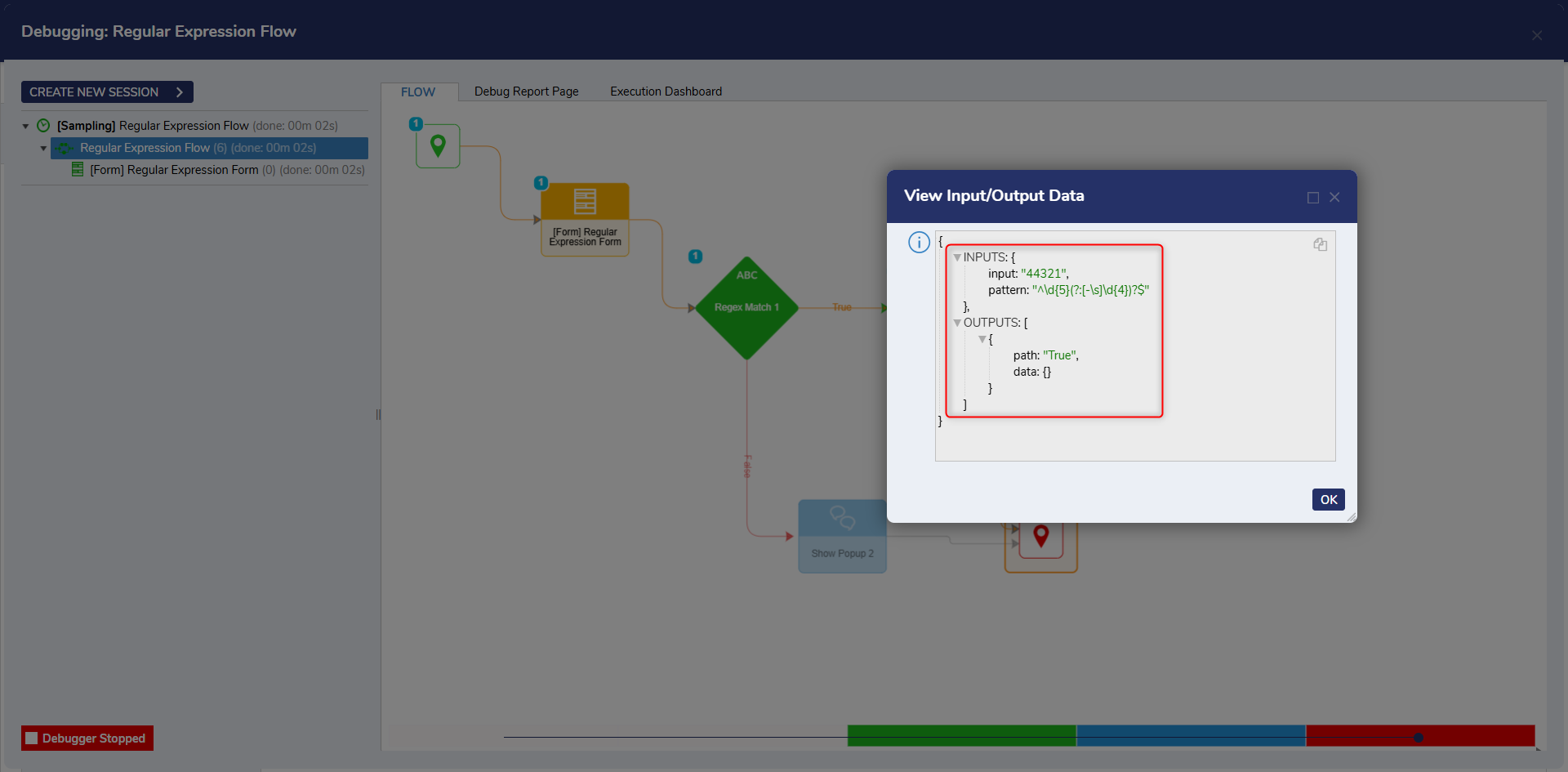
Since a regular expression for zip code is being used, the following pattern was used: ^\d{5}(?:[-\s]\d{4})?$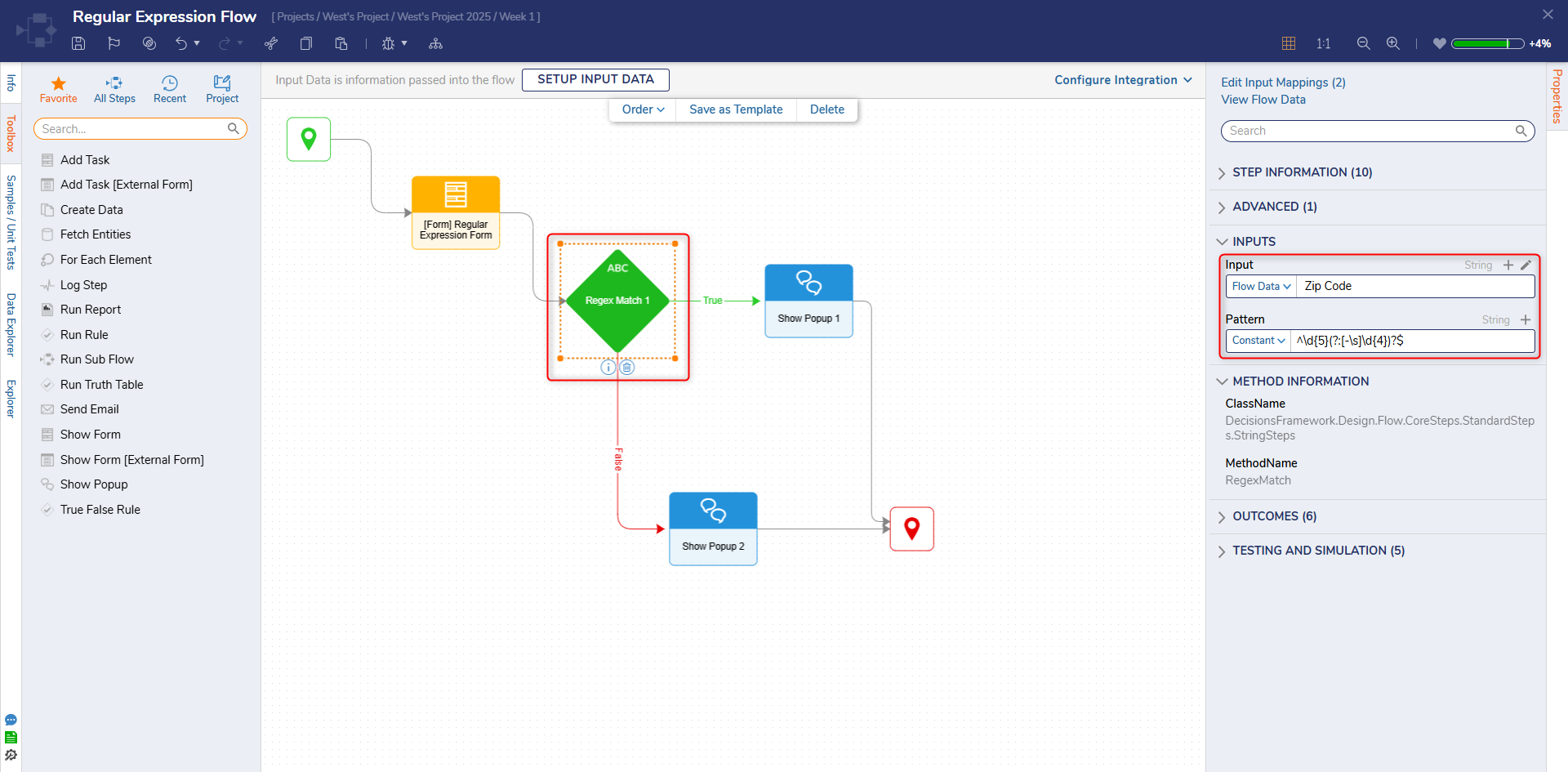
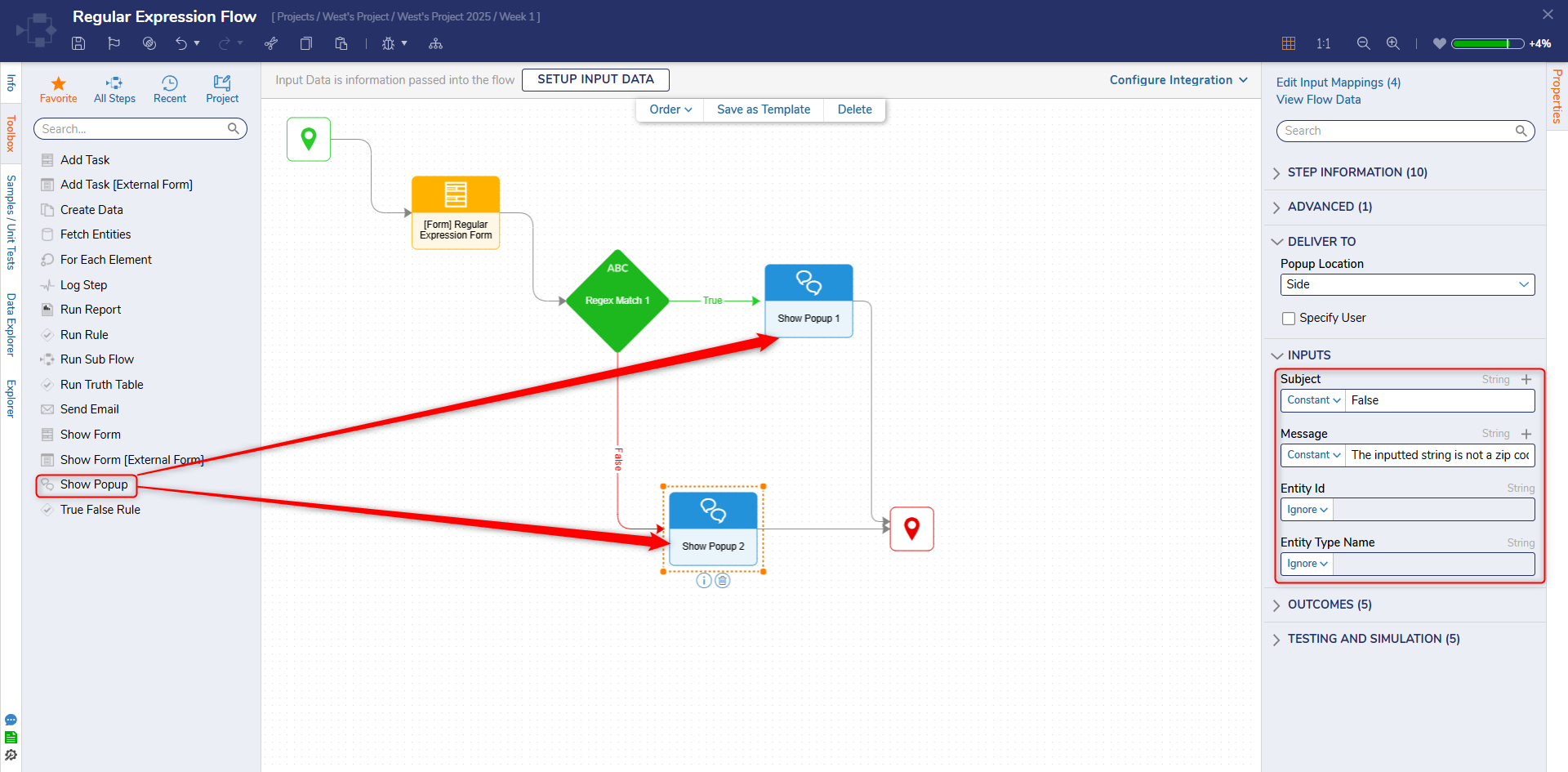
- Add a Show Popup step to the outcome paths of the Regex Match step.
- The inputs can be defined as a Constant for the Show Popup step
- Debug the Flow. The pattern and the inputted String will determine the outcome path of the Flow.