Each Cortex team is stored in its own folder. Opening a team folder displays the dashboards and actions used to manage that team’s conversations, questions, review workflow, prompts, and vector database content.
This article describes the dashboards and actions available inside a Cortex team folder. For installation, prerequisites, team creation, chatbot setup, and UI setup, refer to the main Cortex Accelerator article.
Team Folder Dashboards
After a team is created, selecting the team folder opens a set of dashboards that organize the team’s records and review workflow.
| Dashboard | Description |
|---|
| Overview | Displays a high-level summary of the team and its activity.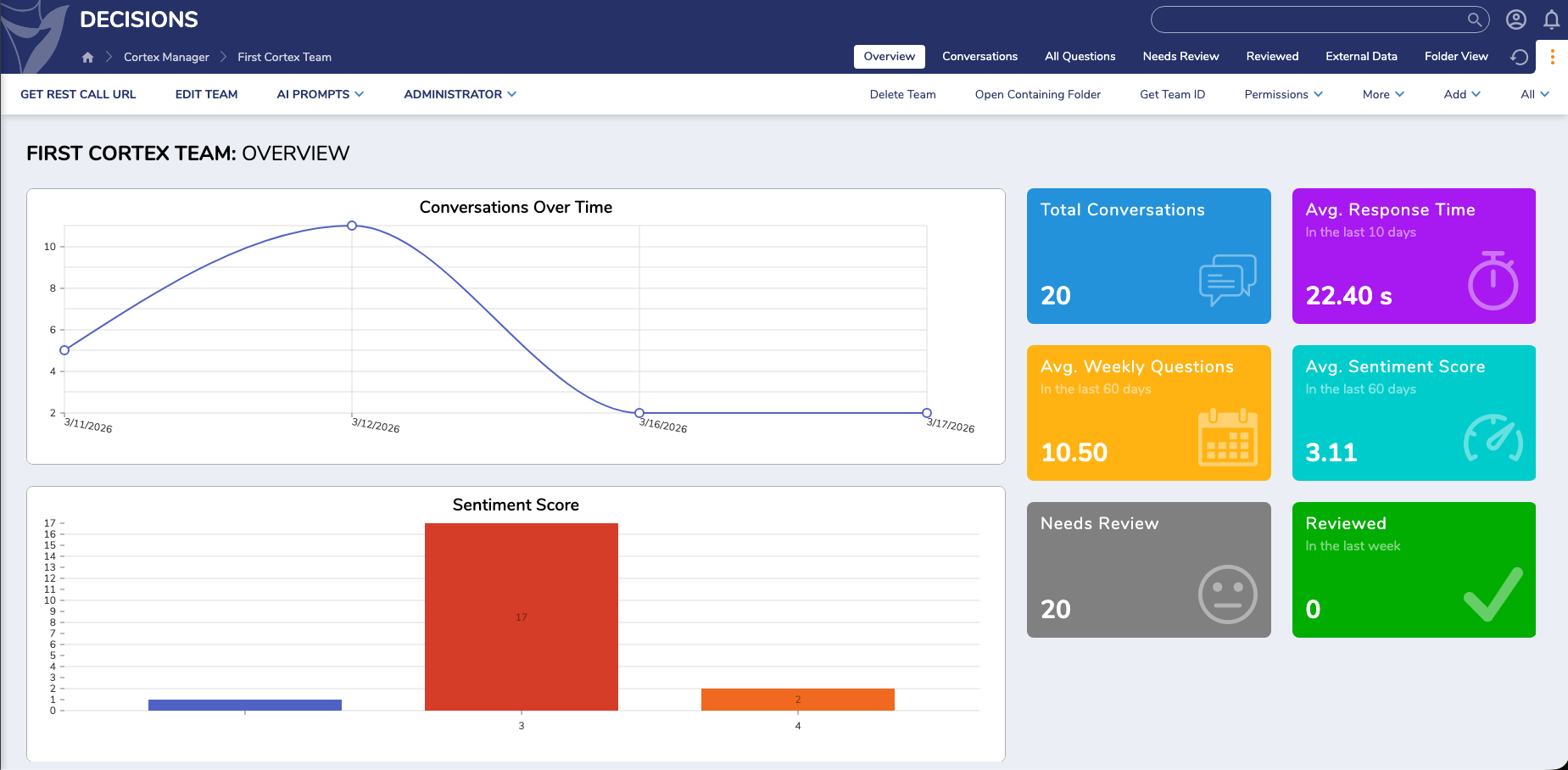 |
| Conversations | Displays conversation history for the team, including chatbot questions and responses.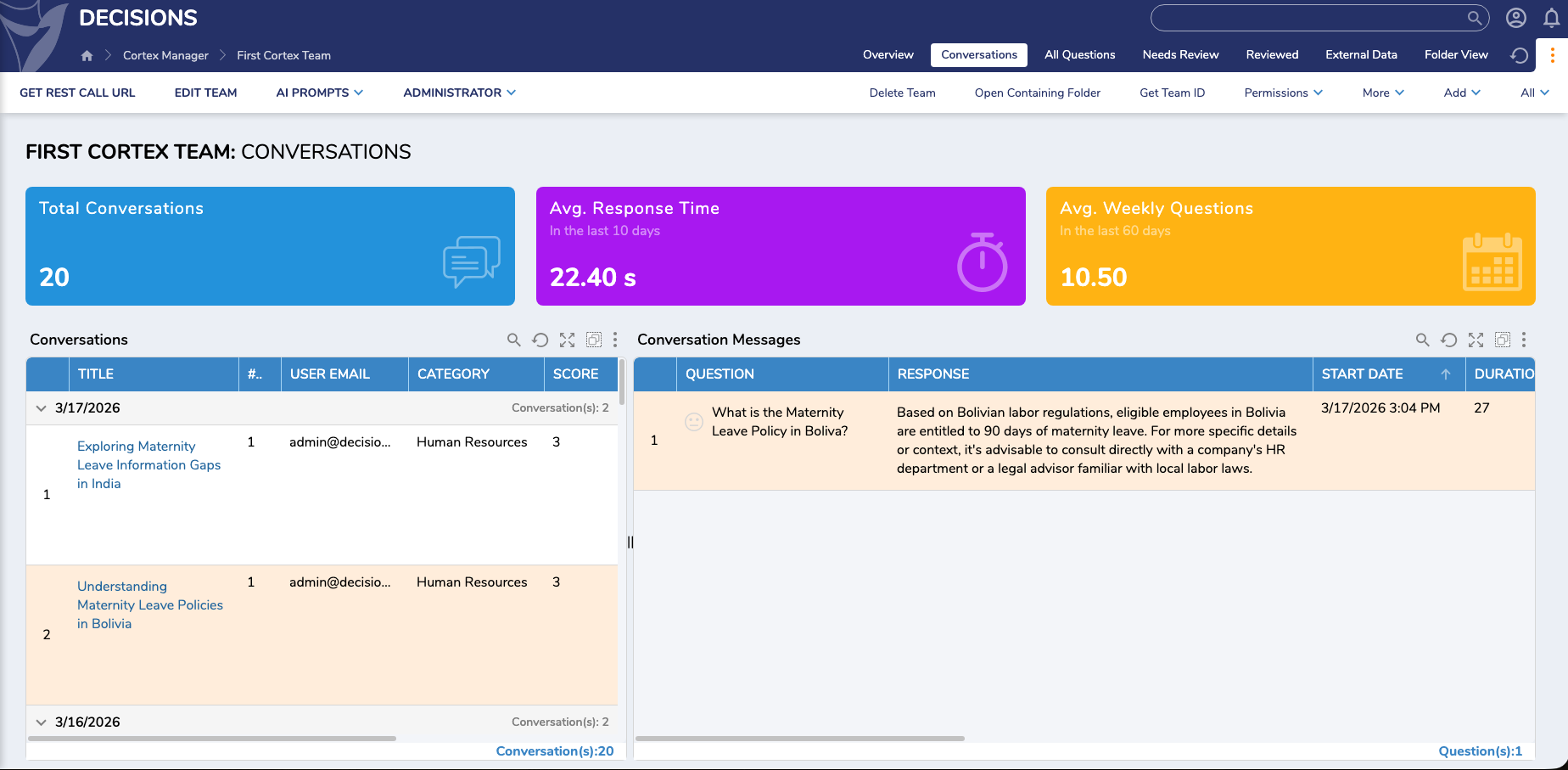 |
| All Questions | Displays all question records associated with the team.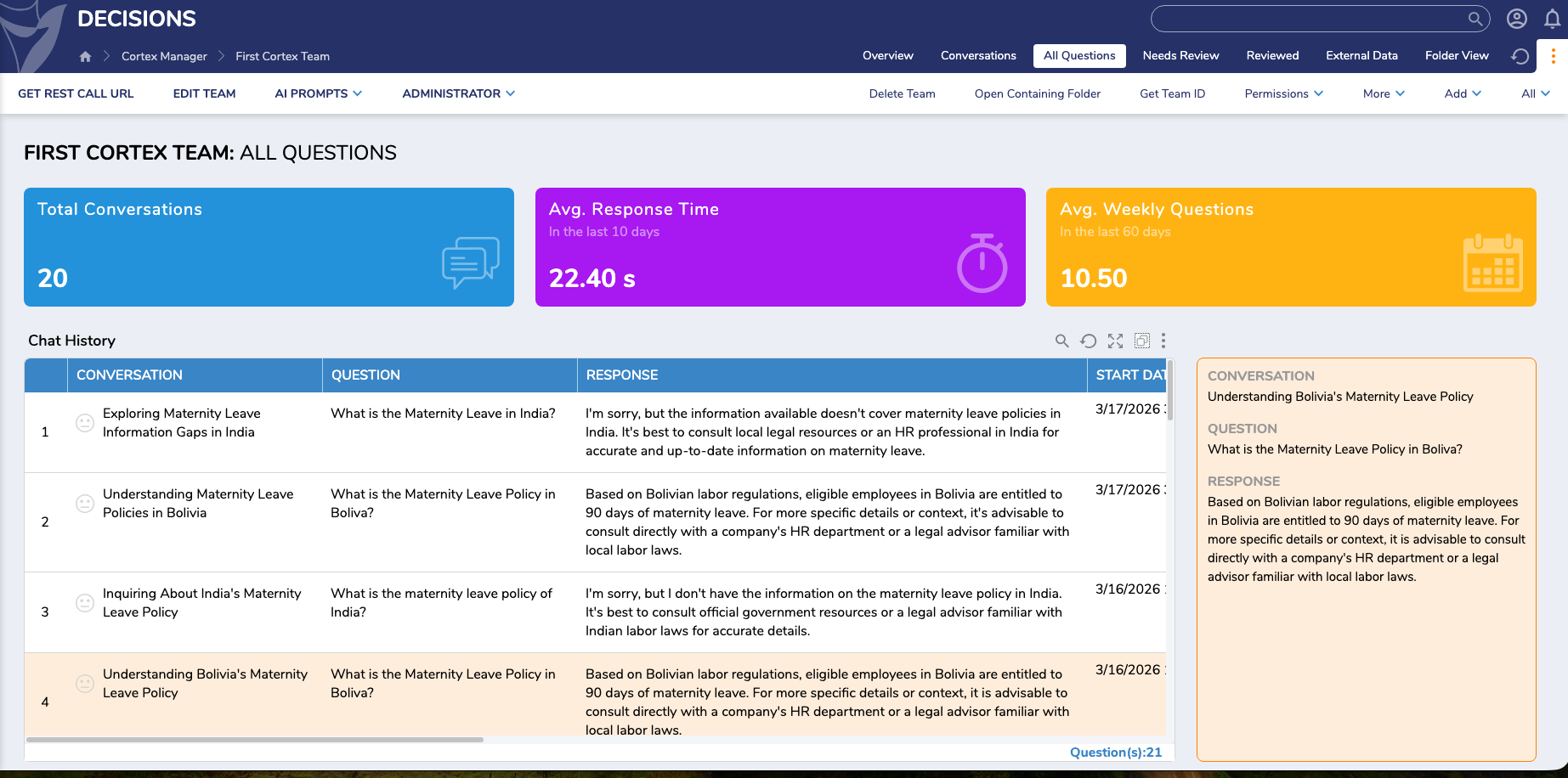 |
| Needs Review | Displays records that still require review before approval.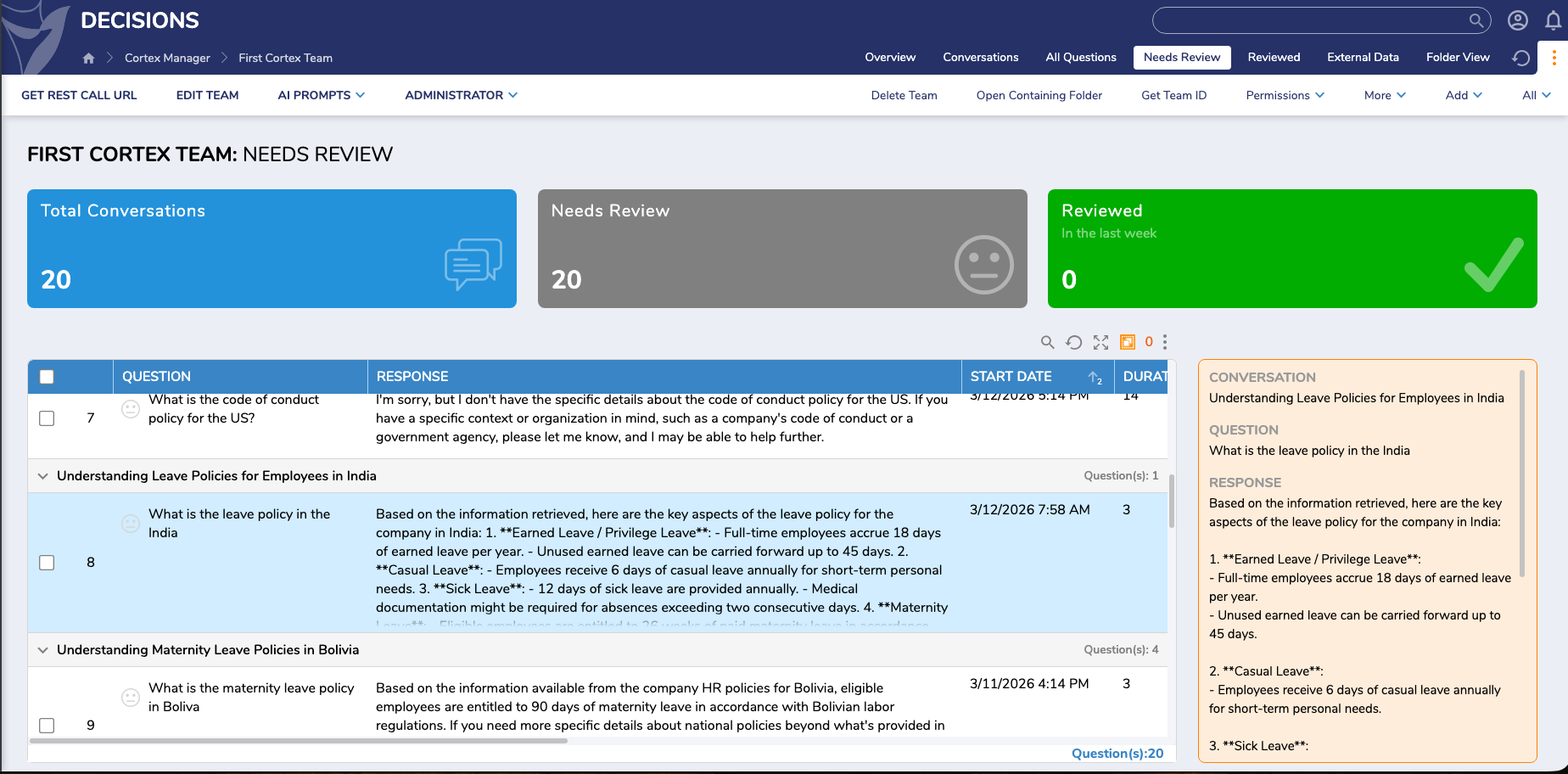 |
| Reviewed | Displays records that have been reviewed but are not yet part of the approved external data set.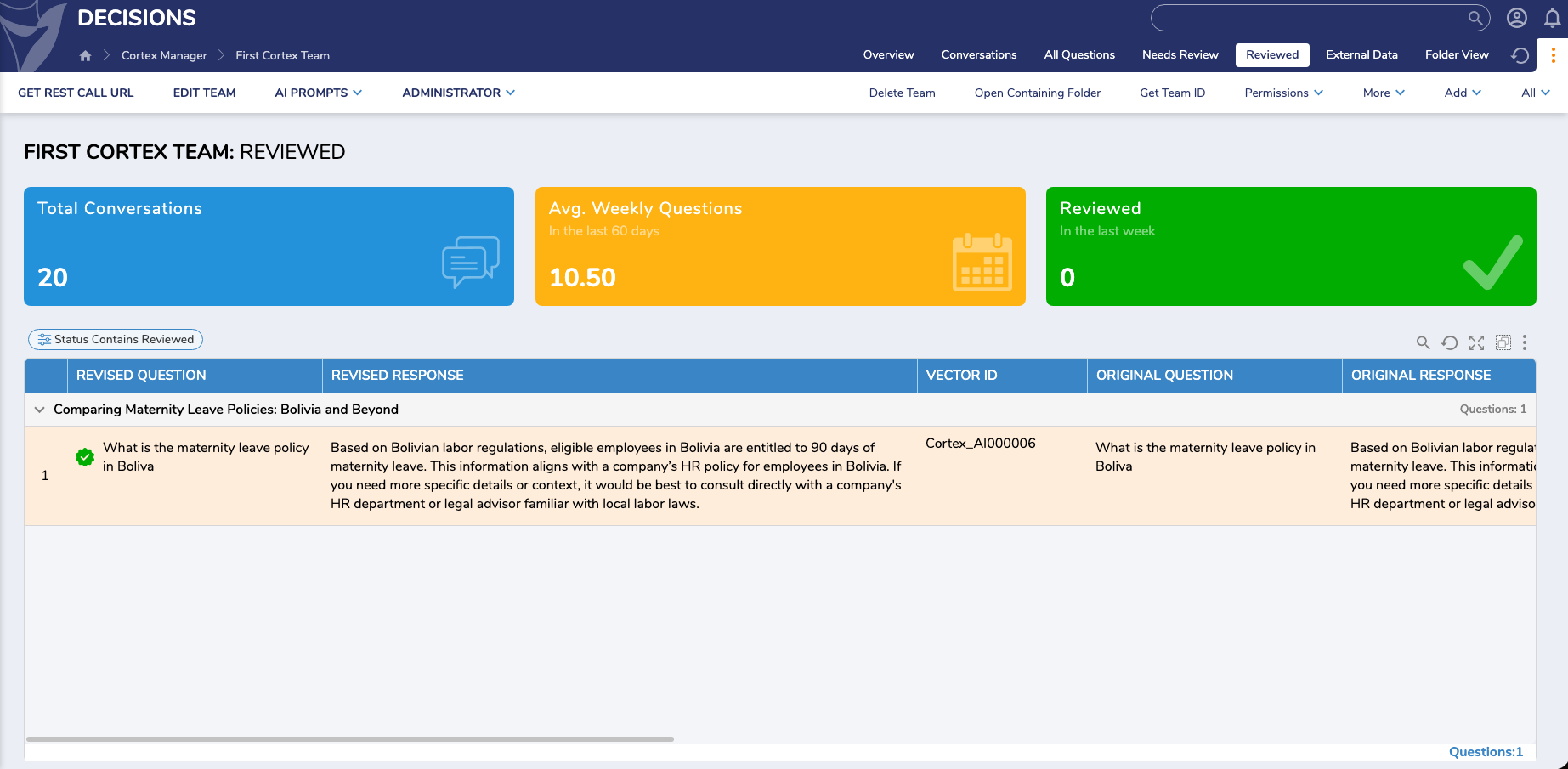 |
| External Data | Displays approved records that have been added to the associated Vector Database Table.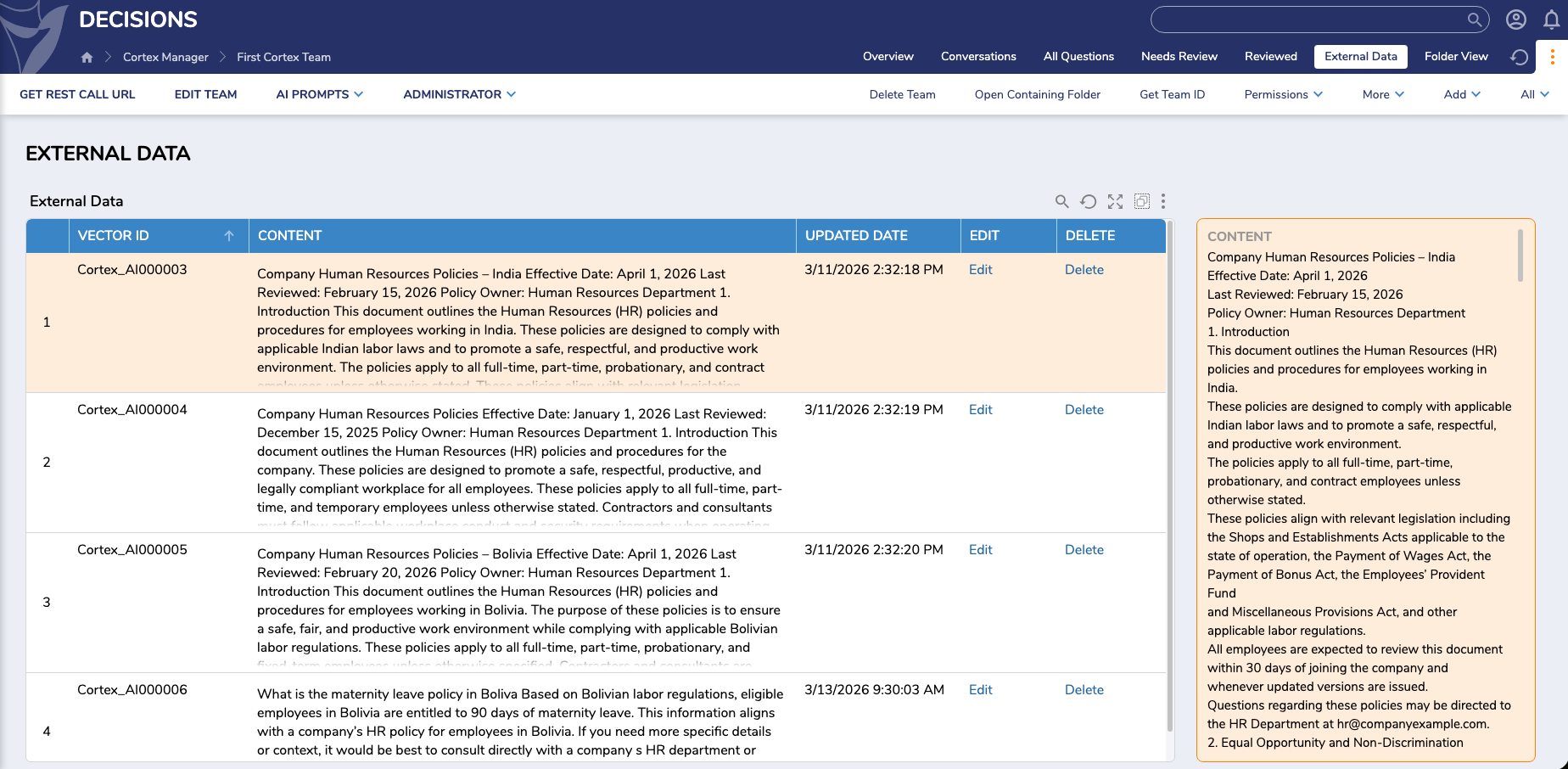 |
| Folder View | Displays a status history of actions performed in the team folder. Entries can include events such as Vector Database Table Created, Team Edited, and Questions Bulk Insertion. 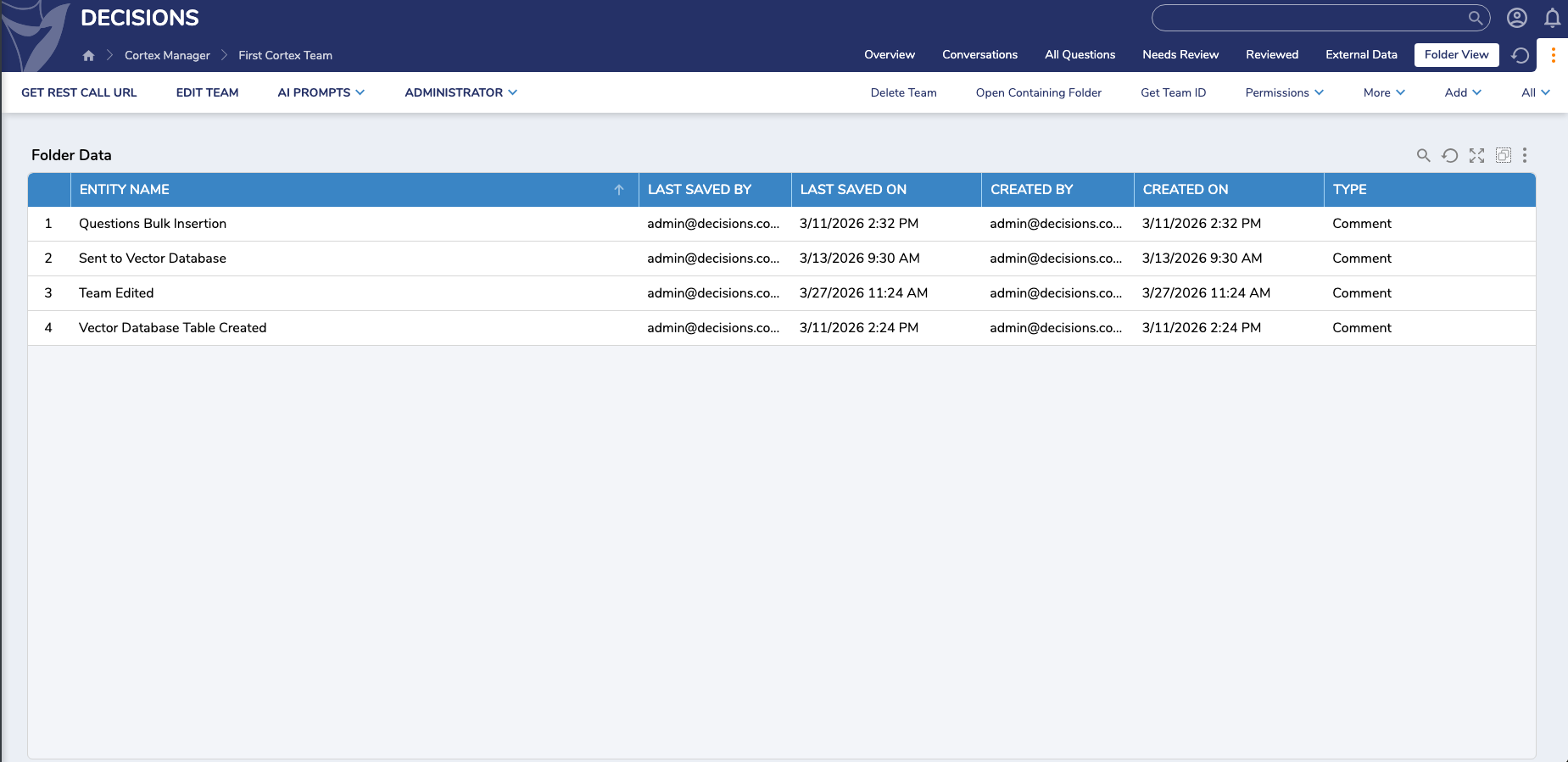 |
Team Folder Actions
Several actions are available from within the team folder. These actions are used to manage the team configuration, retrieve the chatbot endpoint, modify prompts, and perform administrator tasks.
General Actions
| Action | Description |
|---|
| Get REST Call URL | Generates the REST URL used to call the chatbot externally. This URL can be used for testing or for connecting an external UI to Cortex. |
| Edit Team | Opens the team configuration so that team settings can be updated, such as Team Name, Category, Manager Email, Vector Match Percent, Number of Results, Vector Database ID, and Vector Database Table Name. |
| Delete Team | Deletes the selected team. A confirmation dialog appears before the team is deleted. |
| Open Containing Folder | Opens the parent location for the team and returns to the Cortex Manager Dashboard, where all team folders are displayed. |
| Get Team ID | Displays the ID for the selected team. |
AI Prompts
| Action | Description |
|---|
| Modify Categorize Prompt | Opens the prompt used by Cortex for categorization. A default prompt is already included, but this action can be used to update it if different categorization behavior is needed for the team. |
| Modify Sentiment Score Prompt | Opens the prompt used by Cortex to evaluate sentiment. A default prompt is already included, but this action can be used to adjust how sentiment scoring is performed. |
| Modify Summarize Prompt | Opens the prompt used by Cortex to generate summaries. A default prompt is already included, but this action can be used to modify how summary output is generated. |
| Modify Title Prompt | Opens the prompt used by Cortex to generate titles. A default prompt is already included, but this action can be used to change how titles are created. |
Administrator
| Action | Description |
|---|
| Bulk Insert Content with PDFs | Uploads one or more PDFs, extracts their text, and creates records that can later be reviewed and added to the vector database. |
| Bulk Insert Content with Spreadsheet | Uploads question and answer content from a spreadsheet template for bulk insertion. |
| Create Vector Database Table | Creates the Vector Database Table for the team when a table does not already exist. |
Permissions
| Action | Description |
|---|
| Disable Permission Inheritance / Enable Permission Inheritance | Toggles whether the team folder inherits permissions from its parent. The available option changes based on the current inheritance setting. |