Overview
UAT (User Acceptance Testing) is a feature that enables end-to-end manual testing to validate complete functionality of a Build. UAT is performed at the Package level, executed by QA in the form of Test Cases, which follow predefined testing scenarios. Results are then manually marked as Passed/Failed by QA at the Build level.
This feature was introduced to reduce the dependence on external systems for managing tests, to increase visibility of test failures, and to sync test results across servers. This allows Leads and Project Managers to view results and manually decide if a Package should be deployed or not, which drastically improves auditability.
Configuration
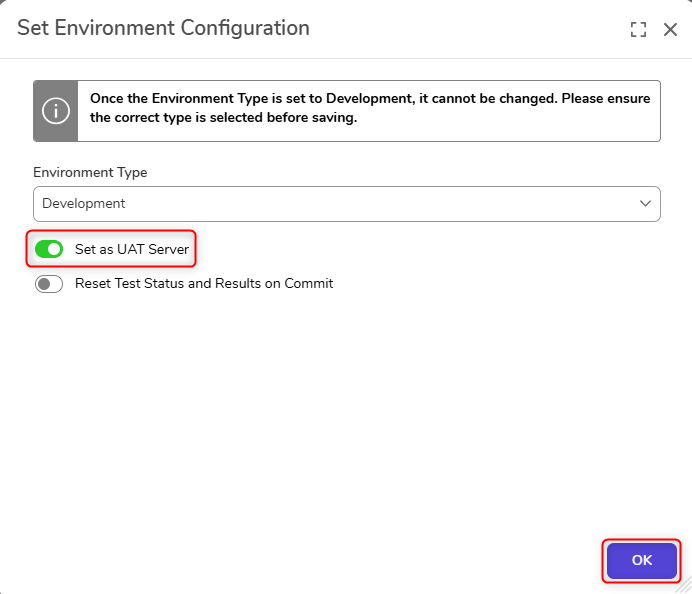
To set a server as a UAT Server, right-click the desired Development/QA server, and select Configure. The Set Environment Configuration window will open. Select Set as UAT Server and click OK to save the configuration. 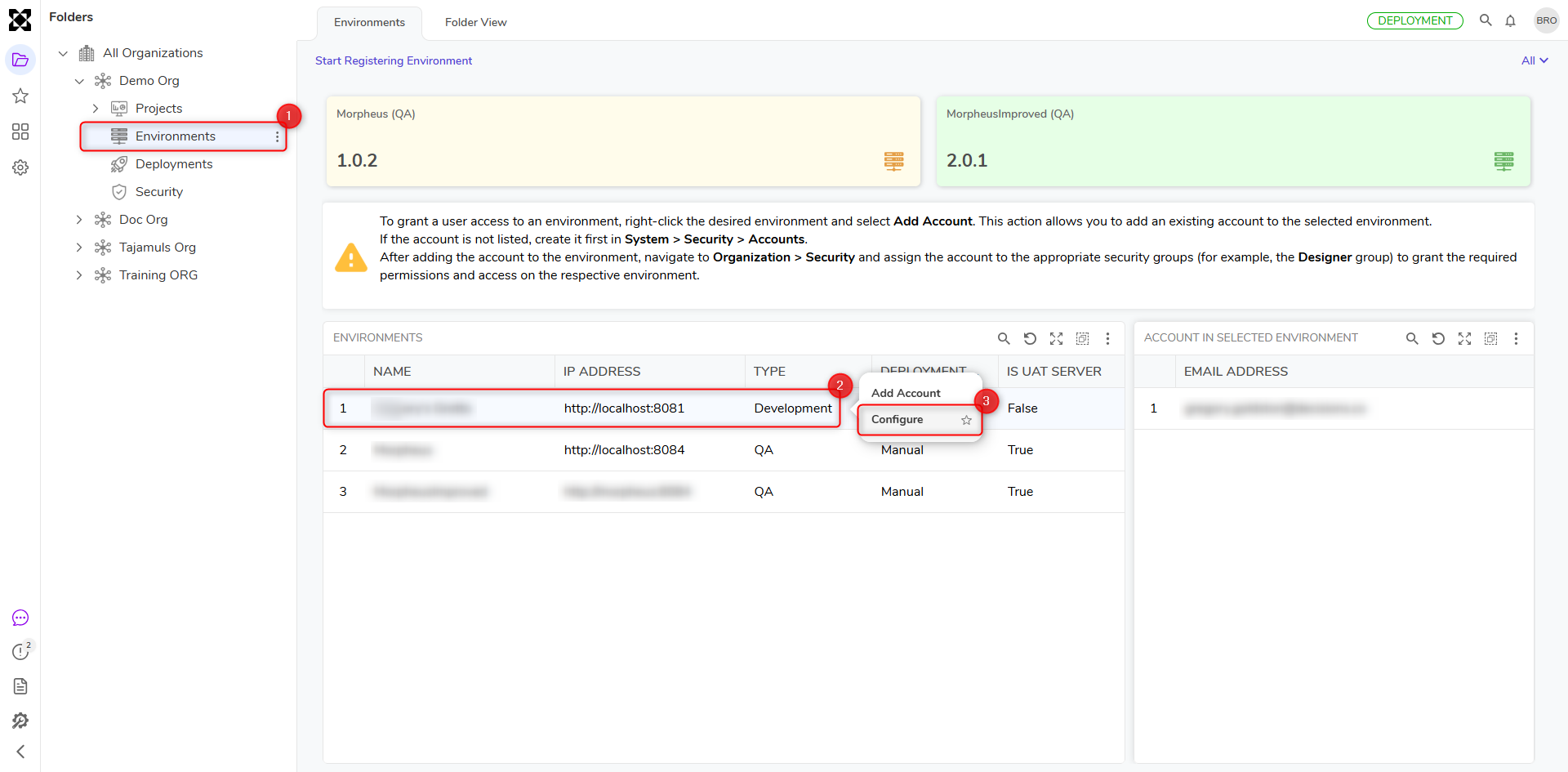
To verify a server is a UAT server type, navigate to [Organization Name] > Environments, and check that IS UAT SERVER is True for that server.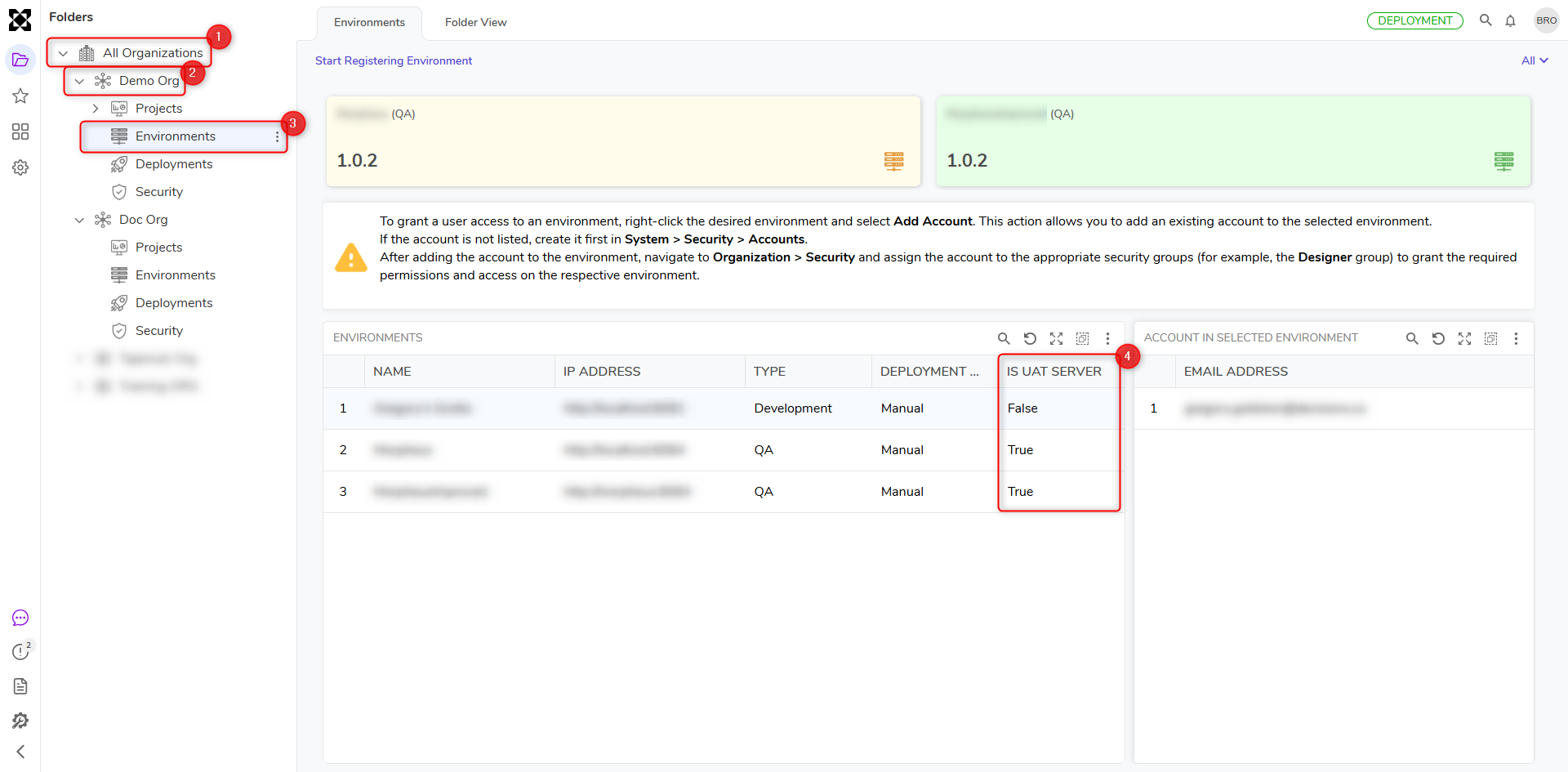
On the Deployment Tower
Test Cases
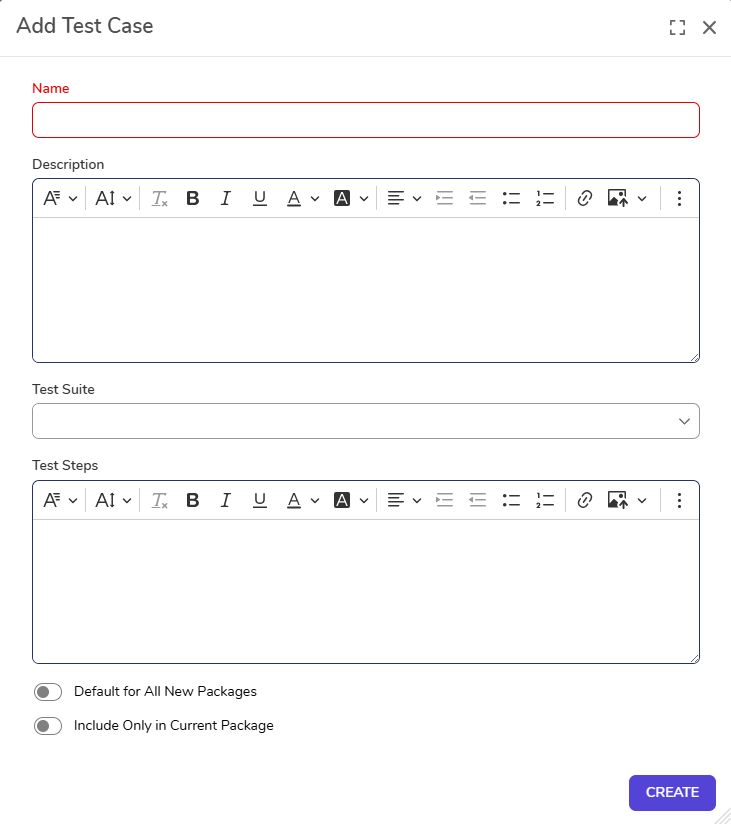
From the Deployment Tower, Admins create test suites/test cases for a specific project. To create a new Test Case for a project, navigate to [Organization Name] > Projects > [Project Name] > Tests Management. Click Add Test Case.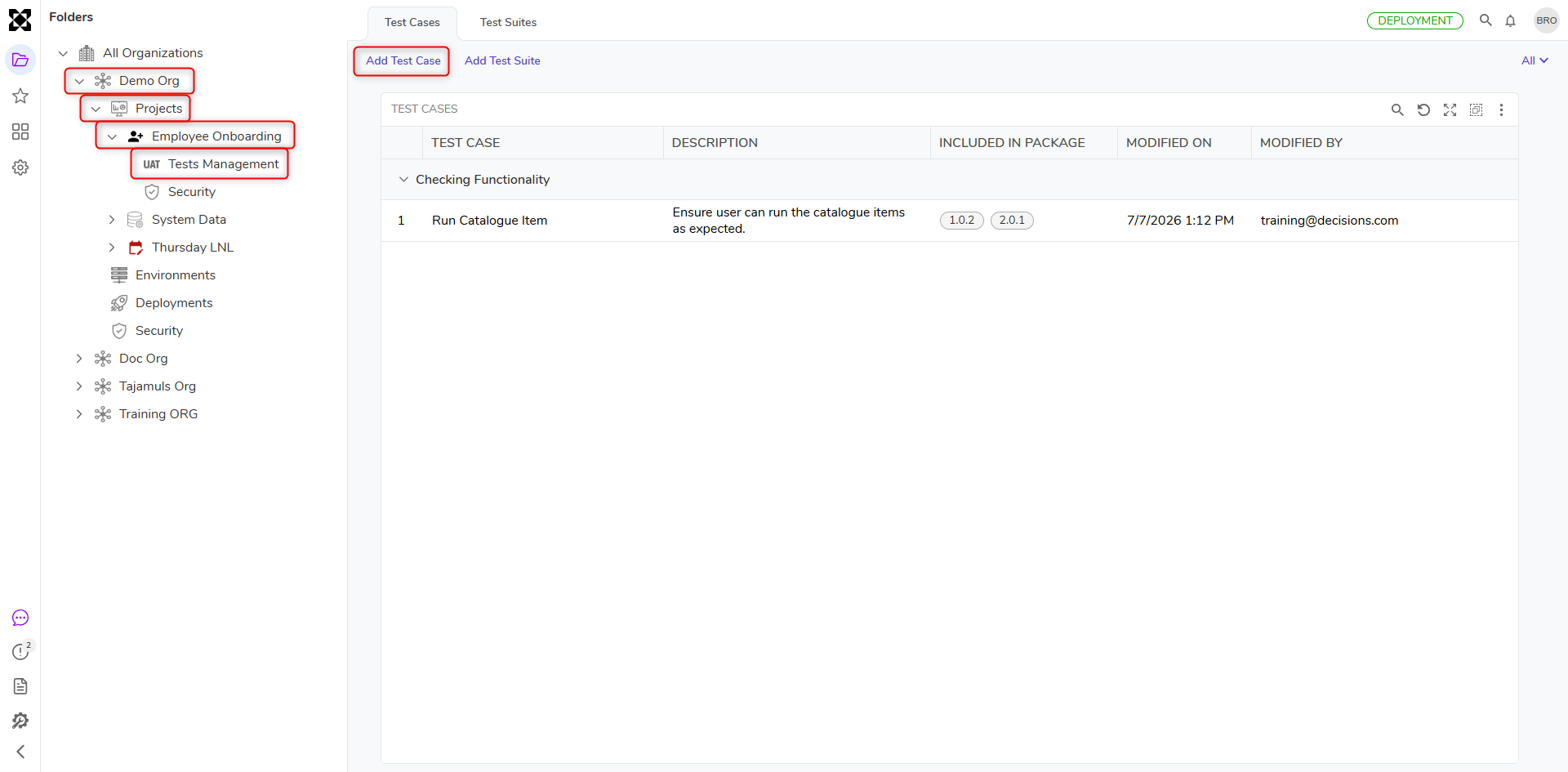
When a new Test Case is created, the following fields are available to configure:
| Name | User-defined name for the Test Case. |
| Description | Description of what the Test Case is intending to validate. |
| Test Suite | The parent folder to hold the Test Case. |
| Test Steps | The steps required to create the prescribed test scenario. |
| Default for All New Packages | If selected, sets the Test Case as the default for all new packages. |
| Include Only in Current Package | If selected, the Test Case will only be included in the current package. |
 Admins decide which package to add the Test Suite/Test Case to. Thus, the Deployment Tower becomes a repository of Test Cases and Test Suites. Once the Test Case/Suite is added to the specified package, it is instantly synced to the UAT Server.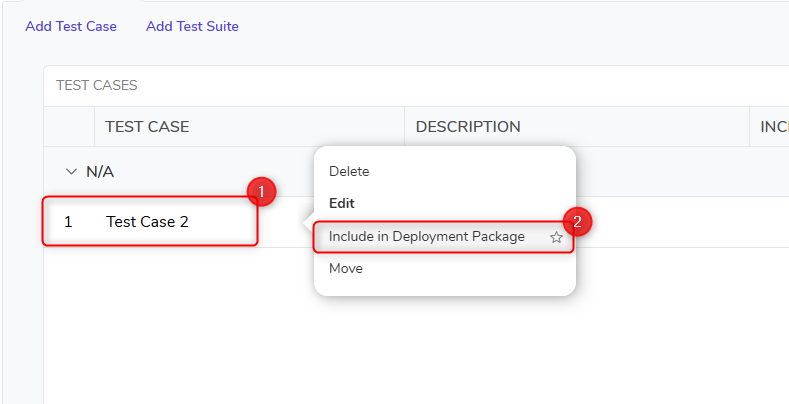
Test Suites
Test Suites are the overhead organizers of Test Cases, analogous to a parent folder. Thus, a Test Suite can hold multiple Test Cases. A Test Suite does not have to be defined when creating a Test Case, but it is recommended for clearer organization of related Test Cases. 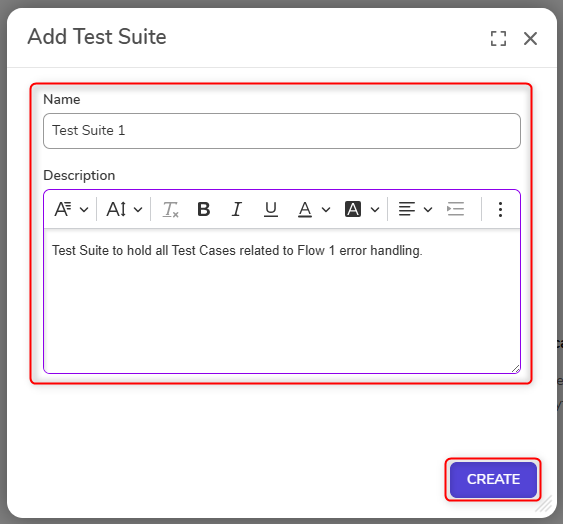
On the UAT Server
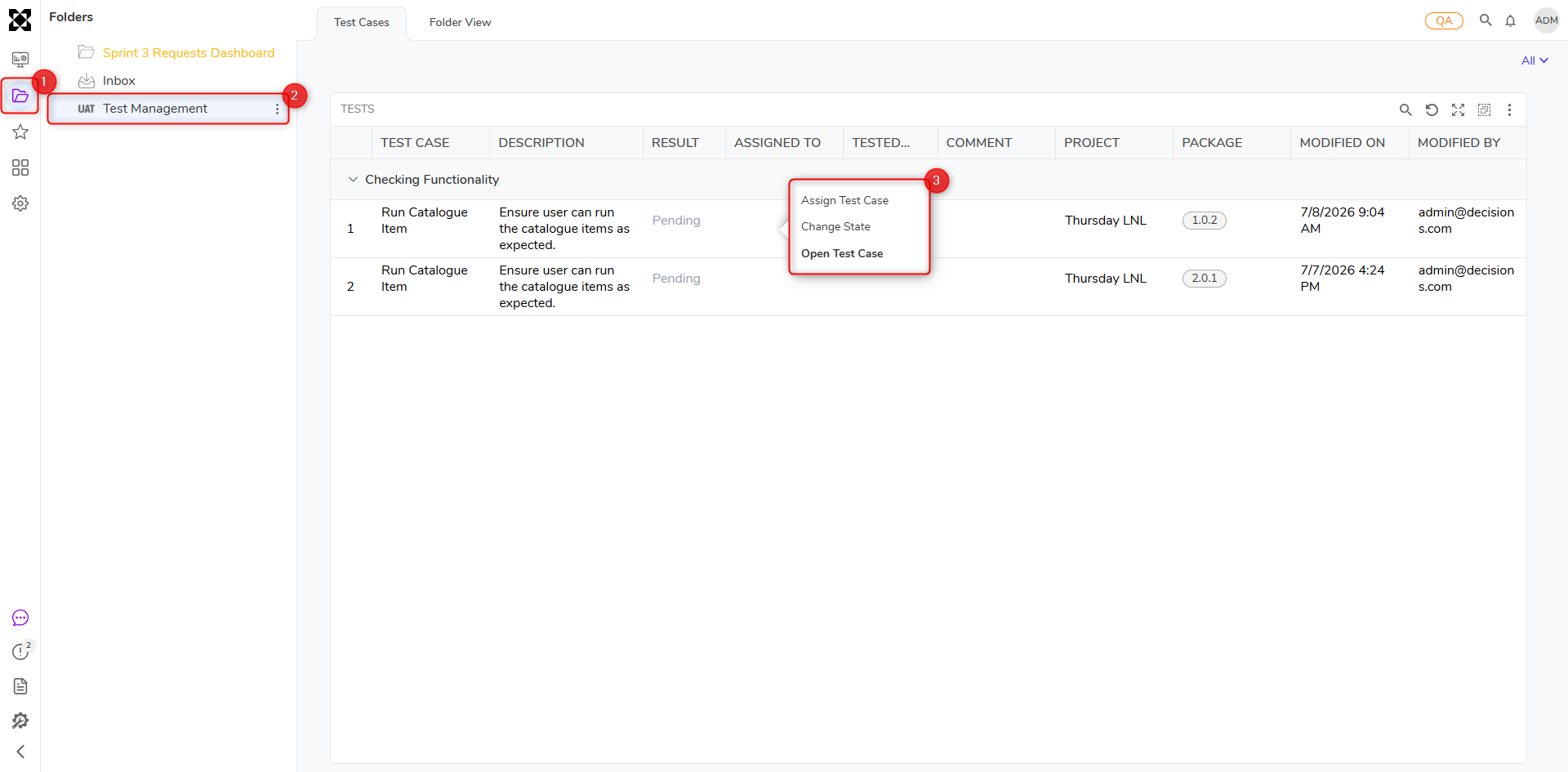
When a Test Case is created by an Admin on the Deployment Tower, it is created without being assigned to any tester/user. A Test Case must be manually assigned to a QA user within the UAT Server. Test Cases are accessible to any user with QA user permissions even if not assigned to them. All Test Cases will appear under Test Management.
 The steps to perform a test can be viewed by clicking on the test in the UAT server.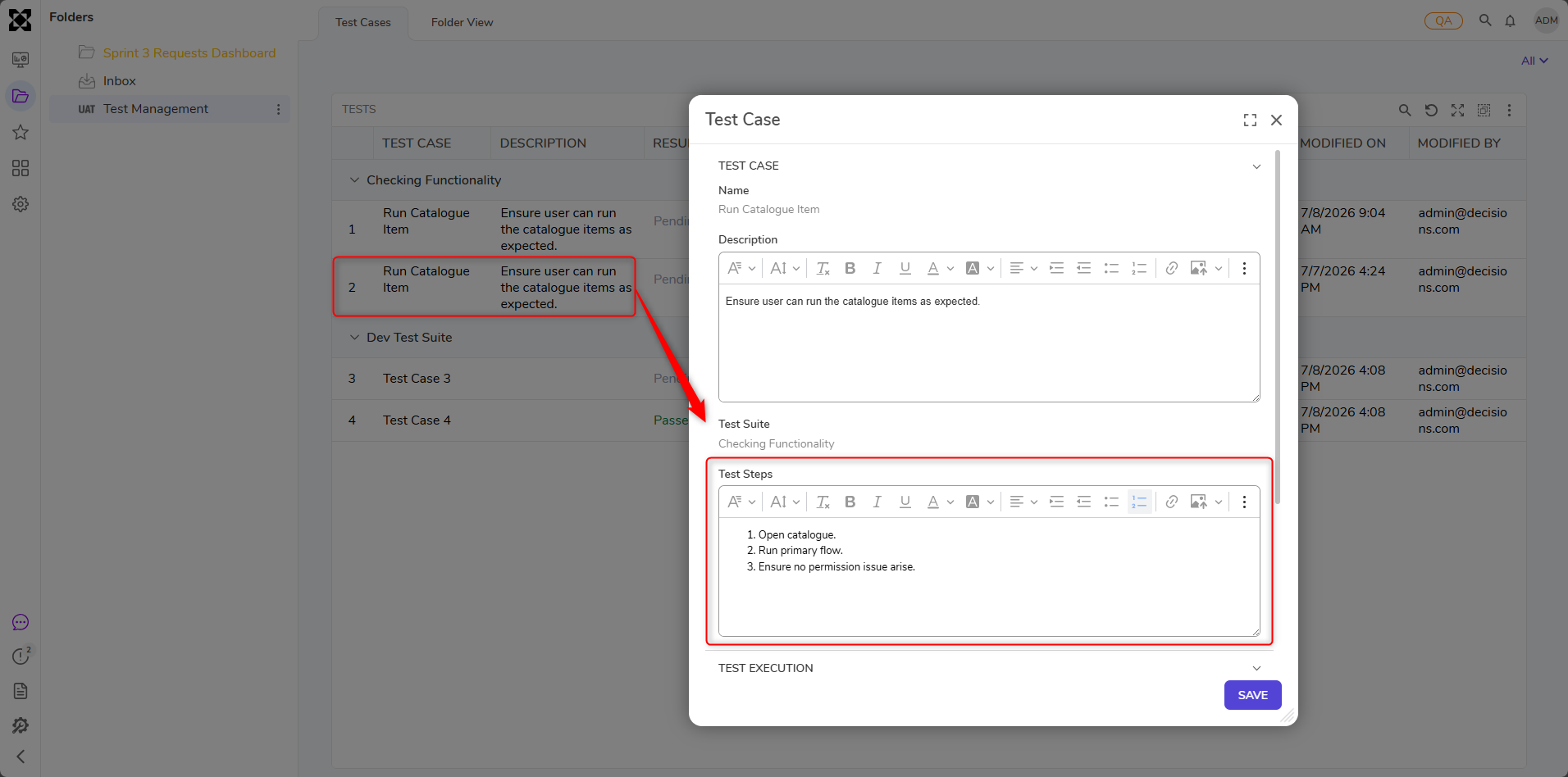
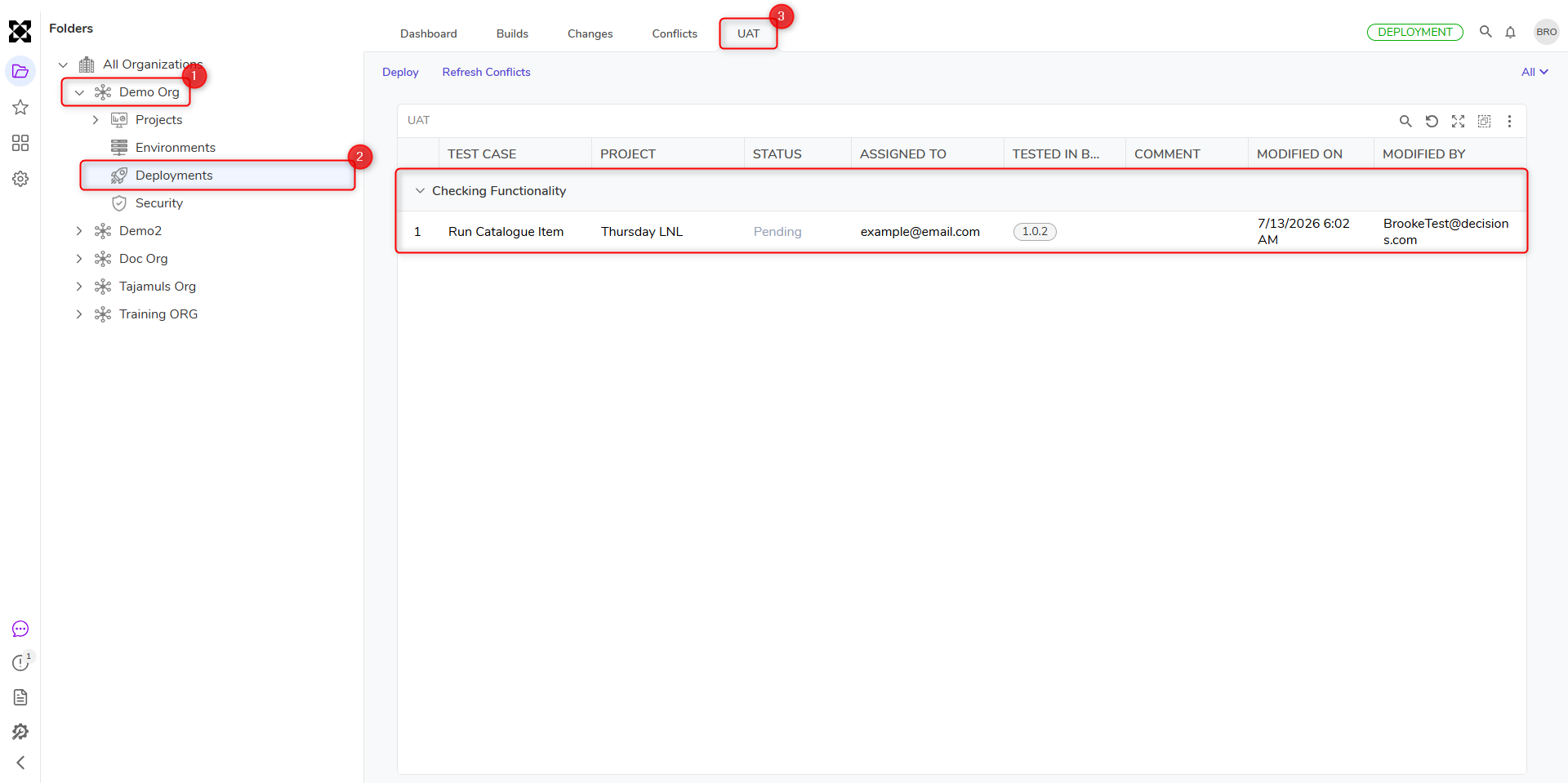
After a Test Case is executed and its results have been validated, the Test Case's status needs to be updated. There are four Test Case statuses: Pending, Passed, Failed, and Not Applicable. The Test Case's status can be changed by right-clicking the Test Case and selecting Change State.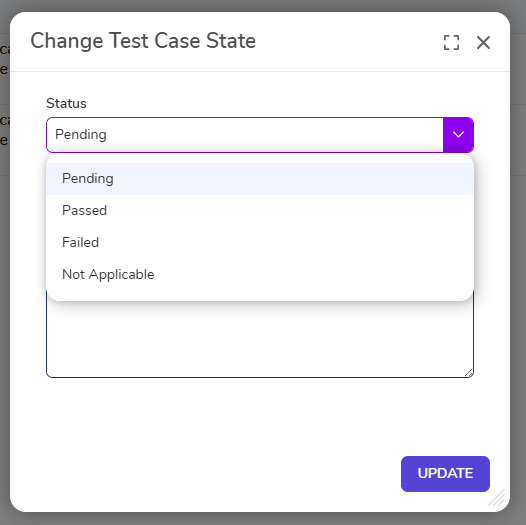 The Test Status, Tested on Package ID, Tested By, and Comments are all synced back to the Deployment Tower for an Admin to review. These UAT results will also appear on the Builds Report of the Deployment Package.
Test Cases vs. Unit Tests
UAT Test Cases should not be conflated with Unit Tests. The table below showcases the differences between Test Cases and Unit Tests:
| Test Cases | Unit Tests |
| Validates complete functionality with end-to-end testing. | Validates expected behavior for a single component (e.g. a Flow, a Rule) by simulating a specific scenario. |
| Expected to be executed in a QA environment that has been updated to a UAT type. | Should not be modified in QA or Production environments. |
| Manual Approval/Rejection of a test result. | Automated Pass/Fail result. |
| Accessible across UAT type QA servers and UAT type Development Servers to users with QA security authorization. | Must be created/modified in Development environment. |
| Created at the Package level, then tested at the Build level. | Viewed and executed at the Build level. |
| Is instantly accessible to all QA users as long as the server is UAT type. | Should be included in deployment packages to be moved into QA/Production environments. |