Overview
Module Details | |
| Core or GitHub Module | Core |
| Restart Required | No |
| Step Location | Integrations > SAP |
| Settings Location | Settings > SAP Settings |
| Prerequisites |
|
The SAP Module enables Users to create, read, update, and delete data in SAP from the Decisions platform. This Module enables mass SAP transaction processing and automates data validation with dashboards that surface mismatches, failed transfers, and verified "known good" data.
Configuration/Properties
Installation
- To set up the Module in Decisions, navigate to Settings > Administration > Features, locate the SAP Module, and select Install.
- Users should note that the Module will not be installed if a valid license is not issued.
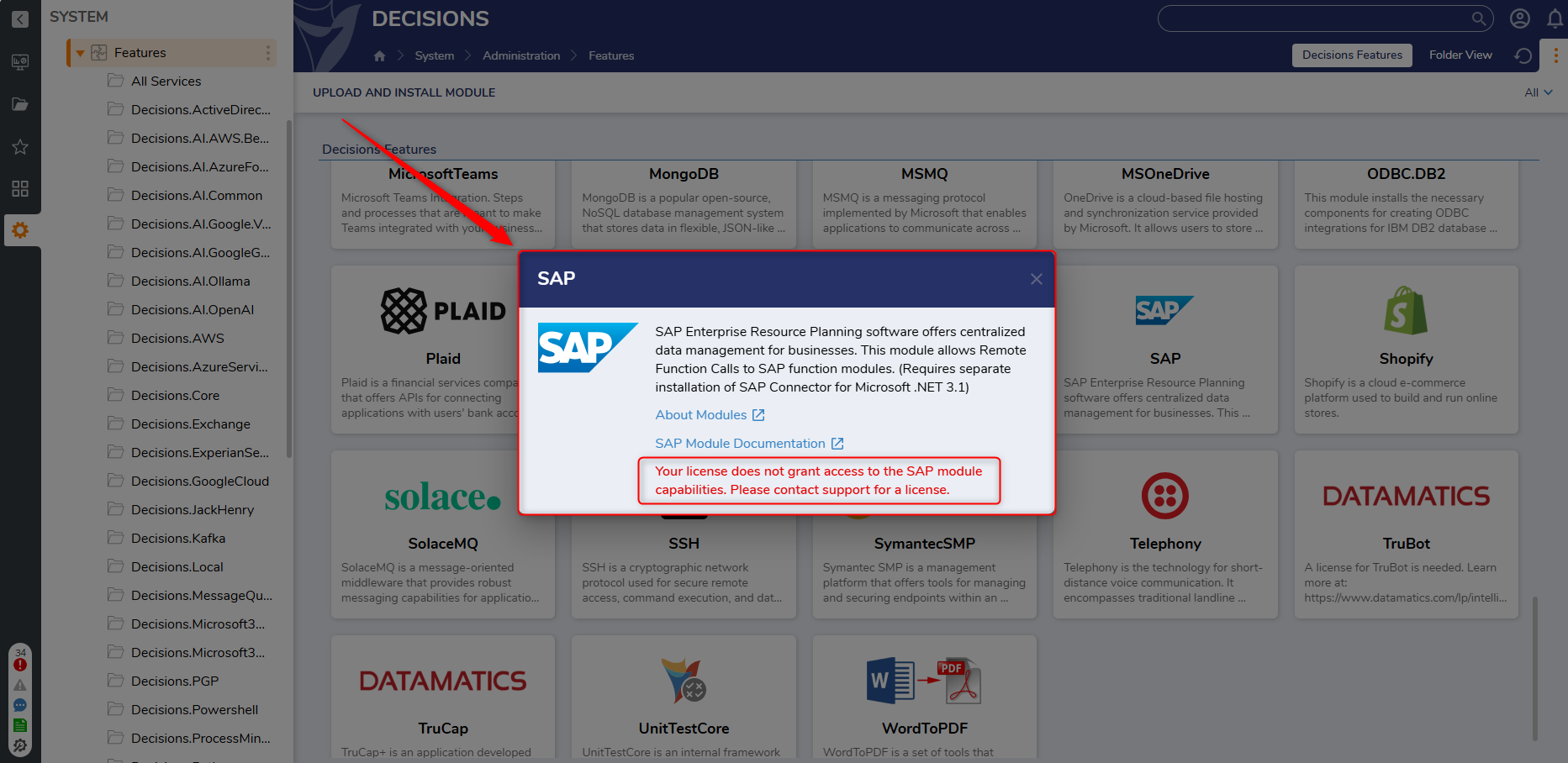
- Users should note that the Module will not be installed if a valid license is not issued.
Creating a Dependency:
- After installing the module, navigate to the project that will utilize SAP.
- Then, within the Project, navigate to Manage > Configuration > Dependencies.
- Select Manage, navigate to Modules, and select Decisions.SAP.
- Select Confirm to save the change.
For more information on installing Modules, please visit Installing Modules in Decisions.
For more information about creating a project dependency for a Module, please visit Adding Modules as a Project Dependency
Connections and Functions
Once a project dependency is added, an SAP folder will be exposed under Manage > Integrations to manage connections and functions. 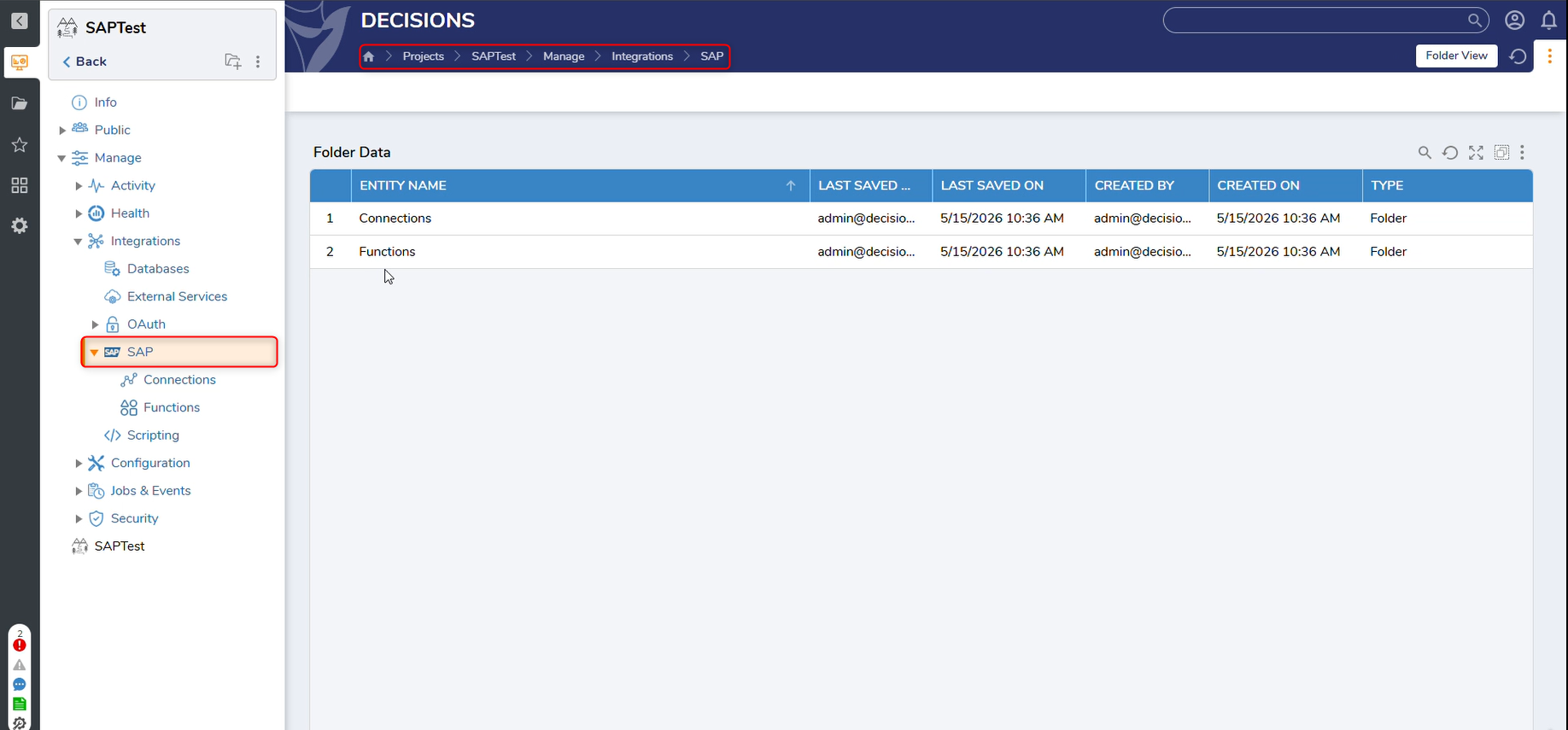
Creating a Connection
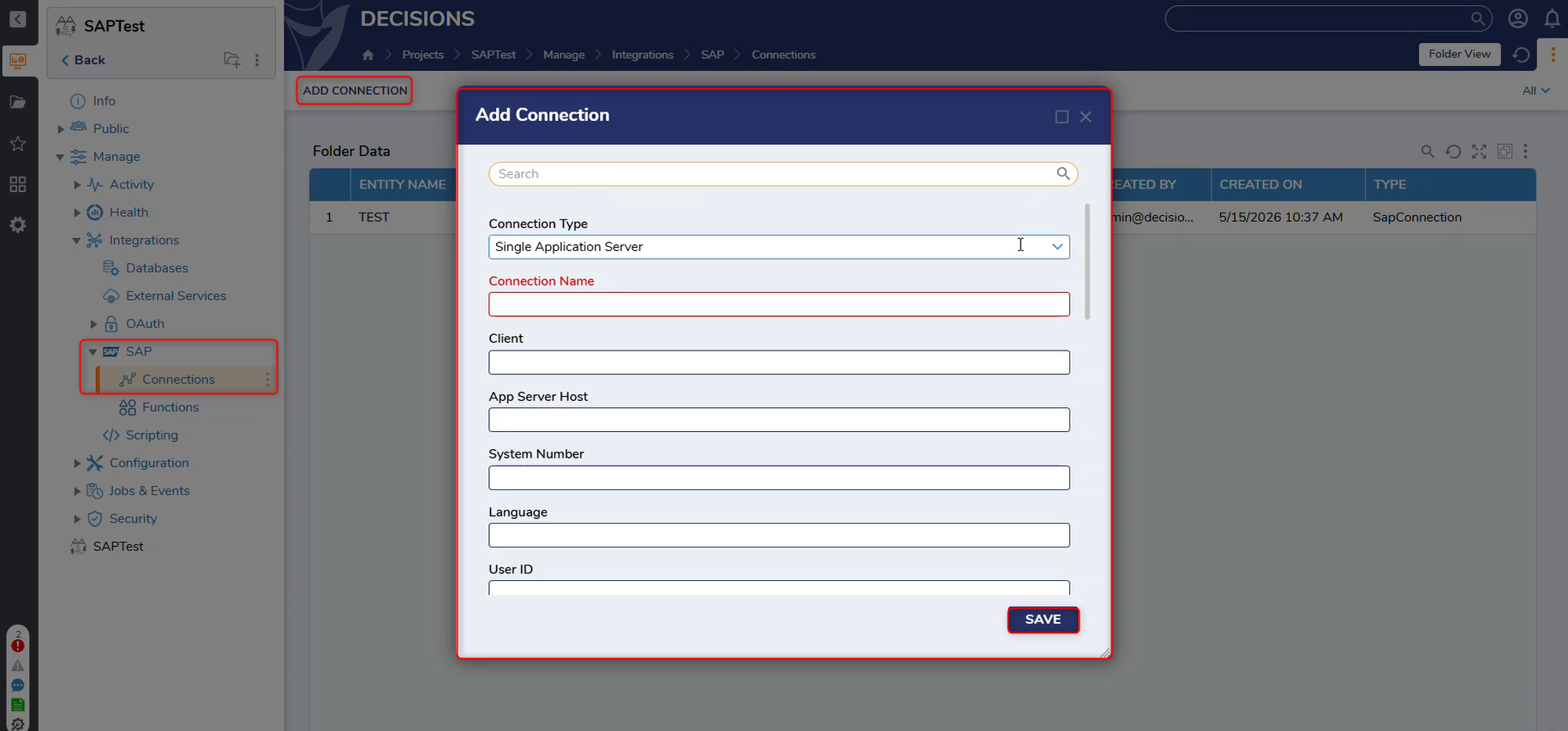
Connections can be added by navigating to Connections in the SAP Integrations folder.
 Creating a Function
Once a connection is added, Users can add a Function by navigating to Functions in the SAP Integrations folder. The desired connection can be selected using the dropdown menu. 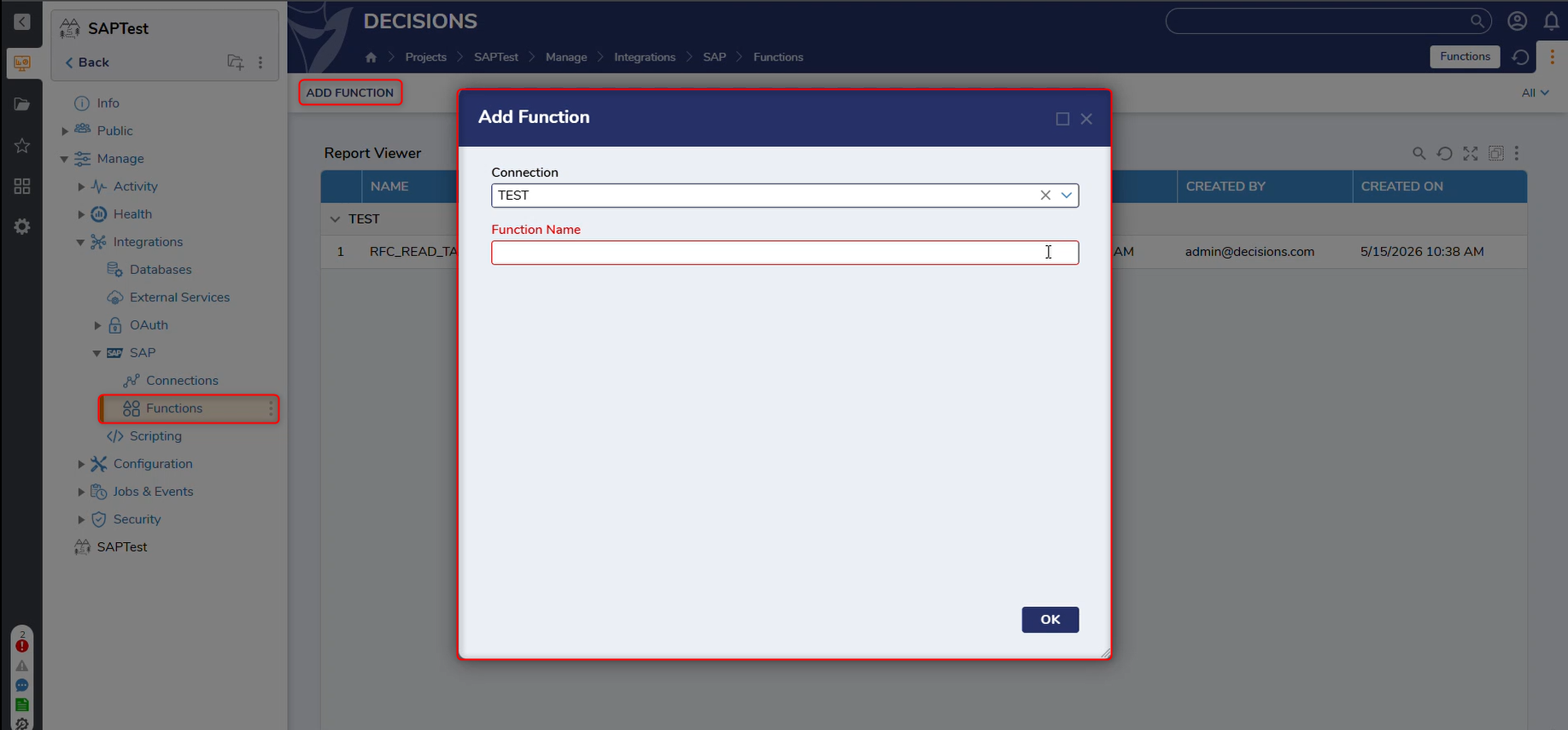
Available Steps
For example, Users can create a function like the one below in the SAP folder. 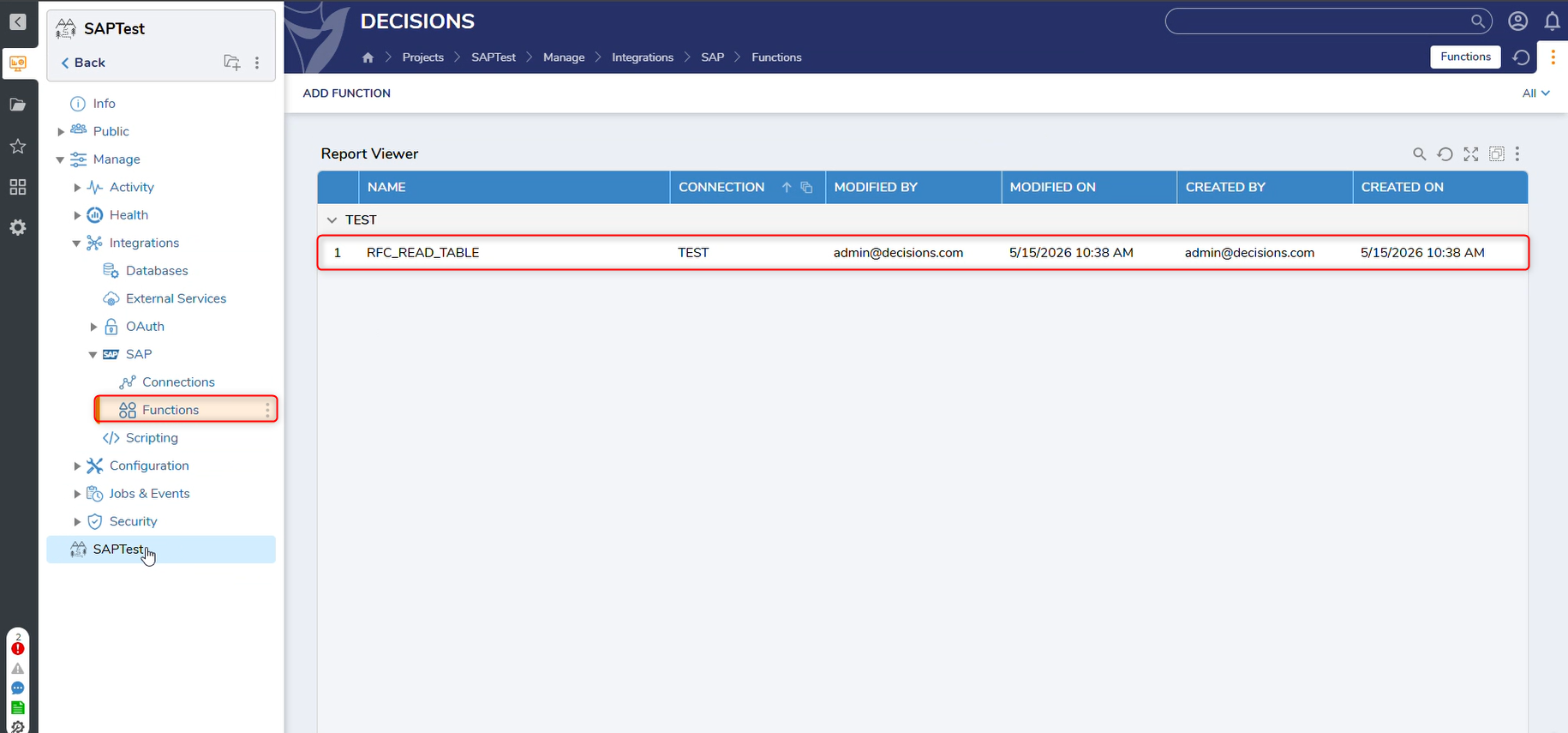
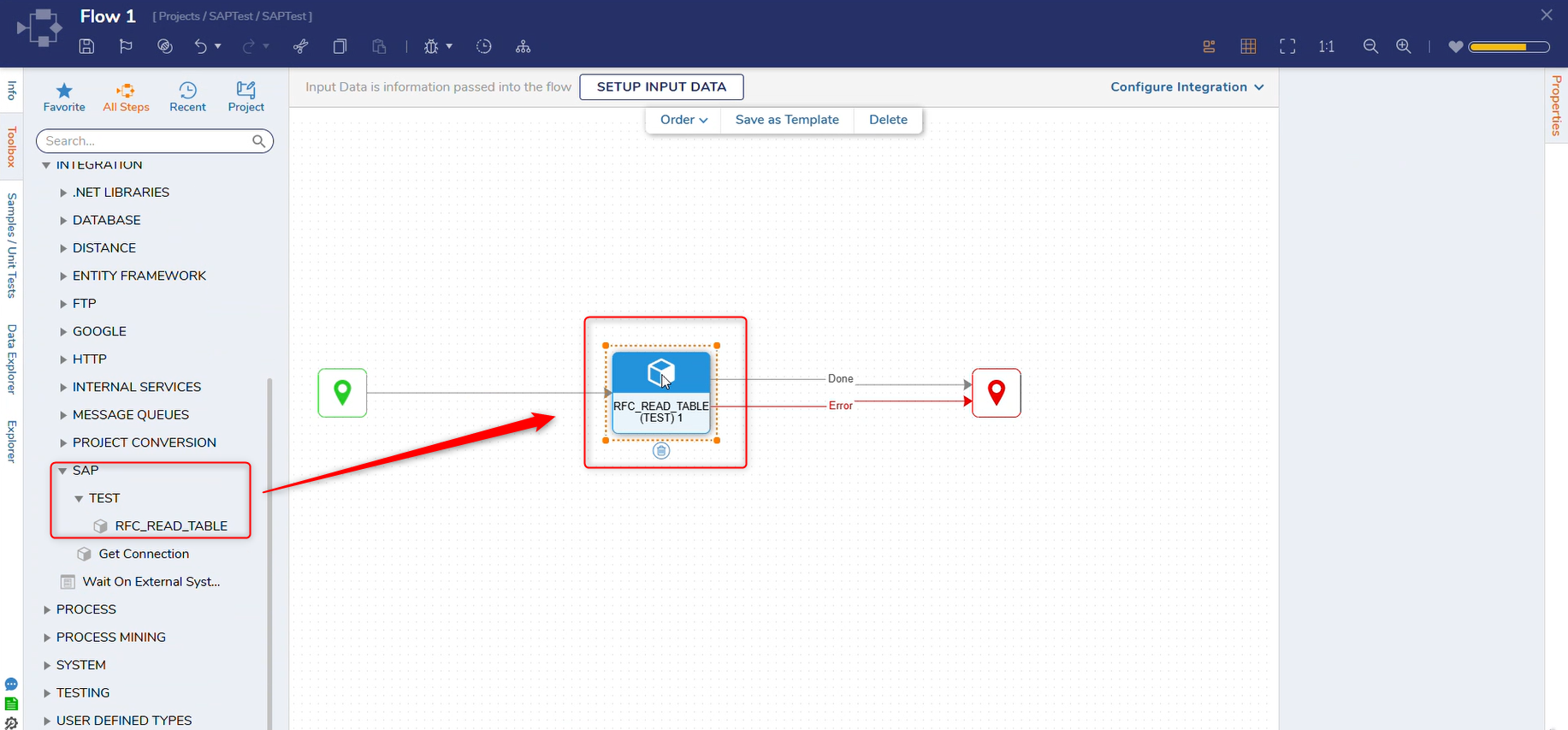
Once the Function is added, the Module will automatically create a new step that will appear in the Flow Toolbox under Integrations > SAP.