Overview
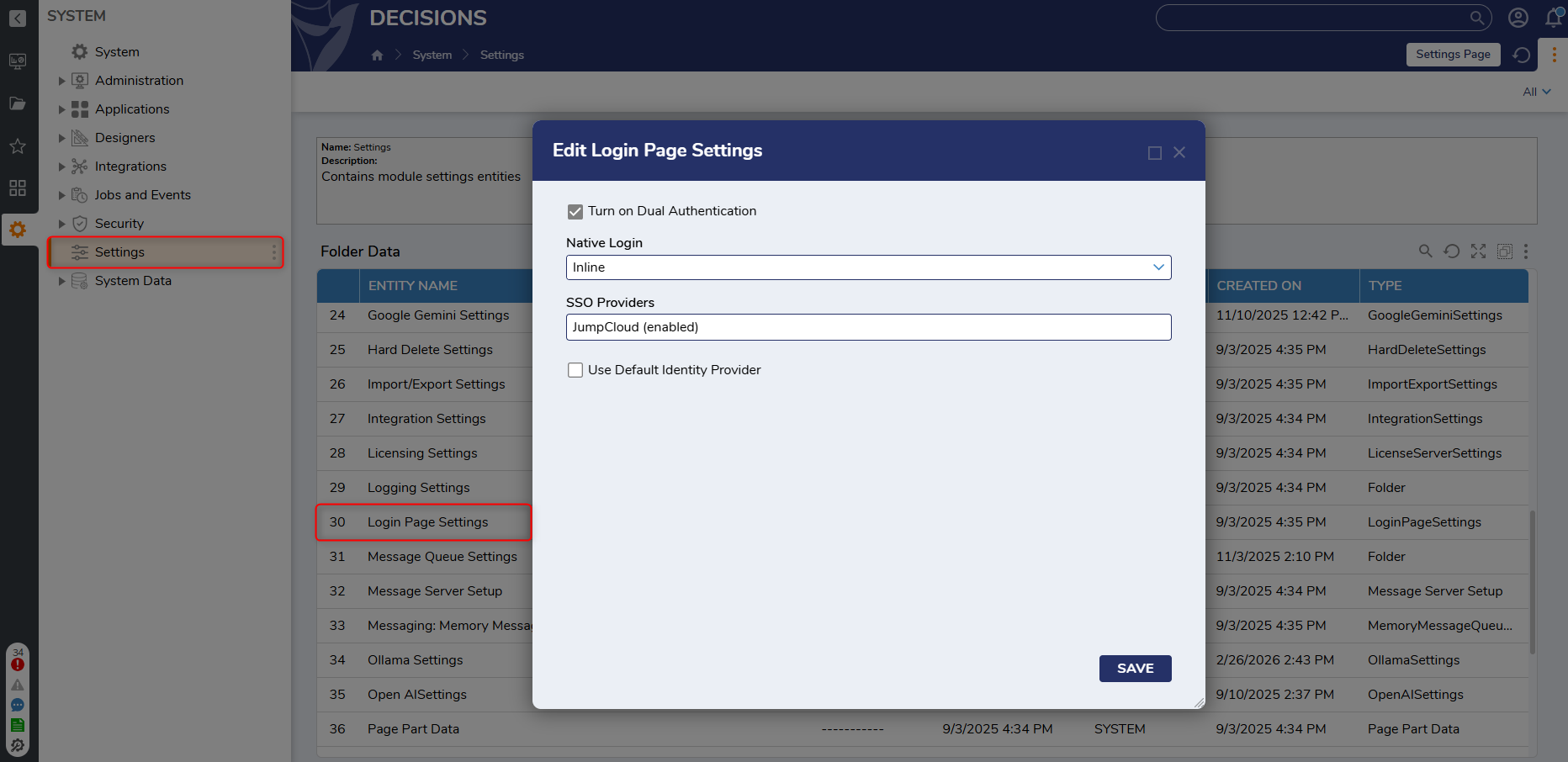
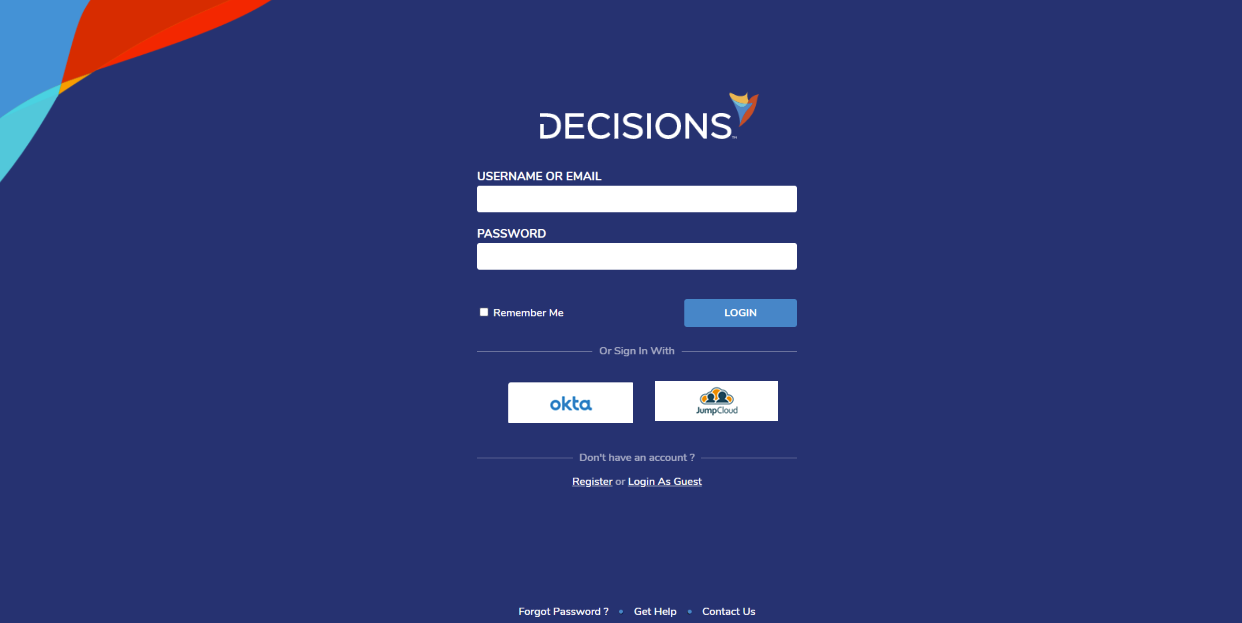
Login Page Settings allow Users to log in via native credentials or an SSO Provider. They can be located by navigating to System > Settings and then selecting Turn On Dual Authentication. This will enable Users to log in natively or through an SSO Provider.
 Configuration
| Setting Name | Description | ||
|---|---|---|---|
| Turn On Dual Authentication | Enables the login page to display native and SSO login options. | ||
| Native Login | Displays the option for the username and password for the platform. | ||
|
|
Inline | Displays the native username and password fields on the login page. | 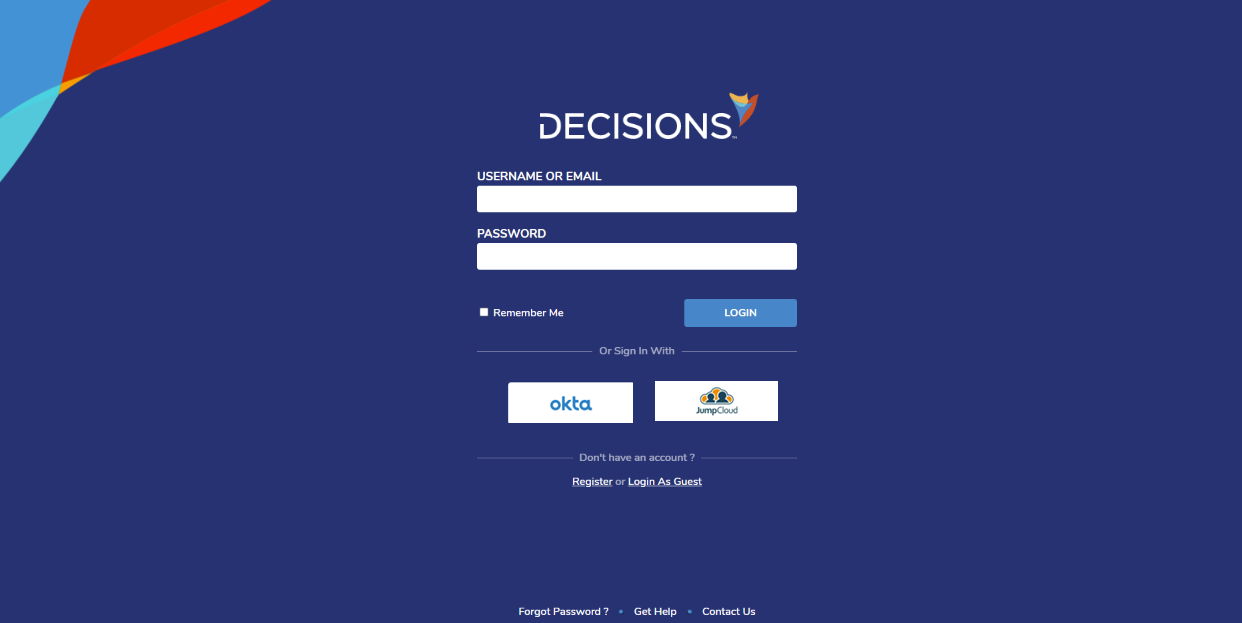 |
|
|
Separate Page | Adds a 'Native Login' button, which displays the username and password fields on a different page. | 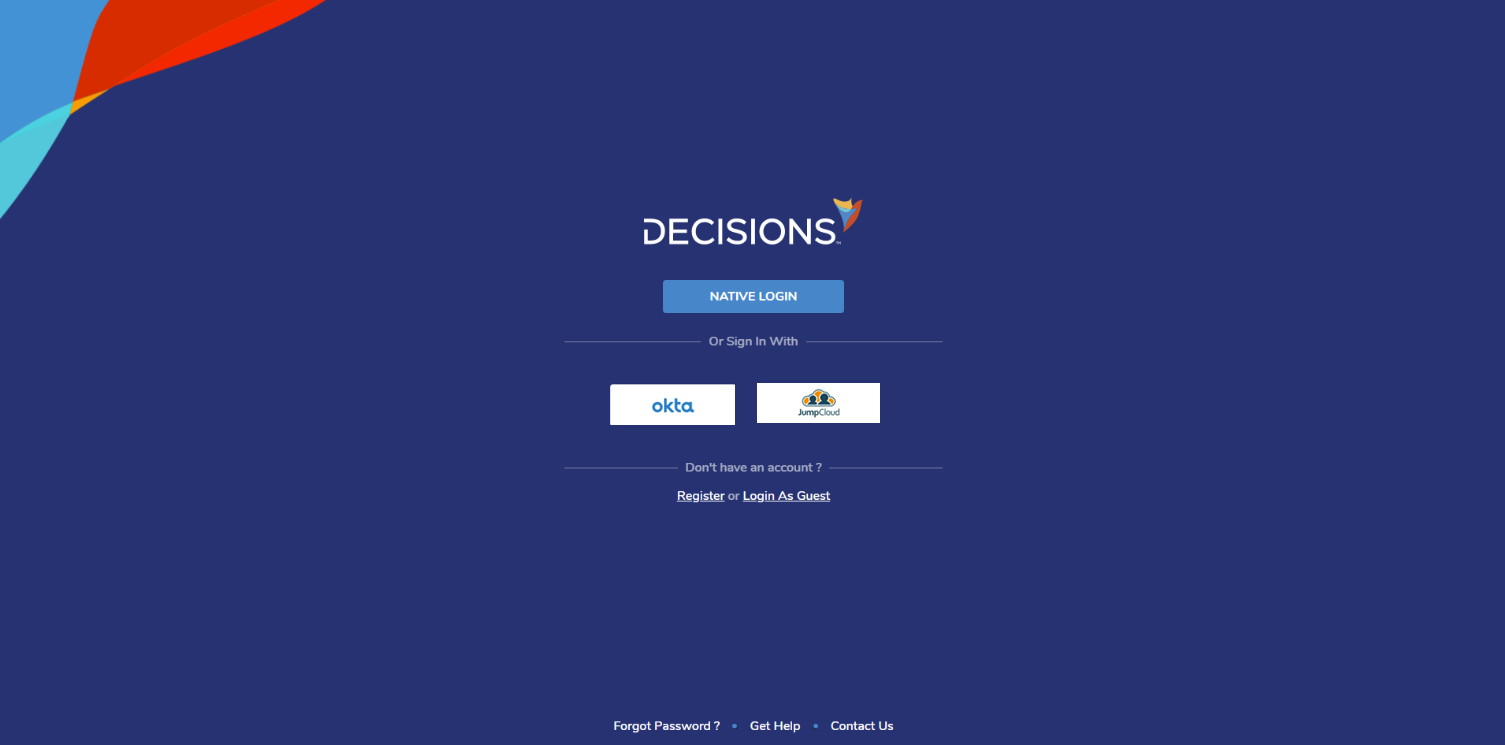 |
|
|
Hidden | Hides the username and password fields. | 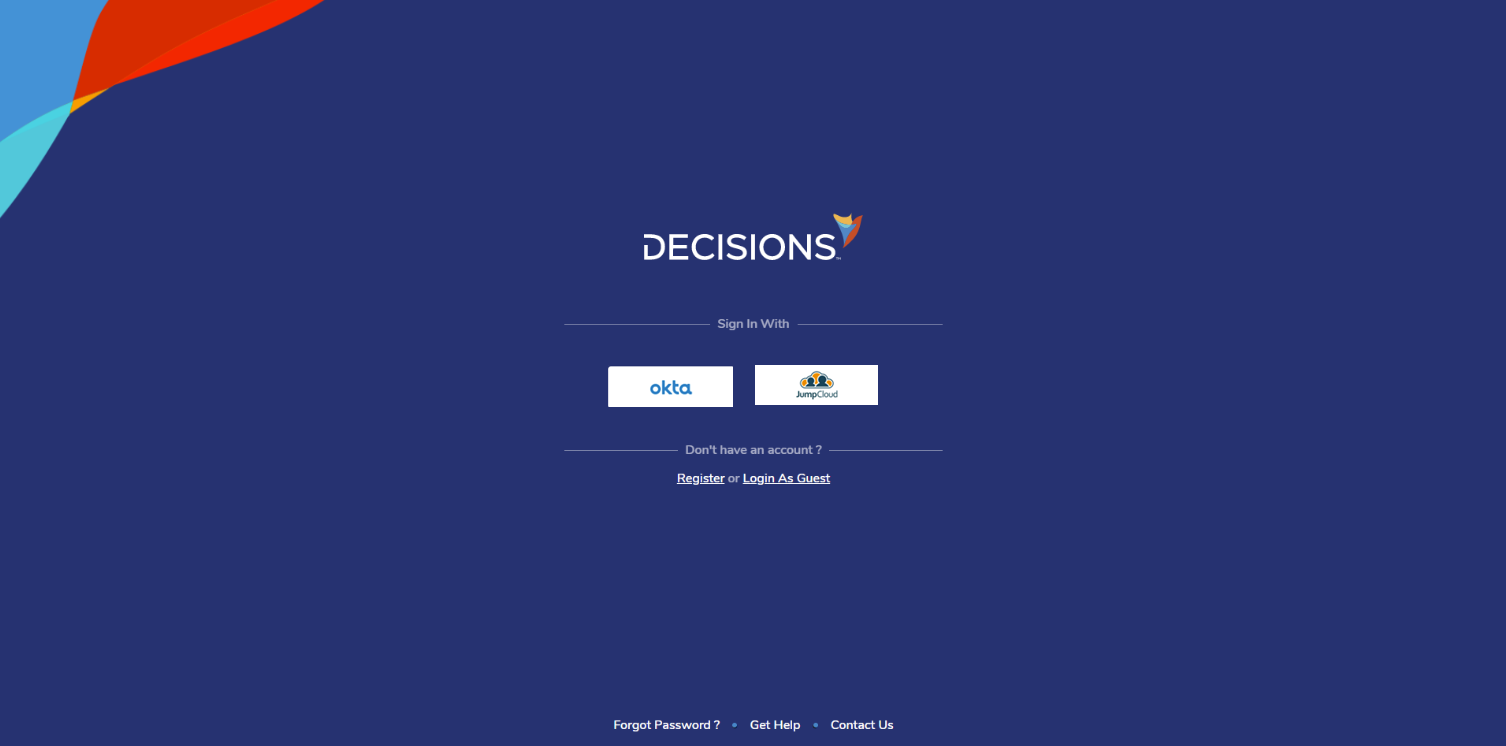 |
| SSO Providers | Displays a list of the SSO providers that have been configured. | ||
| Use Default Identify Provider (For v9.23+) | Allows Users to define a default identity provider for login.
| ||
Skipping the Login Page
If Users want to avoid the login page entirely, they can specify the IdP ID (located in the login_page_provider table) in their URL. This is only available in v9.6+.
The URL must include the IdP ID at the end of the URL. See the bolded area in the example. Replace xxxxxxxxxxxx with the ID.
http://portalbaseurl/folders?FolderId=INBOX_FOLDER_ID&pageName=My+Assignments&IdentityProviderId=xxxxxxxxxxxxAfter the SSO and ldP have been configured, the Decisions Server needs to be restarted for this method to work.
SSO Provider
Hovering over an SSO Provider and clicking the pencil icon will display the Edit SSO Providers window.
.png)
These settings define how the SSO login will be displayed. If multiple SSO Providers are configured, the order can be changed using the arrows next to the SSO Provider.
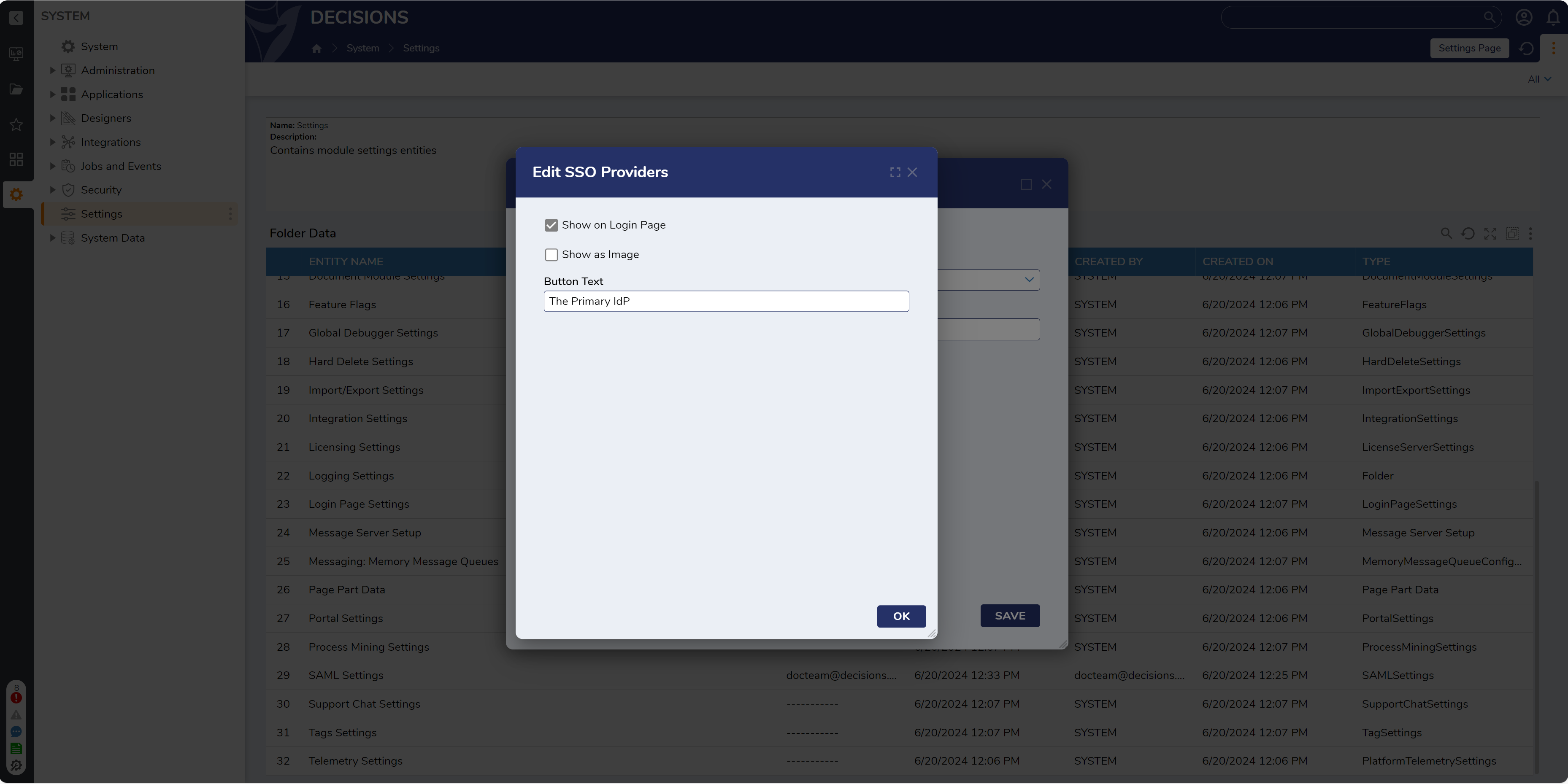
| Setting Name | Description |
|---|---|
| Show on Login Page | Enables the SSO Provider to be displayed on the login page. |
| Show as Image | Replaces the button text with an image. |
| Button Image | If Show as Image is set to true, Users can choose an image to use for the SSO login button. |
| Button Text | Allows Users to display text for the SSO Provider button. |
Feature Changes
| Description | Version | Release Date | Developer Task |
|---|---|---|---|
| Users can now specify the IdP ID in their URL. | 9.6 | January 2025 | [DT-042890] |
| A new setting has been added to 'Edit Login Page settings' that allows Users to define a default identity provider for login.
|
9.23 | April 2026 | [DT-046974] |