Overview
GraphQL is a query-based language that enables Users to integrate directly with a database or external service. Support for GraphQL is only available in v9.11 and above.
Settings and Configuration
The following table describes all the settings to configure a GraphQL Service.
| Setting | Description |
|---|---|
| Service Name | This is a User-defined name for the GraphQL service reference. Steps with this name will be available in the toolbox under Integration > External WebServices. |
| Service URL | The URL is the Uniform Resource Locator of the external service. It specifies the address where the application will send requests to or receive responses from. It typically includes the protocol (e.g., http:// or https://) and the domain or IP address of the web service. |
| Get Service URL From Constant | This checkbox allows Users to set the service URL from an existing Project Constant. Once checked, Users will have the option to select an existing constant. The selected constant will then be the URL that is used when executing the GraphQL step. |
| Service URL Constant | This is a Dropdown of existing Project Constants that can be used for the service URL. |
| Get Introspection Metadata from File | This option is intended for Users to specify a file for Decisions to understand the structures and content of the Operation call. If this is not selected, then Decisions will automatically generate the types based on the Query itself. |
| Introspection Metadata File Path | This is an additional setting that will show when the Get Introspection Metadata From File is enabled. This input refers to the place where the metadata file is located. |
| Additional Scalar Types | Adding a new Scalar Type, which requires a Scalar Name and Type Name. |
| Additional HTTP Headers | Allows users to specify other HTTP Header Keys and Values required for the new method. |
| Authentication Type | This selection will allow you to specify how you would like to authenticate the Operation. Some selections will require additional inputs. |
| Pre-Authenticate Request | This is an additional setting that will only show when the Authentication Type is set to Use Basic Authentication. |
| Use Static Credentials | This is an additional setting that will only appear when the Authentication Type is set to Use Basic Authentication. Once enabled, Users must provide a username and password for the Operation. This is not a recommended method of providing access. If the account were to be disabled, it would stop the step from functioning. |
| Use Custom Tag in Auth Header (Bearer is Default) | This is an additional setting that will only show when the Authentication Type is set to Use OAuth. If selected, you will be prompted to provide a Custom Tag for Auth Header value. |
| Use Static OAuth Token | This is an additional setting that will only show when the Authentication Type is set to Use OAuth. If selected, you will be prompted to pick an OAuth Token from the available tokens that are configured. |
| Ignore Server Certificate Errors | Ignores any issues directly related to the certificate. |
| Enable Manual Authentication | This setting allows Users to provide the Operation with a P12/PFX Certificate (File) and a P12/PFX Password. Both are used to authenticate the Operation. In v9.19, the GraphQL Service dialog will now display details of uploaded PFX certificates. |
Example
The following example will integrate an external Pokémon Database through the GraphQL Query Language. This database is open source and available to try here.
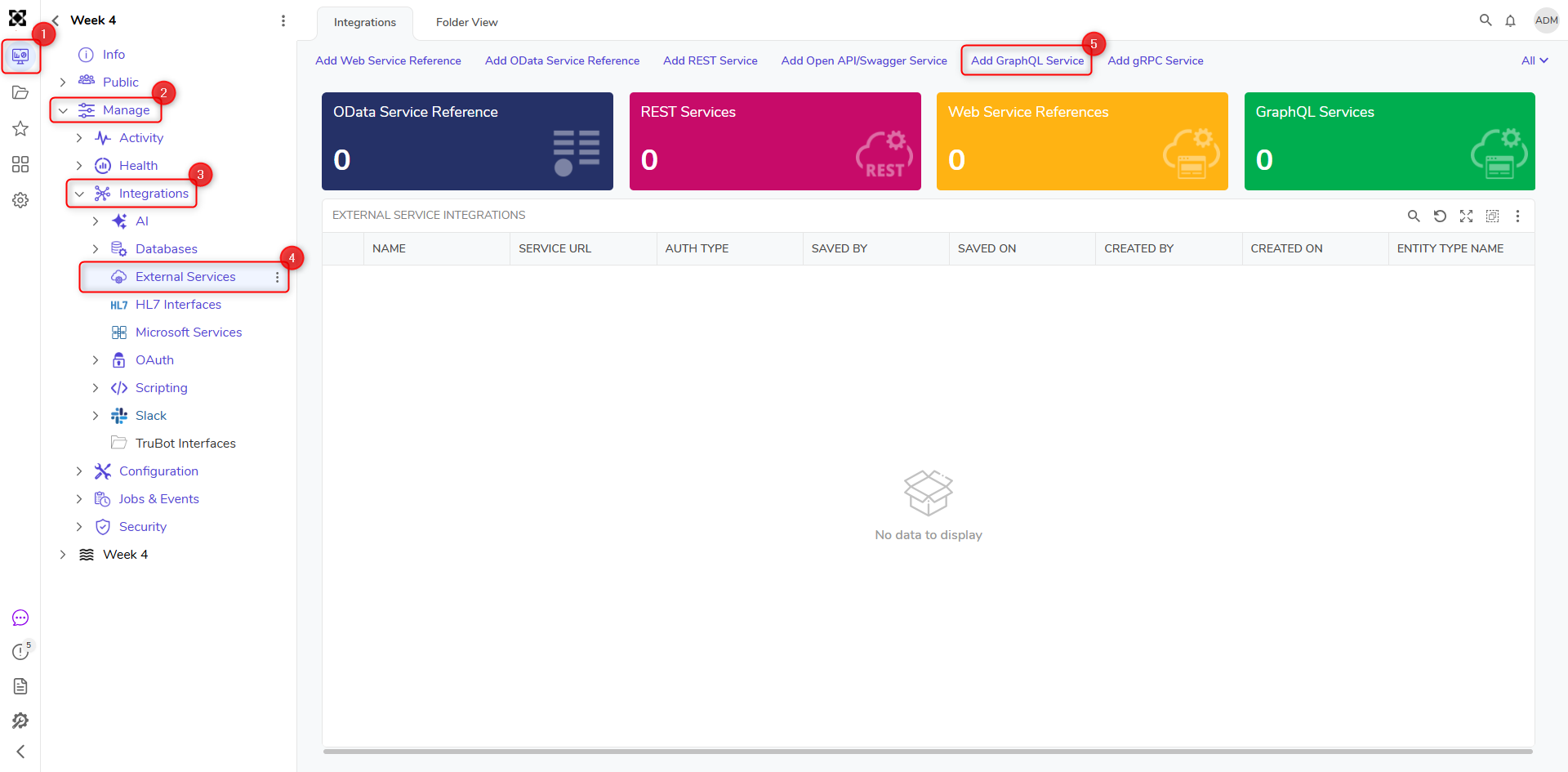
- Navigate to System > Integrations > External Services and click ADD GRAPHQL SERVICE.
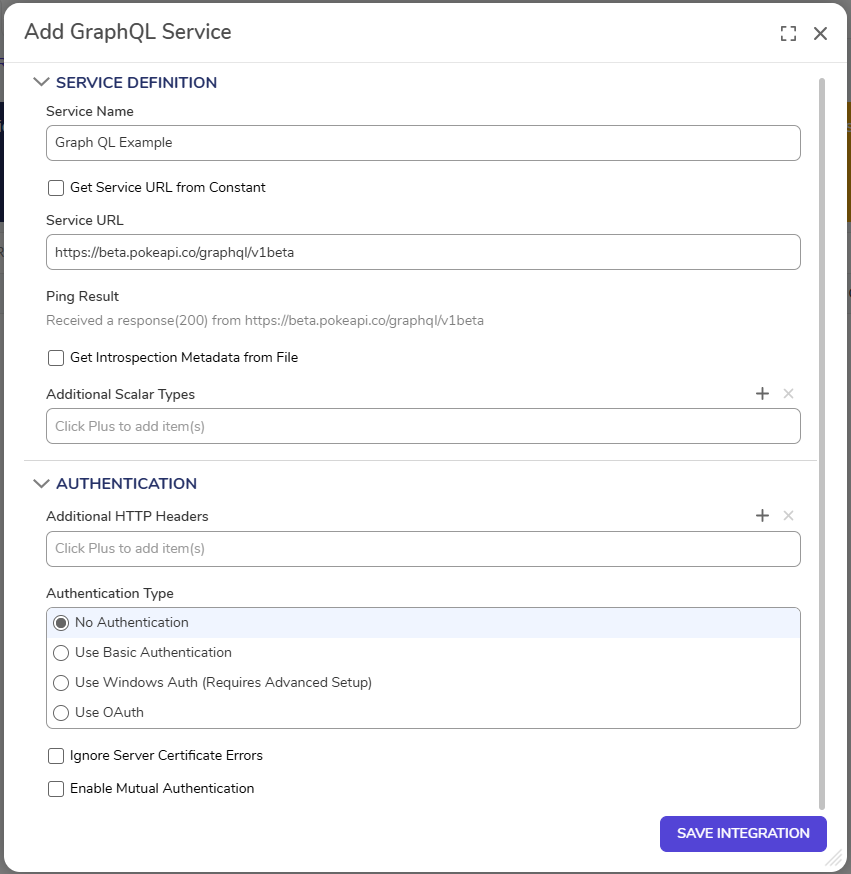
2. In the Add GraphQL Service window, enter a name for the GraphQL Service Name and the URL for the web service. If your service URL is dynamic, you will need to create a project constant and use the checkbox for "Get Service URL from Constant. This will allow you to select a constant to be used from.
3. After saving, the newly created Service Folder will open. Users will then have access to the ADD OPERATION action that can create a new operation on the service. Once saved, any datatypes needed for the output of the Step will be auto-generated.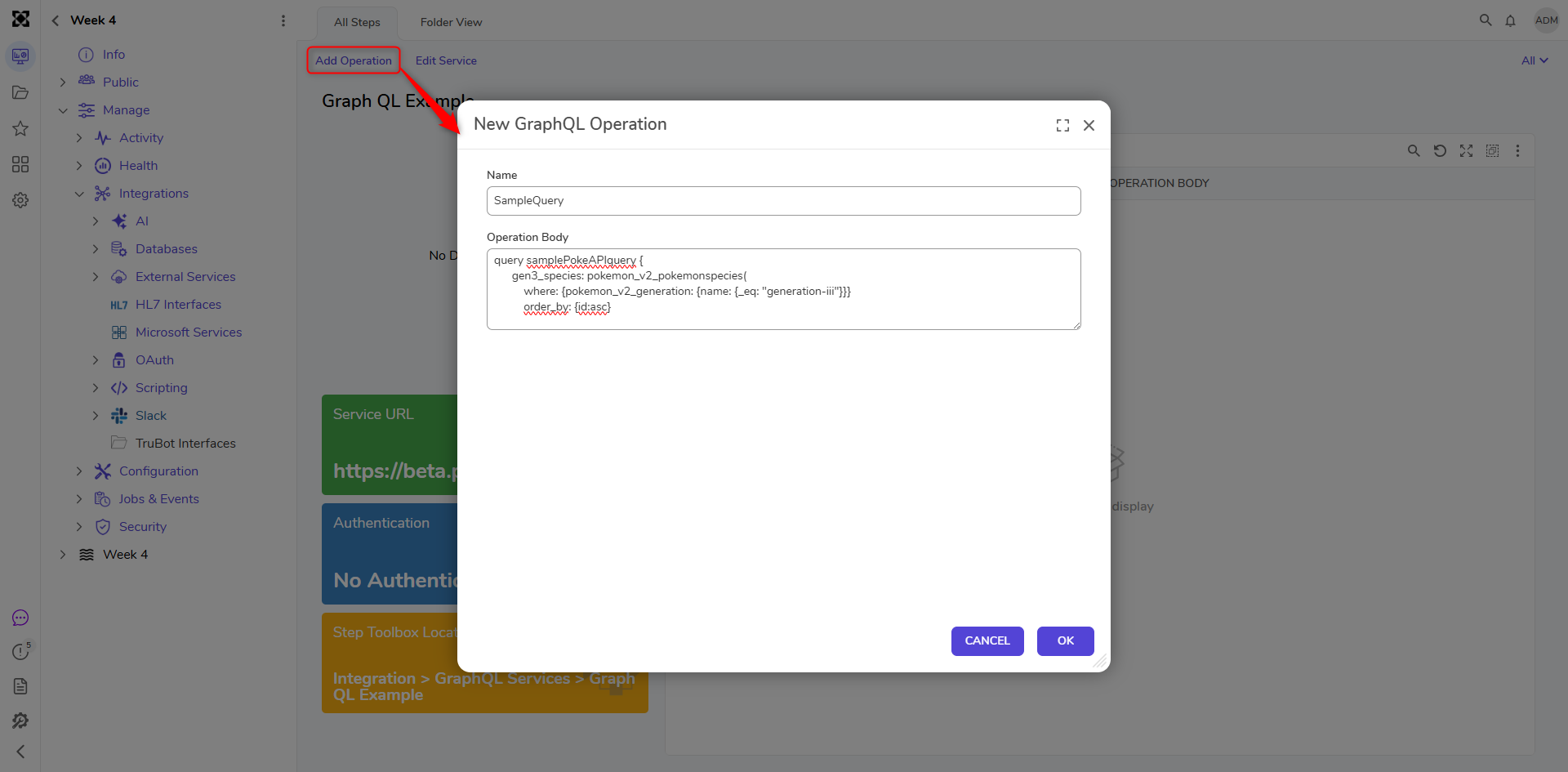
4. Click OK.
5. In a Designer Project, click CREATE FLOW to create a Flow.
6. Navigate to INTEGRATION > GRAPHQL SERVICES. Expand the service, drag over the newly created operation step to the workspace, and connect the step to the Start and End steps. These newly created steps will output the data types needed and put them into the Flow for you to be able to use the data from the Operation. You will also have the option to output the results as JSON.
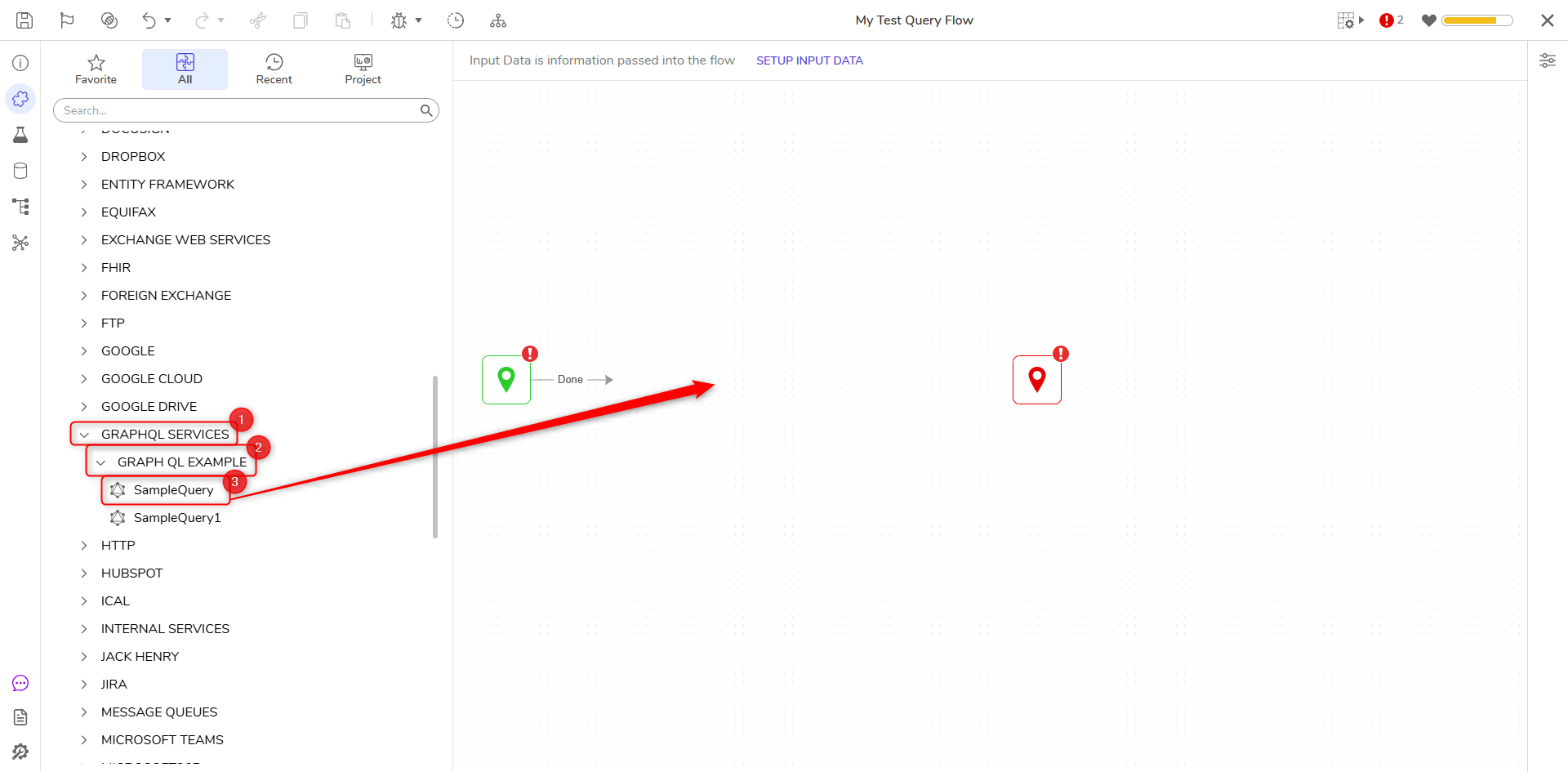
7. If the Operation requires any dynamic inputs, then they will need to be provided in the Step.
8. Click Debug on the top action bar to review the output of the step.
Feature Changes
| Description | Version | Developer Task |
|---|---|---|
| Users can now add a certificate to GraphQL settings. This update also enables Users to see information about the selected certificate. | 9.19 | [DT-046074] |