Overview
Formula Designer View Mode was introduced in v9.16 and allows Users to open and review a Formula without making changes or breaking active User session locks. When one User is editing a Formula, other Users can still open the same Formula in View Mode to review its configuration in real time without interrupting the editing session.
Key Benefits
- Prevents Lock Conflicts: Eliminates accidental lock overrides when multiple Users need to access the same Formula.
- Safe, Read-Only Access: Users can view all the Formula details without the risk of making unintended changes.
- Improved Collaboration: Stakeholders, reviewers, and non-technical team members can simultaneously explore the logic and configuration of the formula.
- Faster Reviews & Approvals: Reduces bottlenecks by allowing concurrent viewing while editing is in progress.
Accessing View Mode
Users can access Formula View Mode in two ways:
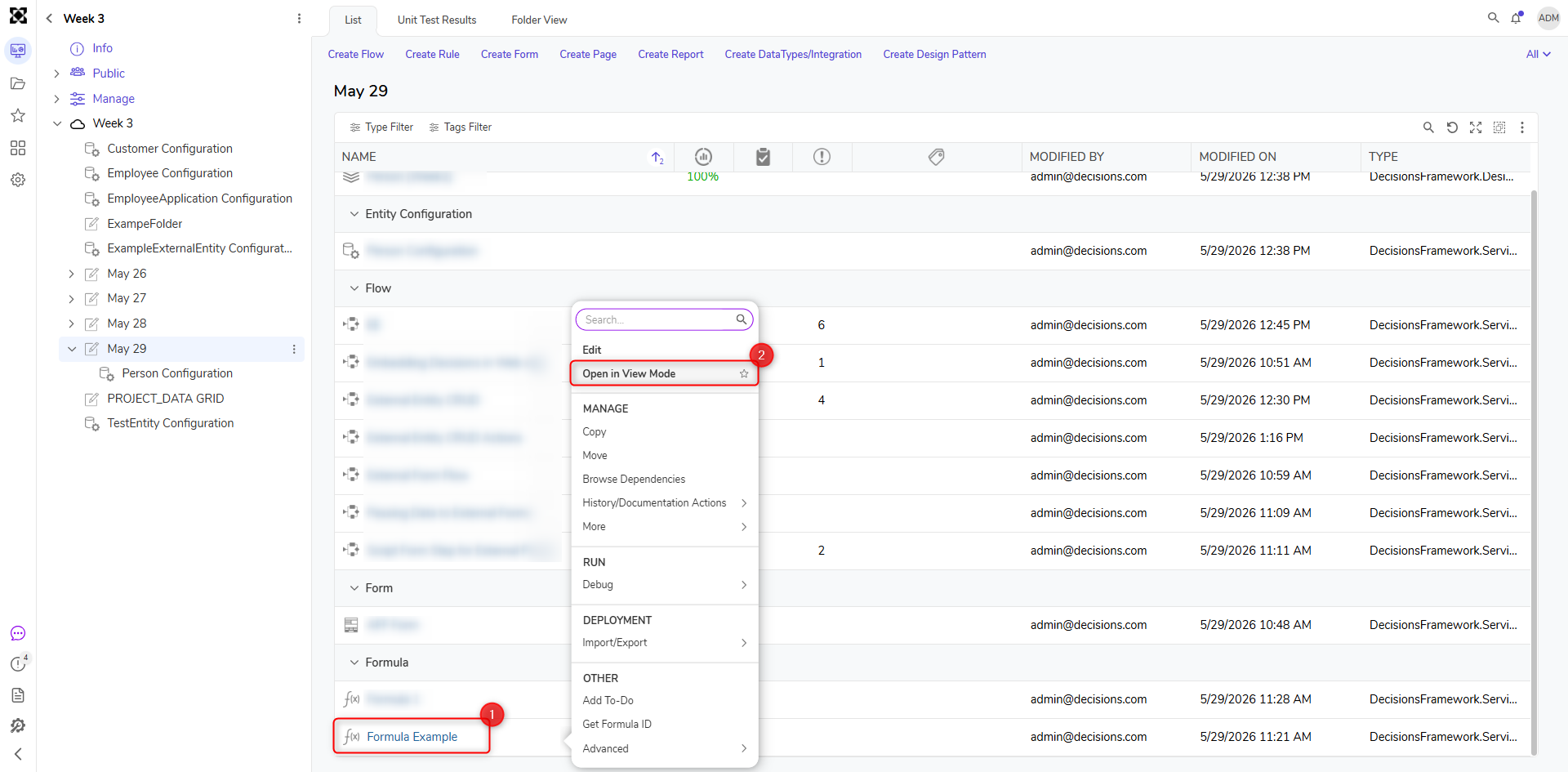
- User Action on Formula: Right-click on any of the Formula > Open in View Mode.
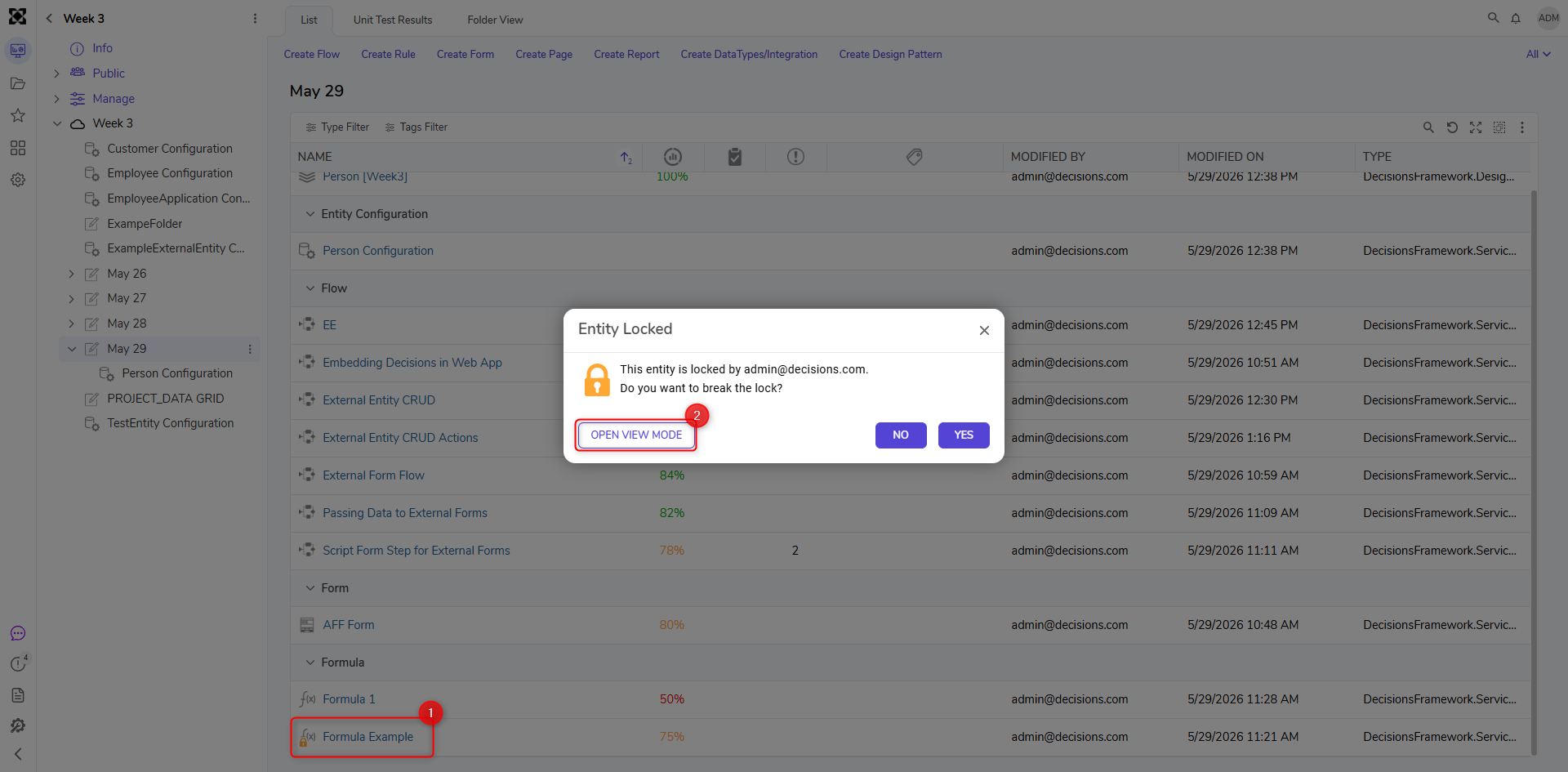
- Lock Entity Dialog: A Formula can be opened in View Mode when it is locked by an active User session (i.e., another User currently has it open for editing). When a User opens a Formula Designer, a locked Formula icon appears to indicate its status. Clicking on a locked Formula will display a prompt with a newly added option to Open the Formula in View Mode.
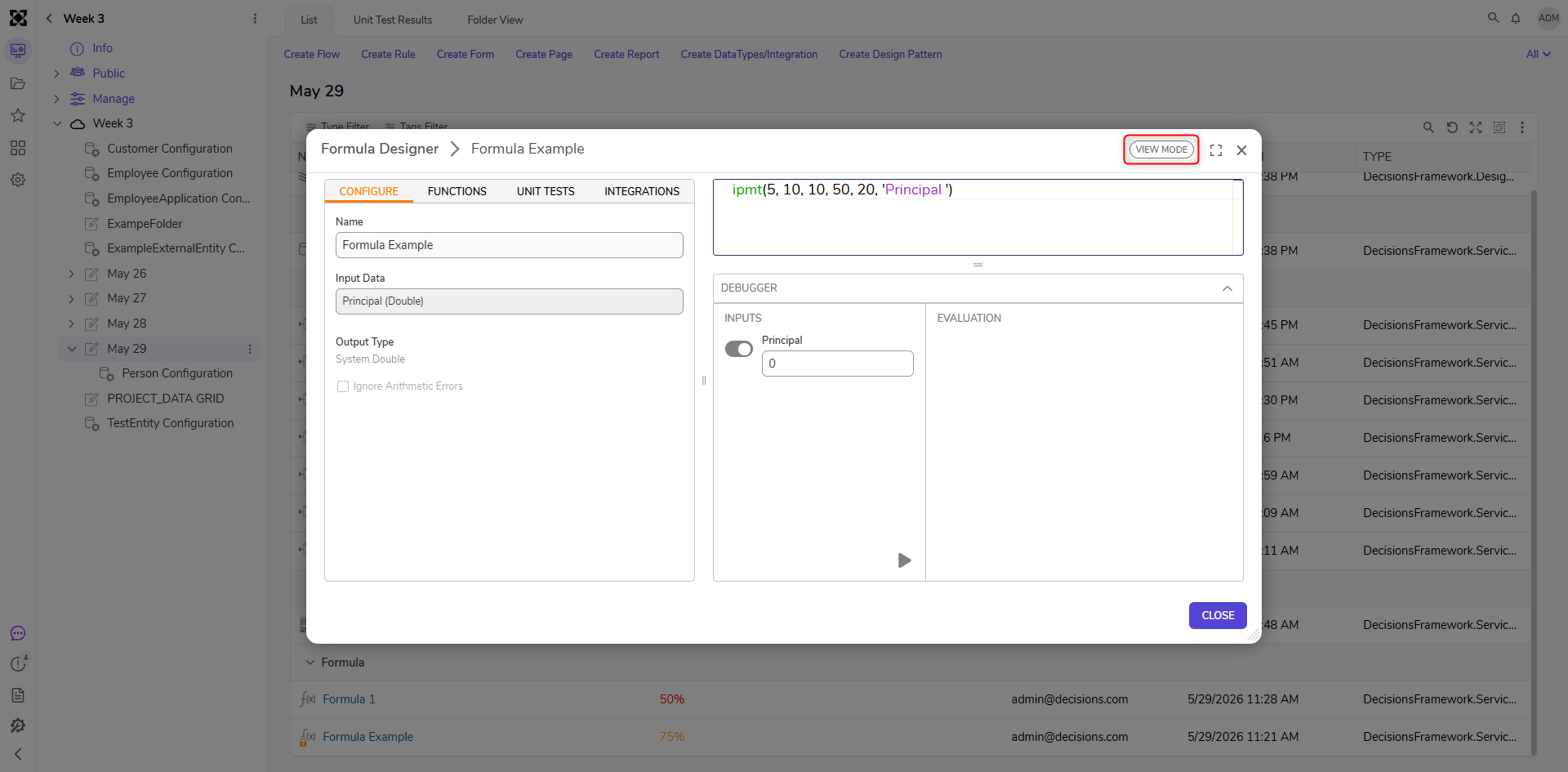
- Once opened in View Mode, Users will see the Formula Designer in View Mode with a label indicator at the top right stating that the Formula is opened in View Mode.
Capabilities and Restrictions in View Mode
Users cannot perform the following actions in View Mode:
- Edit Formula
- Edit Name and Inputs
- Add/Modify Unit Tests and Sample Data
- Configure Integration
- Save Formula
Even though View Mode is read-only, Users can still:
- Run the Formula with User-defined Inputs
- Run Unit Tests and Sample Data
- View configured Integration