Overview
Developing a process requires building multiple Designer Elements to achieve the process's goal. For example, a process could involve a Flow relying on data collected by a Form that a later Rule references in its logic, and then ends with a Page displaying that Rule's outcome. Dependencies represent relationships between Designer Elements where one relies on another to perform correctly.
The platform automatically declares dependencies whenever a Designer Element is created or added to a parent Designer Element. Disconnecting a Designer Element from its dependency causes exception errors during runtime due to missing process information. The following article describes how to view and manage dependencies and export considerations for dependencies.
Dependency Browser
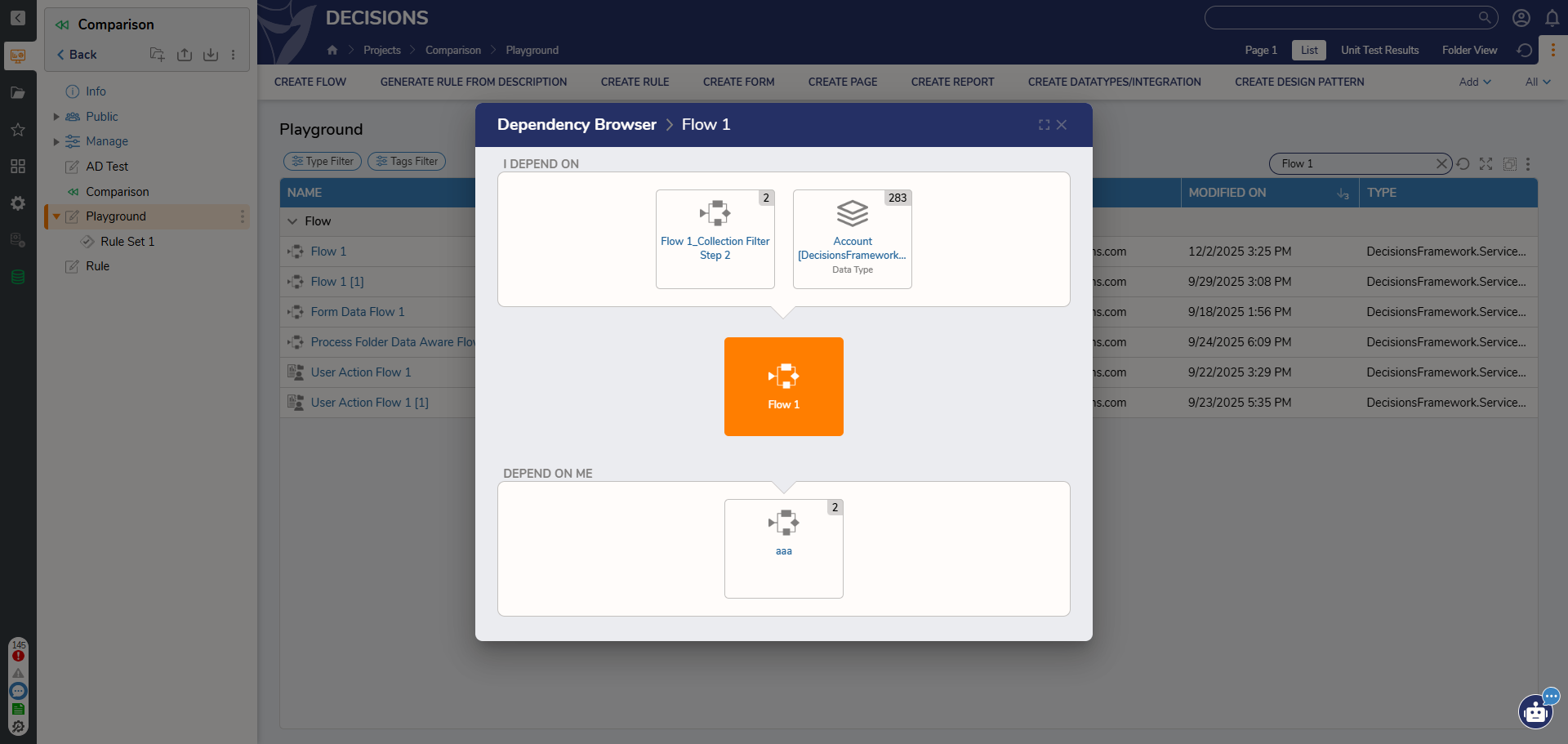
The Dependency Browser hierarchically organizes relationships between the selected Designer Element and any present validation issues in an interactable graph.
Users may open the Dependency Browser via two methods:
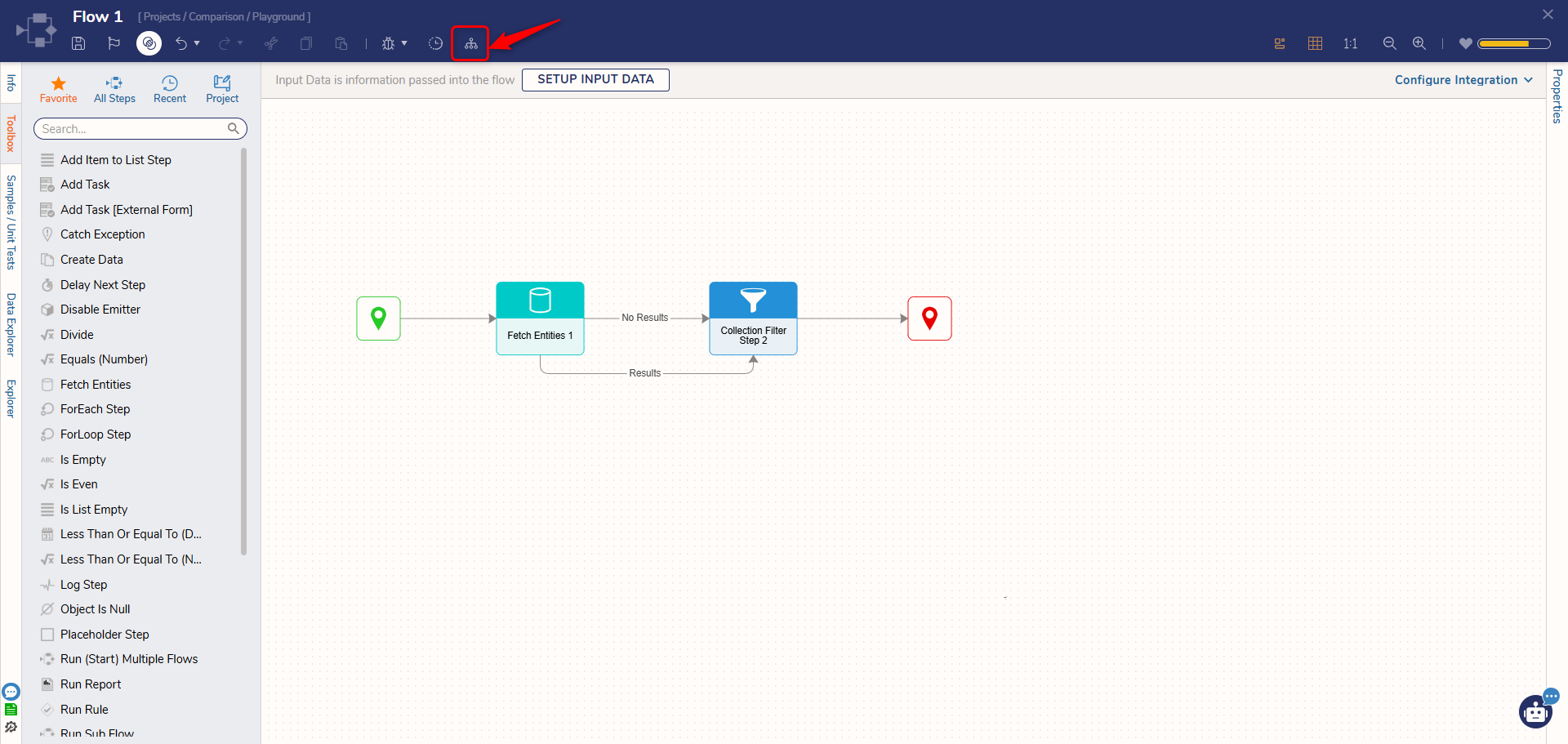
- After opening a Designer Element in a Visual Designer, select the Dependencies icon from the Top Action Bar.
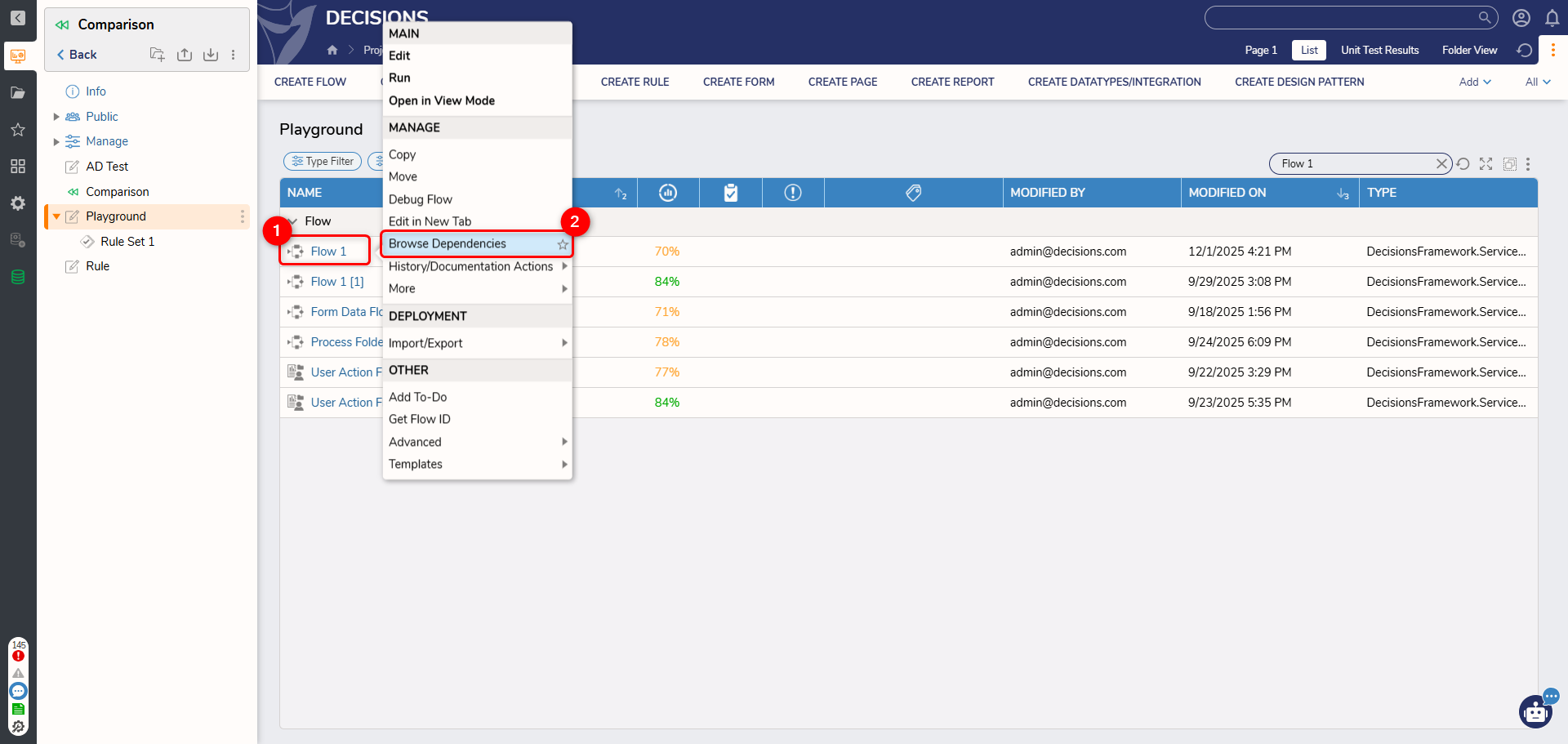
- In a Designer Project, right-click a Designer Element and select Browse Dependencies.
The Dependency Browser displays information in three rows:
- The center row contains the selected Designer Element.
- The I DEPEND ON row lists the Designer Elements it relies on to run.
- The DEPEND ON ME row lists the Designer Elements that are reliant on the current entity to run.
Right-clicking a Designer Element in the graph opens its Action menu, similar to the Designer Project.
Selecting a dependency from the I DEPEND ON or DEPEND ON ME rows refocuses the graph on the newly selected Designer Element. It then appears in the center row of the Dependency Browser, and its dependencies now occupy the top and bottom rows.
A Designer Element in the Dependency Browser consists of the following information:
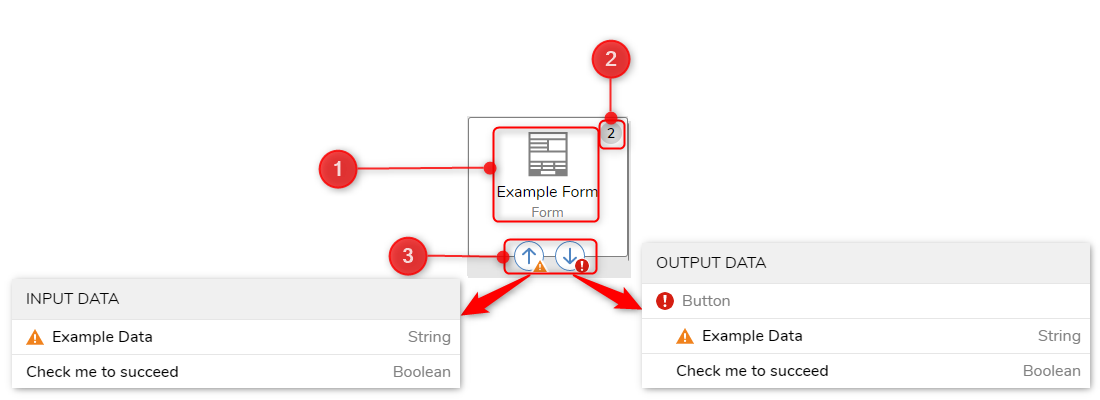
| Section Number | Section Name | Description |
|---|---|---|
| 1 | Designer Element Information | Displays the following information from top to bottom: Designer Element type's icon, its name, and the Designer Element's type. |
| 2 | Dependencies Icon | Displays the number of dependencies contained by this Designer Element. If no dependencies exist, then this icon does not appear. |
| 3 | Input/Output Data | Displays an up and down arrow that opens a window listing the Designer Element's input and output data. Validation warning   icons appear next to the arrow if it contains any issues. These icons then appear in the input/output data windows, next to the data that is causing the problem. icons appear next to the arrow if it contains any issues. These icons then appear in the input/output data windows, next to the data that is causing the problem. |
Designing with Dependencies
- Dependency Notification on Save Dialog: The Save dialog displays dependency information upon saving a Designer Element. Keep these dependencies in mind when editing a Designer Element to prevent avoidable errors, unnecessary rework, and other functionality roadblocks.
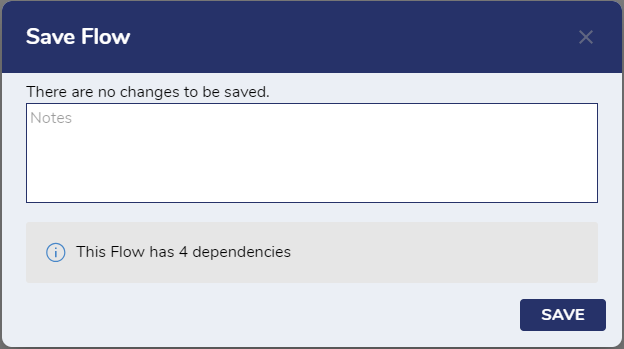
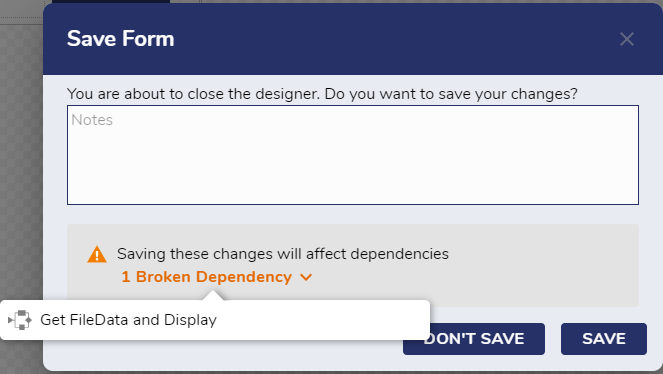
- Broken Dependency on Save Dialog: If saving after producing new validation issues since the last save, another notification states how many now exist within the Designer Element. It is recommended to resolve issues before saving, so that an issue-containing version of the Designer Element is not stored in its History Folder, in case an old version of the Designer Element needs to be restored.
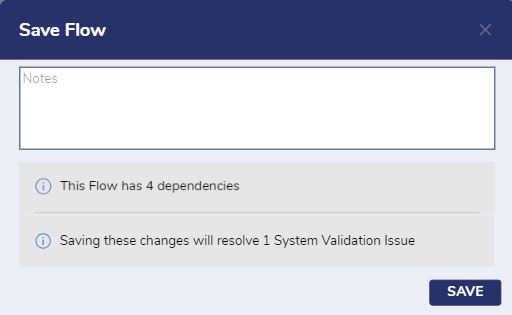
- Dependency Resolution Notification: If saving after resolving an existing validation issue, another notification appears, stating how many problems are now resolved within the Designer Element. It is a best practice to also name what errors were solved, and the steps taken to fix them, in the Save window's Notes section.
View Project Dependency
The Dependencies Dashboard in a Project is a location for managing and configuring Project and Entity-level dependencies, ensuring a streamlined approach to project development and integration. This dashboard enables developers to create project-level dependencies, thereby enhancing overall project capabilities and promoting a more cohesive development process. For more information, refer to Project Dependencies.