Overview
Permissions are settings Administrators can enable to grant or restrict a User or Group's access to data, viewing specific Projects, Designer Elements (Flows, Rules, etc.), and Folders.
Types of Permissions
Users can manage different types of permissions on Folders, Pages, and Workflow items to customize End User engagement.
| Permission | Description | |
|---|---|---|
| 1 | Folder | Permissions can be set to hide Folders from Users or Groups |
| 2 | Page | Permissions can be set to hide a Page/Dashboard from Users or Groups |
| 3 | Workflow | Permissions can be set to hide/show different Workflows |
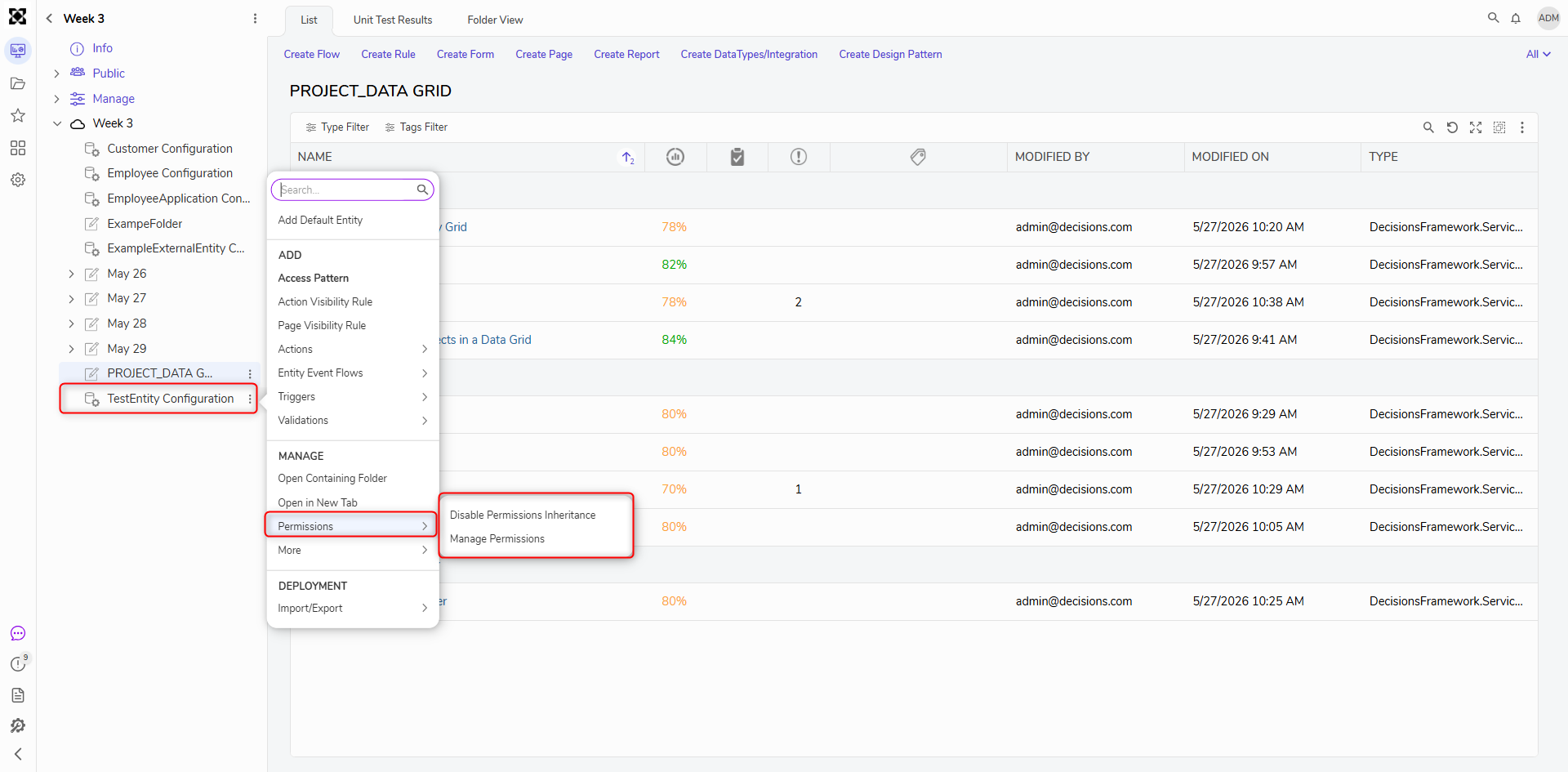
| 4 | Entity Action | Permissions can be set on entity actions to show or hide custom actions to Users or Groups |
Folder Permissions
Workflows
Entity Actions
Pages/Dashboards
Managing Permissions for Accounts and Groups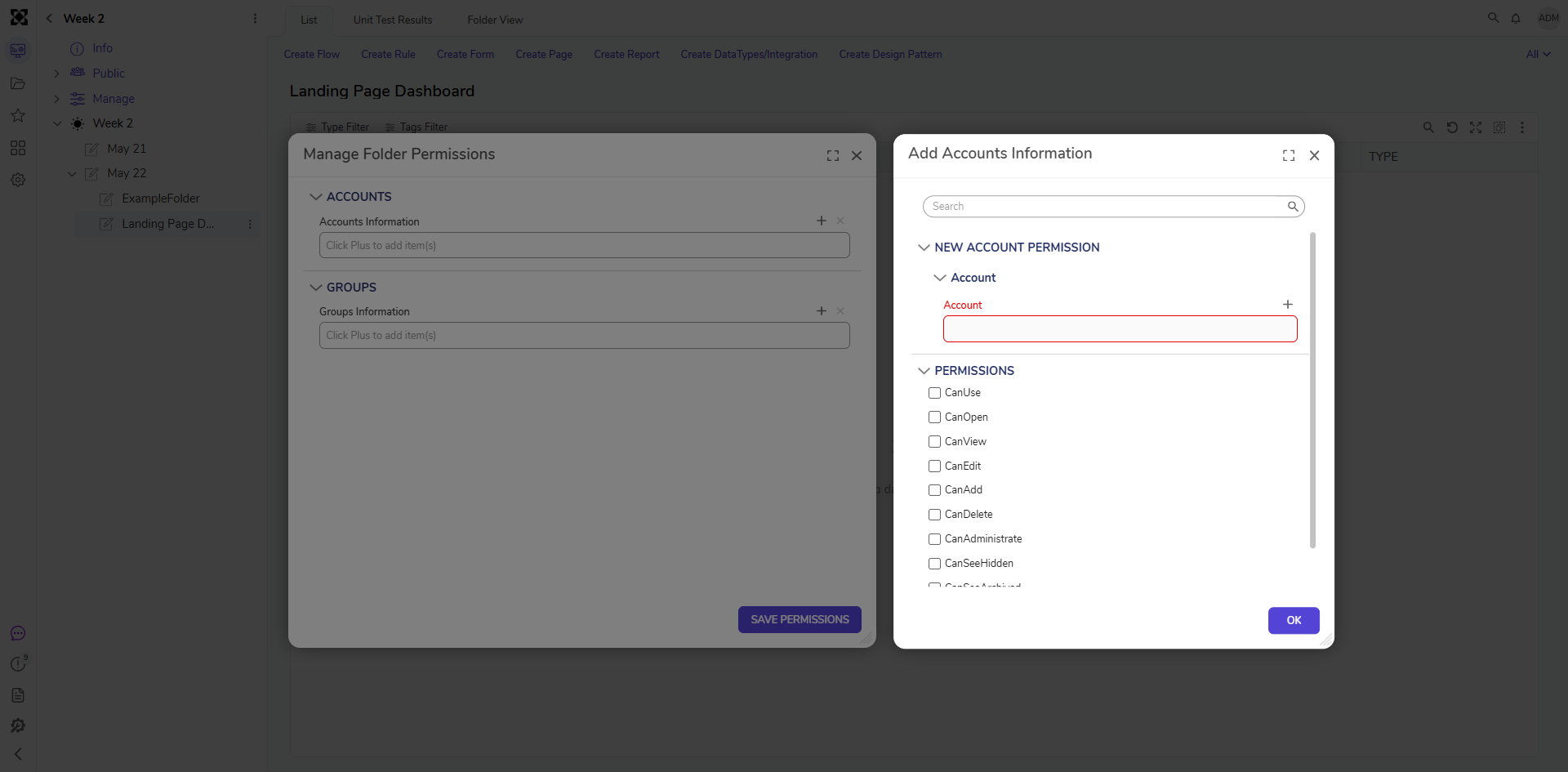
Managing Permissions Using the System Folder
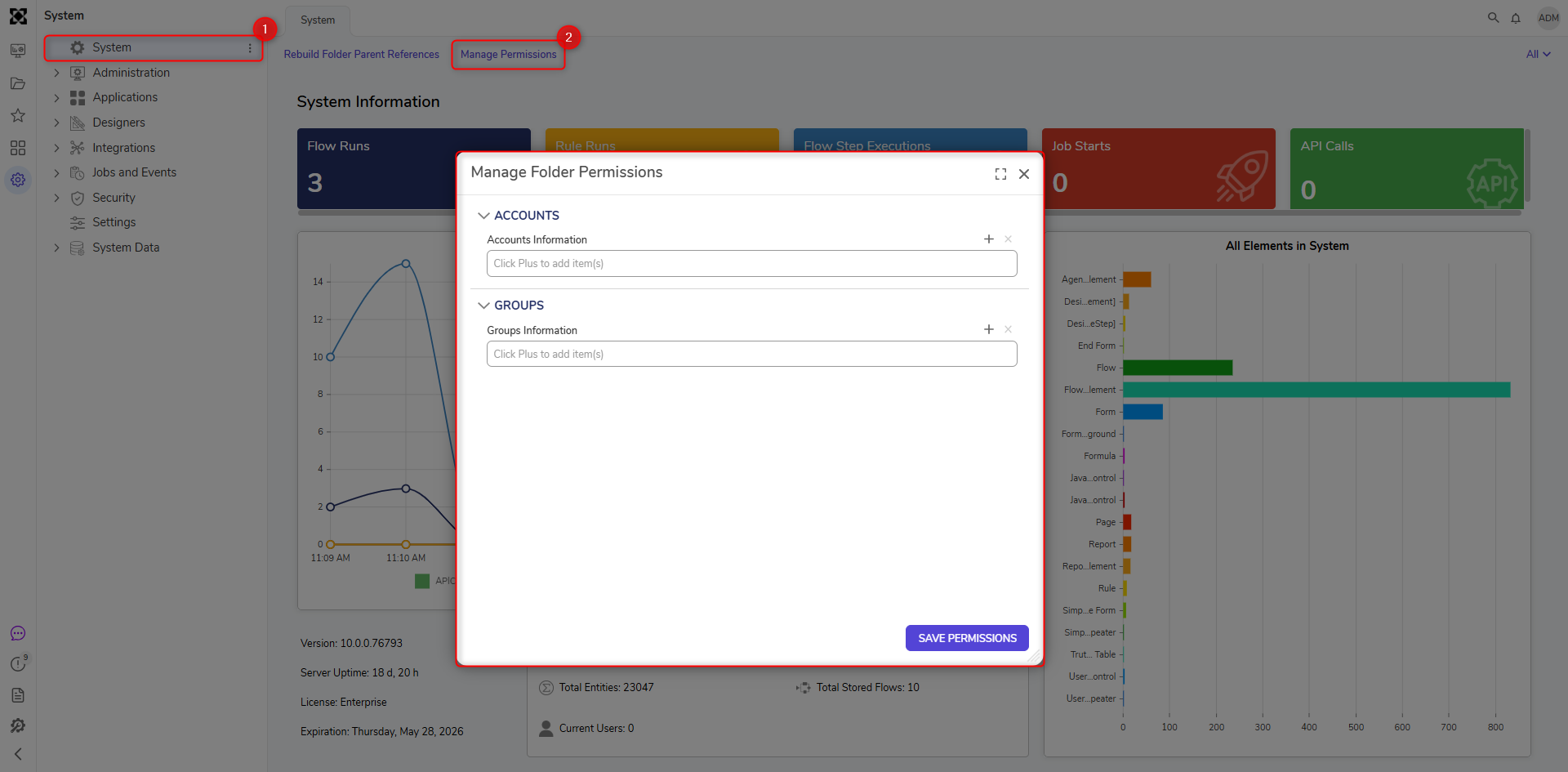
Implementing Permissions for End Users
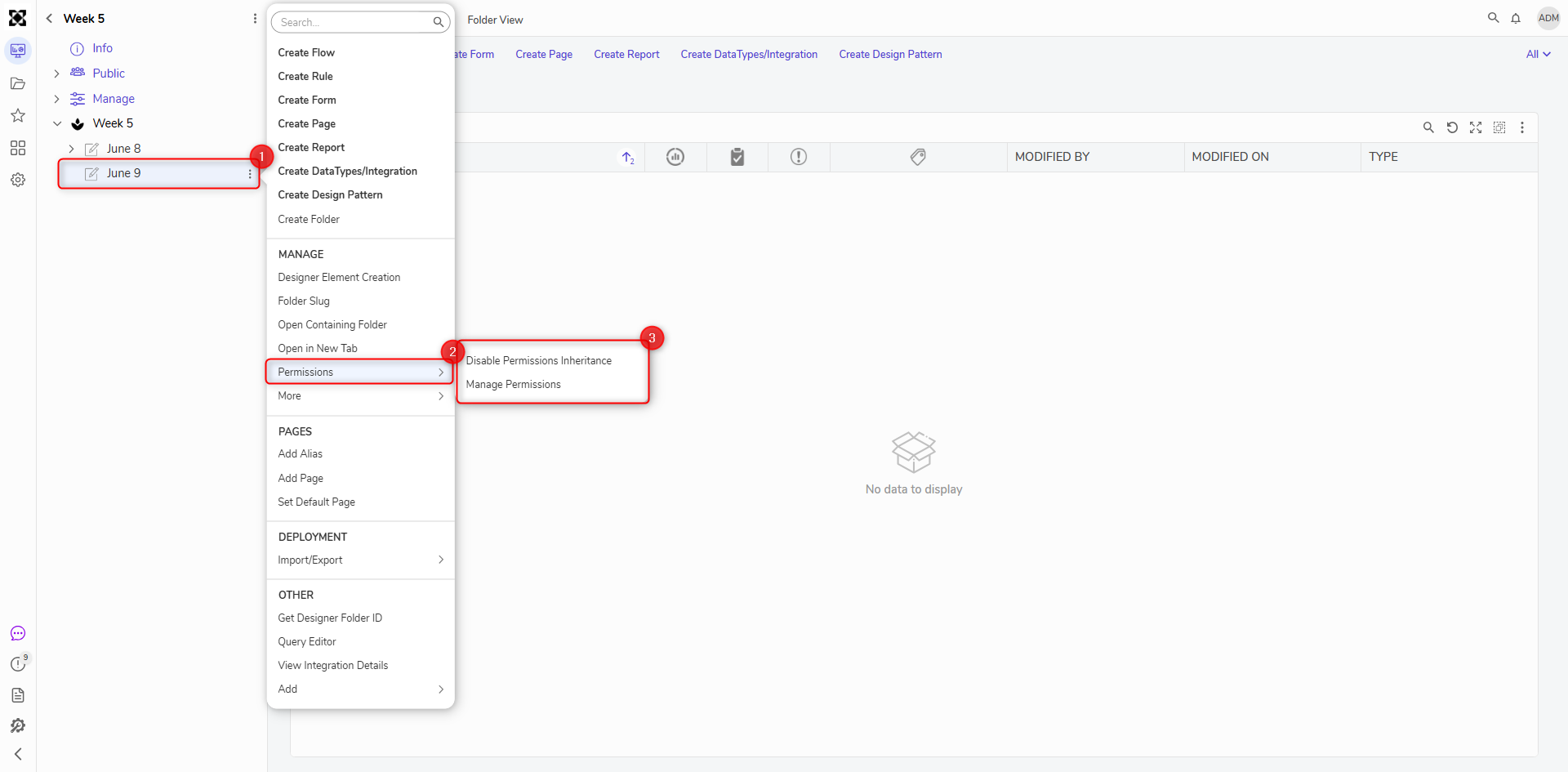
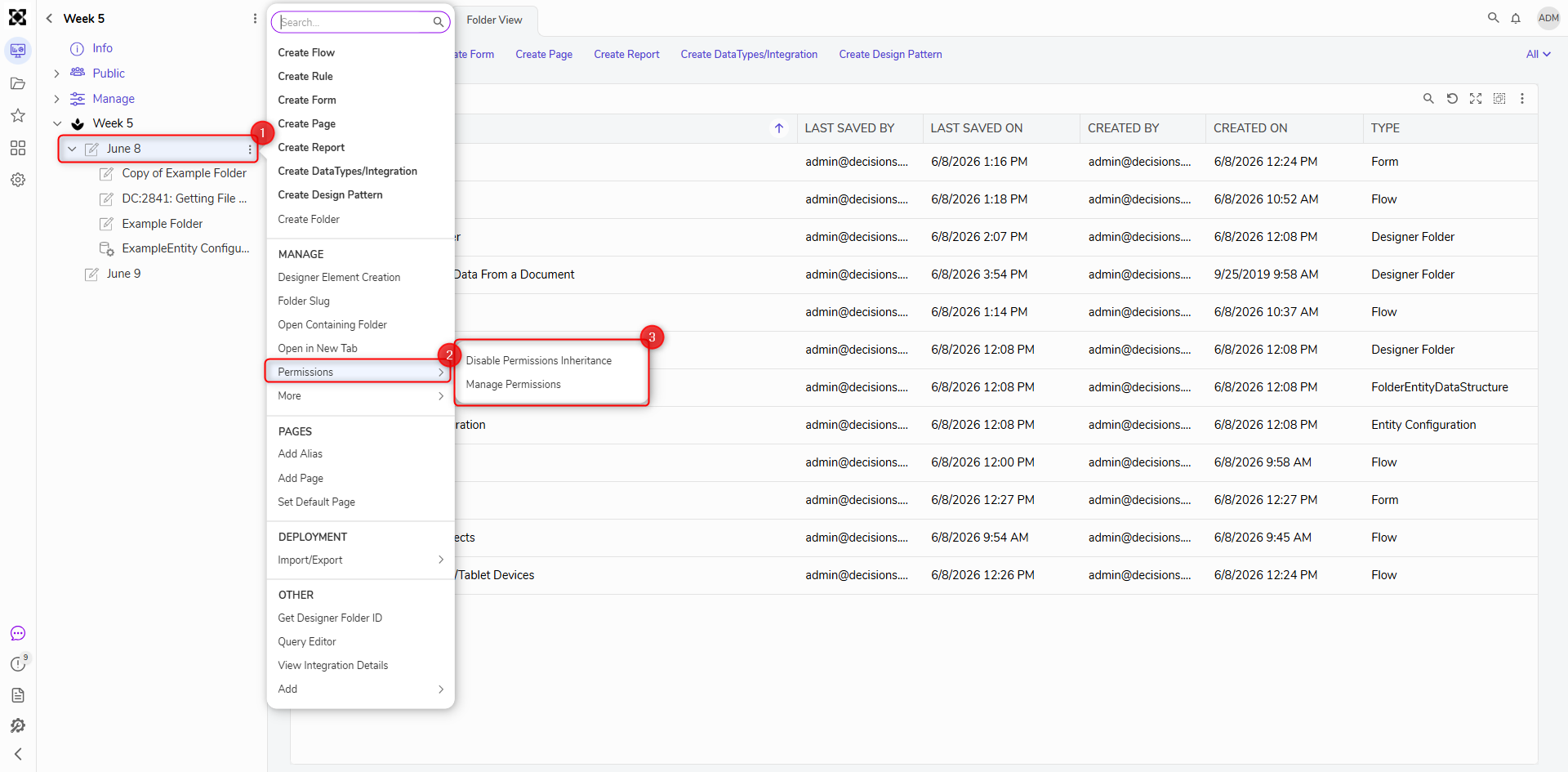
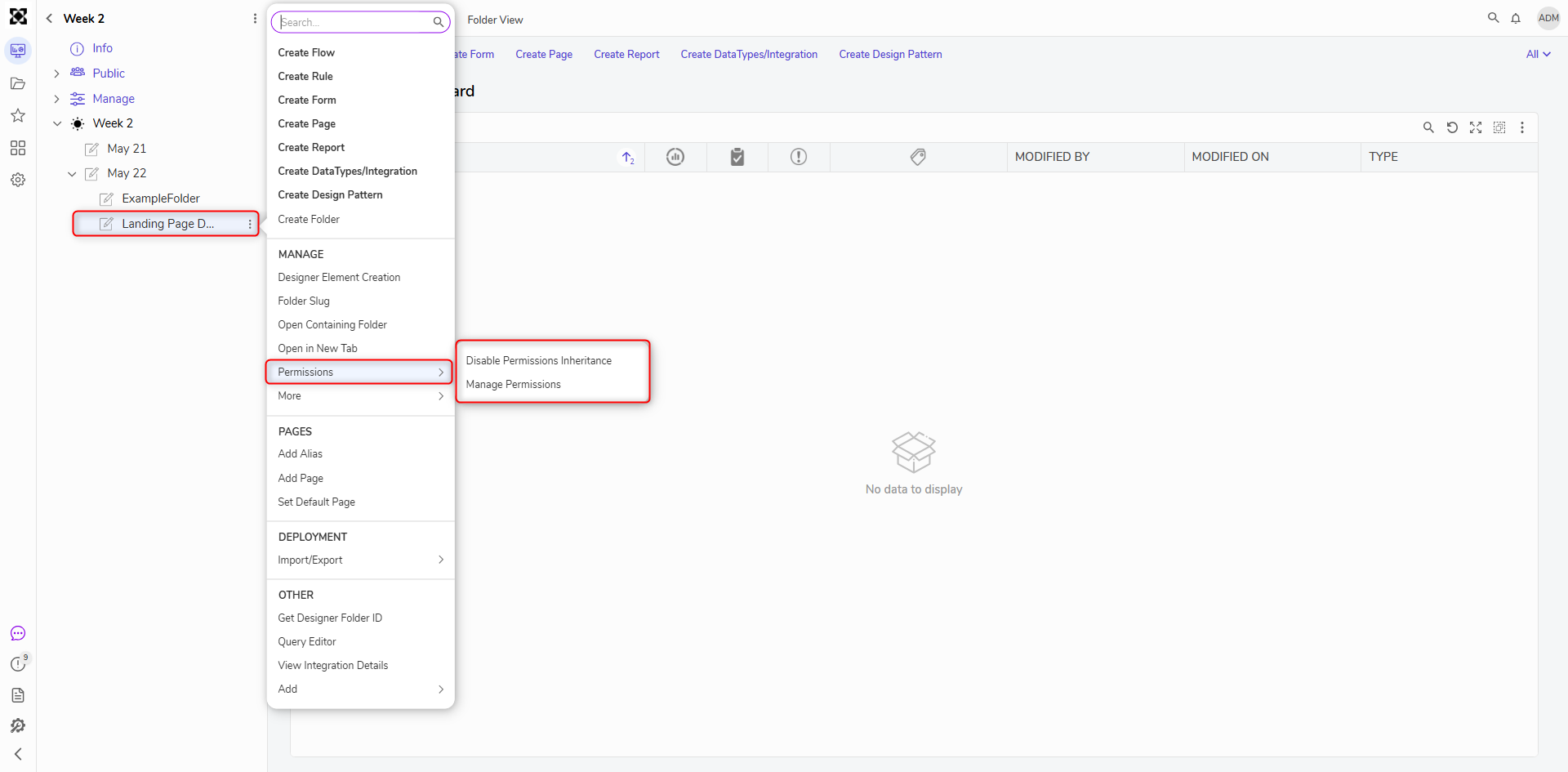
Setting Folder Permissions
Administrators and Users with Designer Group permissions can change a Folder's permissions to control how a User or Group interacts with the Folder.
Folder Visibility
Administrators can utilize the [User Portal Visibility] Hide or [User Portal Visibility] Show User actions to display or hide a Folder from End Users.
Guest Account Permissions
Administrators can enable access to specified Workflows or Folders for a Guest account of non-registered Users.
Setting Permissions on Workflow Catalog and Catalog Items
Administrators can enable access to the Workflow Catalog and associated items by adding Can Use permissions to the Designer Project Folder where the Flow or other Designer Elements are stored.
Restricting Access to Data Based on User Groups
Once Groups, Permissions, and Dashboards have been established, if further customization over control is desired, then Admins may limit access to certain Designers based on which Group a User Account belongs. This is best achieved by creating Toolbox Visibility Rules for each Designer's Toolbox. The following document demonstrates how to apply Toolbox Visibility Rules for specific Groups to create a more specified work environment.
Entity Action Visibility
Administrators can use Action Visibility Rules on entities with Configuration Folders to show or hide actions.
Permission System Settings
Administrators can configure permissions at run time using settings from System Settings.
Configuring Access with Designer Studio Settings
Under the Designer Studio Settings, Administrators can change how a user interacts with the Studio by:
- Granting permission to what Groups can see and/or create Database Connection Strings
- Restricting Group access to inline page editing
- Permitting access to the Query Editor
Configuring Access with Portal Settings
Under Portal Settings, Administrators can change how a User interacts with the Portal by:
- Enabling a Guest account to log in
- Granting access to which users and or groups can create root folders
- How the Portal and Studio are viewed
- Default group new users will be placed in
- Self-registration for new users and confirmation of registration