Overview
A Process View Page shows information about saved data from an executed process. When a Flow handles the logic for a process, it stores the associated data in a Process Folder as a viewable record. A purchase request process created in Decisions, for example, would save all of the incoming purchase requests as individual records in the Process Folder. Creating a custom Process View Page requires familiarity with Page/Dashboard design; for more information, please visit the Create a Page/Dashboard article.
Changing the Process View Page
This article uses a prebuilt application for a Travel Request process. The Travel Request is submitted, then routed through Flow logic, including a series of approvals. Each time a request is submitted, process data is created and stored in a folder. Each piece of process data contains a Process View Page used to track details about that specific instance of the process.
The Default Process View Page contains a considerable amount of information as is, but a customized Page with tailored information can be created to replace it. The right menu shows which phase of the process the request is in and any comments that have been added through each state of the process.
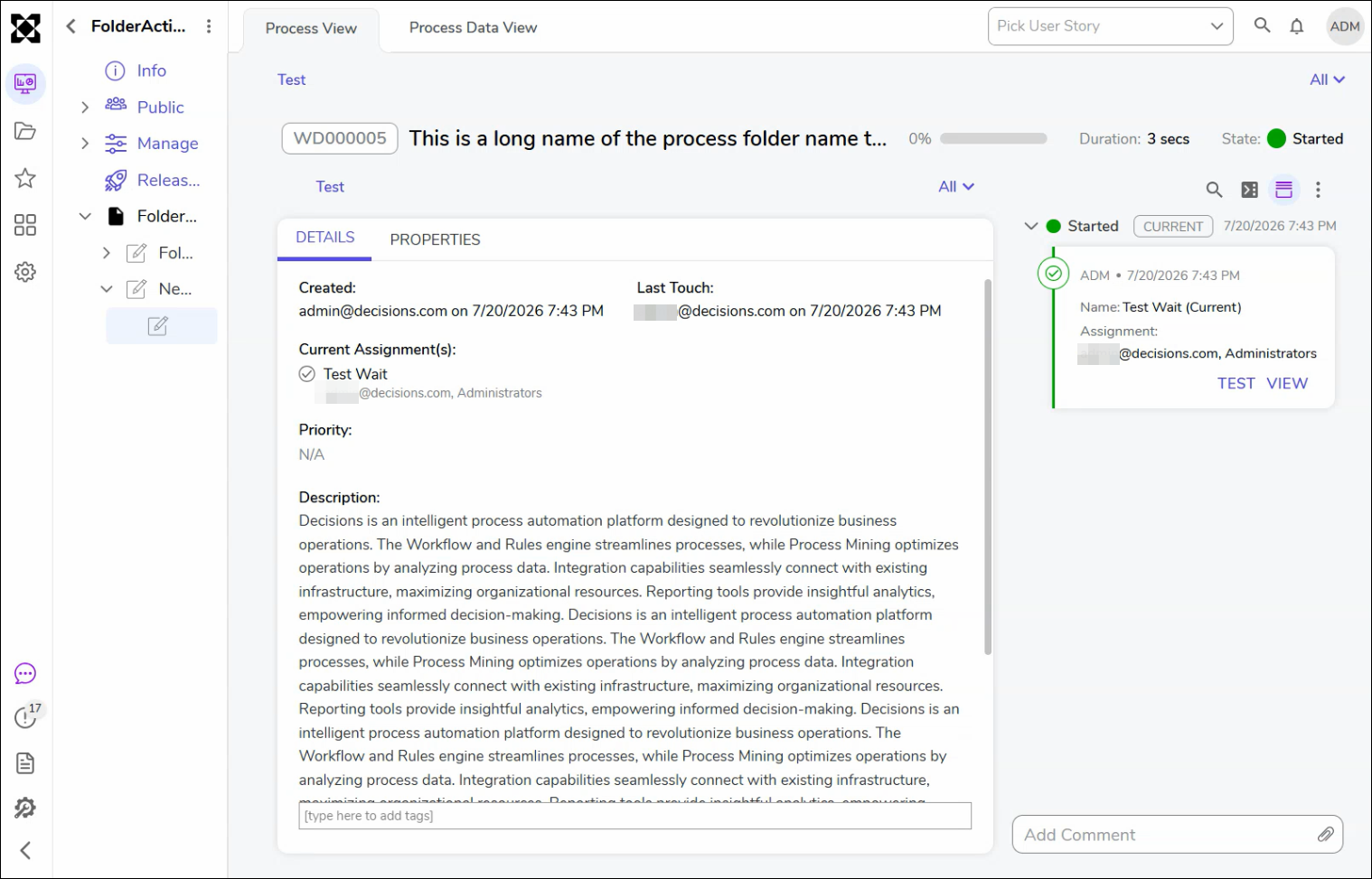
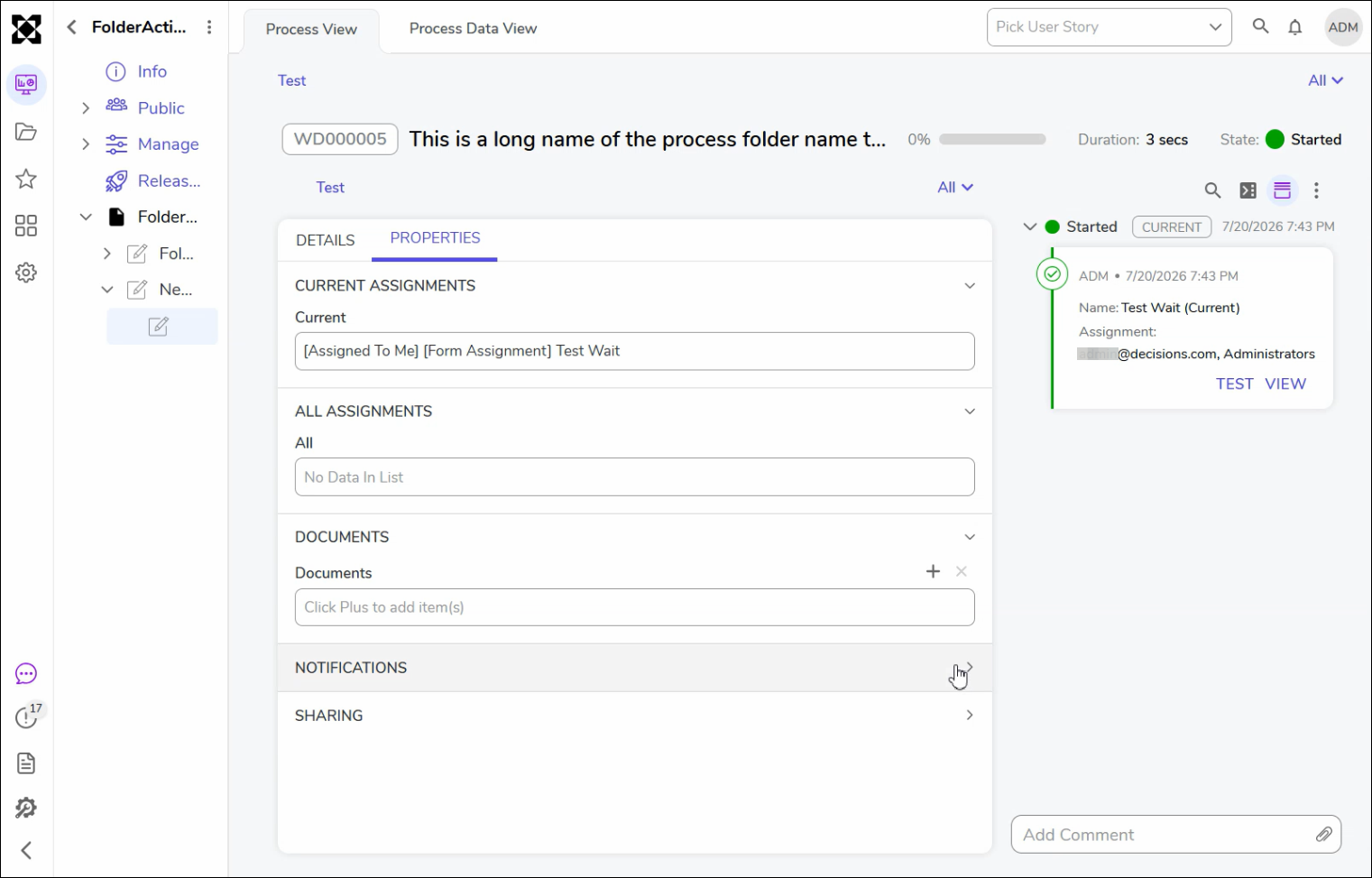
The Properties section shows any assignments associated with the request, like a manager's approval, for example.
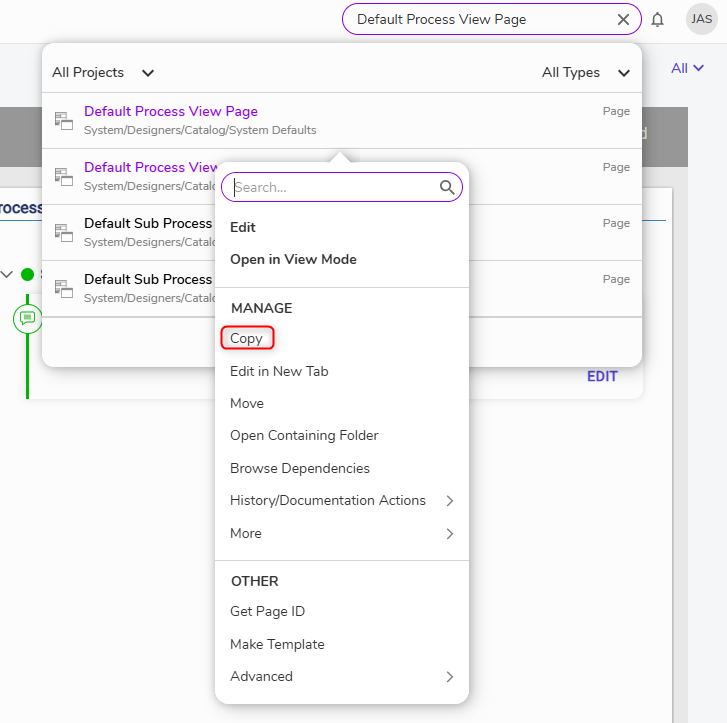
The default page can be copied in the Platform and customized to fit the needs of a different Process View configuration. Type in "Default Process View Page" in the Global Search bar, then right-click the item in the search, and navigate to Edit > Copy Page/Dashboard. Process data is pushed to these Page components, but actions must be updated in association with the assignment.
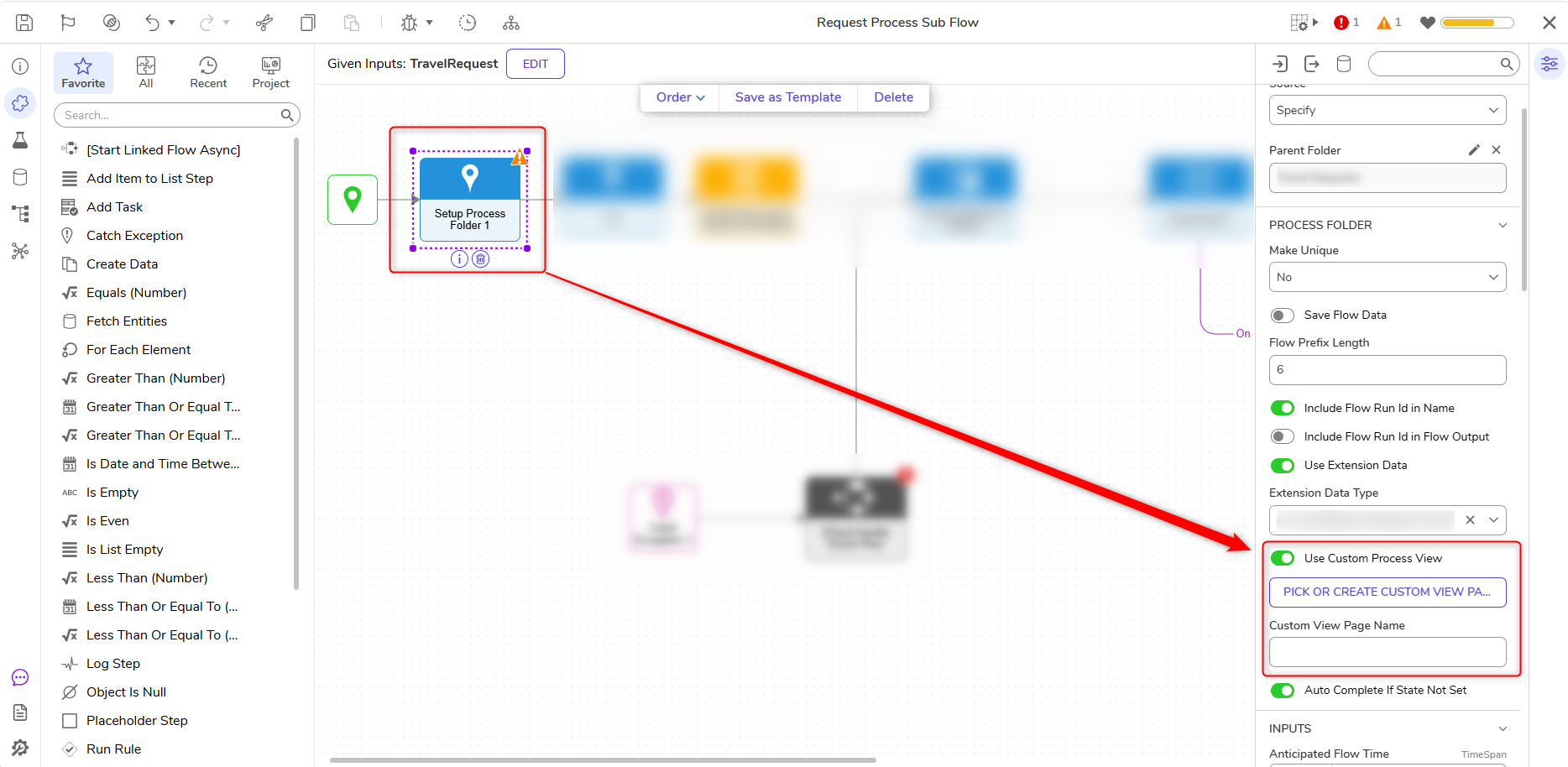
For this example, the default page is copied, and the Properties panel in the bottom left is removed to signify a change. The page is saved as "Customized Process View Page". For the custom page to take effect, the Properties of the Setup Process Folder step used in the main Flow must be edited. Under the PROCESS FOLDER section, enable the Use Custom Process View checkbox and select the EDIT CUSTOM VIEW PAGE button. Create a new Page from the window that appears or pick an existing one. Provide a Custom View Page Name if applicable; otherwise, this will default to the PROCESS VIEW naming convention.
The custom Process View Page will not apply to data records of existing requests in the Process Data folder; it will only apply to requests going forward.
The process data below is for requests after the custom Process View Page was implemented, where the Properties panel has been removed, and Custom View Page Name changes take effect.
.png)
Feature Changes
| Description | Version | Date | Developer Task |
|---|---|---|---|
| The Process View Page has been updated with refreshed UI styling. | 10.1 | August 2026 | [DT-046859] |