Recognized Behavior
Excel Templates can only be created at the System level by Admin users for v9.0 and above. This feature does not work at the Project level.
Overview
Excel Templates can be applied to Reports by utilizing the Report Output Folder at the system level. This feature allows organizations to provide additional customization and consistency of brand identity to Reports before exporting them from a Decisions-based environment.
This article demonstrates how to create and apply an Excel Template to a Report, as well as how to export and download that Report in Excel Format.
Example
- Navigate to System > Designers > Report Output > Templates.
- Right-click on Templates.
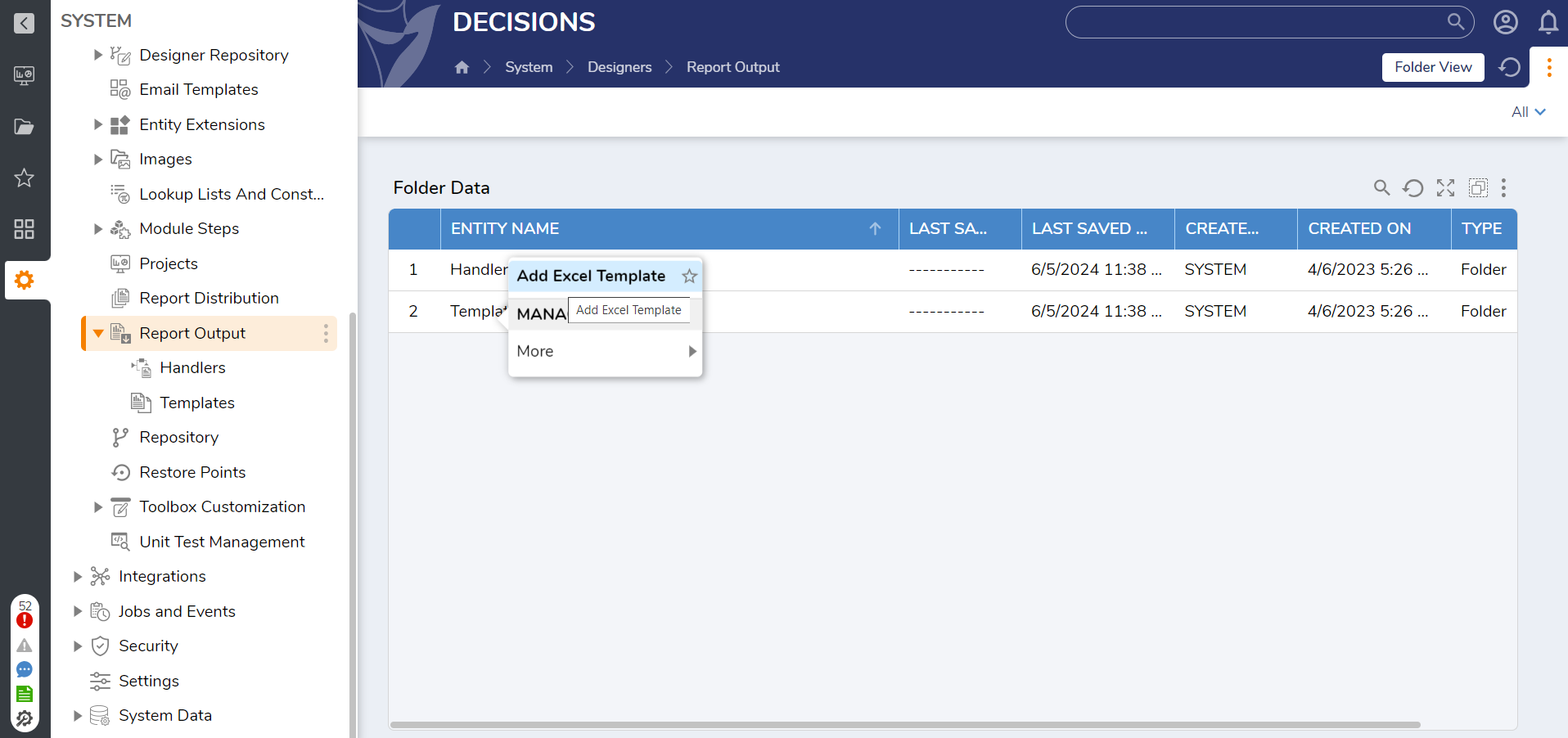
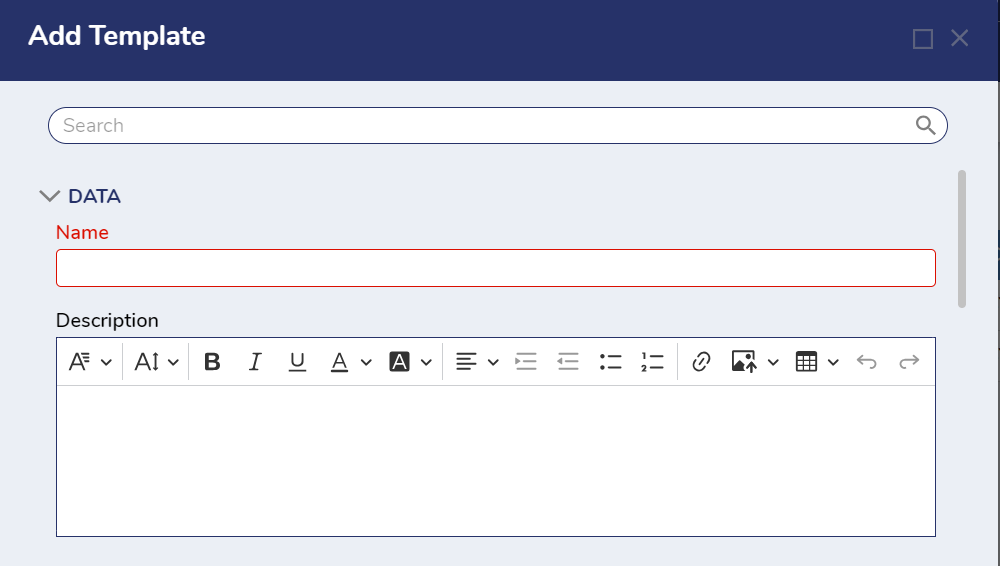
- In the Add Template window, provide a Name. A description can be added as well, but this is optional. Then, under Template Properties > Template, add the desired Excel file via the Drag File Here field or by clicking Choose a File.
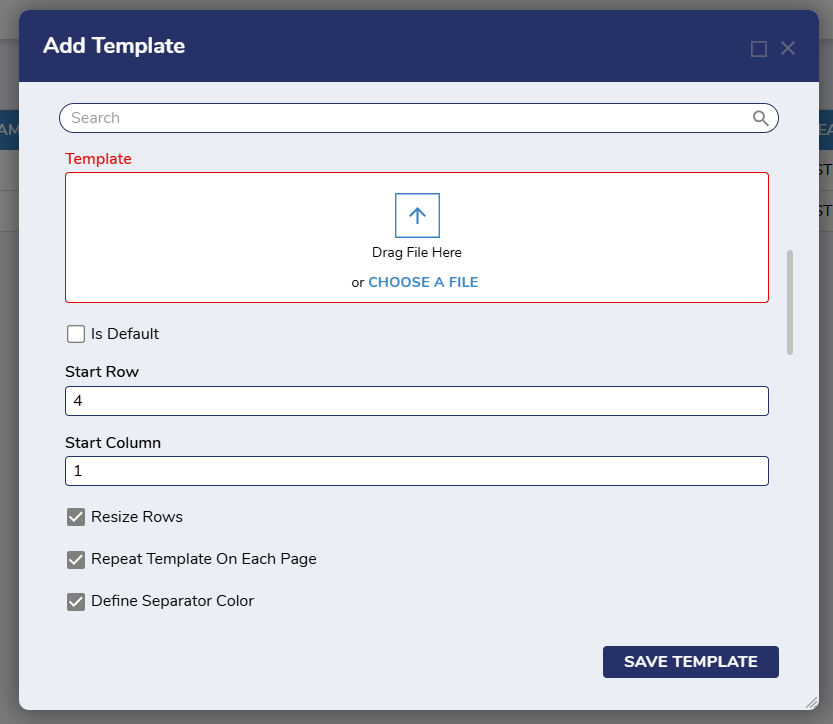
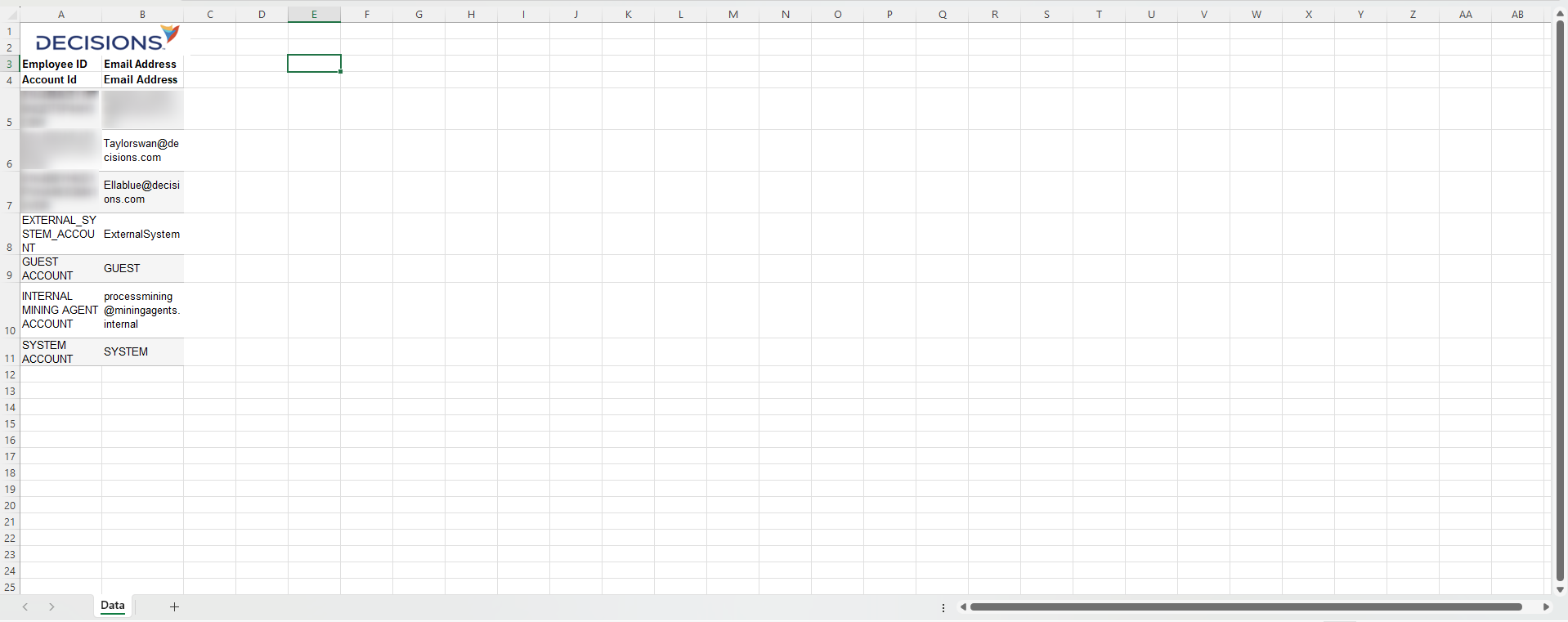
- Configure the Report Data to the Start Row and Start Column; this determines the point in the Report Output Template where the data begins populating. This example starts in Row 4 and Column 1. Then click Save Template and exit the window.
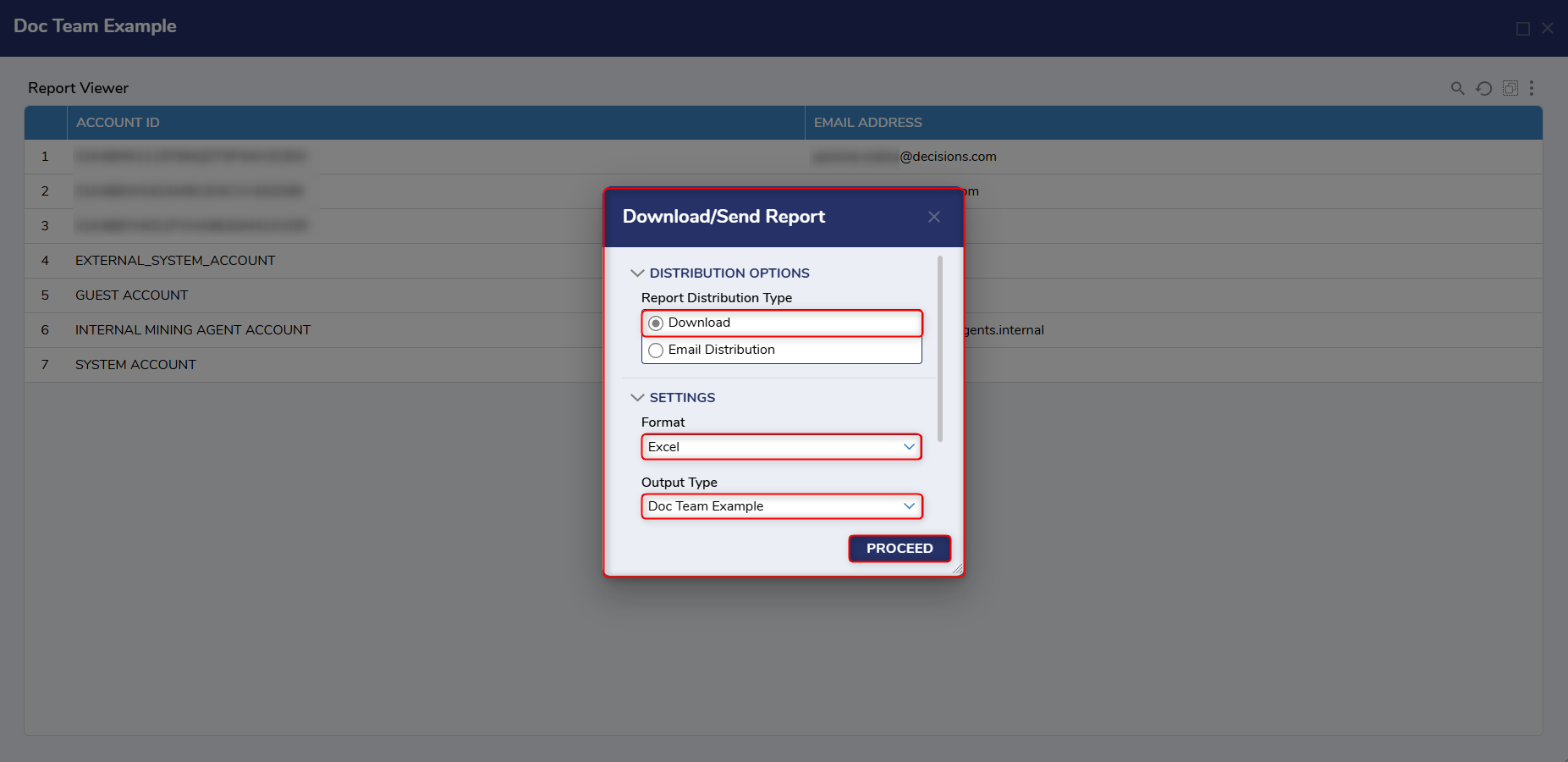
- After the Excel Template has been created, navigate and run the desired Report. From the resulting window, select Download/Send Report (denoted by printer icon).
- In the Download/Send Report dialog, under Settings > Format, select Excel. Under Output Type, choose the previously created Excel Template, and click Proceed.
- In the resulting Export View window, click Download Exported Report.
- After the Excel-formatted report downloads, open it and verify that the Report Output Template was applied correctly.
For further information on Reports, visit the Decisions Forum.