Overview
A Statement Rule is the most commonly used Rule type. This Rule uses input data and pre-defined conditions based on the data type to form logical statements that evaluate as either True or False. The Rule can be organized and rearranged based on the business need.
Properties
The following sections describe the function of each property found under the Properties tab. 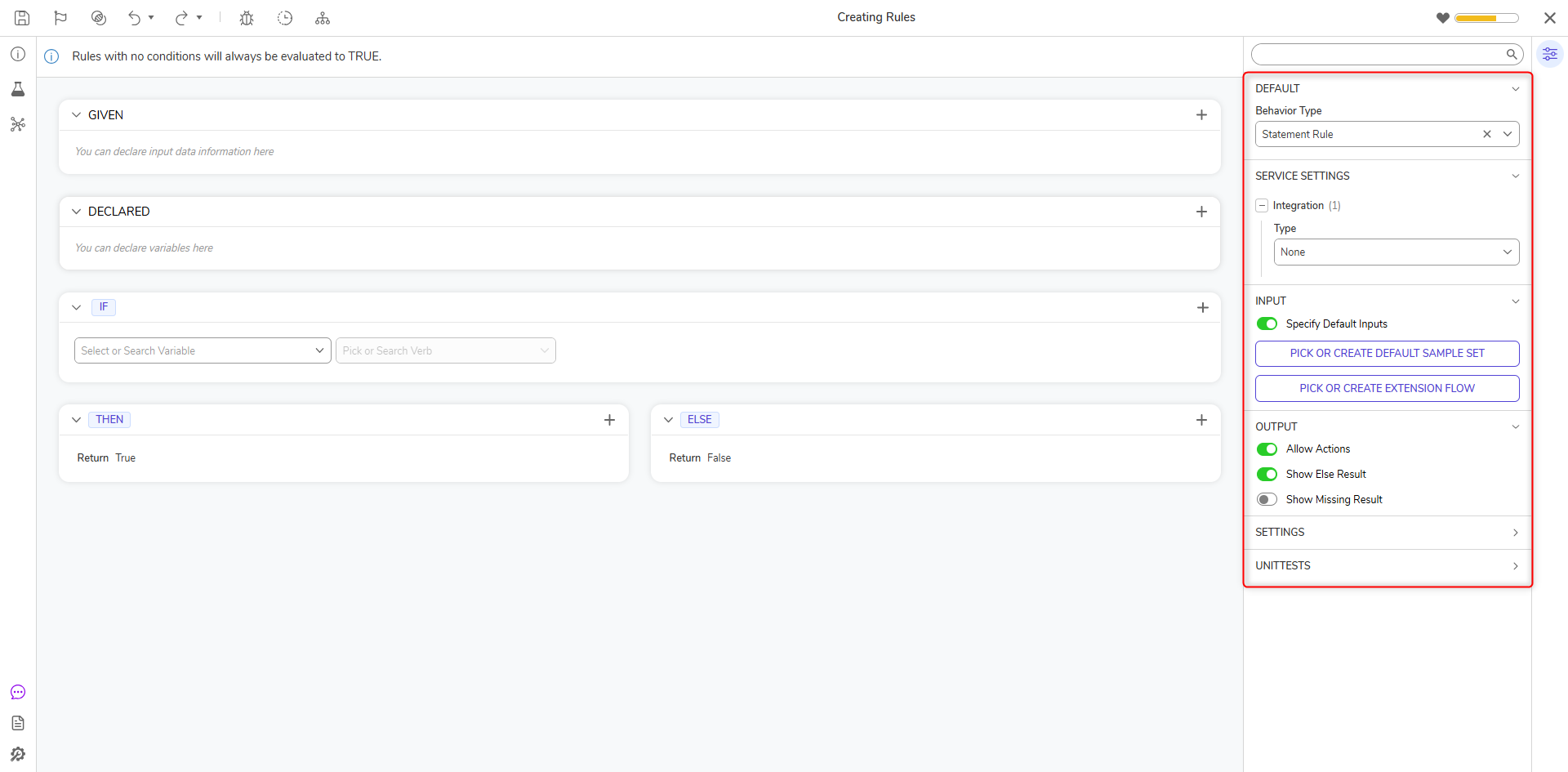
Service Settings
The SERVICE SETTINGS category configures properties regarding the use of API Services to call the Statement Rules.
| Property | Function | ||
|---|---|---|---|
| Integration Type | Dictates whether the Statement Rule is or isn't called using a REST Service that supports HTTP methods. | ||
| API Service | Uses REST to call the Statement Rule. | ||
| Data Format | Determines the format of the called Statement Rule; options include JSON, Raw, RawJson, RawXml, and XML. | ||
| Reference Type | Chooses the method by which the Statement Rule is referenced; options include Id, Id or Path, Path, and Url. | ||
| Override Service URL | Allows customization of the Service URL. The Service URL allows the user to make API calls using the Base Portal URL, followed by "restapi" and the rest of the user-configured URL. | ||
| Configure HTTP Methods | Selects the desired HTTP methods: GET, POST, and/or PUT. | ||
| None | Does not use REST to call the External Statement Rule. | ||
Input
Used to determine how data is provided for the Input column of the Truth Table.
| Property | Function |
|---|---|
| Specify Default Inputs | Allows the user to provide default data for the Statement Rule from within the Statement Rule Designer. |
| PICK OR CREATE DEFAULT SAMPLE SET | Allows the user to PICK or CREATE a Report for use as sample data. |
Output
This section pertains to how data is handled after the Statement Rule is run.
| Property | Function |
|---|---|
| Allow Actions | Enables the UNITTESTS category, which is used to enable Actions on Unit Tests that are run using the Statement Rule |
| Allow Else Result | Adds a new outcome as an Else to the Result block. |
| Missing Result | Adds a new outcome as Missing to the Result block. |
Settings
Determines whether the Statement Rule is active/enabled and for what period of time.
| Property | Function |
|---|---|
| Enabled | Enables the Statement Rule by default. |
| Use Enabled Rules | Enables the Statement Rule based upon a user-defined Rule. |
| Begin Date | Establishes the beginning date for when the Statement Rule is enabled. |
| End Date | Sets when the Statement Rule will be disabled. |
Example
- Create a Rule and define the inputs. This example uses Email (String) and Expenses(Decimal).
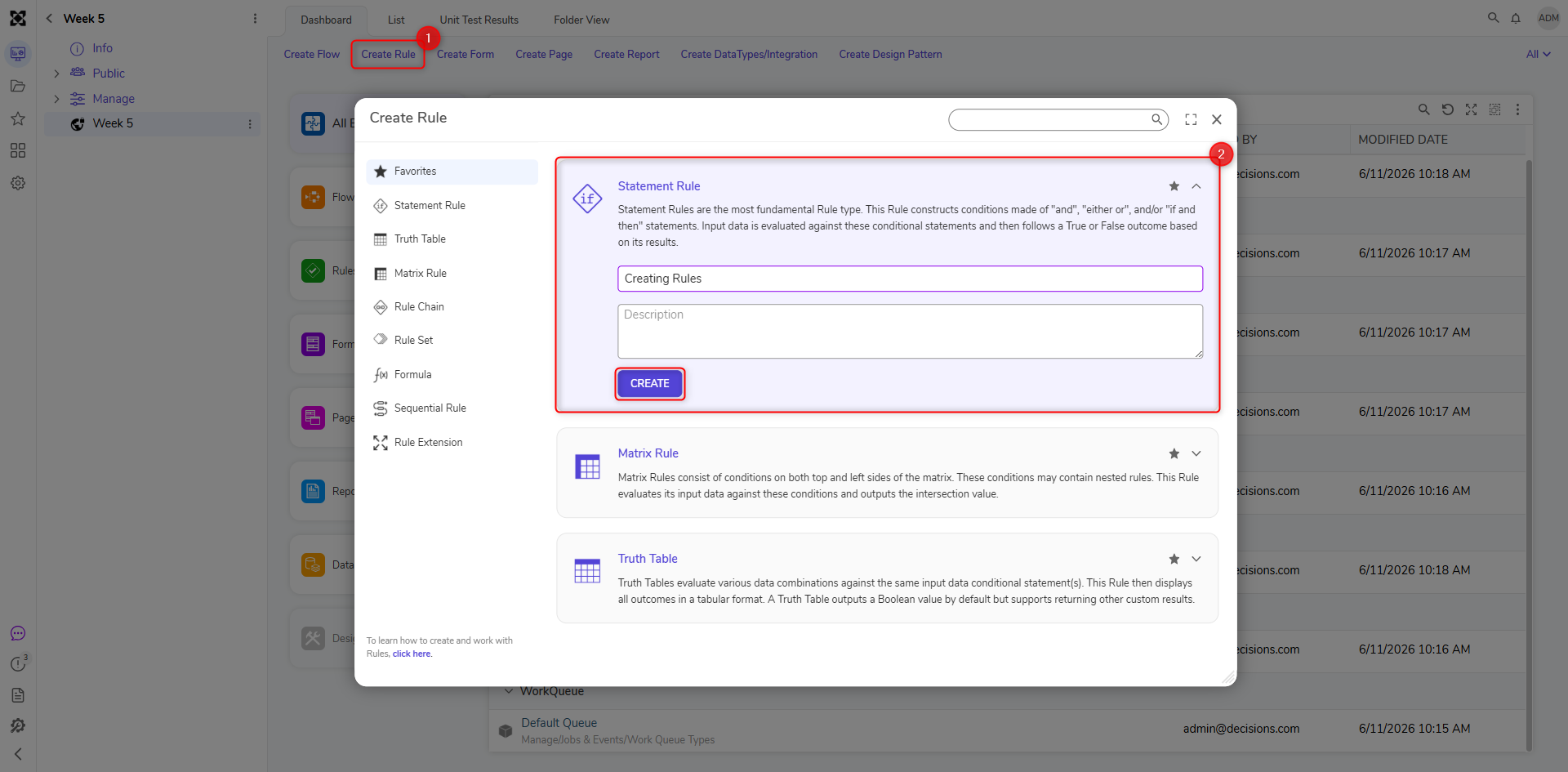
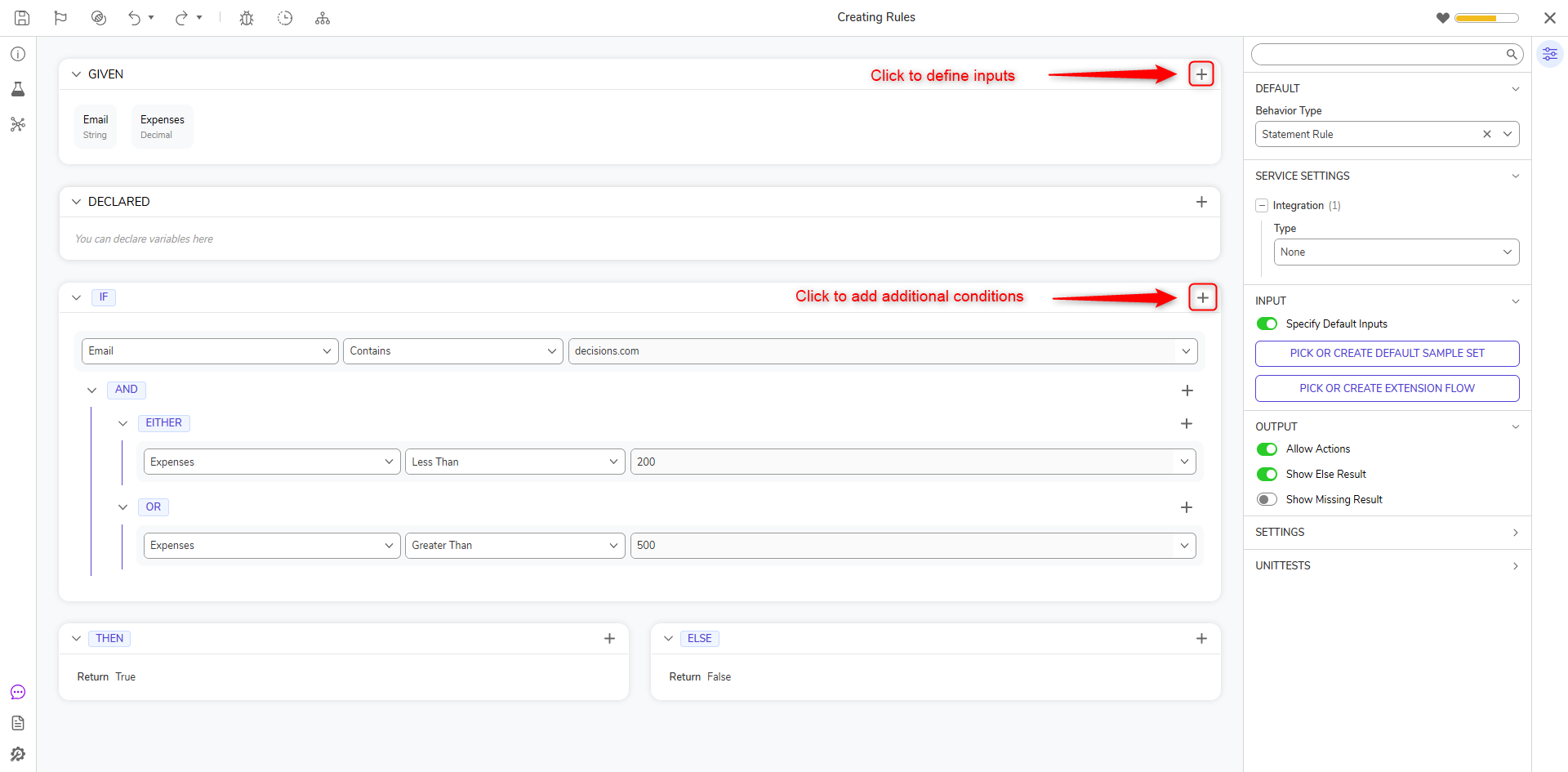
- Choose an input from Select Data Element. Choose the Verb (condition). Set the value for the condition, which could be constant or passed dynamically through the Select From Flow.
- Click Add. Add Condition to add another Either/Or block.
- Once the Either/Or statement block has been created, click Add and define conditions for each section.
- By right-clicking on the conditions block, users can take the following actions:
User Actions Description Add Condition Adds an "and" condition. Add Either/Or Group Adds another Either/Or condition. Add Not Applies the not condition to the Rule. Delete Deletes the selected condition. Move Up or Move Down Provides flexibility in organizing the Rule by moving conditions up or down. Copy Copies the Block and the condition within it. Only an AND block with a single condition can be copied. Paste Pastes the copied block. Paste After Pastes the copied block below the selected block. Swap Output Data (available only on Then block) This will swap the result from True to False. (similar to not condition) 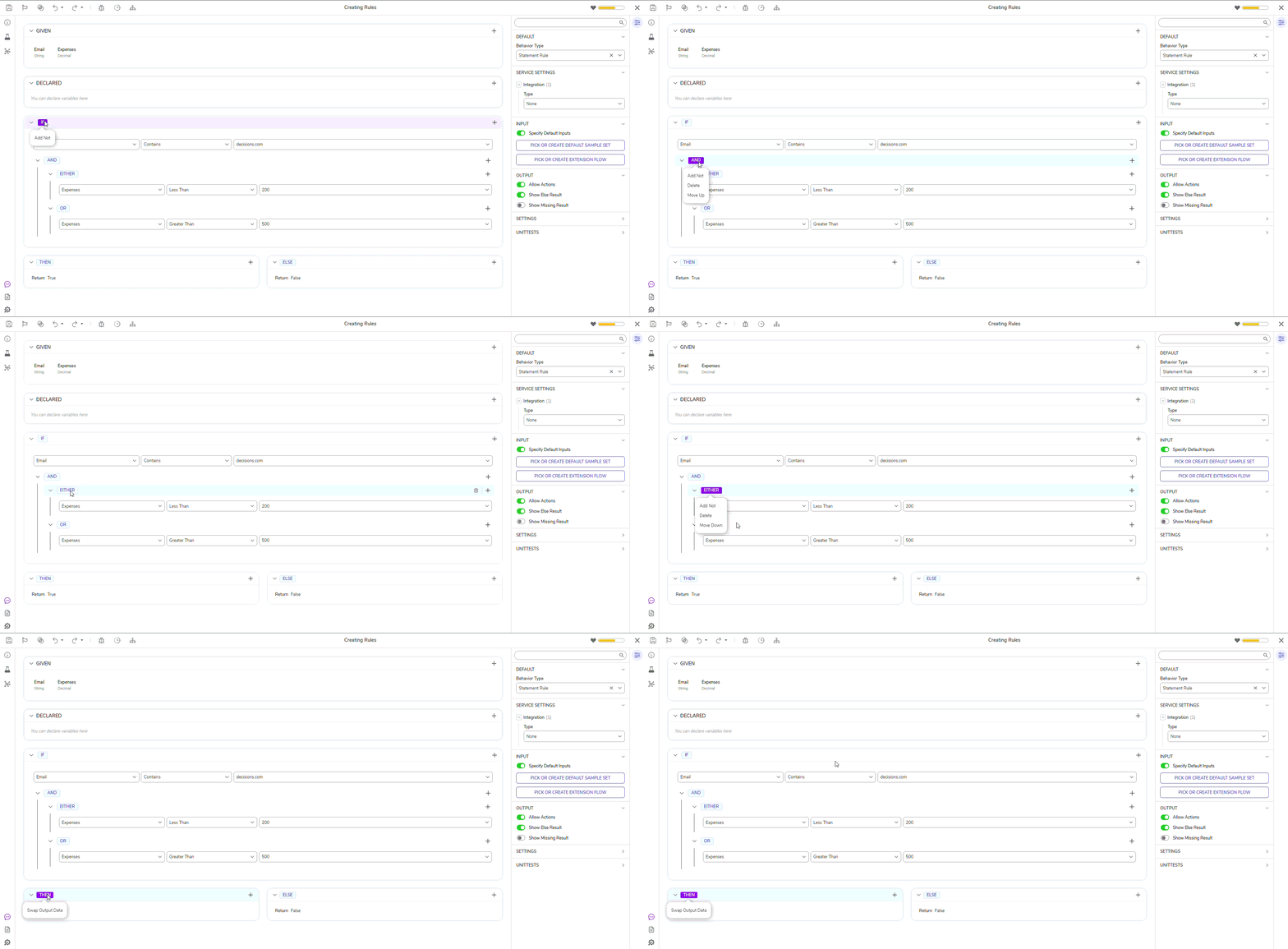
Statement Rule Designer Updates
Reorganizing Rule Conditions Using Drag/Drop (For v10.1+)
Users can now drag and drop Rule Statements without using the context menu action..gif) This new feature includes the following updates:
This new feature includes the following updates:
- Drag to Reorder Statements Within the Same Group
- Users can now reorganize complex condition rules more efficiently by moving an entire logical group (along with all associated child conditions and subgroups) instead of recreating each condition individually.
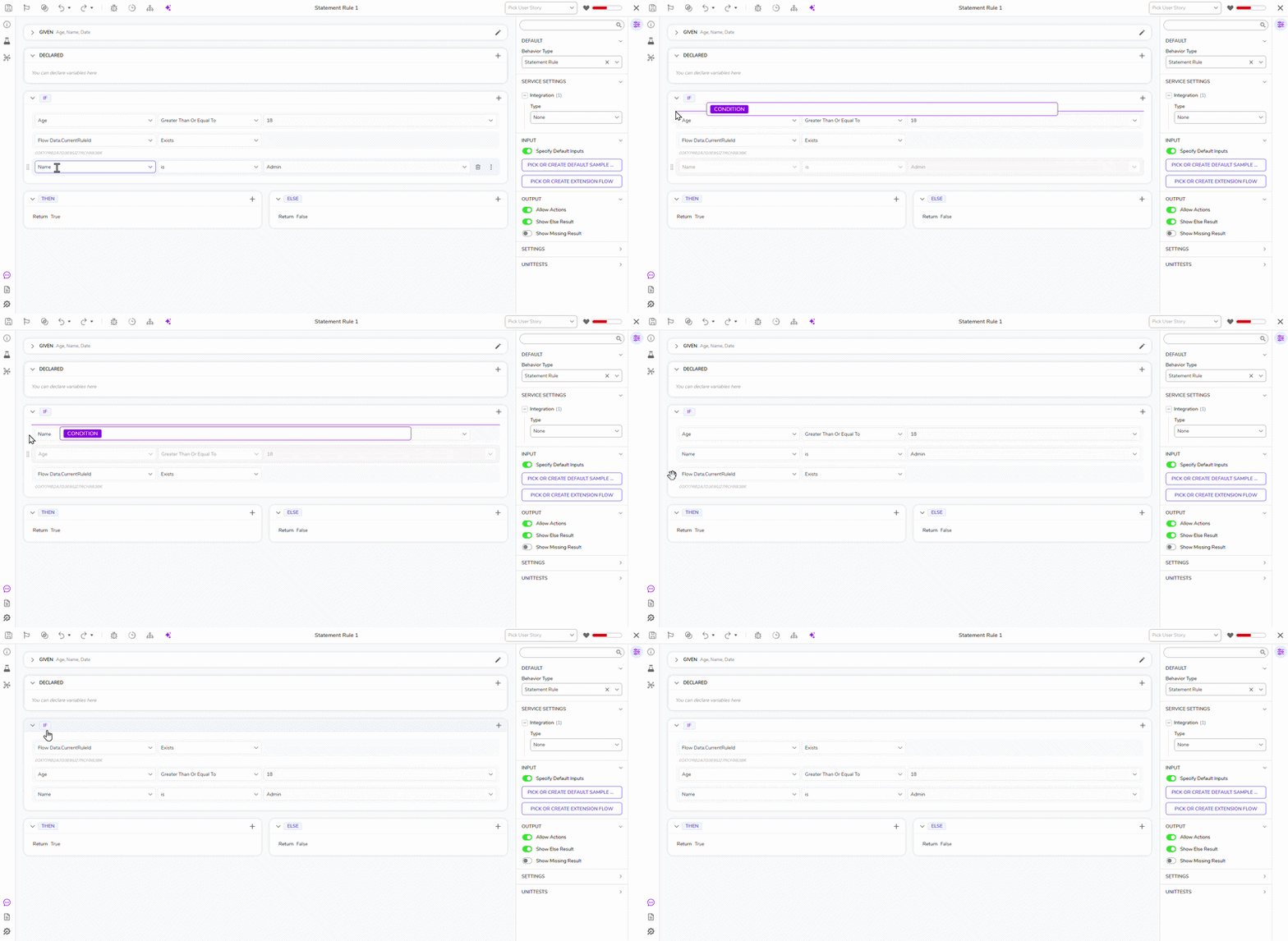
- Users can now reorganize complex condition rules more efficiently by moving an entire logical group (along with all associated child conditions and subgroups) instead of recreating each condition individually.
- Drag and Drop Statement from One Group to Another
- Users can now drag and drop a condition from one section to another in the Statement Rule Designer.
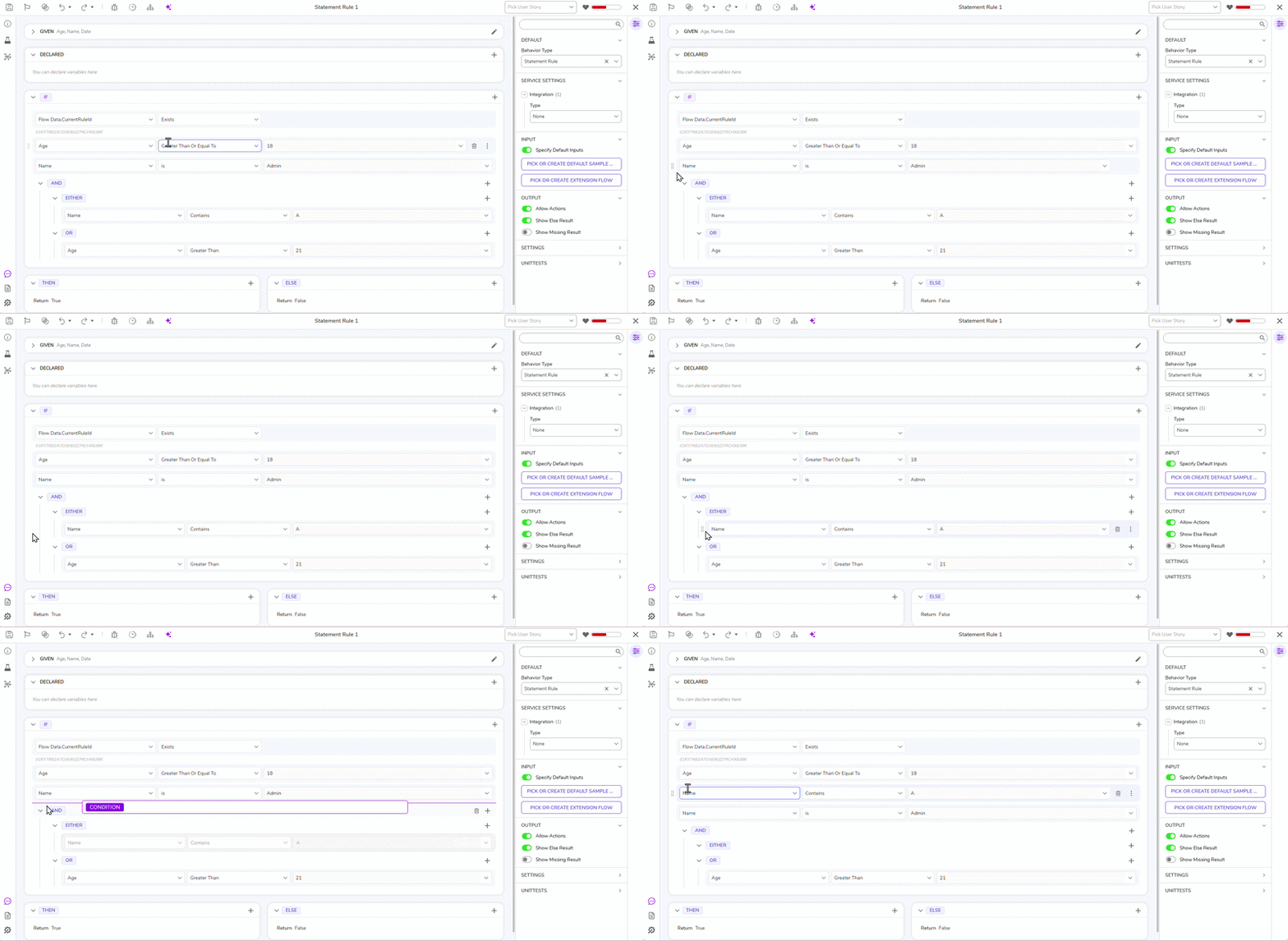
- Users can now drag and drop a condition from one section to another in the Statement Rule Designer.
Anchor Value Search (For v10.1+)
The anchor picker now supports searching Inputs, Flow Data, and System Constants, making it easier to locate references in large configurations.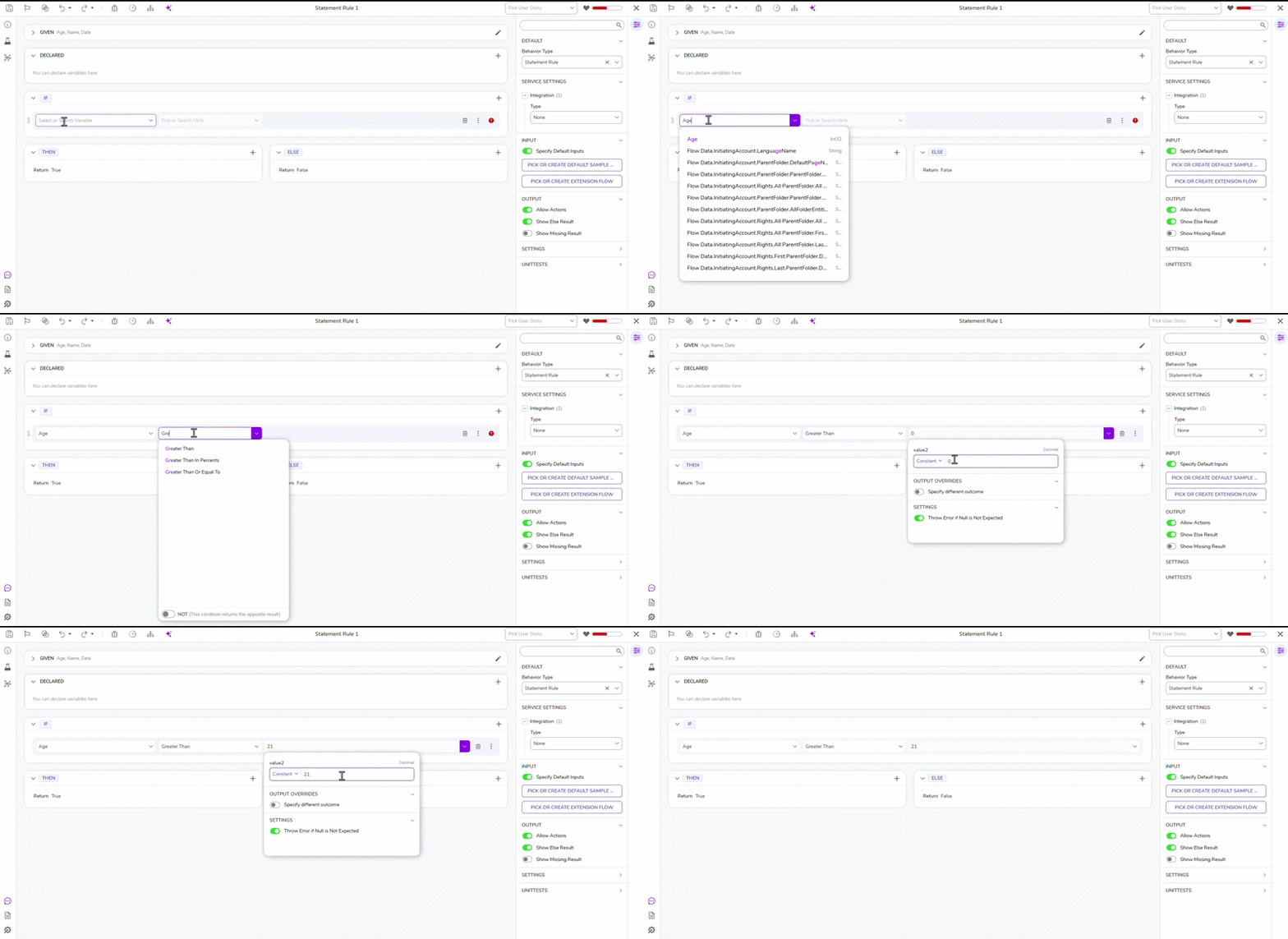
Displaying Names for Inputs and Variables When the Panel is Collapsed (For v10.1+)
Names of inputs and variables will be displayed instead of numbers when panels are collapsed. This ensures that Users will see the names without expanding the section.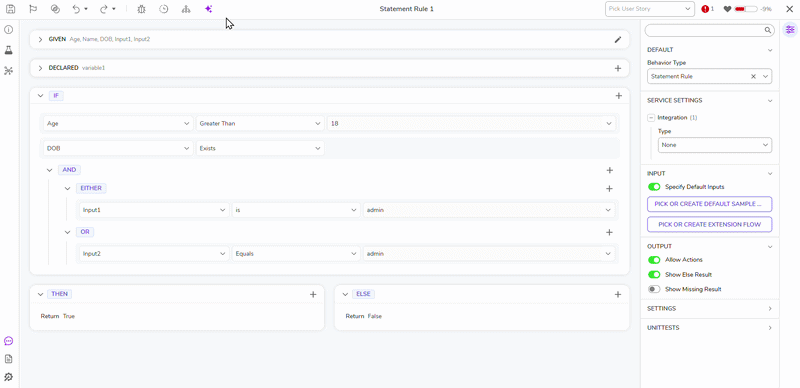
Enabling/Disabling Output Actions for Statement Rules (Available for v10.2+)
Users can enable and disable output actions using the provided toggle buttons.
.gif)
Allow Substitute Values When "Throw Error if Null is Not Expected" Is Disabled (Available for v10.3+)
Statement Rules now provide additional options for handling null input values. When a null value is encountered during rule evaluation, rule writers can define the desired outcome instead of relying solely on error handling.
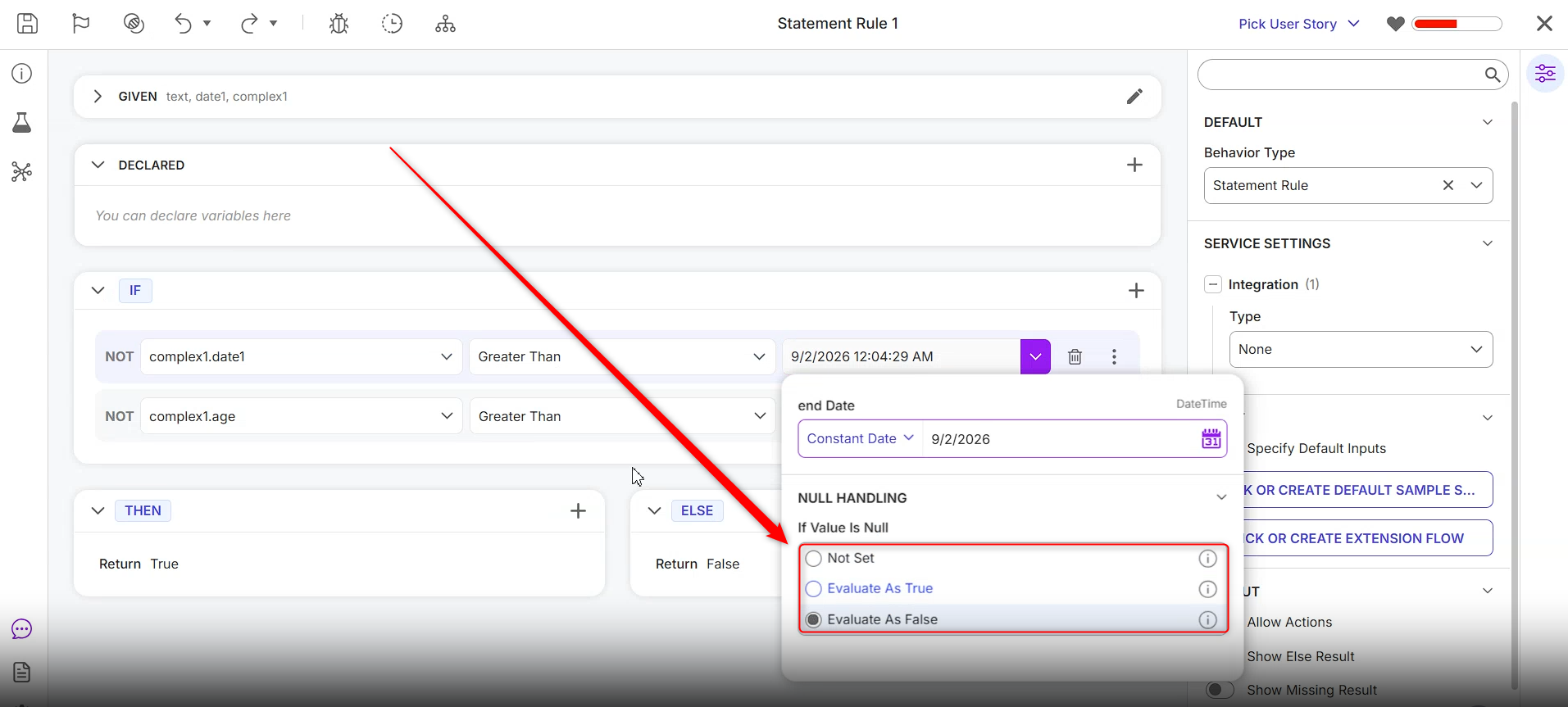
| Option Name | Description |
|---|---|
| Not Set | Maintains the existing behavior. If a null value is provided, an error is returned during rule debugging. |
| Evaluate as True | Returns True when a null value is provided as input during rule debugging. |
| Evaluate as False | Returns False when a null value is provided as input during rule debugging. |
This functionality gives rule writers greater control over how Statement Rules behave when processing null values, allowing rules to continue evaluation with a defined outcome instead of generating an error.
Feature Changes
| Description | Version | Release Date | Developer Task |
|---|---|---|---|
| Users can now drag to reorder statements within the same group. | 10.1 | August 2026 | [DT-047916] |
| Users can now drag and drop entire rule groups between each other. | 10.1 | August 2026 | [DT-047919] |
| Users can now drag and drop rule statements from one group to another. | 10.1 | August 2026 | [DT-047918] |
| The anchor picker now supports searching Inputs, Flow Data, and System Constants | 10.1 | August 2026 | [DT-046959] |
| Names of inputs and variables will be displayed instead of numbers when panels are collapsed. This ensures that Users will see the names without expanding the section. | 10.1 | August 2026 | [DT-048064] |
| Added the ability to enable or disable output actions in a statement rule. | 10.2 | September 2026 | [DT-047087] |
New functionality has been added to Statement Rules that handle null values:
| 10.3 | October 2026 | [DT-047379] |