Overview
Database Structures are Data Structures that are typically used to create a table in the database to store information (e.g. customer information such as phone numbers or names). The following article will demonstrate how to use the Create, Read, Update, and Delete (CRUD) actions via Flow steps for Database Structures.
CRUD Action Steps: Database Structures
In the Flow Designer's Toolbox, the Create, Update, and Delete steps cannot be searched for. Users will have to navigate to USER DEFINED TYPES > DATABASE STRUCTURE to add CRUD actions to the workspace.
Prerequisite
This tutorial uses a Database Structure named "DatabaseStructurePerson" with the following attributes:
| DatabaseStructurePerson | |
|---|---|
| Data Field Name | Data Field Type |
Firstname | String |
Lastname | String |
DOB | Date time |
Create
In a Designer Folder, create a Flow. Name it "Database Structure Create". It will automatically open in the Flow Designer.
In the Flow Designer, add a Create DatabasePerson from the Toolbox under USER DEFINED TYPES > DATABASE STRUCTURES > DATABASEPERSON. Connect it to the Start and End steps.
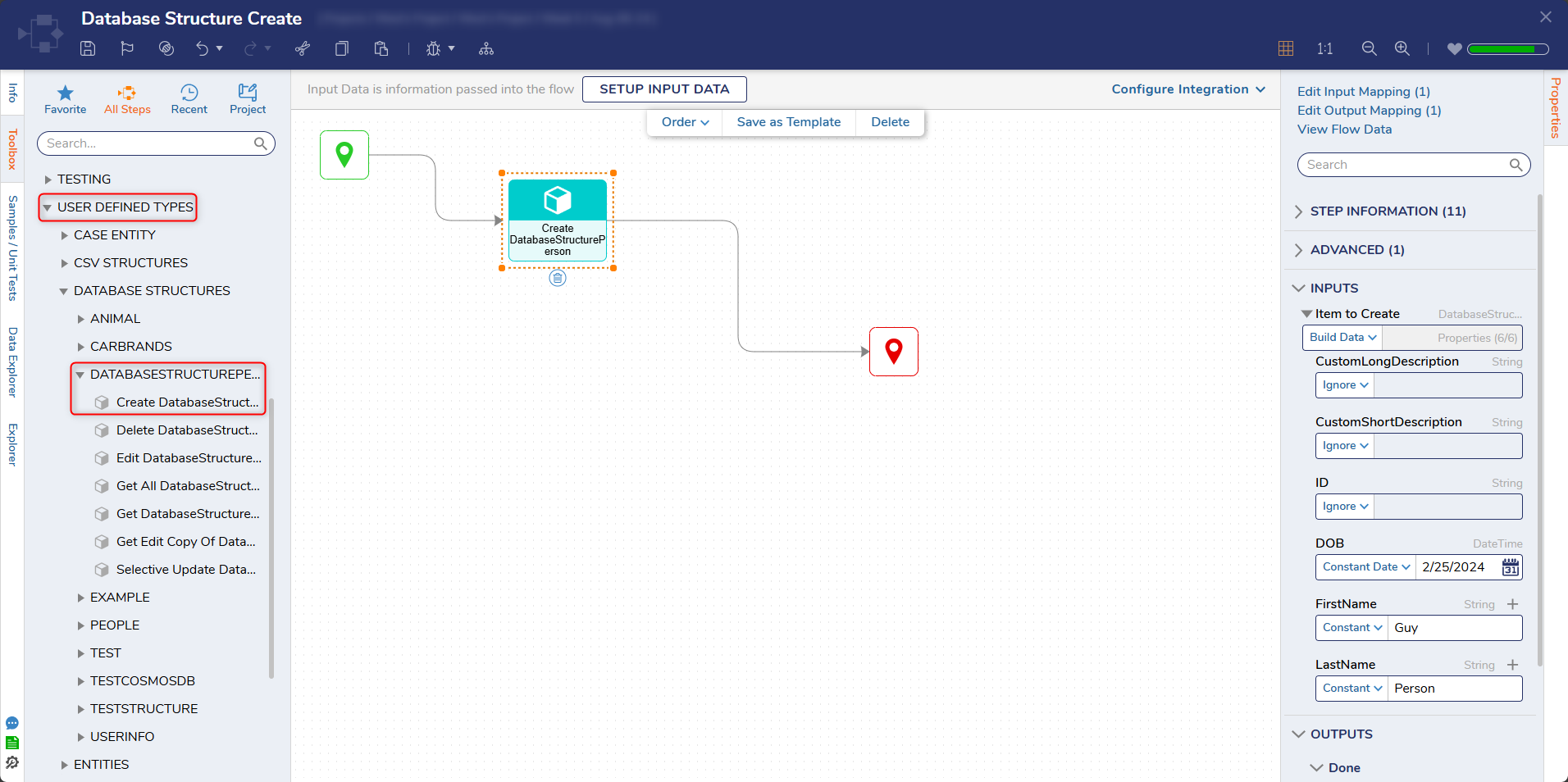
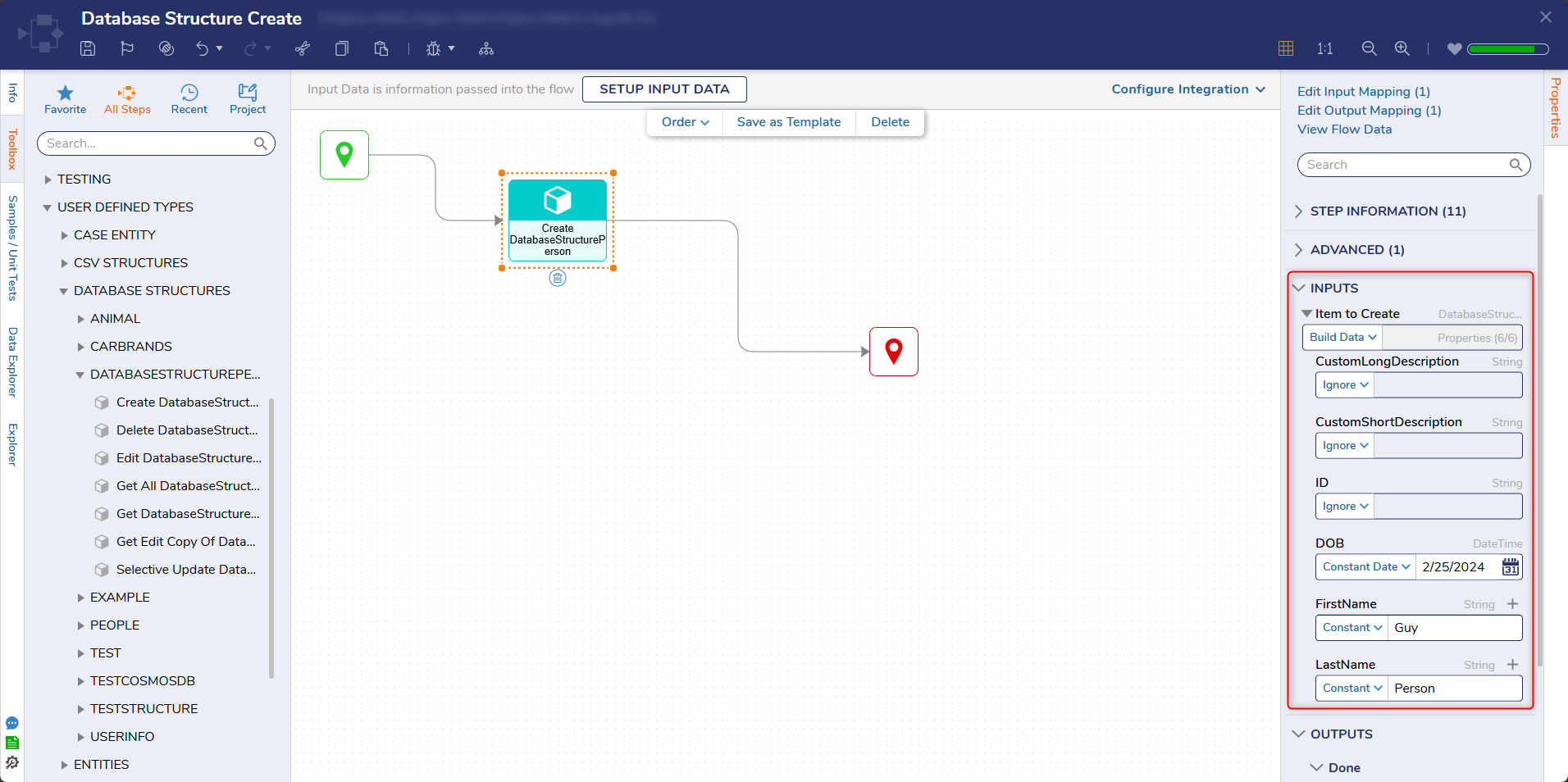
With the Create DatabasePerson step selected, navigate to the Properties panel > INPUTS > Item to Create field and change its input mapping to Build Data.
Notice the new list of INPUTS. Change the input mapping for the FirstName, LastName, and DOB inputs from Ignore to Constant. Provide example information.
Debug
Select Debug from the Top Action Bar. This will save and run the Flow, creating a record (row of relational data) on the DatabasePerson Data Structure.
Auto ID Generation
Despite being initially set to Ignore, note how the system auto-generates the record's ID upon creation by the Debug (Flow run) action.
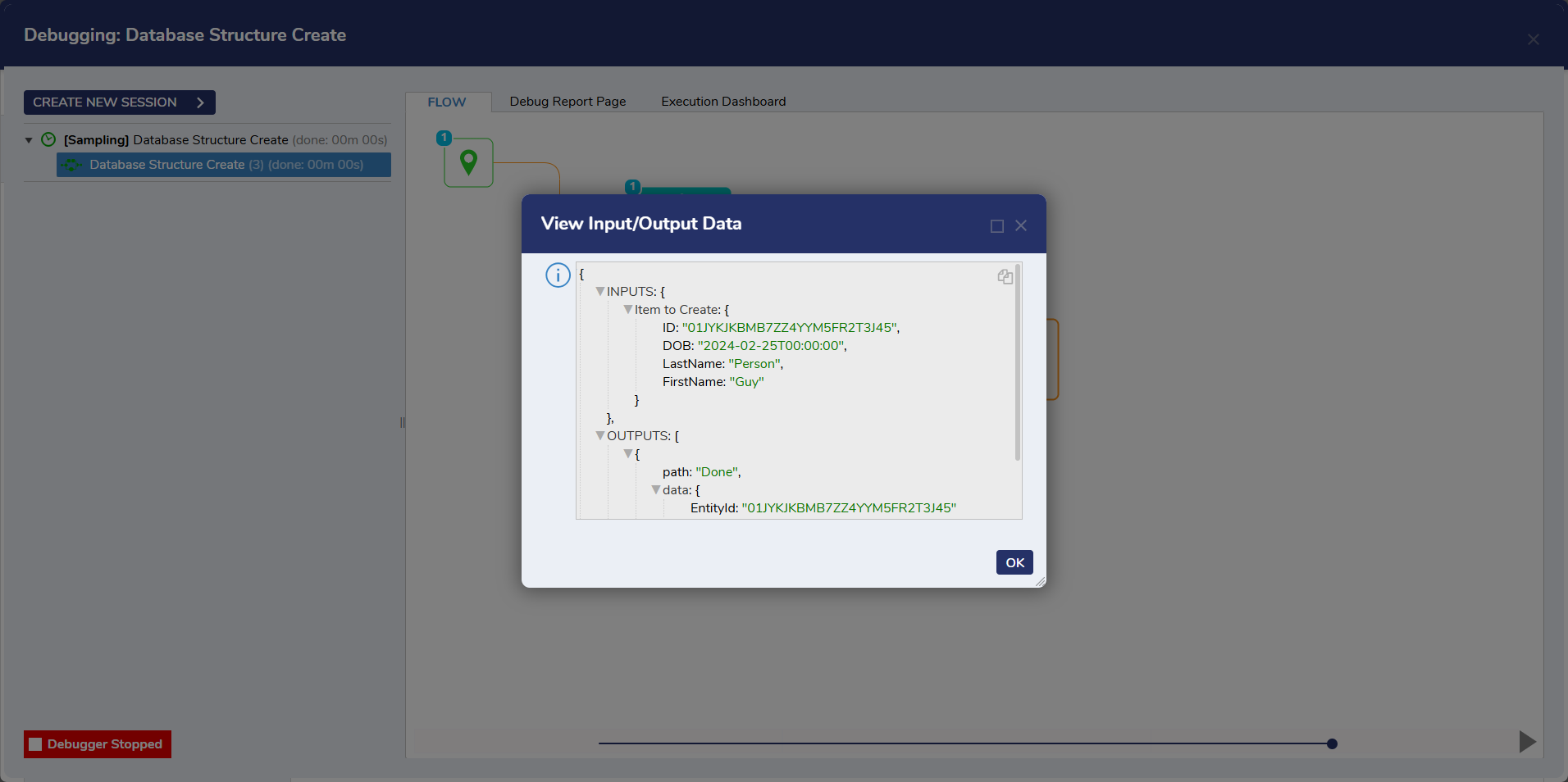
This new record can be seen when sourcing the Database Structure in a Report.
.png)
Update
Users may update their data with either the Edit [DatabaseStructureName] step or the Selective Update [DatabaseStructureName] step found alongside the Create [DatabaseStructureName] step in the Toolbox.
The two steps offer two different methods of editing Database Structure data records:
Edit: Changes every data field, even those not intended to change. Any fields left without a value will become Null, so enter data to prevent this.
Selective Edit: Changes only the data field(s) you explicitly select for update. The Entity ID is a required input, separate from the rest of the properties. Any property not checked/selected is not shown and keeps its original value.
For most use cases, Selective Edit is recommended over the Edit step.
Update Flows rely on the Fetch Entities step to retrieve the correct data record(s) to update in a Data Structure by passing the data record's ID to the Edit or Selective Update steps.
Edit Person Step
In the Designer Folder, create a new Flow and name it "Database Structure Update". It will automatically open in the Flow Designer.
From the Toolbox's Favorites section, add a Fetch Entities step after the Start step.
In the Fetch Entities' Properties tab, change the Type Name search for the Database Structure: "DatabaseStructurePerson".
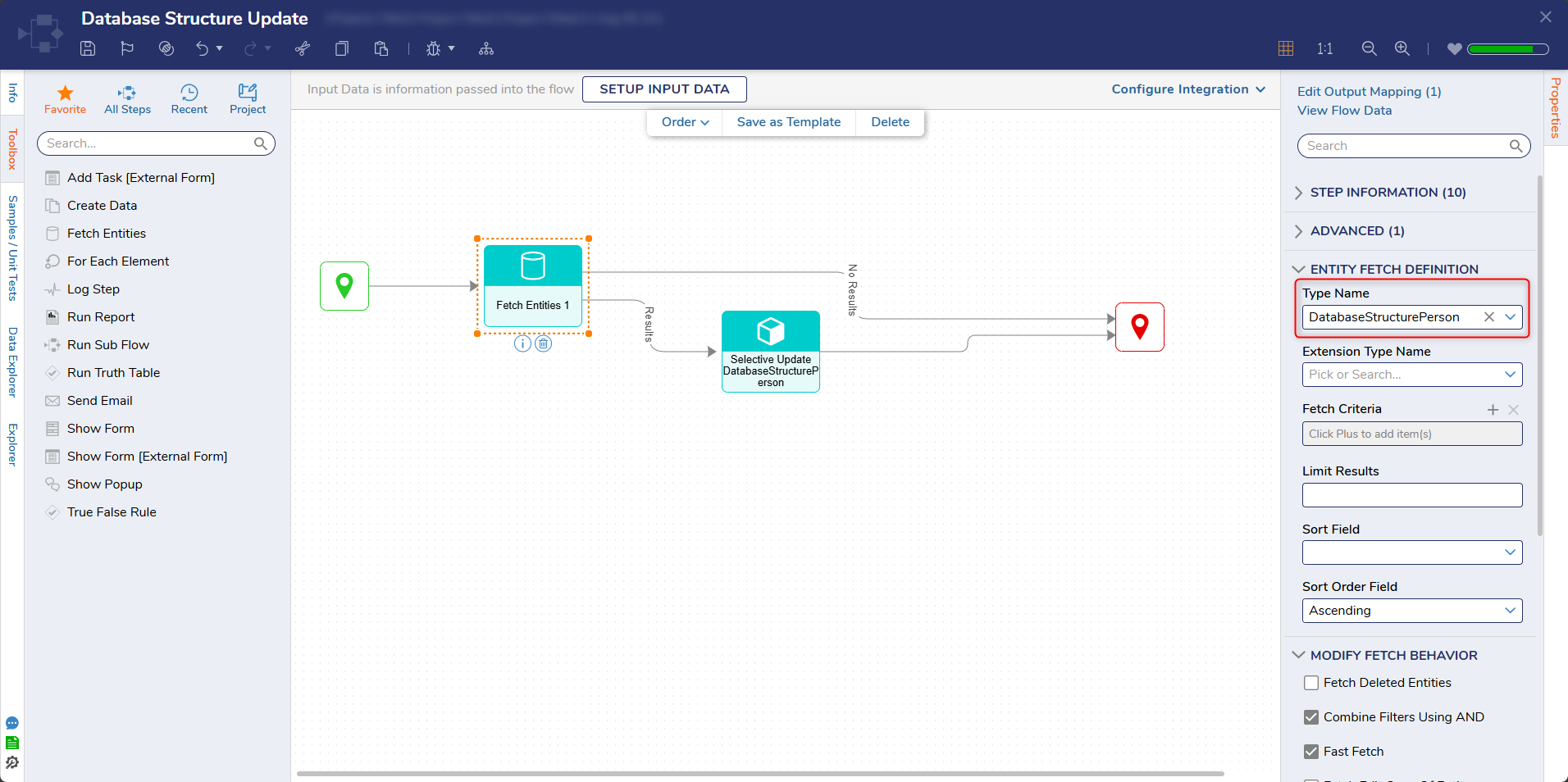
After the Results outcome of the Fetch Entities step, add an Edit DatabaseStructure Person step found under Toolbox > USER DEFINED TYPES > DATABASE STRUCTURES > DATABASESTRUCTUREPERSON.
Connect the No Results path to the End step.View the Edit DatabaseStructurePerson's Properties. For Extension Data, change its mapping type to Build Data.
For Entity ID, change its mapping type to Select From Flow and select the ID of the entity to change that was grabbed from the Fetch Entities step. In this example, this is EntityResults.First.ID
For the "FirstName", "LastName", and "DOB" inputs, change their mapping type to Constant and enter the new information to change. Unless wishing to create null values, enter values for all fields, even if they are the same as the original.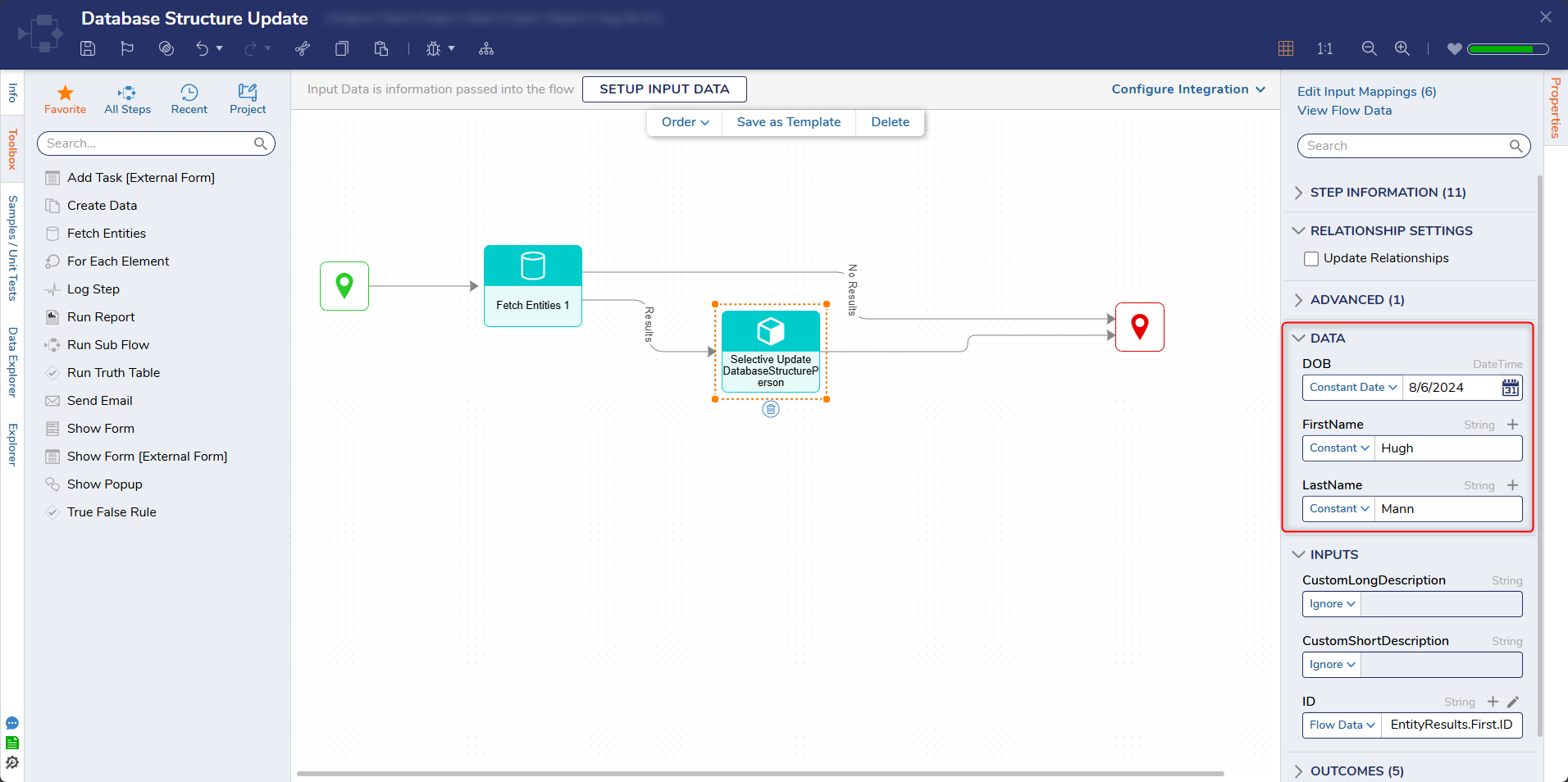
Debug
Select the Debug action from the top action bar. This will automatically save the Flow. Open the Inputs/Outputs of the Edit step to view the new data.
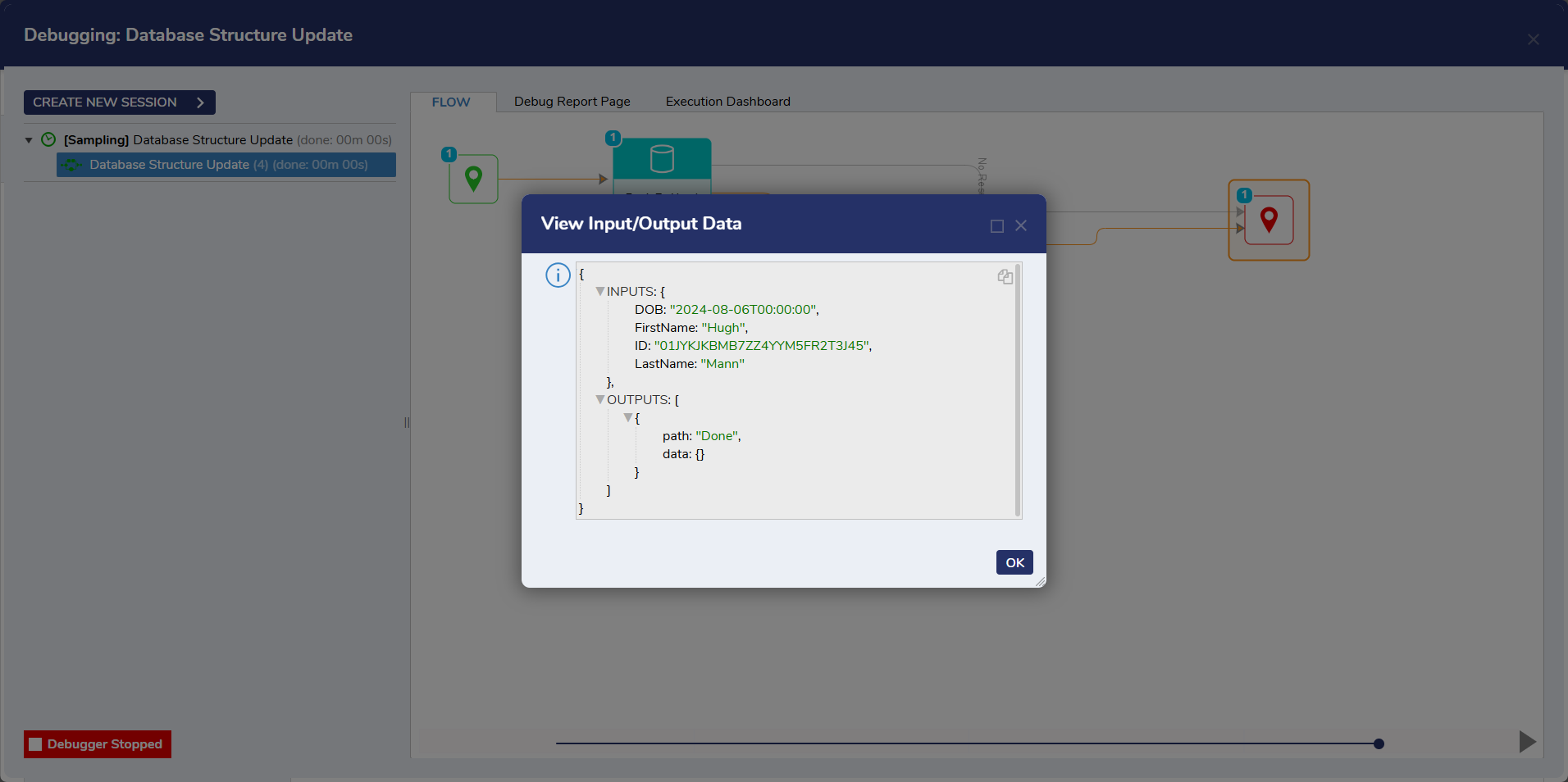
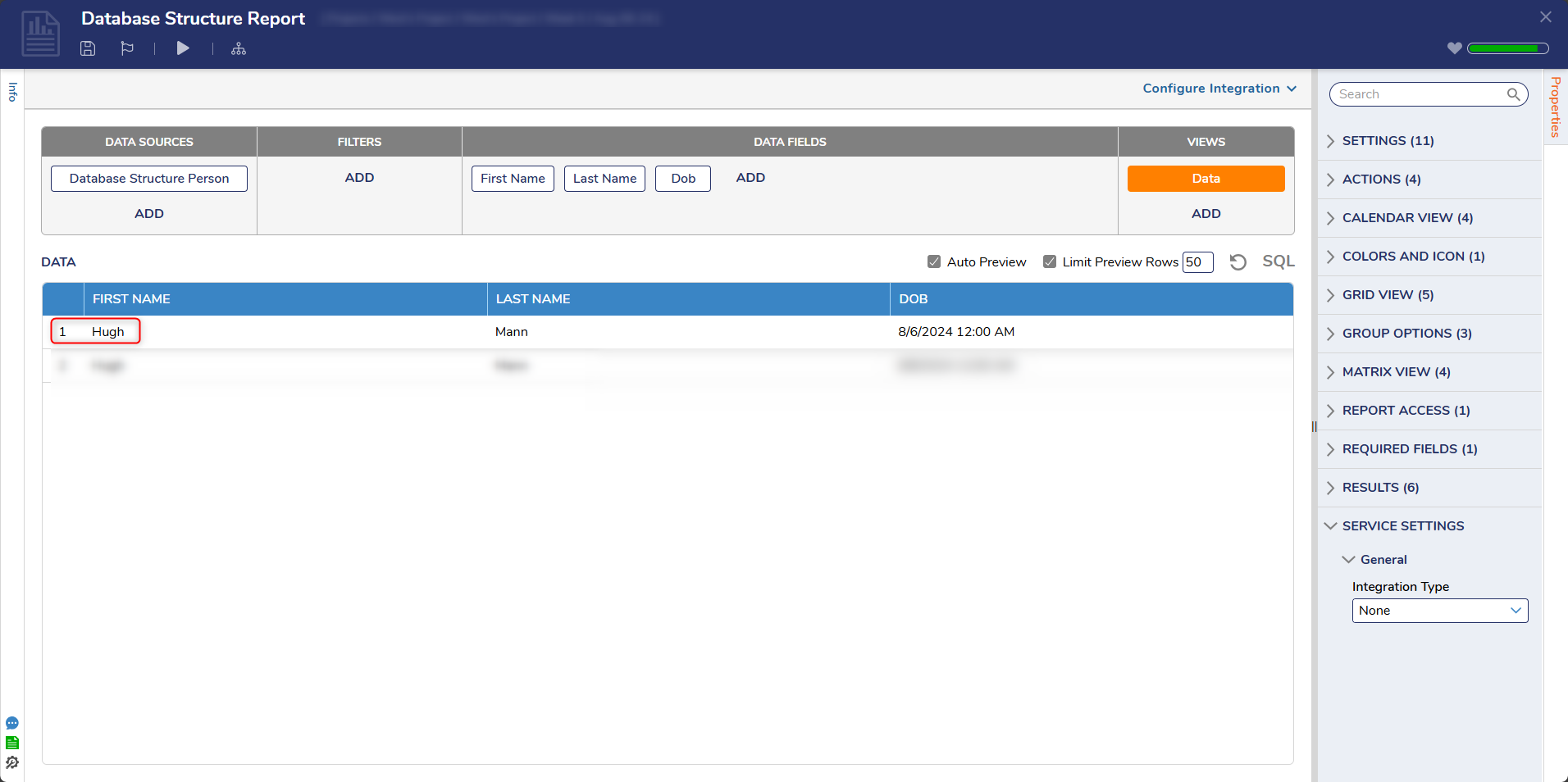
This edit can be seen in the Database Structure's Report.
Selective Update Person Step
- Repeat steps 1-3 in the prior Edit step example.
- After the Results outcome of the Fetch Entities step, add a Selective Update DatabaseStructure Person step found under Toolbox > USER DEFINED TYPES > DATABASE STRUCTURES > DATABASESTRUCTUREPERSON.
Connect the No Results path to the End step. - View the Selective Update DatabaseStructurePerson's Properties. In v9.29, The Entity ID is now a required input, separate from the other properties. Change its mapping type to Select From Flow and select the ID of the entity to change that was grabbed from the Fetch Entities step. In this example, this is EntityResults.First.ID.
Under Data, all fields are displayed. For any field that needs to be changed, set its mapping type to Constant and enter the new value. Leave the other fields blank to keep their original values.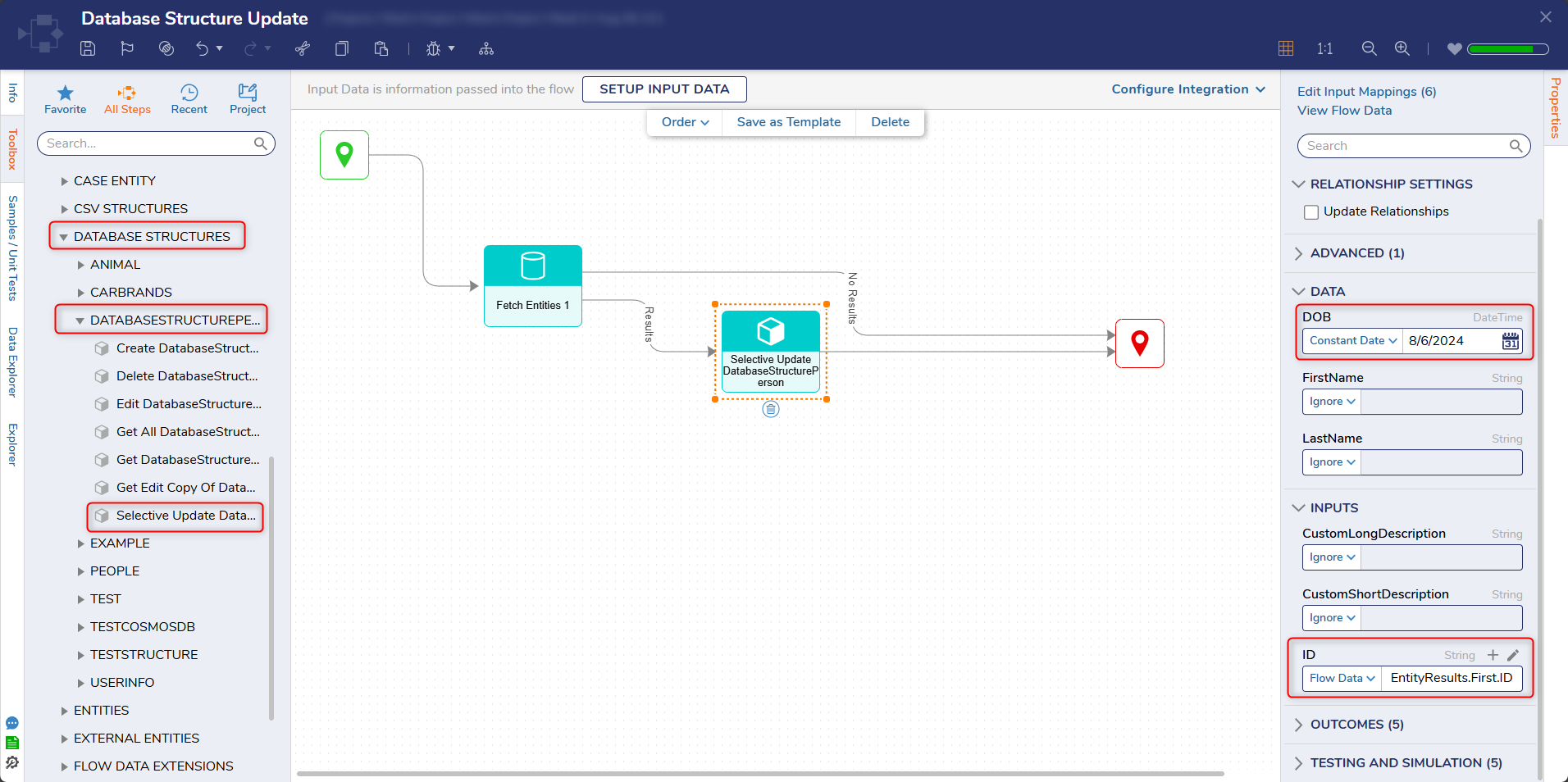
Debug
Select the Debug action from the top action bar. This will automatically save the Flow. Open the Inputs/Outputs of the Selective Update step. Notice only the record's ID and the change values are shown, i.e., the ID and the DOB field.
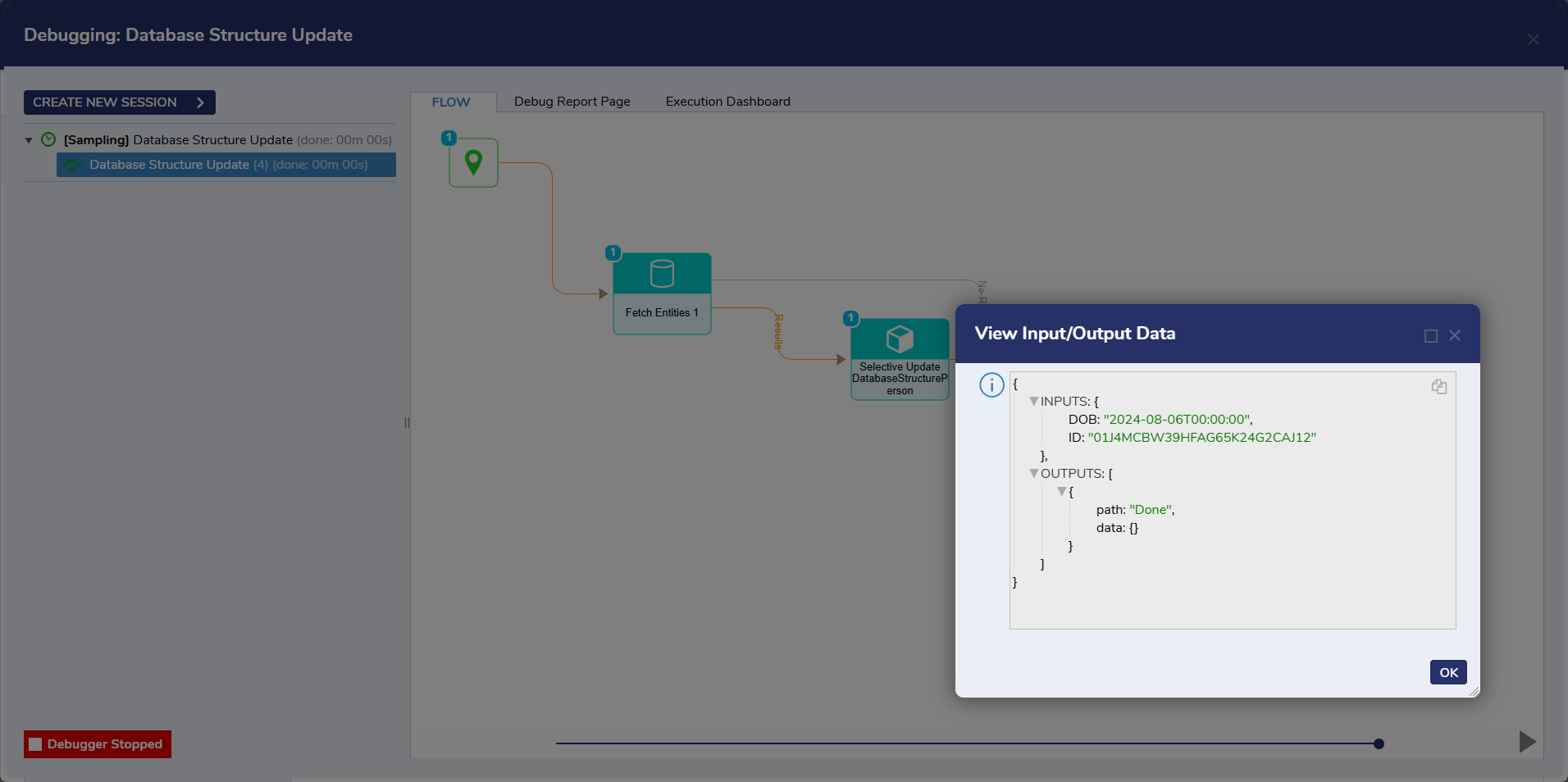
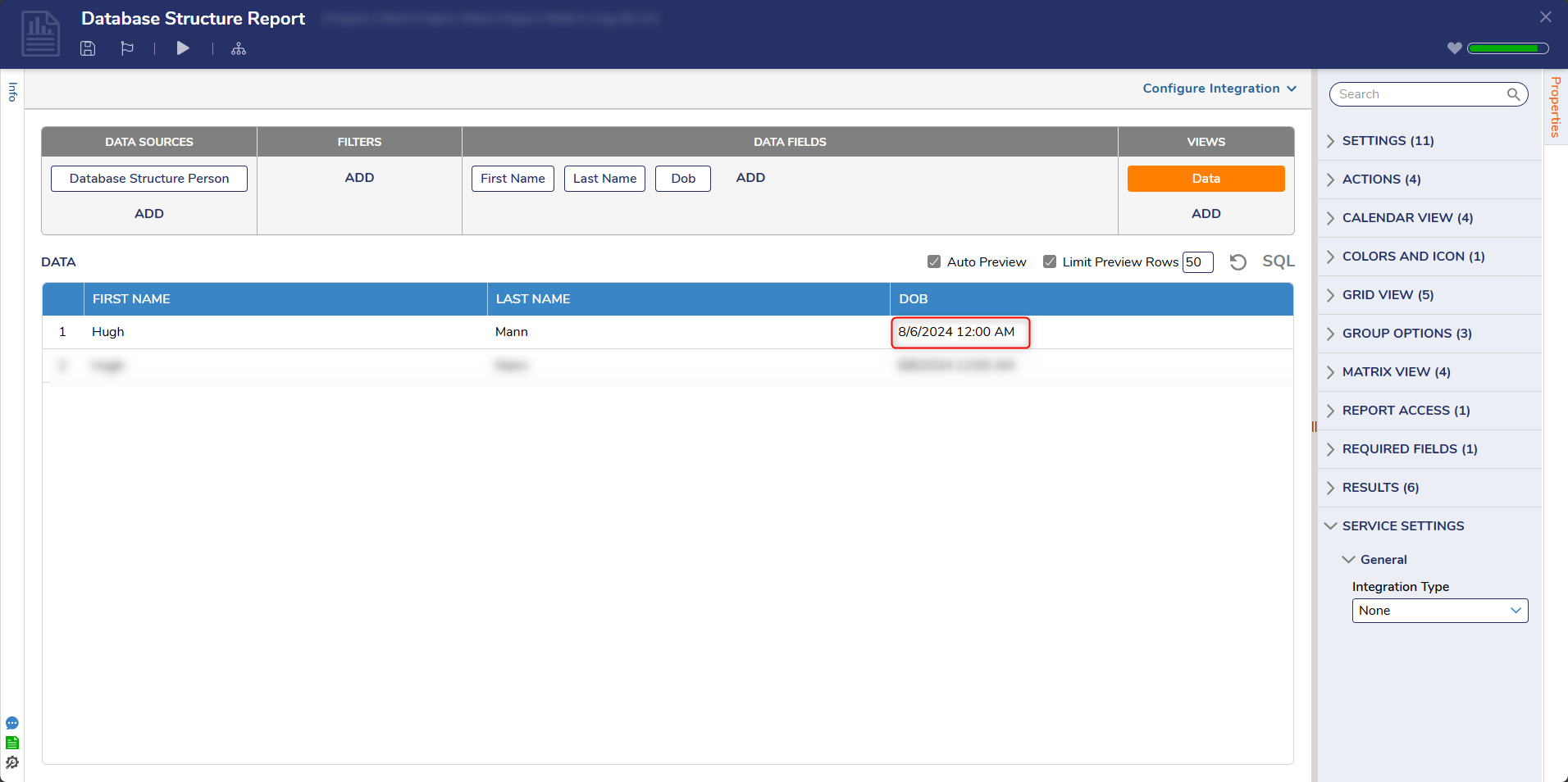
This change is reflected in a Report sourcing the Database Structure Notice that while the DOB field changed, the other fields ignored in the Selective Update step maintain their values.
Delete
In the Designer Folder, create a new Flow. Name it "Database Structure Delete". It will automatically open in the Flow Designer.
In the Flow Designer, add a Fetch Entities step from the Toolbox's Favorites section. Connect it to the Start step.
View the Fetch Entities' Properties. For the Type Name, search for the Database Structure: "DatabaseStructurePerson".
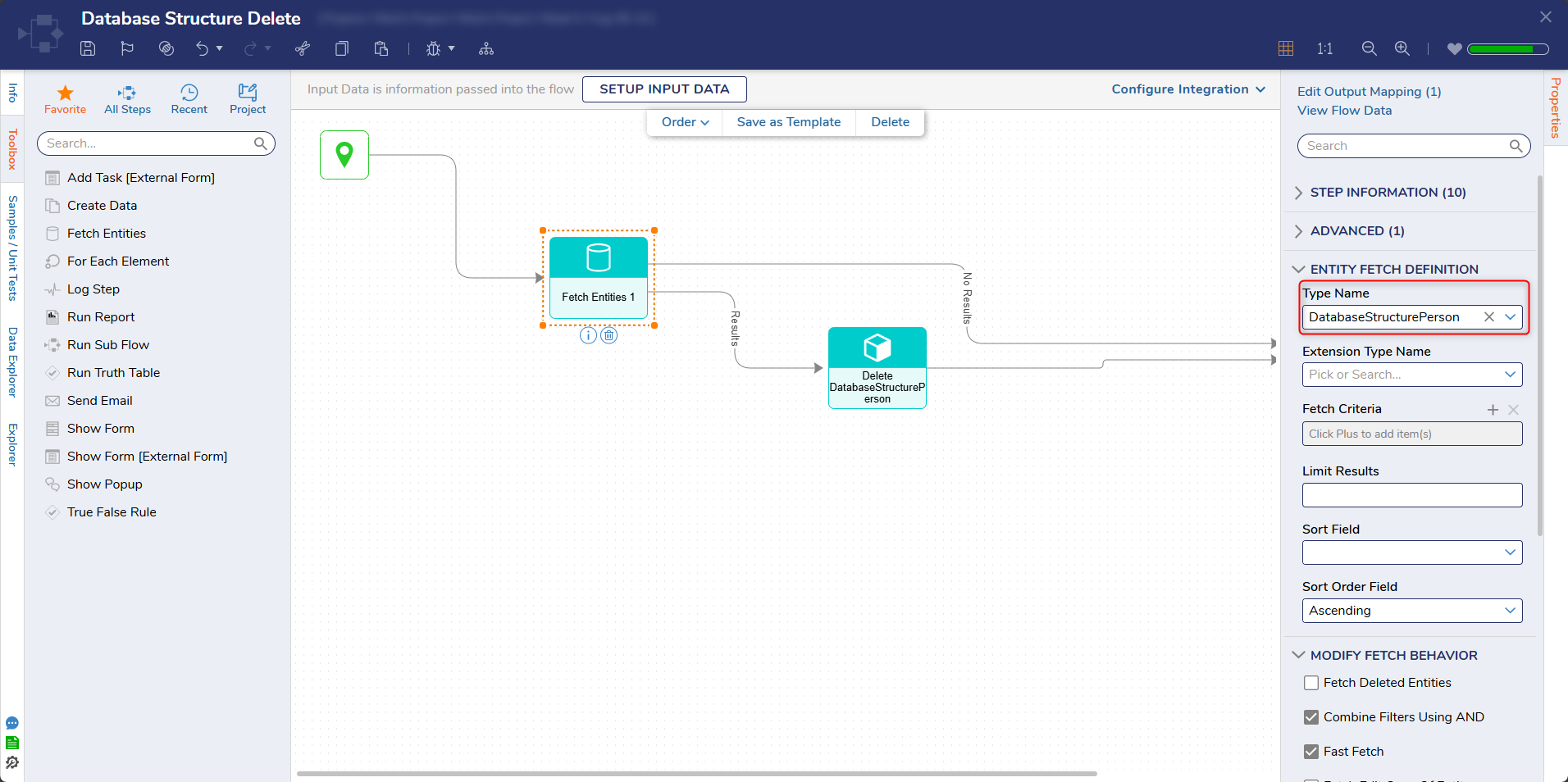
After the Results outcome of the Fetch Entities step, add a Delete DatabaseStructurePerson step found via Toolbox > USER DEFINED TYPES > DATABASE STRUCTURES > DATABASEPERSON.
View the Delete DatabaseStructurePerson's Properties. For the ID input, change the input mapping to Select From Flow and select the ID of the record to delete. For this example, this is EntityResults.First.ID.
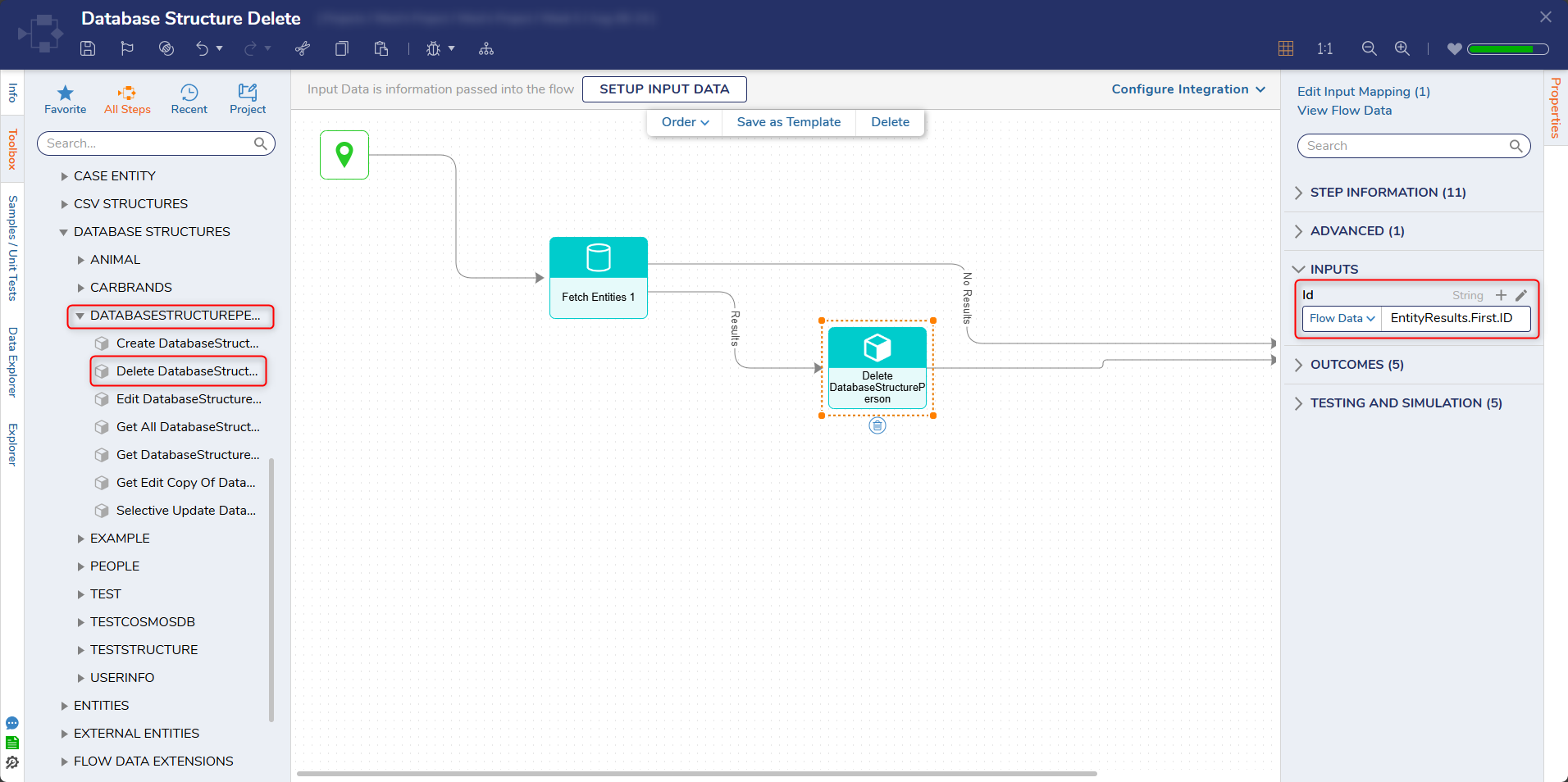
After debugging/running the Flow, the specified record is deleted from the Database Structure.
Deleting Records when an ID is not Available
If an ID missing, Users can add filters (name, to the Delete Entities step to ensure only the specified record is deleted.
Feature Changes
| Description | Version | Release Date | Developer Task |
|---|---|---|---|
| Selective Update step's Entity ID is now a required input, decoupled from the optional property list. | 9.29 | July 2026 | [DT-047424] |