Preview a file from any File Manager folder.
Preview a File from File Manager
Preview any of the following file types that File Manager supports to preview:
GIF
JPG
MP4
ODP
ODT
OGG
PDF
PNG
Follow these steps to view a file from File Manager:
View File Manager. File Manager displays.
View one of the following folders in File Manager:
Do one of the following:
Click anywhere in the row containing the file to view.
Click the View icon
 for the file to view.
The selected file displays in preview, as an example shows in the next step.
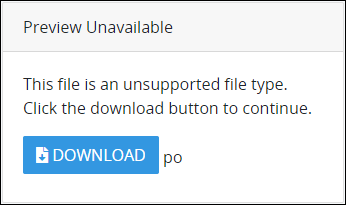
If the file is not a supported file type that File Manager previews, the following message displays: This file is an unsupported file type. Click the Download button to continue. Click Download to download the unsupported file.
If viewing a supported file type, use that previewer's navigation to browse the file.
.png)
File preview in File Manager
Do any of the following:
Click the Information icon
 to view the following details about the selected file:
URL to the file: File Manager displays a direct link to the selected file.
When and whom added the file: File Manager displays the datetime and the user that added the selected file to File Manager.
When and whom last modified the file: File Manager displays the datetime and the user who last modified the selected file in File Manager. A file is modified in File Manager when it is renamed.
File type: File Manager displays the selected file's type by its MIME extension.
File size: File Manager displays the file size of the selected file.
The Information icon is selected by default.
Click the Download icon
 to download the selected file.
Click the Comments icon
 to view or post comments about the selected file. See File Comments.
Click the Share icon
 to share the selected file with another user. See Share a File from File Manager.
Click the Star icon
 to indicate or not indicate that the selected file is important to you. Follow these guidelines:
Star a file: Click the outlined Star icon
when that icon is not solid-colored to star this file. The Starred Files folder in File Manager contains this file with all other files you deem important.
Unstar a file: Click the solid-colored Star icon
when that icon is not outlinedto unstar this file.