Step Details | |
| Introduced in Version | 9.24.0 |
| Modified in Version | 9.24.0 |
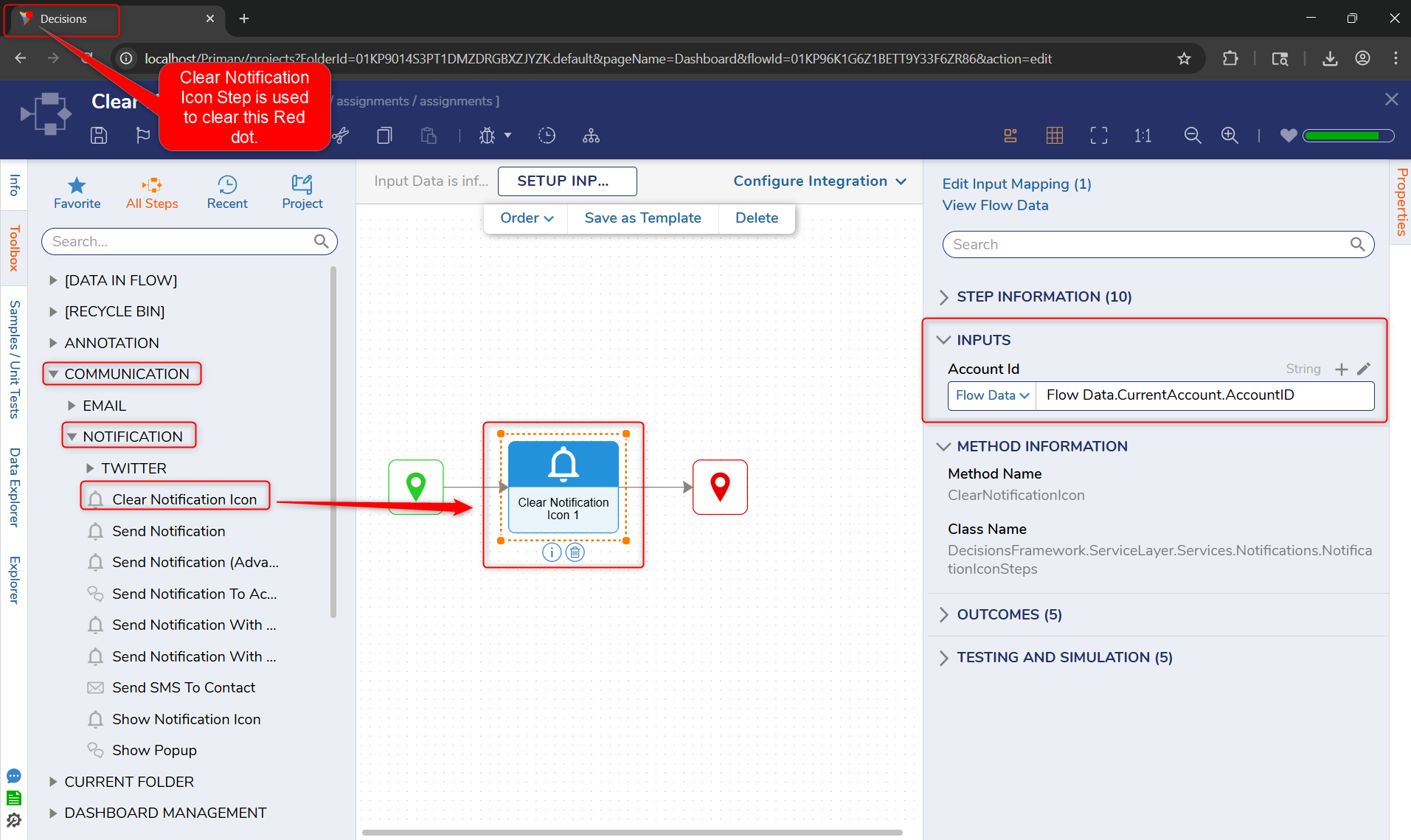
| Location | Communication > Notification |
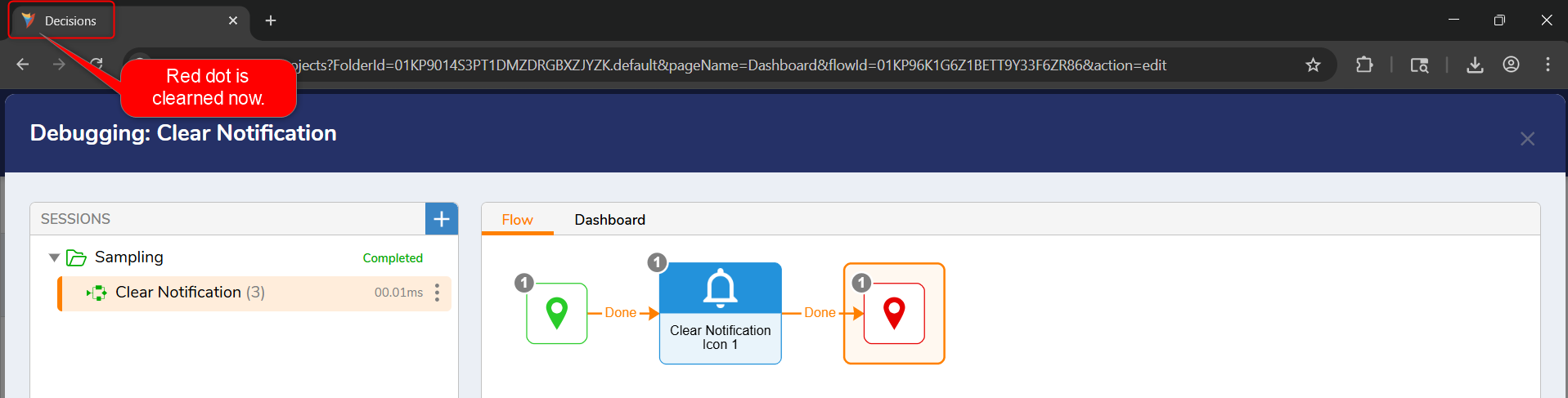
The Clear Notification Icon step removes the red notification indicator from the Portal favicon for the mapped user account. This step can be used in a Flow when the notification is no longer needed.
This step is useful after the user has reviewed the item that triggered the alert or when the condition requiring notification has been resolved.
Properties
Inputs
| Property | Description | Data Type |
|---|---|---|
| Account ID | The ID of the account for which the notification icon should be cleared. | String |
Example Inputs and Outputs
| Account ID | Output |
|---|---|
| 8f3d2b9c-1a44-4f7a-91c8-123456789abc | Removes the red notification indicator from the Portal favicon for the mapped user's open sessions. |
Example
In this example, a Flow uses the Clear Notification Icon step after the user has reviewed the item that triggered the notification.
- In the Flow Designer, drag the Clear Notification Icon step into the Flow from Communication > Notification.
- Map the Account ID for the user whose browser tab notification should be cleared.
- Configure the Flow to execute this step after the item has been reviewed or the alert condition is no longer active.
- When the Flow runs, the Portal favicon returns to its normal appearance for the mapped user's open sessions.