Step Details | |
| Introduced in Version | 9.20 |
| Modified in Version | --- |
| Location | Data > PDF |
The Add Bookmarks to a PDF step allows a user to add a list of bookmarks to a PDF file.
Properties
Inputs
| Property | Description | Data Type |
|---|---|---|
| Bookmarks | A list of a composite object to allow the user to specify a list of bookmarks. This object allows you to specify the BookmarkName(String) and PageNumber(Int32). | DecisionsFramework.Design.Flow.CoreSteps.PDF.PdfBookmark |
| Pdf Document | PDF file to add bookmark to | FileData |
Outputs
| Property | Description | Data Type | |
|---|---|---|---|
| Done | |||
| Pdf Document Result | The PDF file with the added bookmarks | File Data | |
Example
The following example adds an image to a PDF file using the Add Background to PDF step.
- Create a new Flow.
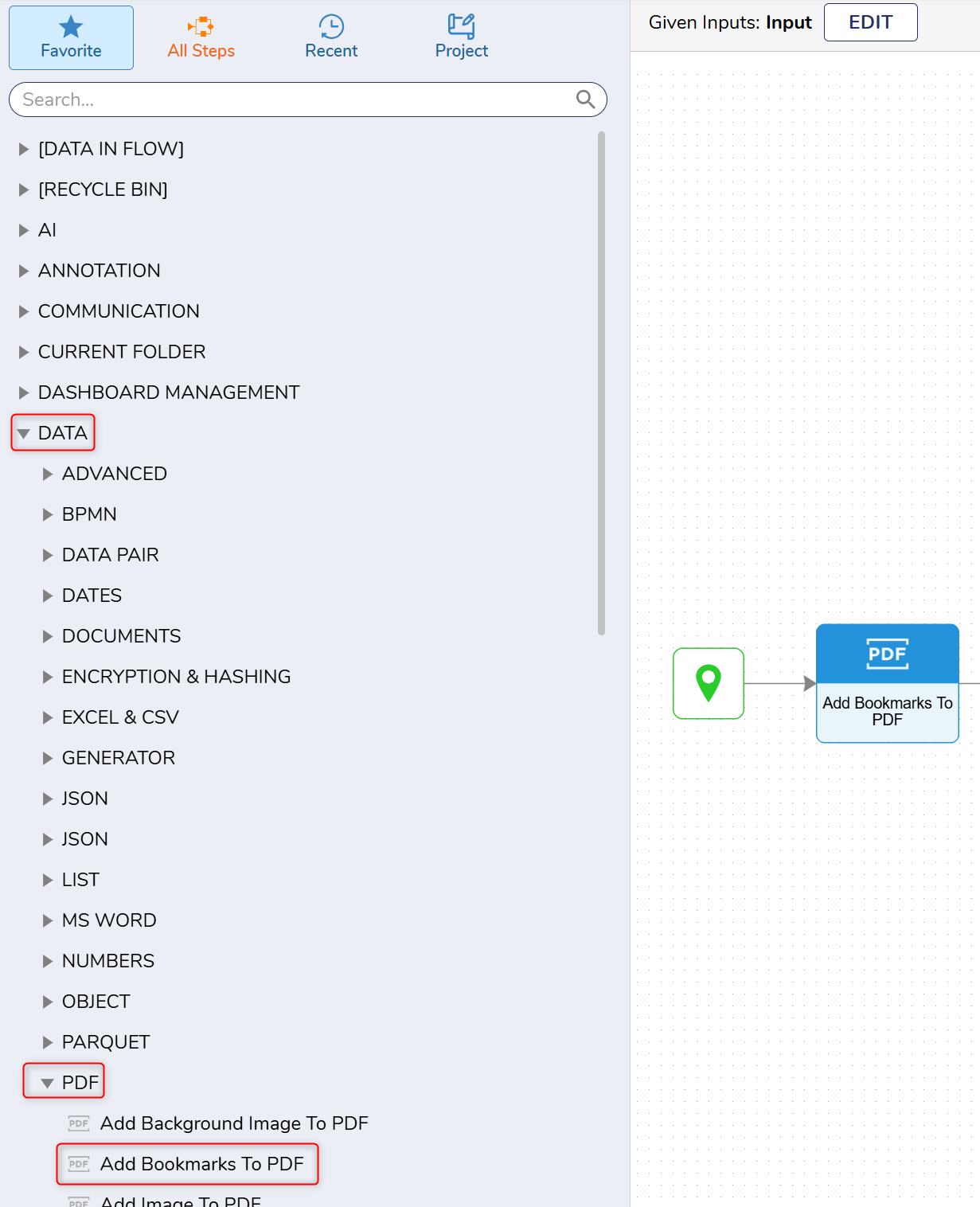
- Expand the Data > PDF steps and select the Add Bookmarks to PDF step to the workspace.
- With the step selected. In the Inputs panel, define the PDF Document and the bookmarks you want added to the document.
For this example, these inputs are set to constant values.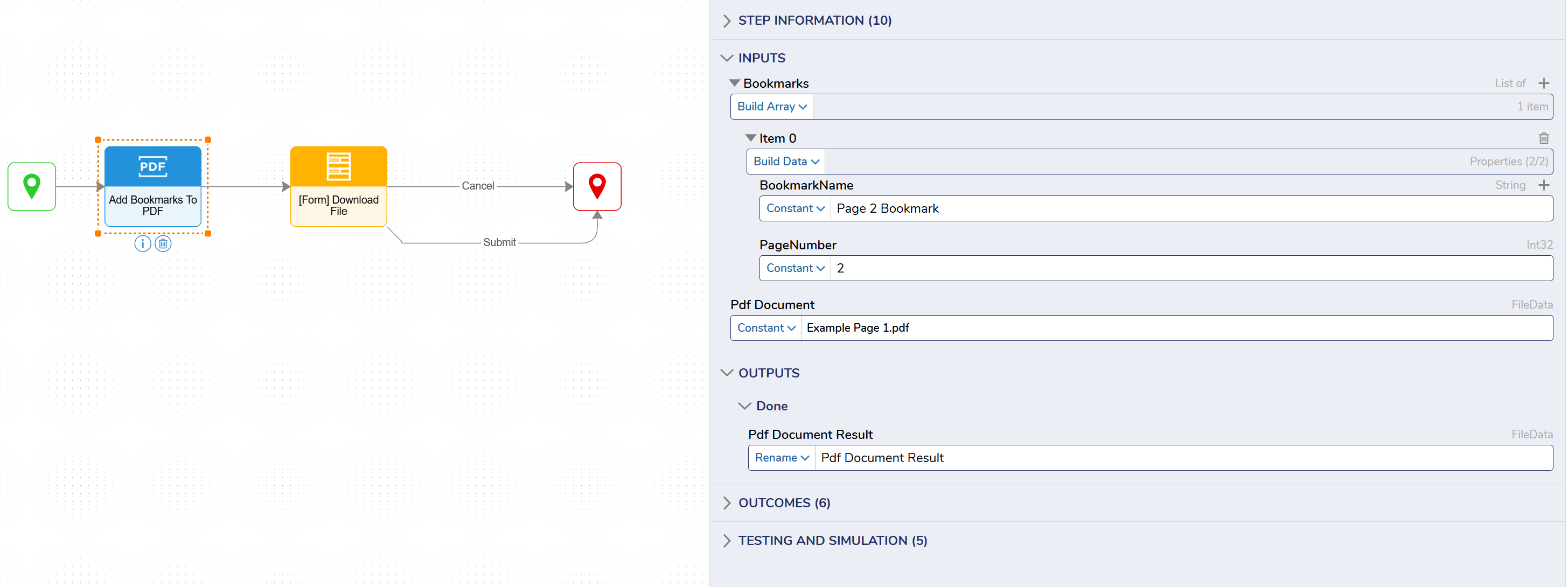
- Create and add a Form step.
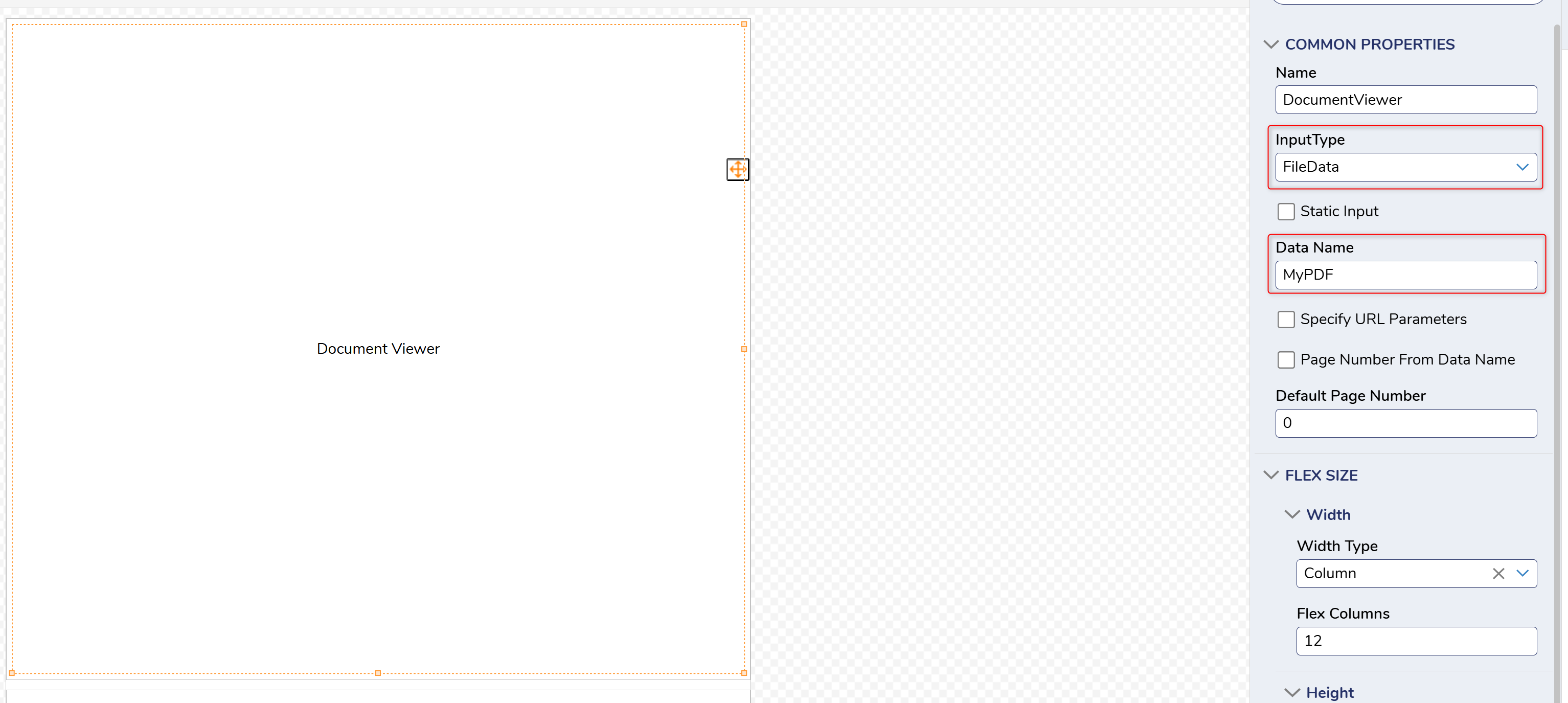
- In the Form Designers Toolbox tab, search for the Document Viewer control.
- In the Properties panel for the control, under the InputType header, select the File Data.
- Name the input field using Data Name in the Properties panel. MyPDF is used for the Data Name input.
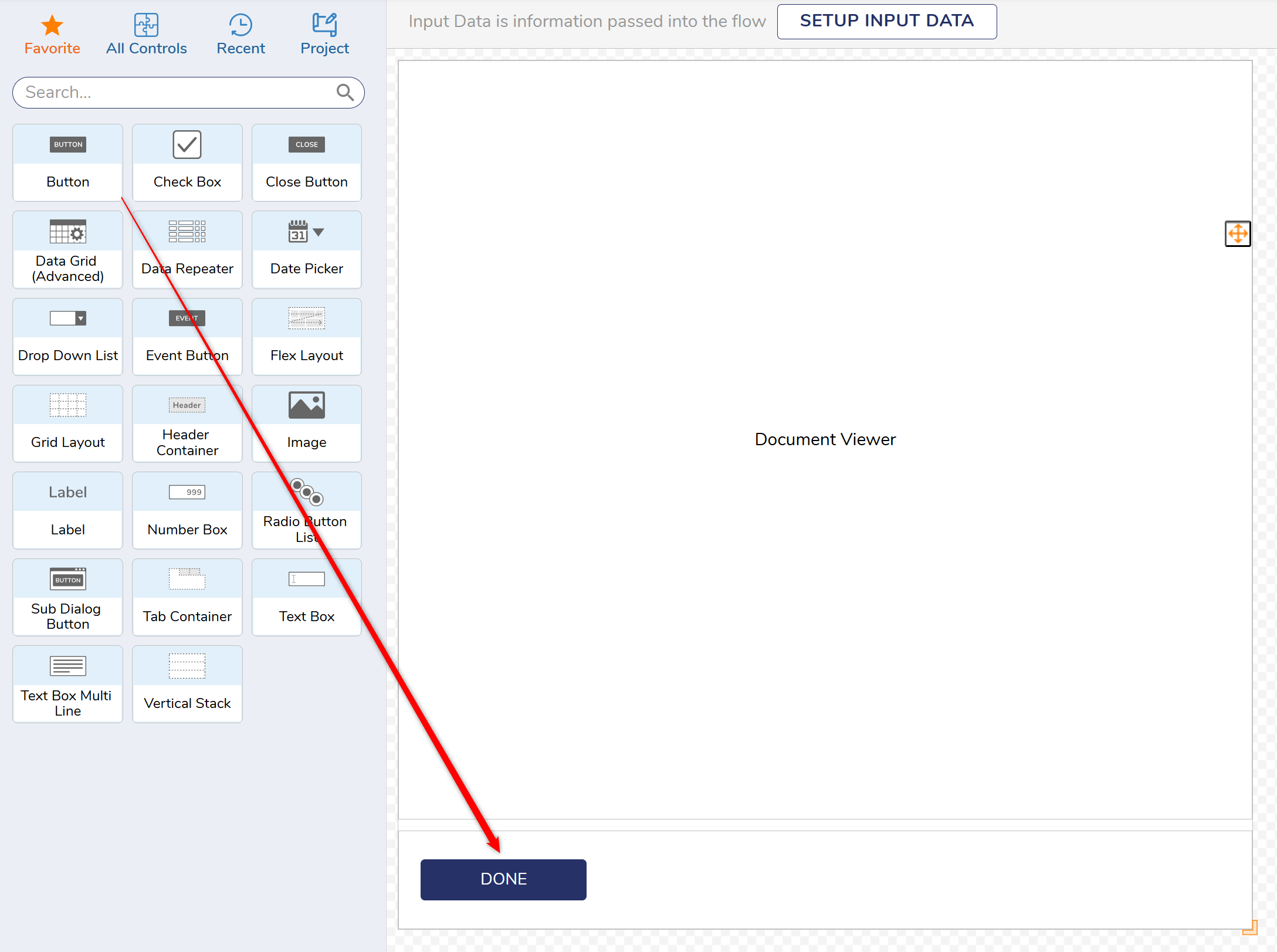
- Add a Button to the Form and close the Form Designer.
- Map the Pdf Document Result to the MyPDF field on the Form.
- Connect the Form to the End step.
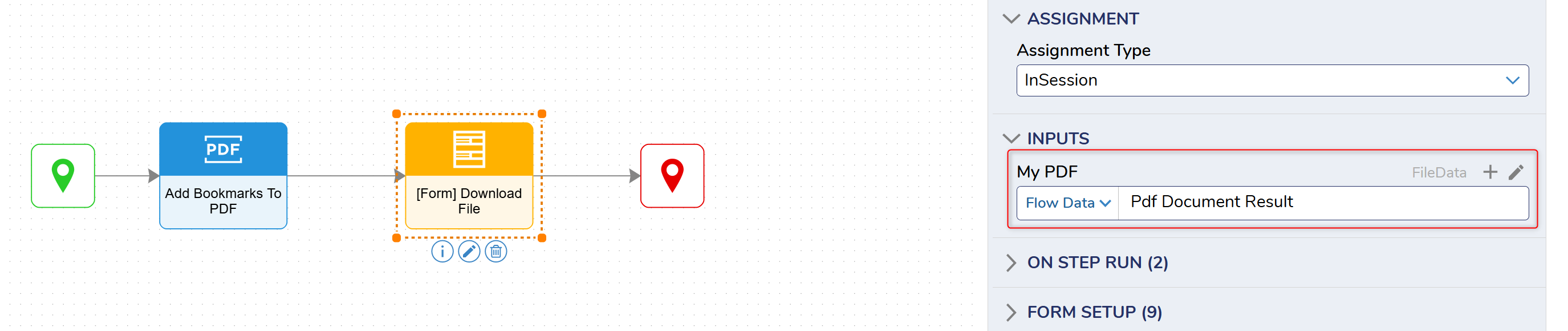
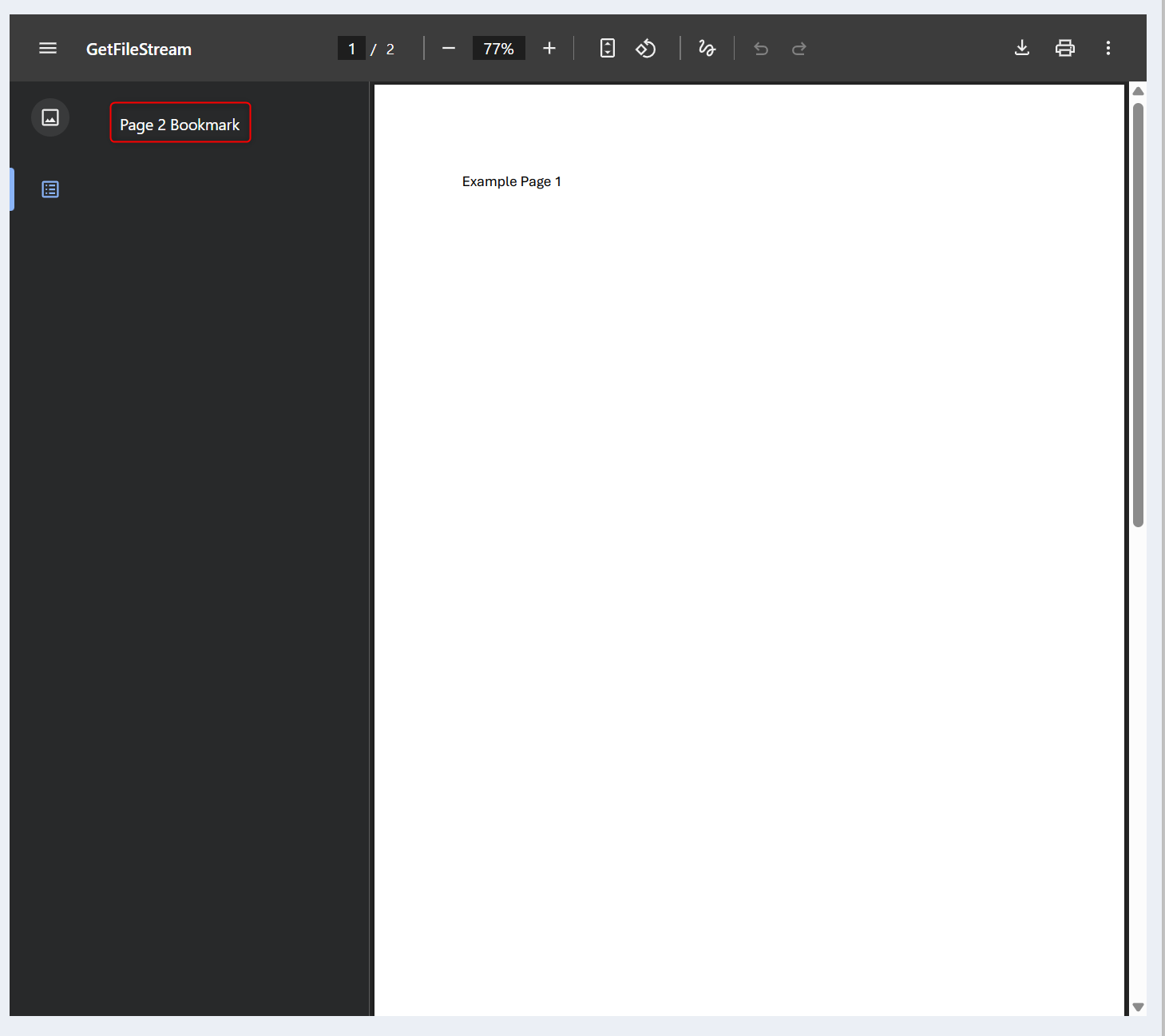
- Debug the Flow. The bookmark will be applied to the PDF files when viewed through the Document Viewer.
Related Information
Forum Posts:
Add A Image To A PDF Within A Flow
Merge Multiple PDFs
How To Turn A Form Into A PDF?