After a transcript has been fully reviewed and all transferable courses have been evaluated, the Transfer Credit Application can be initiated. This step allows Credit Officers to consolidate all reviewed courses into a single interface, where they can perform final edits, validate data accuracy, and prepare the application for submission.
This stage ensures that the transfer evaluation is complete, aligns with institutional policies, and is ready to be sent to the student or routed for additional departmental review.
Begin Transfer Application
The Transfer Application step is an opportunity to review and update student or course information before submitting the application. This step ensures all data is accurate and complete for formal transfer credit decisions.
A transfer credit application can be initiated from two locations:
The Applications Dashboard
The Start TCE button, available during the course review step
Once initiated, you will see one or more applications available for the selected student.
Follow these steps to prepare the application for submission:
Once prepared the application, you can do the following in the Transfer Credit Evaluation:
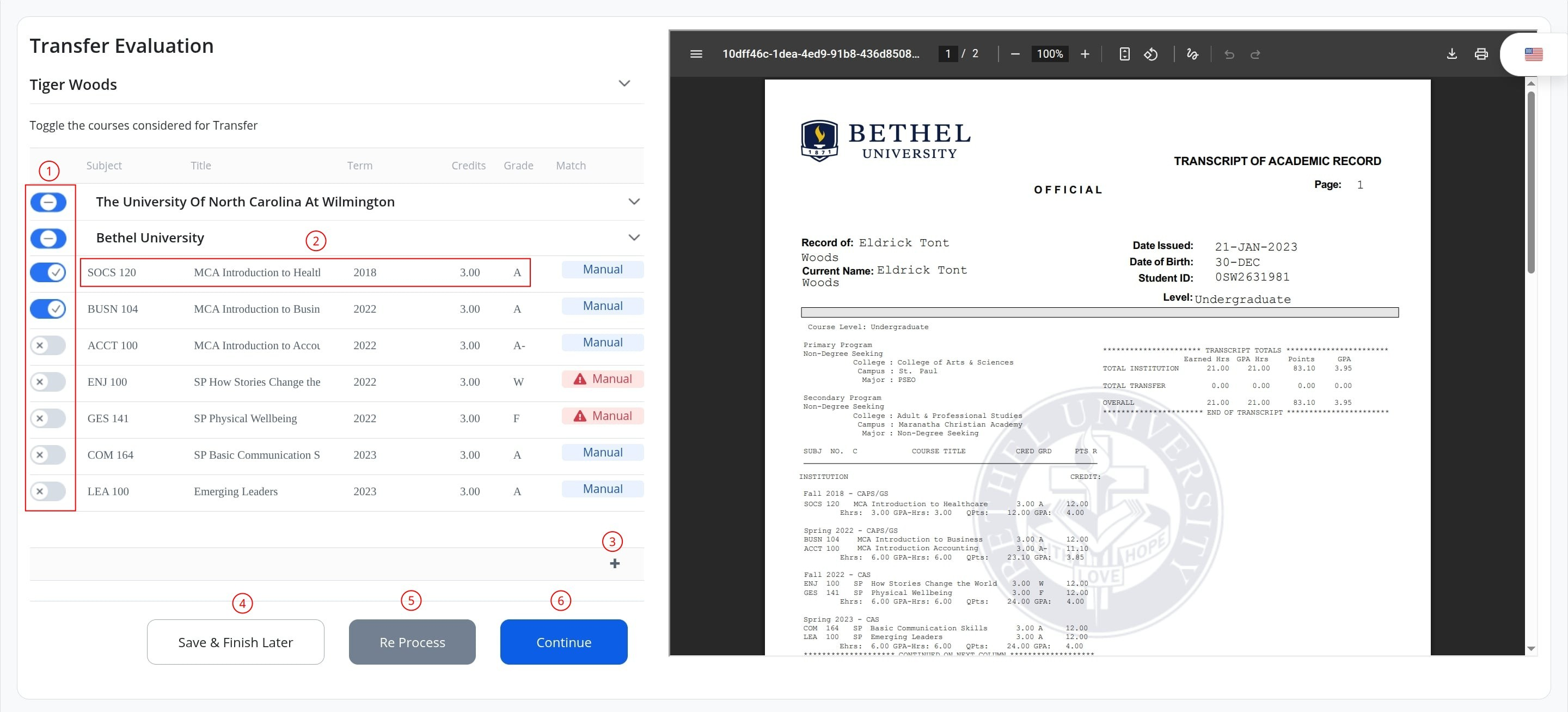
Use the toggle to control course selection for each institution transcript. The top toggle next to the institution name lets you apply one of the following selection modes:
Left Position — Deselect All: Deselects all courses in the table. Individual course selection is not available while this mode is active.
Middle Position — Manual Mode: Allows users to manually select or deselect individual courses as needed. Manual course selection is only available in this mode. Default option.
Right Position — Select All Valid: Selects all eligible courses that meet the system validation rules for evaluation. Individual course deselection is not available while this mode is active.
Modify course data as needed.
Use the + icon at the bottom of the course list to add additional courses, if needed.
If edited course data, click Save & Finish Later to save and finish the application later.
If edited course data, click Re Process to process data information.
Click Continue to proceed to Final Review, or to Course Articulation if manual review is required.
Note:
It is recommended to include all courses marked as Auto, as these have validated articulations based on existing equivalency rules.
You may update course fields directly within the application interface. If any changes are made, such as course titles, credit values, or equivalency notes, be sure to click Reprocess to apply updated matching logic.