The Training Data Studio enables users to create applications and define rules efficiently. By using system discovery data, defining precise window rules, and applying filtering options, you can streamline data collection and application tracking.
This studio offers the following key features:
Create Applications from System Discovery: When System Discovery is enabled, applications can be generated from collected discovery data.
Create Window Rules: If an application is in Training Mode, you can define new window rules for that application.
An application is in Training Mode when
Capture full URLs or Titlesmode is enabled.
Access the Training Data Studio
Follow these steps to open the Training Data Studio:
Go to Admin Panel → Configure Data Collection.
Select an application:
Make sure Start System Discovery is enabled to generate application rules.
Click Rules & tests for the application to generate window rules.
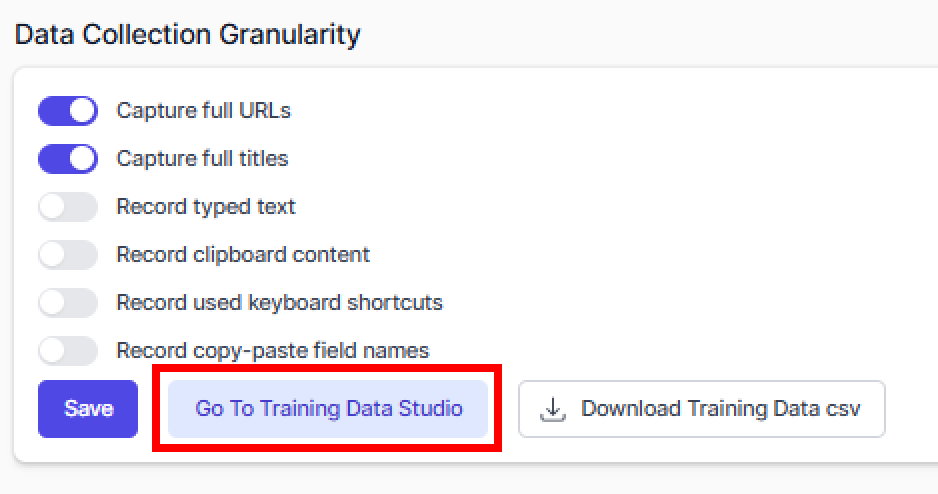
In the Data Collection Granularity section, click Go To Training Data Studio to access the studio.
Training Data List
The Training Data list appears at the bottom of the Training Data Studio. It displays all unique process name, URL, and title combinations collected for the selected application. The Total Visits column shows how often each combination appears, helping you assess data volume.
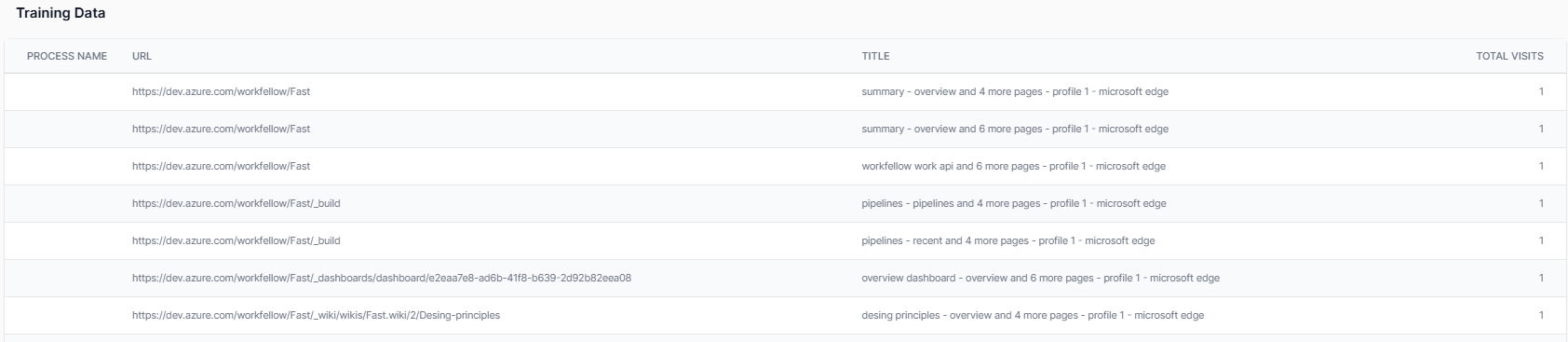
This list helps you configure applications and windows based on detected patterns in process names, URLs, and titles.
Add a New Application Rule
Follow these steps to create a new application rule:
Review the Training Data List to identify patterns.
In the Add New Window section, enter the Window name.
Define the rule by entering values in the Process Name, URL, and Title fields.
Click Preview matched training data for the rule. A pop-up displays all matching rows from the training data.
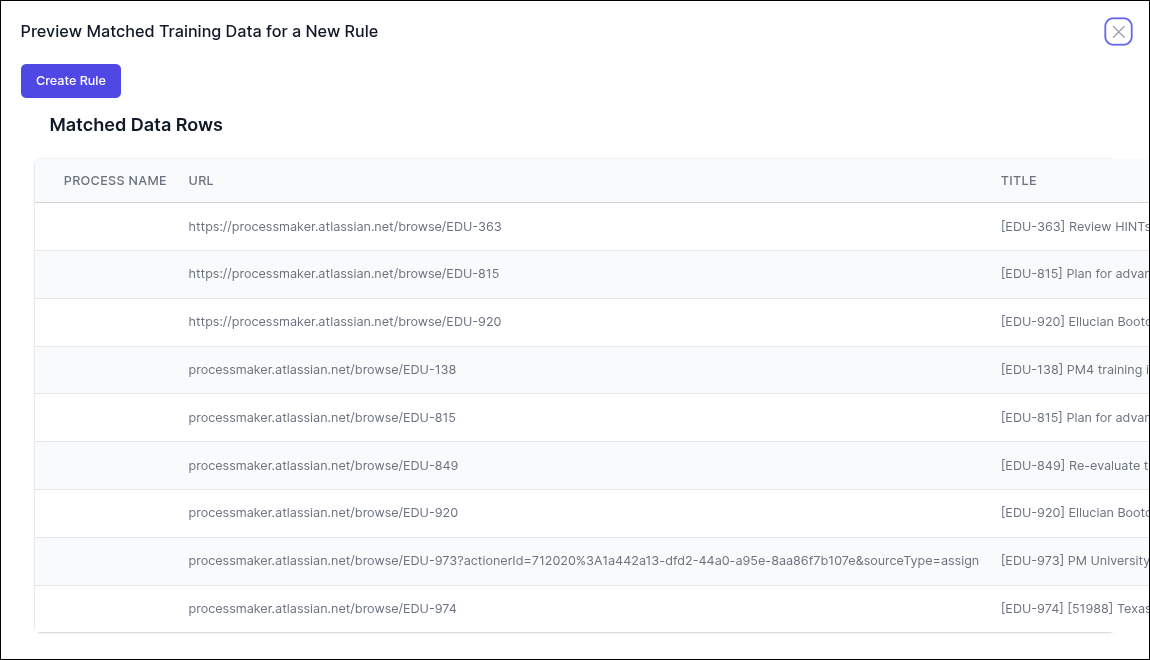
Verify that the information is correct. If no data appears, adjust the rule.
Click Create Rule to create the rule.
The matched rows are removed from the list, leaving only unmatched data for further processing.
Filter Training Data
Training data can be grouped and filtered using advanced options to streamline processing.
Select columns
You can choose which columns (Process Name, URL, and Title) to display, and the data will be grouped based only on the selected columns.
Go to the Filter Training Data section.
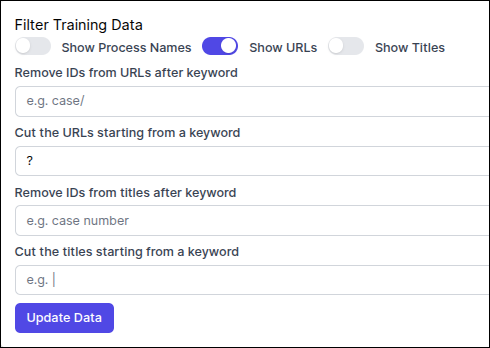
Enable or disable the following options:
Show Process Names
Show URLs
Show Titles
Enter keywords as needed.
Click Update Data. The filtered data is displayed in the Training Data section.
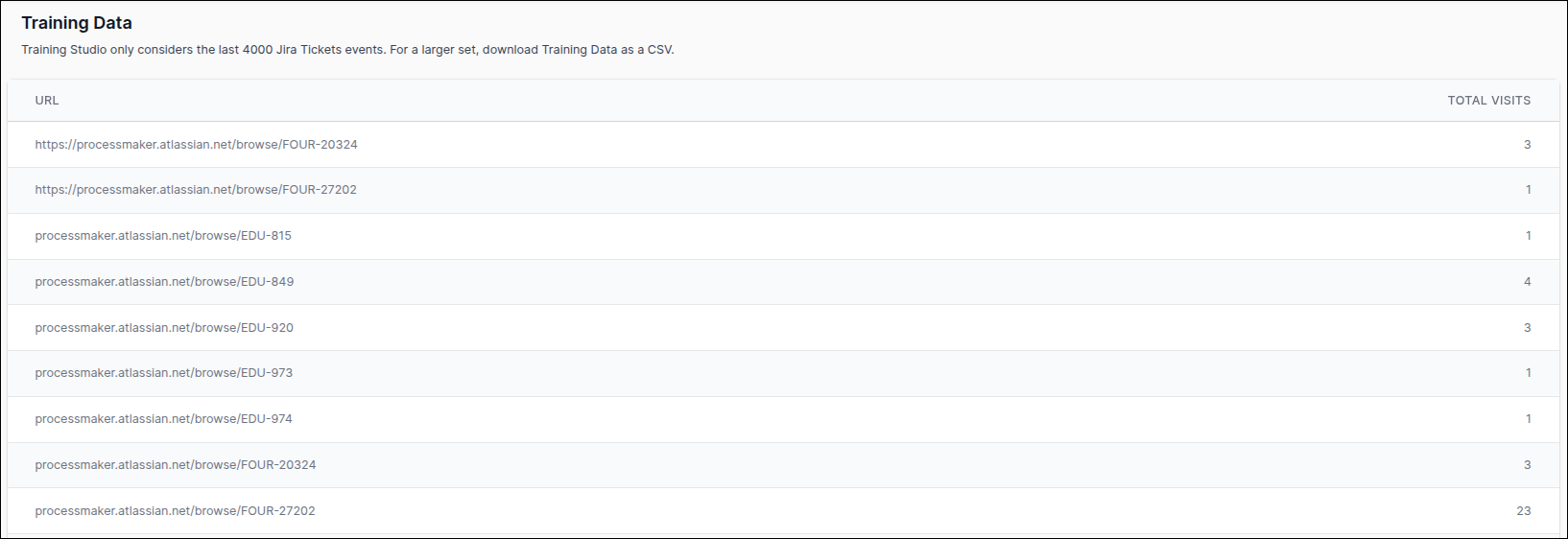
For example, if the same URL is accessed using different browsers, enabling Process Name and URL columns will display the following data:
Process Name | URL | Total Visits |
|---|---|---|
msedge.exe | 3 | |
chrome.exe | 2 |
If only the URL column is selected, the data will be combined into a single row:
URL | Total Visits |
|---|---|
5 |
Best practices for filtering training data
Follow these best practices when selecting columns for filtering training data.
If your URLs or titles contain variable IDs, you can remove them to improve grouping. For example, if your URLs are grouped as follows:
URL | Total Visits |
|---|---|
sap.com/invoice/123/pay | 5 |
sap.com/invoice/456/pay | 3 |
sap.com/invoice/789/pay | 2 |
Set the Remove IDs from URLs after keyword field to the value invoice/ to ignore the variable ID and get the following results:
URL | Total Visits |
|---|---|
sap.com/invoice/XXX/pay | 10 |
The same logic can also be used when applying a filter on the Title column.
If URLs or titles contain unnecessary suffixes (such as query parameters), you can remove them for clear grouping of the data.
For example, the following data contains suffixes that are not required for grouping.
URL | Total Visits |
|---|---|
sap.com/invoice?filter=a | 5 |
sap.com/invoice?filter=b | 3 |
sap.com/invoice?filter=c&mode=d | 2 |
Set the Cut the URLs starting from a keyword field to ? to remove the unnecessary suffixes.
URL | Total Visits |
|---|---|
sap.com/invoice | 10 |
The same logic can also be used when applying a filter on the Title column.