Overview
Account impersonation allows an administrator to grant one account the ability to assume the permissions and access rights of another account while using its own credentials. This feature proves invaluable when a user with basic account access requires elevated privileges temporarily, aiding in tasks that demand higher permissions.
If your environment is connected to the Deployment Server, manage centralized user accounts from the Deployment Server. Administrators can create accounts on the Deployment Server and assign them to connected environments to keep access consistent across Development, QA, and other connected servers.
After an account is assigned to an environment, the account information synchronizes with that environment. Permissions specific to projects, folders, or other security settings must still be configured directly in the target environment where the user will work.
For more information, see: Managing Accounts with the Deployment Server
Configuration
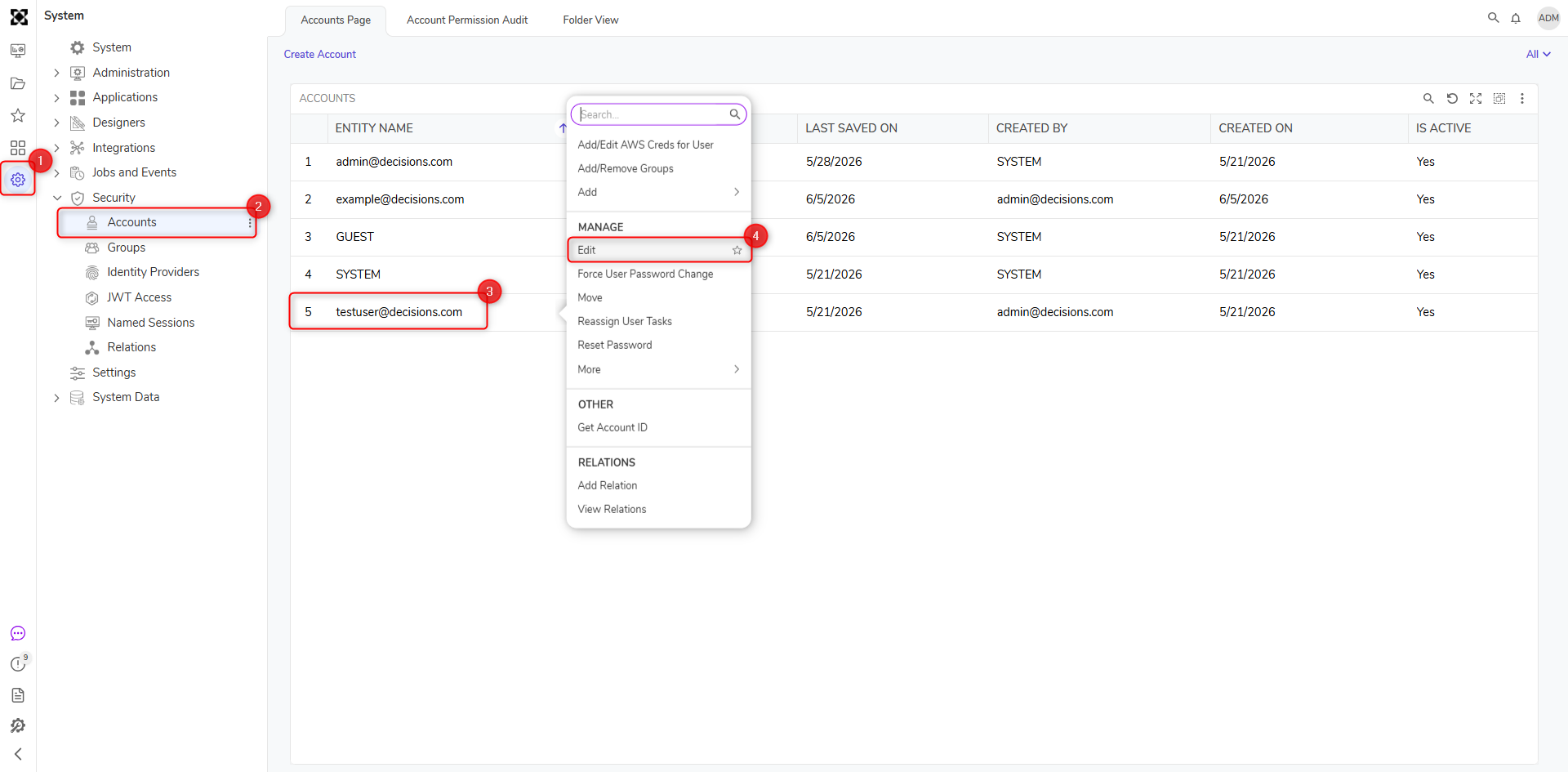
- Under an administrator account, navigate to System > Security > Accounts.
- In the Accounts list, right-click the target account and select Edit Account.
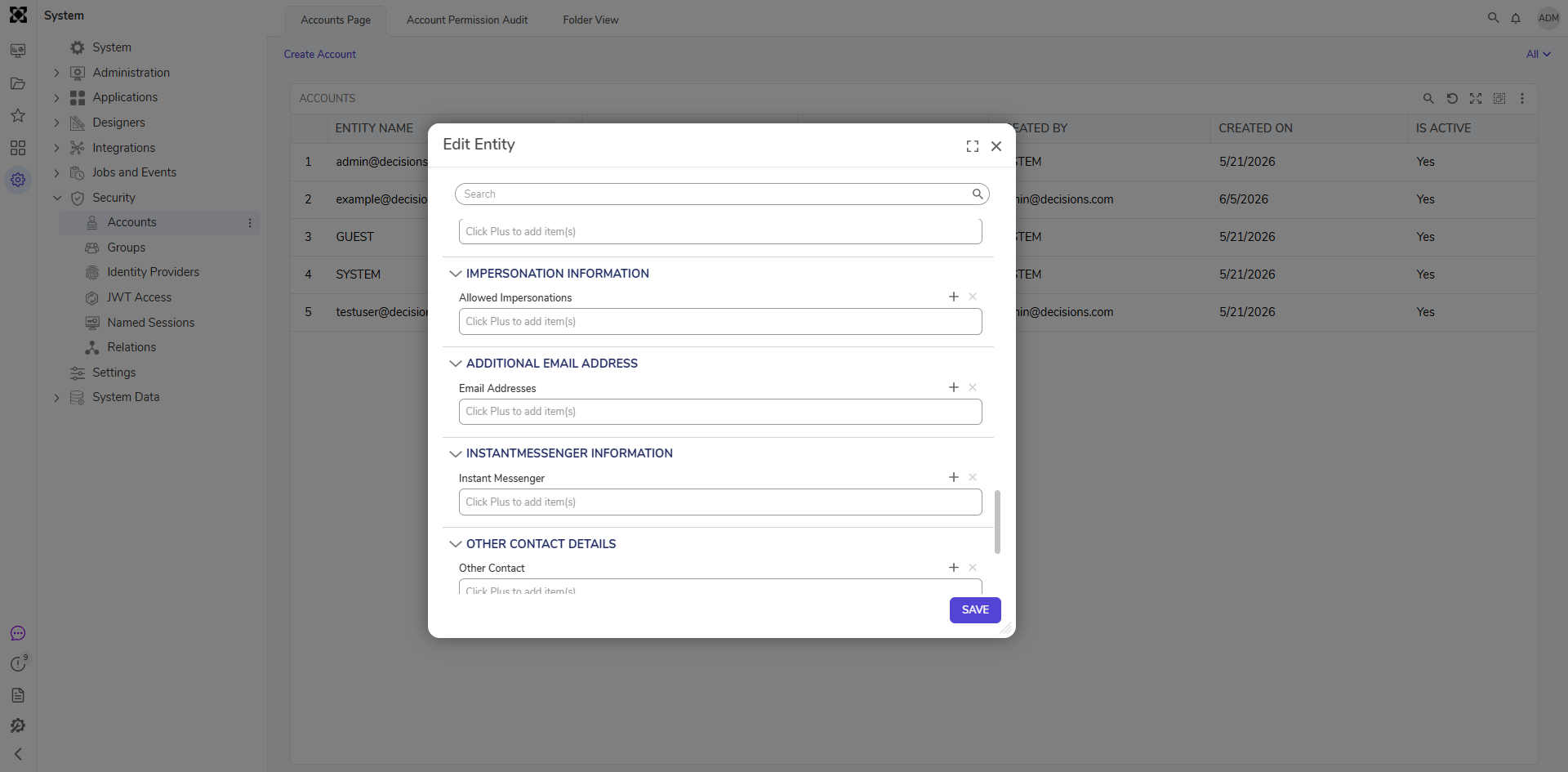
- Within the Edit Entity window, navigate to the Impersonation Information category and click ADD.
- Input the account's email address to impersonate from in the Impersonation From Account field.
- Specify the impersonation duration by selecting Set Impersonation To Never Expire for indefinite access or use the Start Date and End Date fields for a specific timeframe.
- Click OK and then SAVE.
Impersonation Process
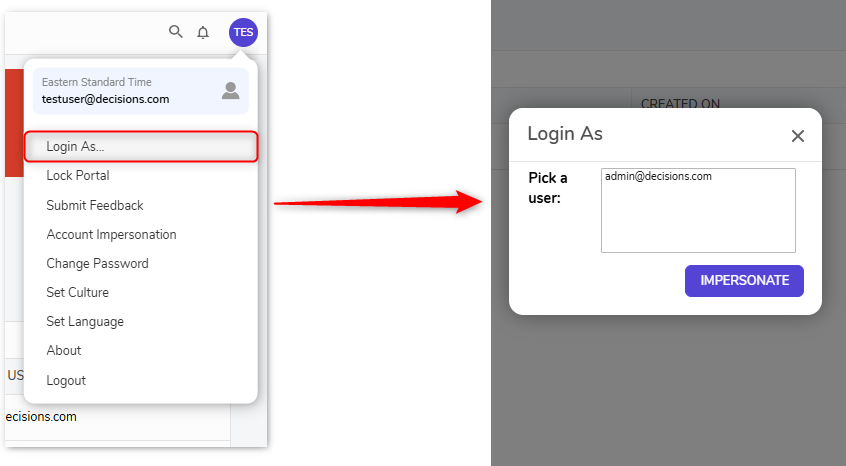
- While logged in from the Impersonate From Account, click the Account icon in the top-right corner and choose "Login As..."
- Select the desired account to be impersonated and choose IMPERSONATE.
- Upon refresh, a black bar at the top signifies the current impersonated account. Access to the granted permissions is now available within the environment.
