---
title: "HTML Display Control"
slug: "html-display-control"
description: "Learn how to configure the HTML Display control in Decisions using a URL, Data Name, or static Constant value."
tags: ["URL", "Dynamic Behaviors", "Look and Feel", "HTML"]
updated: 2026-07-13T16:51:26Z
published: 2026-07-13T16:51:26Z
canonical: "documentation.decisions.com/html-display-control"
---
> ## Documentation Index
> Fetch the complete documentation index at: https://documentation.decisions.com/llms.txt
> Use this file to discover all available pages before exploring further.
# HTML Display Control
## Overview
The **HTML Display** control opens a specified HTML link that can be sourced from a URL, dynamically set via Data Name, or set via a static constant.
---
## Configuration
The following unique settings are available for the HTML Display control found within its Properties tab.
| Setting Location | Setting Name | Default Value | Function |
| --- | --- | --- | --- |
| Common Properties | Name | 'HTMLDisplay#' | Prompts for name of the HTML Display control in the Form. |
| Link Name | 'Open' | Prompts for name of the HTML link displayed to the |
| Source Type | URL | Allows selection of HTML's source |
| | URL | -- | Sources HTML based on a URL |
| | URL Source | Static | Allows selection of the source of the URL |
| | Static | -- | Prompts for a constant URL that will open every time this Form is initiated. Static value entered in the URL setting. |
| Data | -- | Prompts for a Data Name for the URL to allow for dynamic mapping. It's name must exactly match the Data Name to reference. Data Name value entered in the URL DataName setting. |
| URL / URL DataName | Blank | Prompts for specified constant URL or Data Name containing the URL |
| | Is Relative To Base | False | Toggles whether control considers the {starthere} for the URL. Set to True if the control should only pass through the {starthere} part of the URL. However, most use cases will leave this False. |
| Data | -- | Sources HTML based from a Data Name in the Flow allowing for dynamic logic mapping. |
| | HTML from Data | Blank | Prompts for the Data Name for the HTML. It's name must exactly match the Data Name to reference. |
| Static | -- | Sources HTML from a provided, static input. It is a constant that all end-users will view. |
| | Static HTML | Blank | Prompts for entering the specified HTML via a Rich Text Input dialog window. |
| Display Mode | Display Mode In HTML Portal | Dialog | Allows selection of how the HTML is displayed once the control runs. |
| | Dialog | -- | Opens the HTML in a separate dialog window from the browser. |
| Inline | -- | Opens the HTML within the control |
| InlineEmbed | -- | Opens the HTML embedded within the control |
| Allow Unsafe HTML | False | Toggles whether the Forms skips sanitizing the HTML for viewing which may prevent unsafe HTML from displaying. Set to True to skip sanitizing allowing for any inputted HTML to display. |
| Dialog Display | Window Height | 600 | Prompts for height of the HTML window. |
| Window Width | 800 | Prompts for width of the HTML window. |
---
## Displaying iFrame Tagged HTML
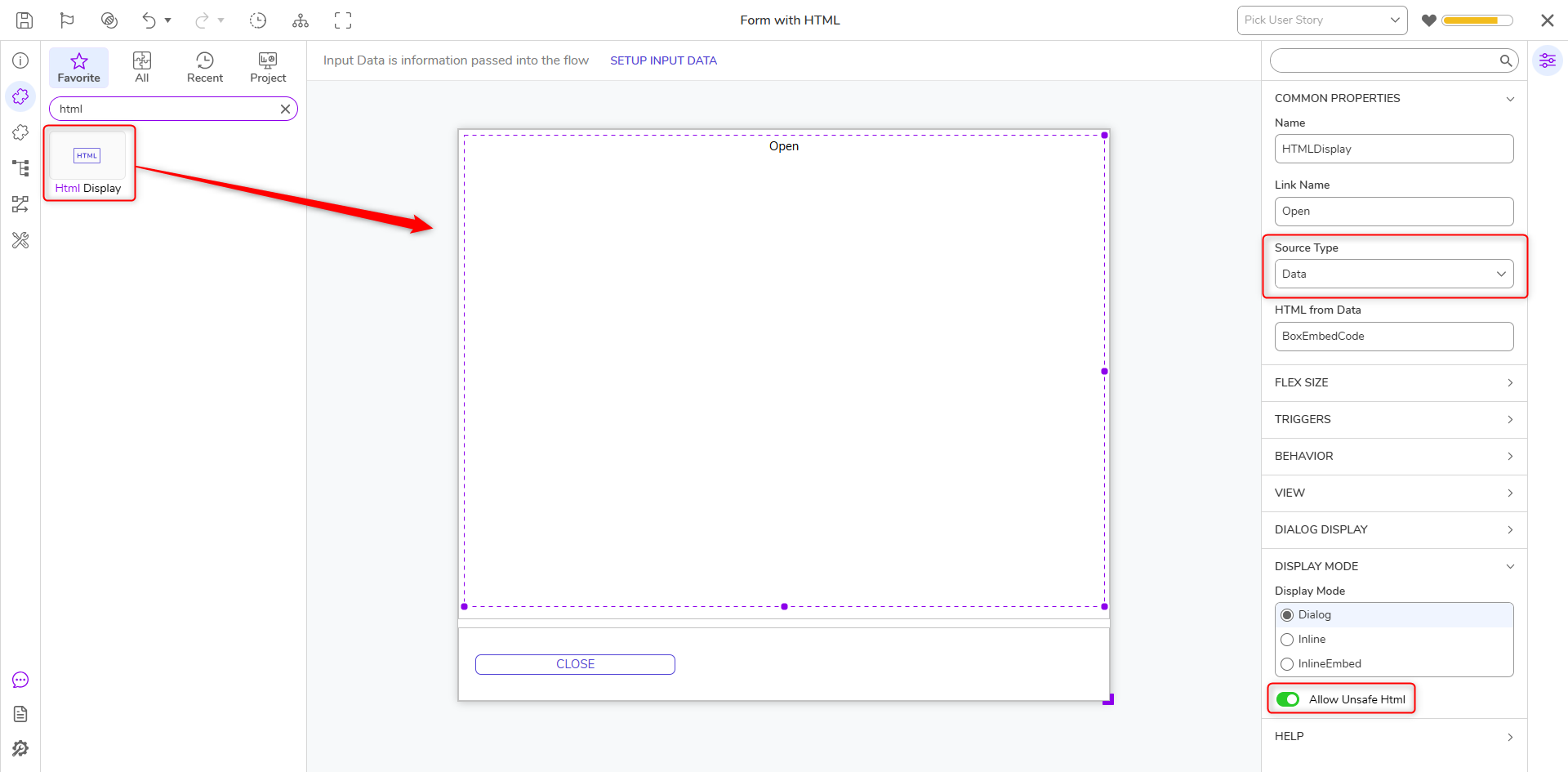
Due to the automatic sanitization of HTML, iFrame HTML will not display unless the **Allow Unsafe HTML** setting is True. For the Allow Unsafe HTML setting to appear, the Source Type must be set to either Static or Data. For this example, the Source Type is Static
The following example attempts to open the following iFrame HTML with the following screenshot of the control's configuration:
```markup
```
### 
### Debug
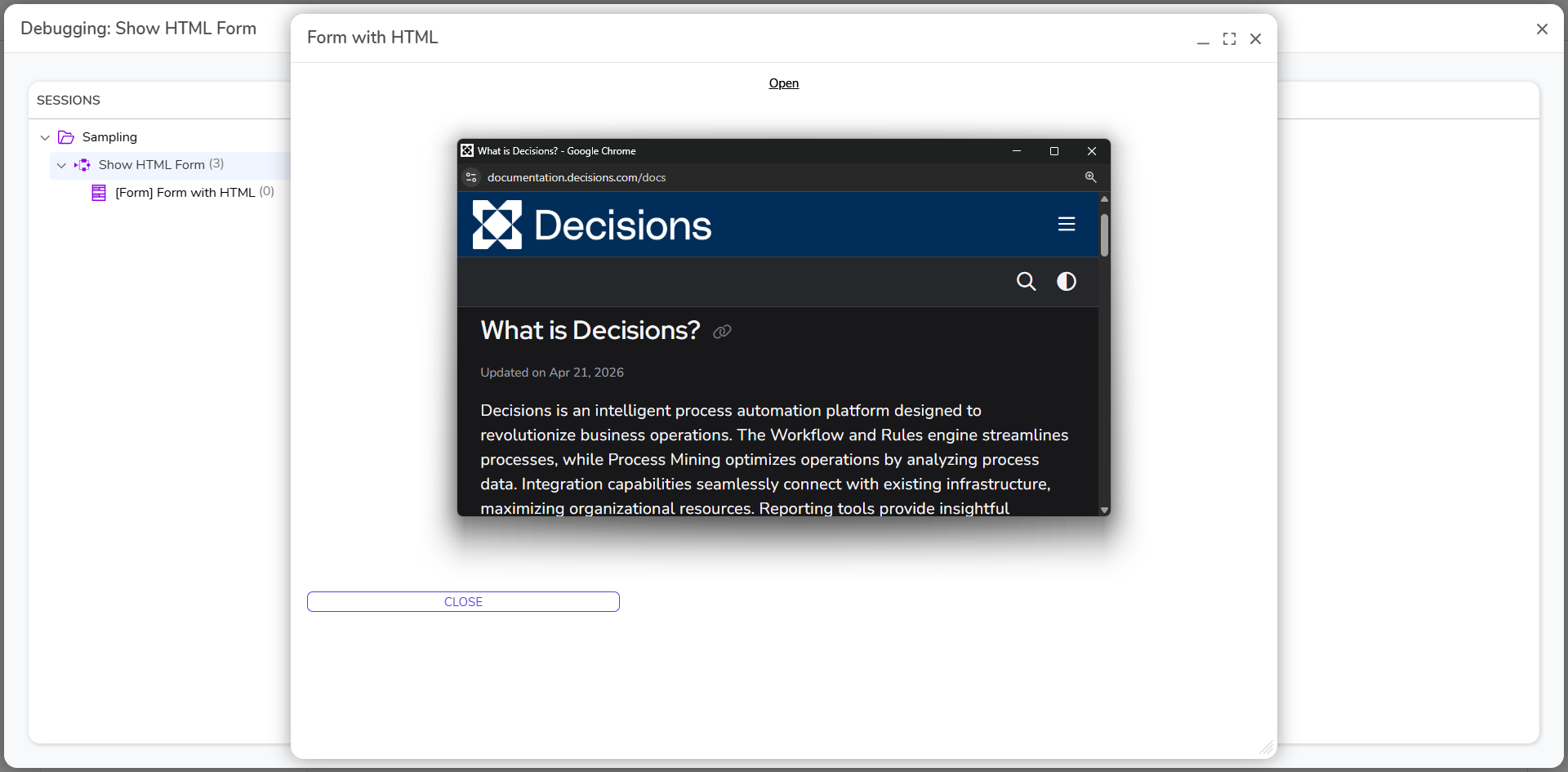
Once debugging the Form in a Flow, the iFrame HTML will now display since the Allow Unsafe HTML checkbox is set to True.
---
## Display HTML as a Label
Version 6x users that were using HTML for Labels will now have to use the HTML Display control to accomplish similar results.
1. Open the Form.
2. Save the HTML code contained in the Label and replace the Label control with the **HTMLDisplay** control.
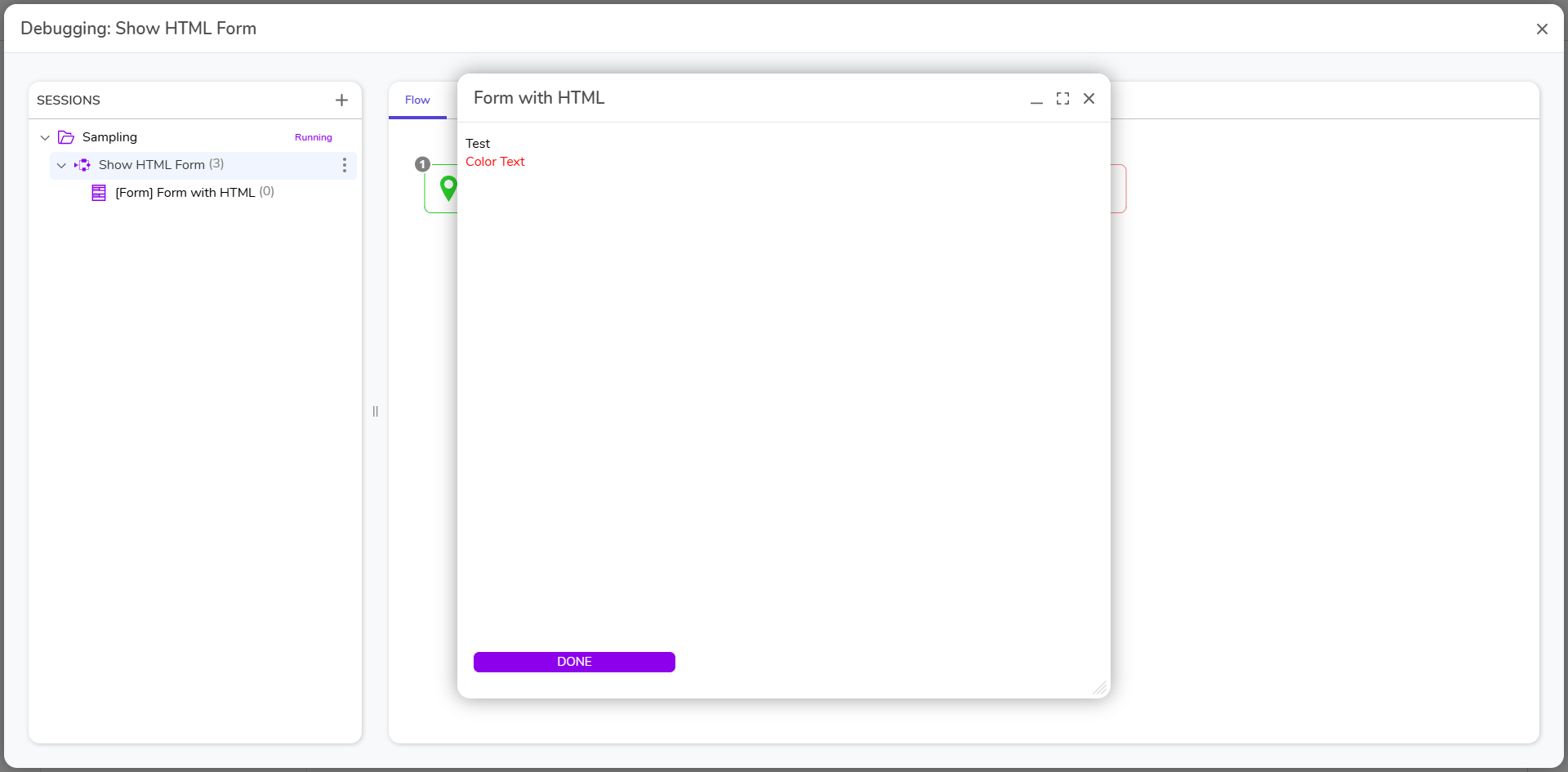
3. Under the COMMON PROPERTIES category, change the **Source Type** to **Data** and enter "Label" in the **HTML from Data** field. Under the DISPLAY MODE category, select **InlineEmbed** under **Display Mode In Html Portal**. Click **Save** and close the Form.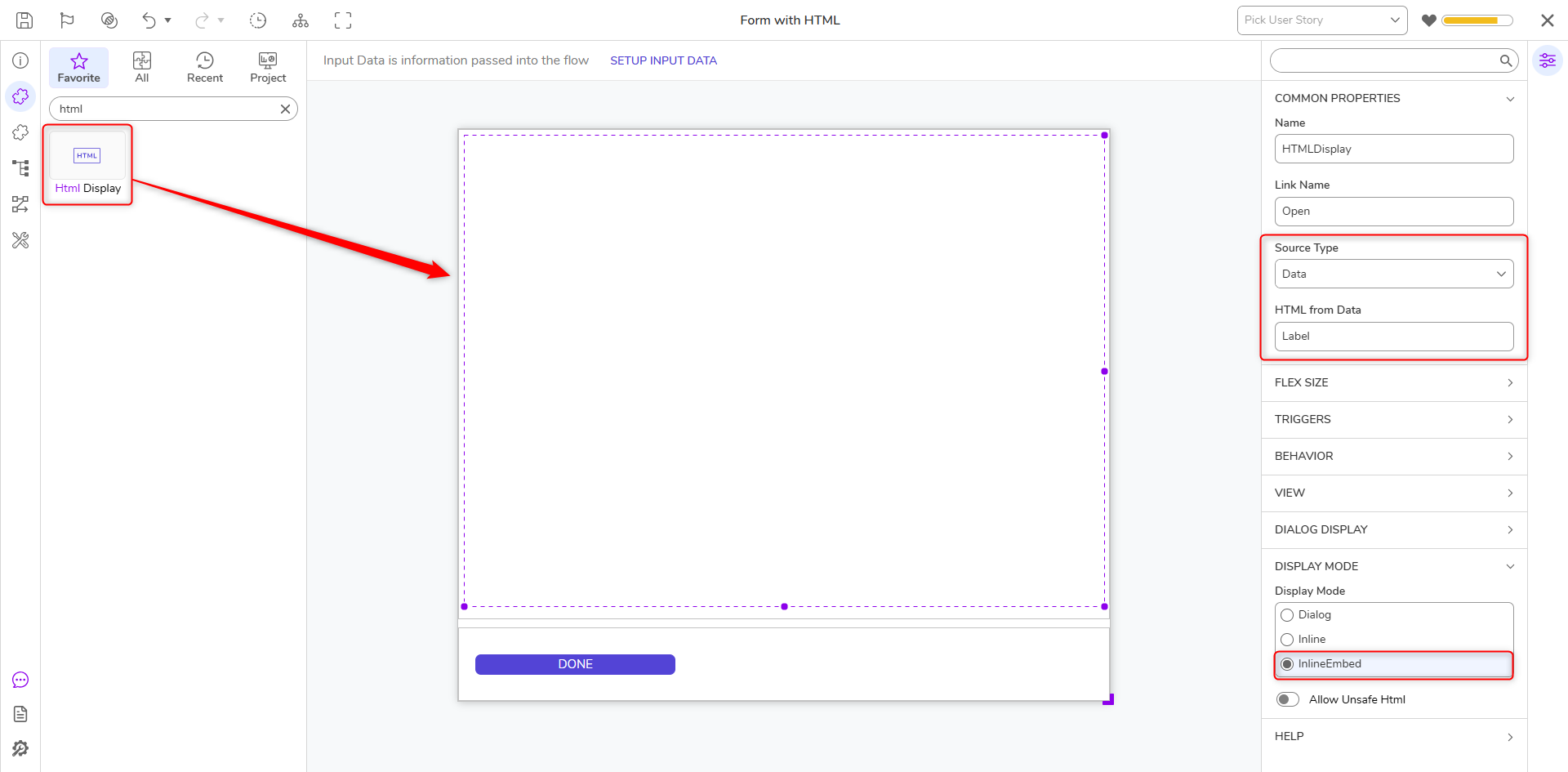
4. In the Flow Designer under the INPUTS category, set the field to **Constant.** Enter HTML code in the field. 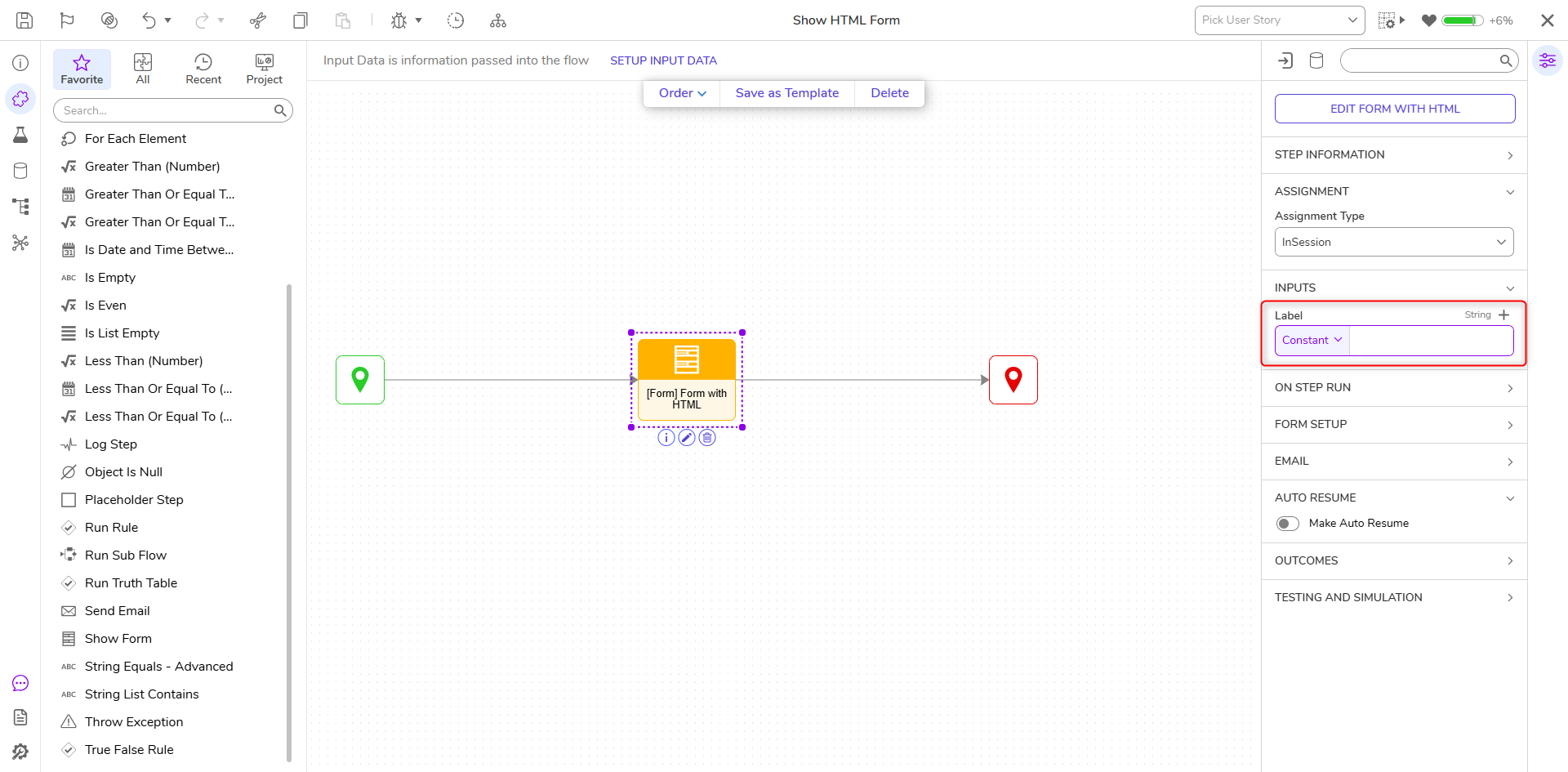
5. Debug the Flow to display the results.