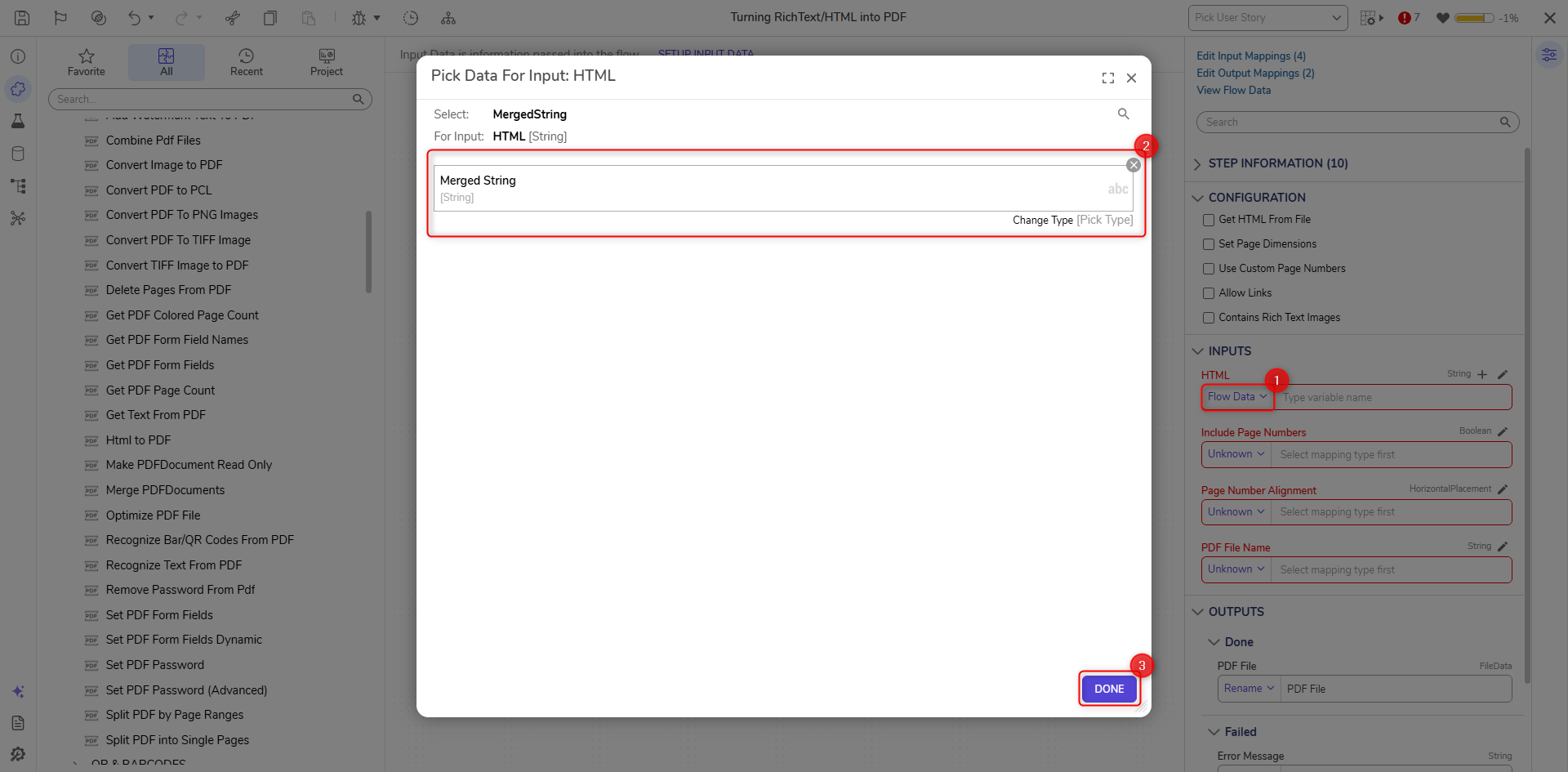
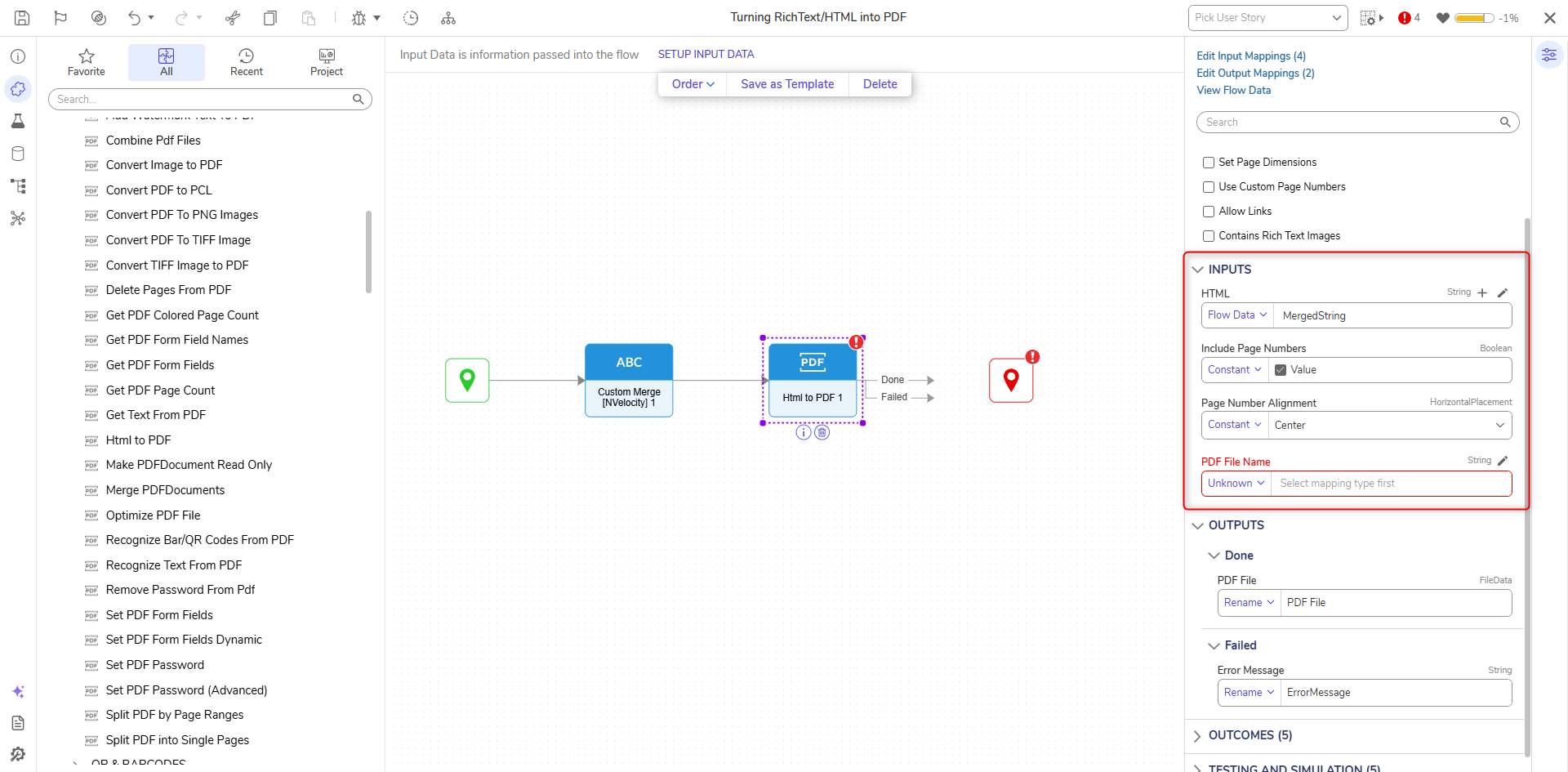
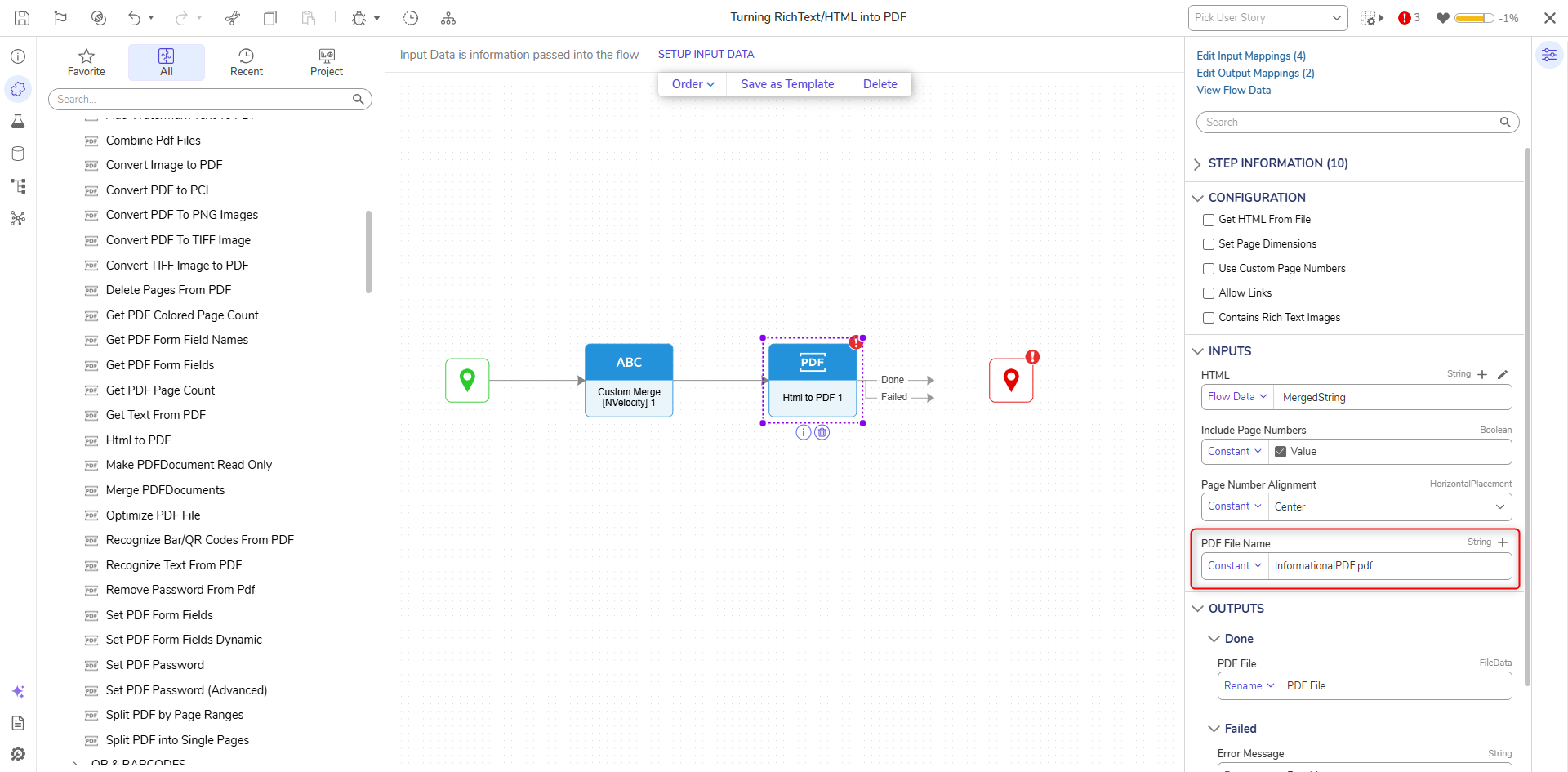
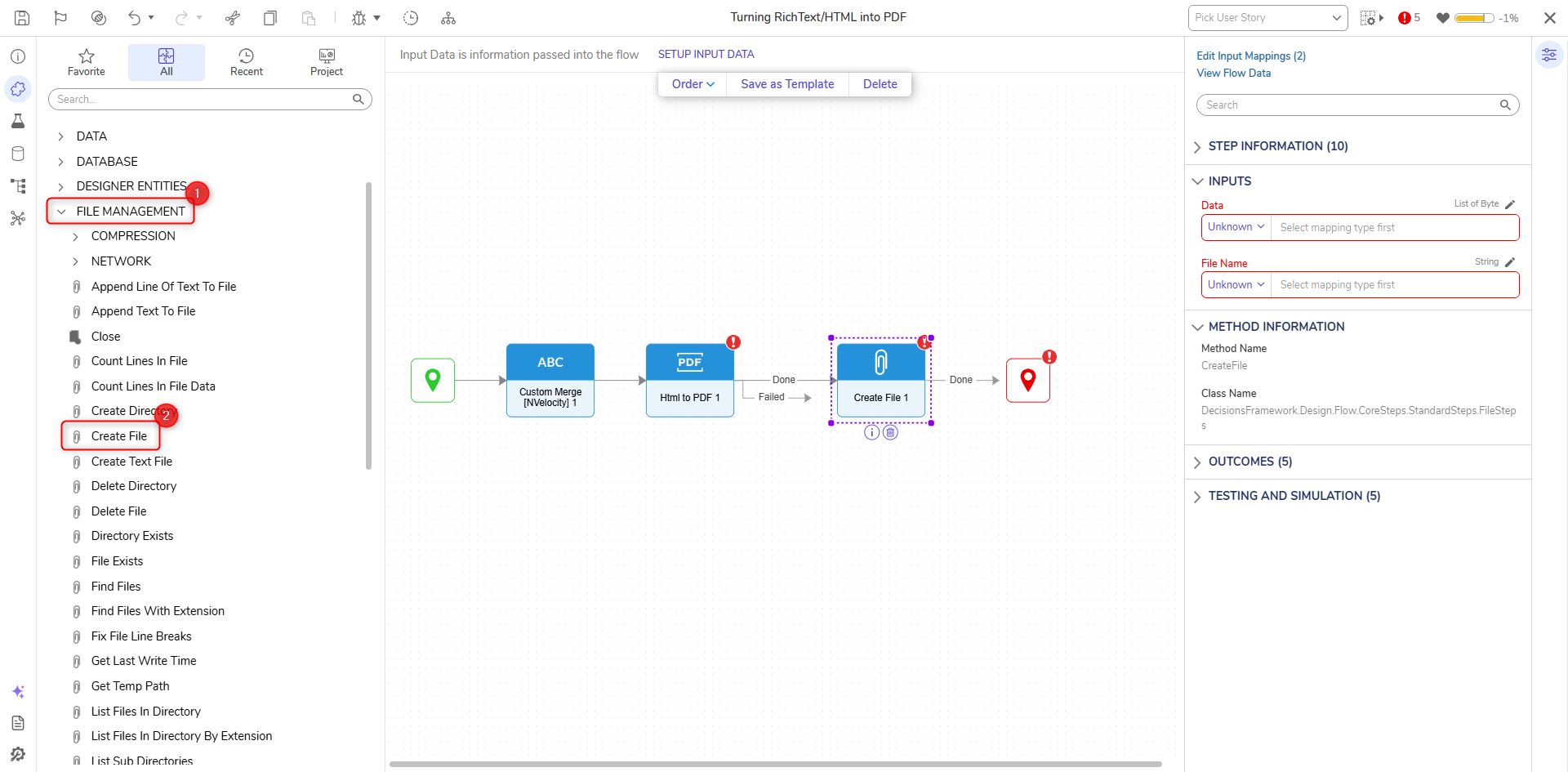
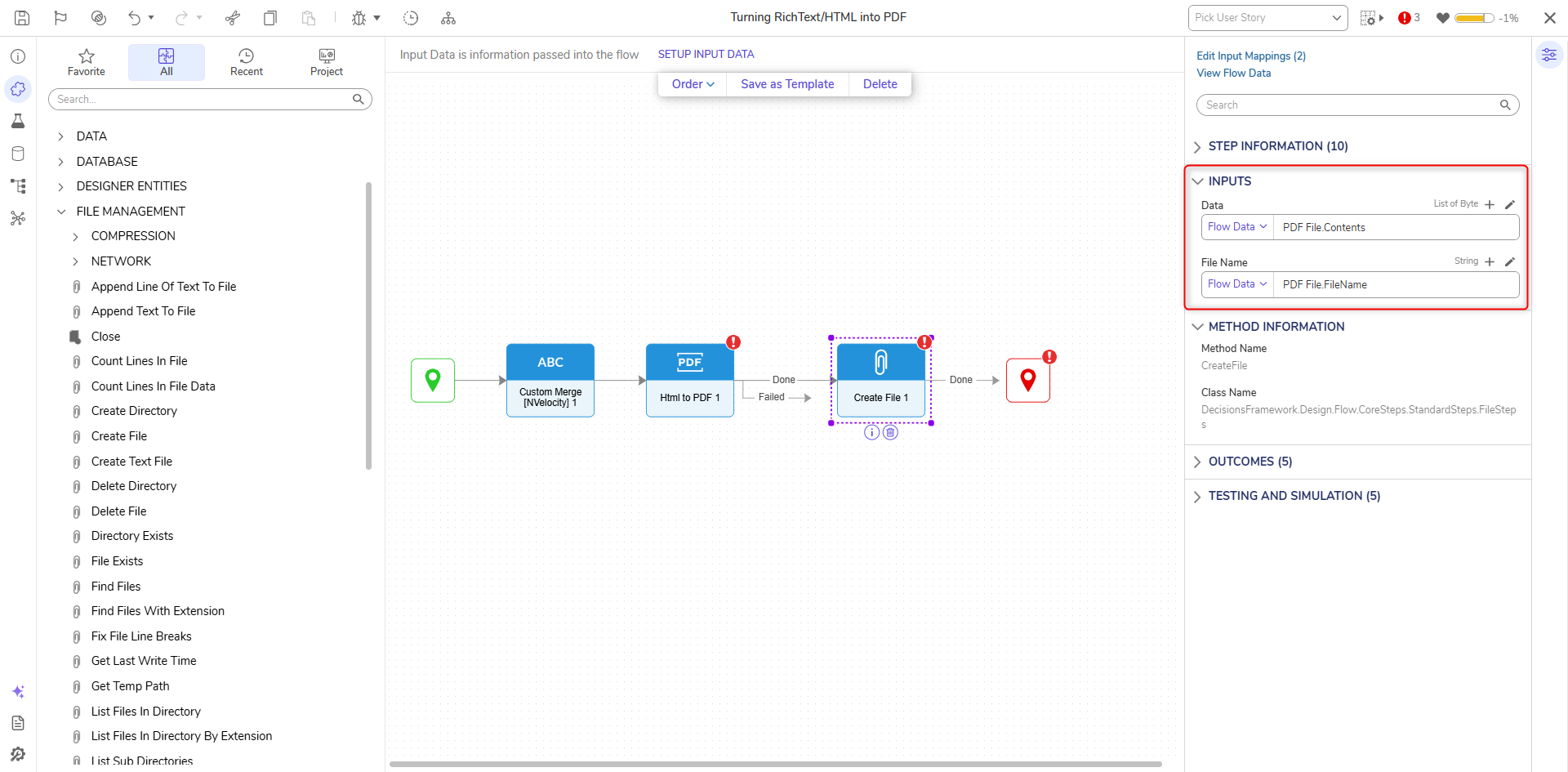
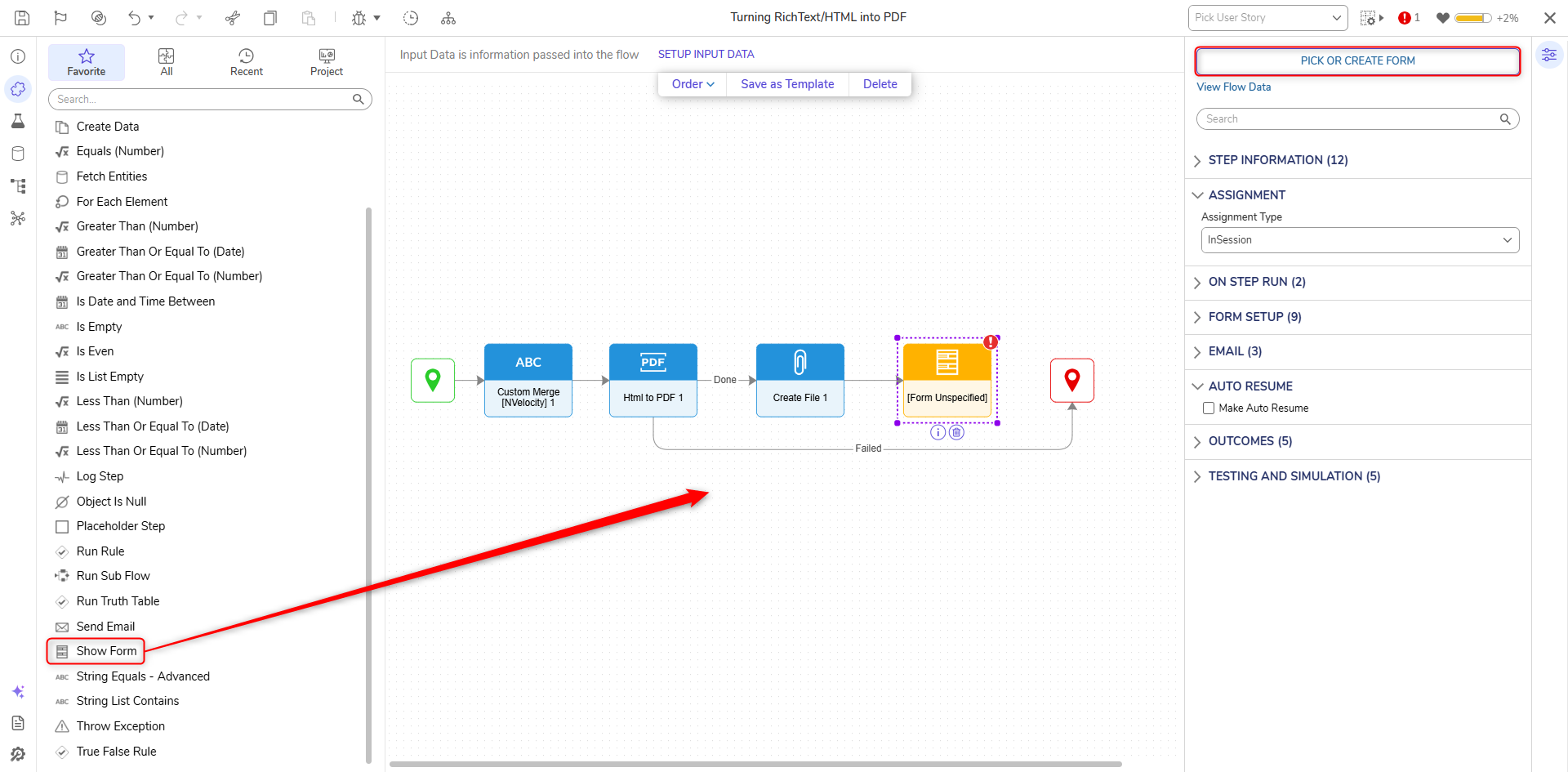
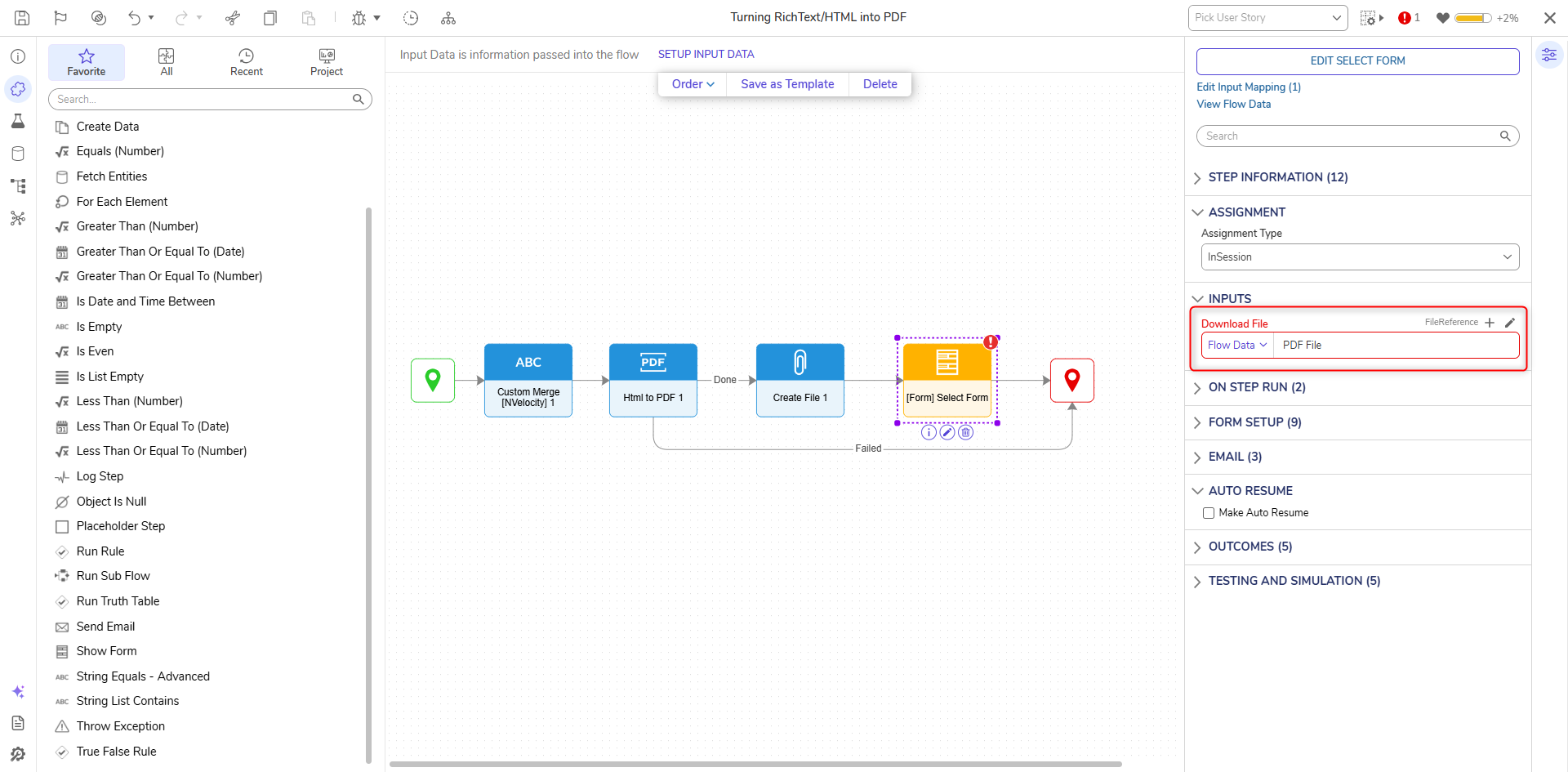
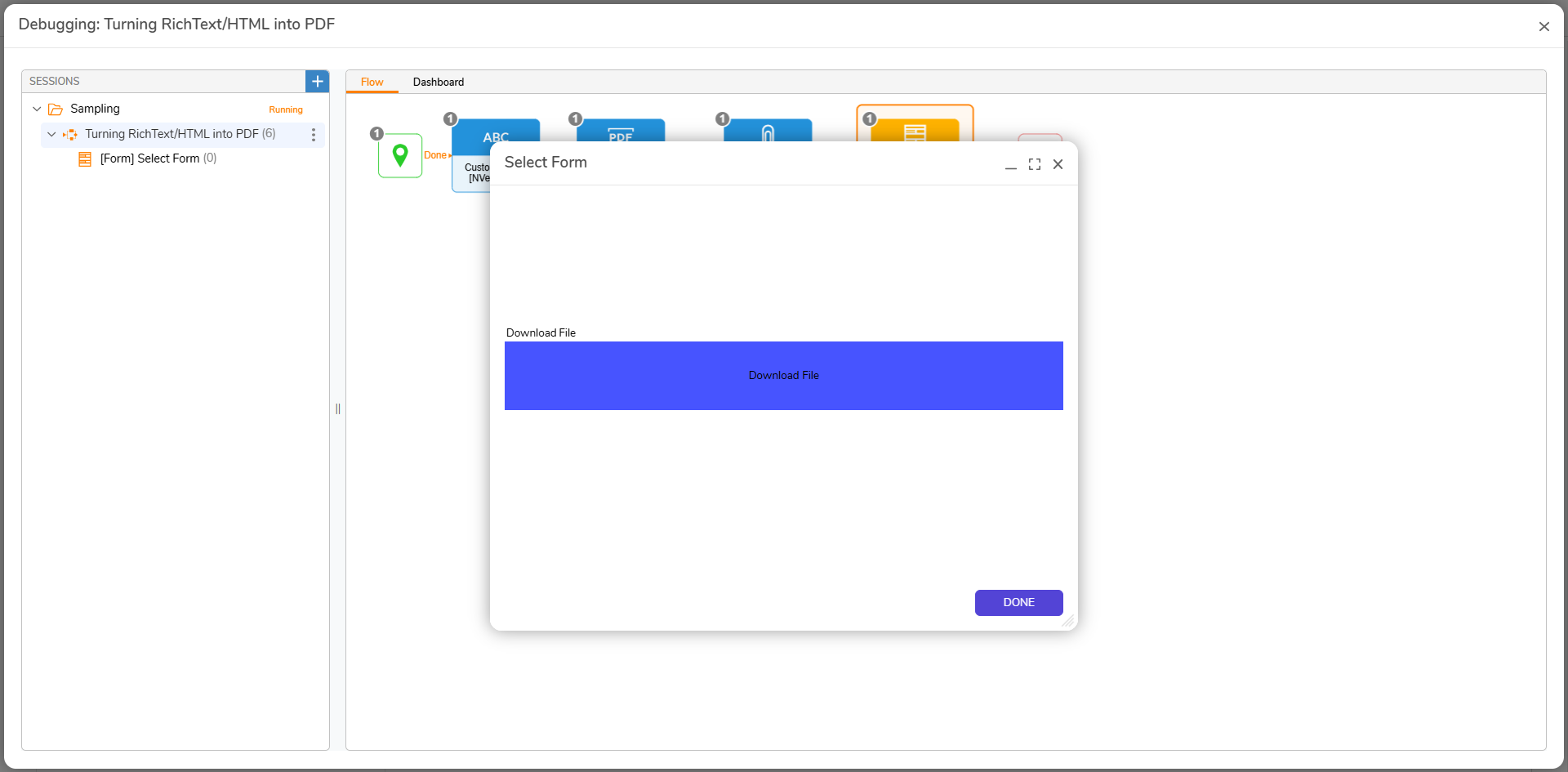
--- title: "Turning RichText/HTML into PDF" slug: "turning-richtexthtml-into-pdf" description: "Learn how to use the Html to PDF step with the Create File step to convert text or HTML input into a PDF document." tags: ["HTML", "pdf", "nvelocity", "richtext"] updated: 2026-06-26T13:58:37Z published: 2026-06-26T13:58:37Z canonical: "documentation.decisions.com/turning-richtexthtml-into-pdf" --- > ## Documentation Index > Fetch the complete documentation index at: https://documentation.decisions.com/llms.txt > Use this file to discover all available pages before exploring further. # Turning RichText/HTML into PDF ## Overview The **Html to PDF** step converts a text or HTML input file into PDF format. It is used with the Create File step to create the PDF file. One use case for this step may include converting a patient's old text formatted medical record into a PDF. ## Example The following example will demonstrate how to use a Custom Merge [NVelocity] step to define an HTML value that will be converted and sent to a Form for download. 1. In a Designer Project, click CREATE FLOW to create a new [Flow](/version-10/docs/creating-your-first-flow-2). 2. From the **Toolbox** panel, navigate to **DATA > TEXT**, attach a **Custom Merge [NVelocity]** step to the **Start** step.![](https://cdn.document360.io/6ef8bcc1-6489-4486-9ad1-83acff7e5df0/Images/Documentation/image-1779132923950.png) 3. From the **Properties** panel, paste the following HTML code into the **Template** field.  About Custom MergeThe [**Custom** **Merge**](/version-10/docs/create-first-text-merge) step is used to define the HTML. Since the step utilizes .NET scripting, it is important to declare the document as HTML via the opening tag. ```markup

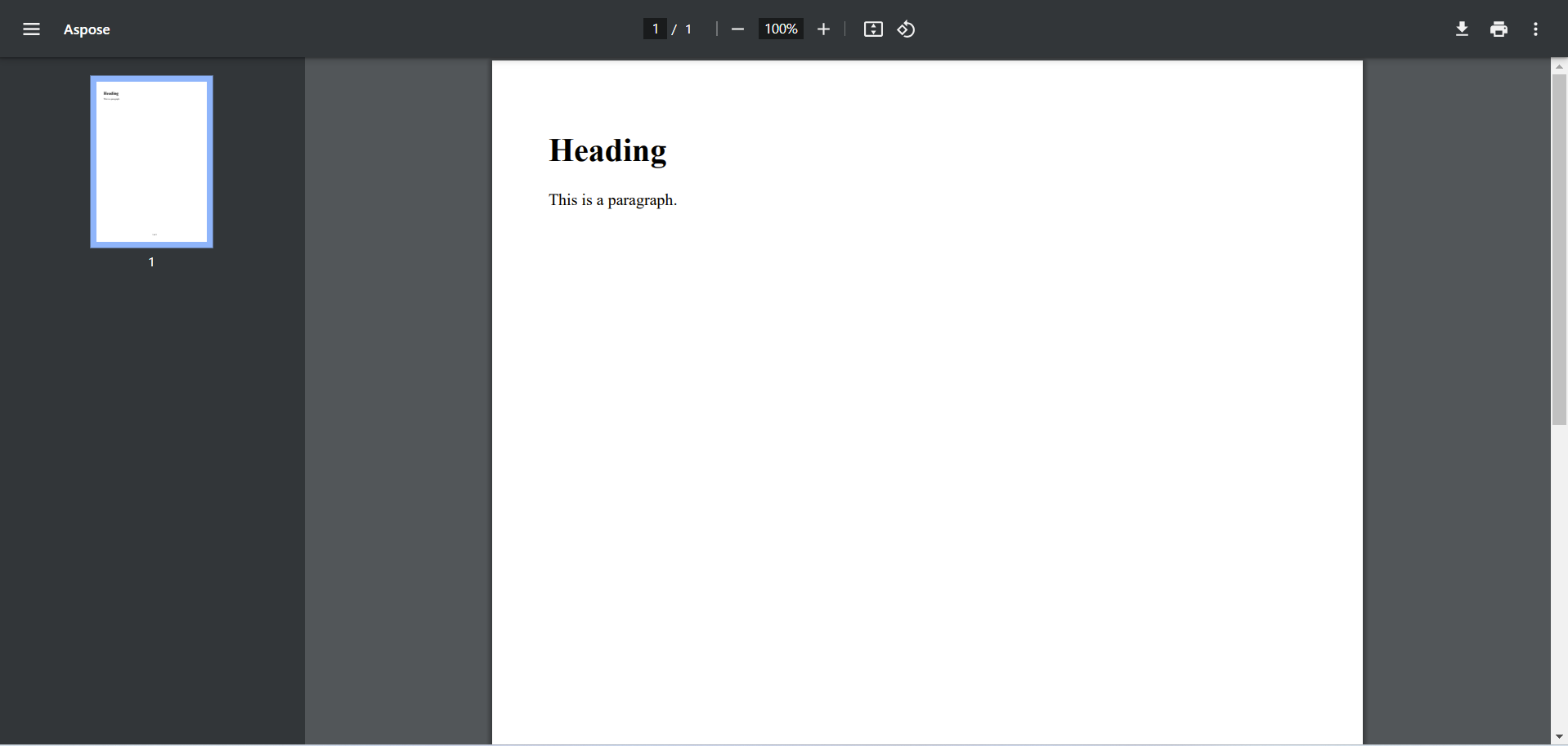
Heading

This is a paragraph.

``` ![](blob:https://portal.document360.io/b5d2a5eb-dab4-4598-9c83-fc187f42b042) 4. From the Toolbox tab, under DATA > PDF, attach an **Html to PDF** step to the **Done** path of the Custom Merge step. 5. On the Properties panel, click Unknown next to the HTML field and select **Flow Data**. Select MergedString and click DONE.  To map an Html File directly, from the Properties tab check the **CONFIGURATION > Get HTML From File** boolean. Then map the desired file via the **HTML File** input. ![](https://cdn.document360.io/6ef8bcc1-6489-4486-9ad1-83acff7e5df0/Images/Documentation/image-1779133029147.png) 6. Set the **Include Page Numbers** value field to **Constant** and set the value to true. Set the **Page Number Alignment** field to Constant and select **Center** from the dropdown menu.  ![](https://cdn.document360.io/6ef8bcc1-6489-4486-9ad1-83acff7e5df0/Images/Documentation/image-1779133069777.png) 7. In the **PDF File Name** field, enter "Informational PDF.pdf". Connect the **Failed** path to the **End** step.![](https://cdn.document360.io/6ef8bcc1-6489-4486-9ad1-83acff7e5df0/Images/Documentation/image-1779133104054.png) 8. Under the FILE MANAGEMENT category in the Toolbox, connect a **Create File** step to the **Done** path of the HTML to PDF step.![](https://cdn.document360.io/6ef8bcc1-6489-4486-9ad1-83acff7e5df0/Images/Documentation/image-1779133199523.png) 9. From the Properties panel, Flow Data map **PDF File.Contents** to **Data** and map **PDF File.FileName** to **File** **Name**.![](https://cdn.document360.io/6ef8bcc1-6489-4486-9ad1-83acff7e5df0/Images/Documentation/image-1779133249692.png) 10. In the Toolbox panel under FAVORITE STEPS, attach a **Show** **Form** step to the Done path of the Create File step. On the Properties panel, click PICK OR CREATE FORM and create a new Form.![](https://cdn.document360.io/6ef8bcc1-6489-4486-9ad1-83acff7e5df0/Images/Documentation/image-1779133327595.png) 11. Configure the Form to have a **File Download** component (PDFFile) and a **Button** component. Set the **Select Button Type** to **Button**. Click **Save** and close the Form.![](https://cdn.document360.io/6ef8bcc1-6489-4486-9ad1-83acff7e5df0/Images/Documentation/image-1779133423299.png)![](https://cdn.document360.io/6ef8bcc1-6489-4486-9ad1-83acff7e5df0/Images/Documentation/image-1779133530602.png) 12. Map the **PDF File** field to **PDF File**. Connect the **Close** path to the **End** step. Click Save to save changes to the Flow.![](https://cdn.document360.io/6ef8bcc1-6489-4486-9ad1-83acff7e5df0/Images/Documentation/image-1779133579784.png) --- ## Debug 1. Click **Debug** from the top action panel. 2. Click START DEBUGGING. 3. When the debugger runs, click **Download** **File**.![](https://cdn.document360.io/6ef8bcc1-6489-4486-9ad1-83acff7e5df0/Images/Documentation/image-1779133623507.png) 4. Open the File to view the contents. ![](https://cdn.document360.io/6ef8bcc1-6489-4486-9ad1-83acff7e5df0/Images/Documentation/2024-07-30_14h10_11.png)