Overview
Edge Case Testing helps Decisions builders automatically identify potential issues caused by boundary conditions, unusual inputs, and unexpected data before an element is promoted to UAT or Production. While standard testing typically focuses on expected business scenarios and common operational inputs, edge cases such as blank strings, null values, special characters, numerical limits, extreme dates, and other uncommon input combinations are often overlooked. Unhandled edge cases can lead to production defects, unexpected failures, increased rework, and delays during testing and deployment.
To address this, Edge Case Testing generates reusable unit tests from a validated baseline configuration, helping teams systematically test boundary conditions that might otherwise go unnoticed until later stages of deployment. By automatically creating structured edge case variations, builders can quickly expand test coverage, identify potential issues earlier in the development lifecycle, and save selected scenarios as permanent unit tests for future validation.
Generated tests integrate directly with the existing Unit Test framework, providing centralized execution, result tracking, and historical visibility. This helps ensure that future changes do not introduce regressions and that critical edge-case behavior remains validated over time.
Considerations
- Edge Case Testing is available only on elements that support the Unit Test runner and accept input parameters, including Flows, Rules, RuleSet Elements, Truth Tables, Rule Tables, External Truth Tables, and Matrix Rules.
- The Generate Edge Case Tests option is displayed only when an element contains one or more defined inputs. Elements without inputs do not display the option.
- A successful baseline execution is required before edge case tests can be generated.
- For Flows, the baseline must execute to completion.
- For Rules, RuleSet Elements, Truth Tables, Rule Tables, External Truth Tables, and Matrix Rules, the baseline must execute without errors.
- Flows that pause on Forms or Assignments, or continue asynchronously, cannot establish a valid baseline because they do not complete execution.
- The initial release supports edge case generation for the following data types:
- String
- Integer
- Boolean
- DateTime
- Decimal
- List-type inputs are not supported in the initial release, even when the list contains supported data types.
- Unsupported inputs remain visible on the review screen and are clearly marked so coverage gaps are visible.
- Generated edge case scenarios integrate with the existing Unit Tests framework.
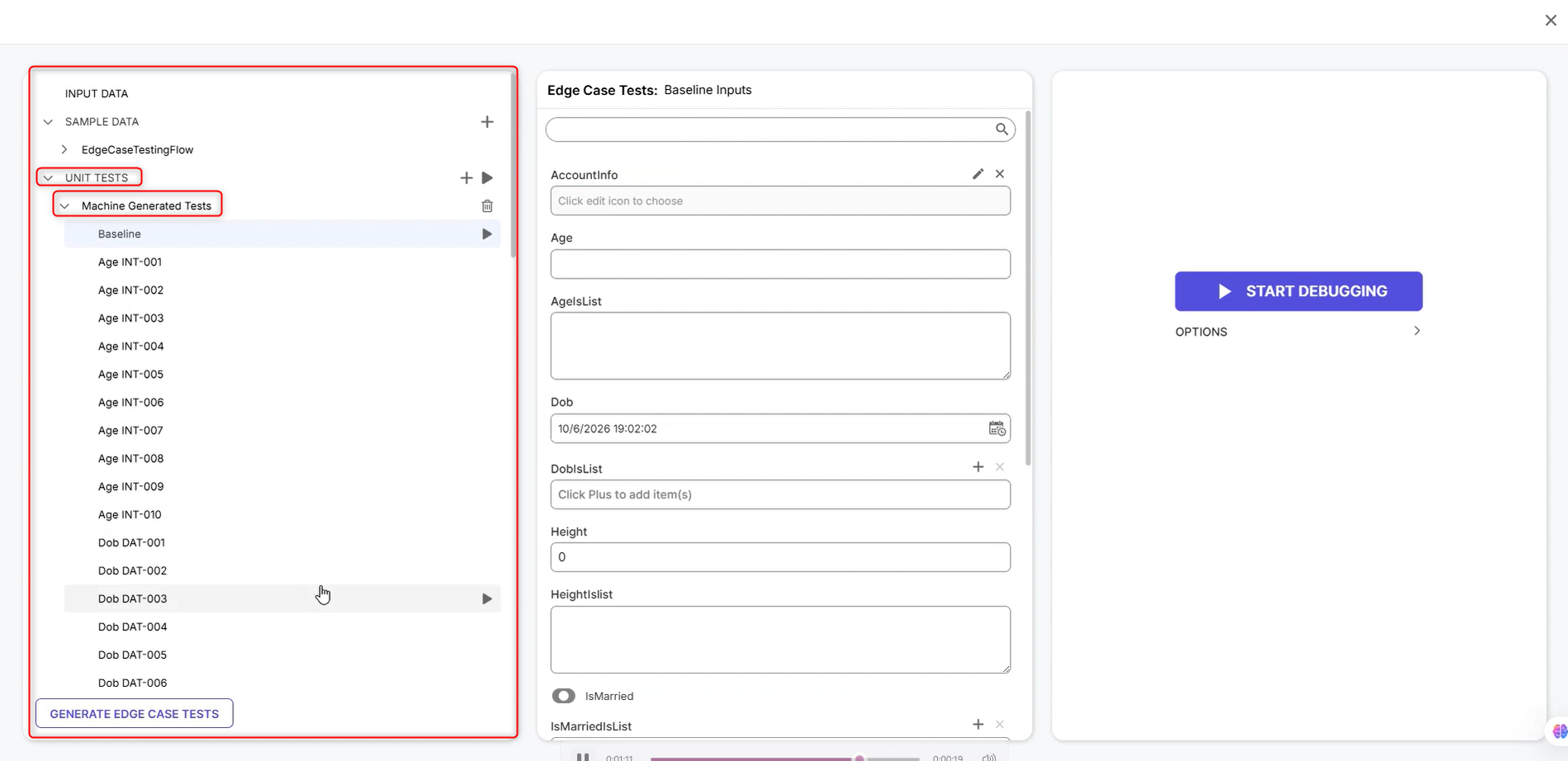
- Selected variations can be saved as permanent unit tests and executed through the Unit Tests tab.
- Saved tests use existing unit test statuses, including Pass, Fail, Error, and Stale.
Key Features
- One-Click Test Generation: Automatically generates edge case variations from a validated baseline input set.
- Predictable Edge Case Sets: Creates a structured set of input variations across supported data types for review.
- Persistent Unit Test Suites: Selected edge case variations can be saved as permanent unit tests attached to the element.
- Unit Test Framework Integration: Generated tests are managed through the existing Unit Tests framework, including execution, status tracking, and historical results.
How to Utilize Edge Case Testing
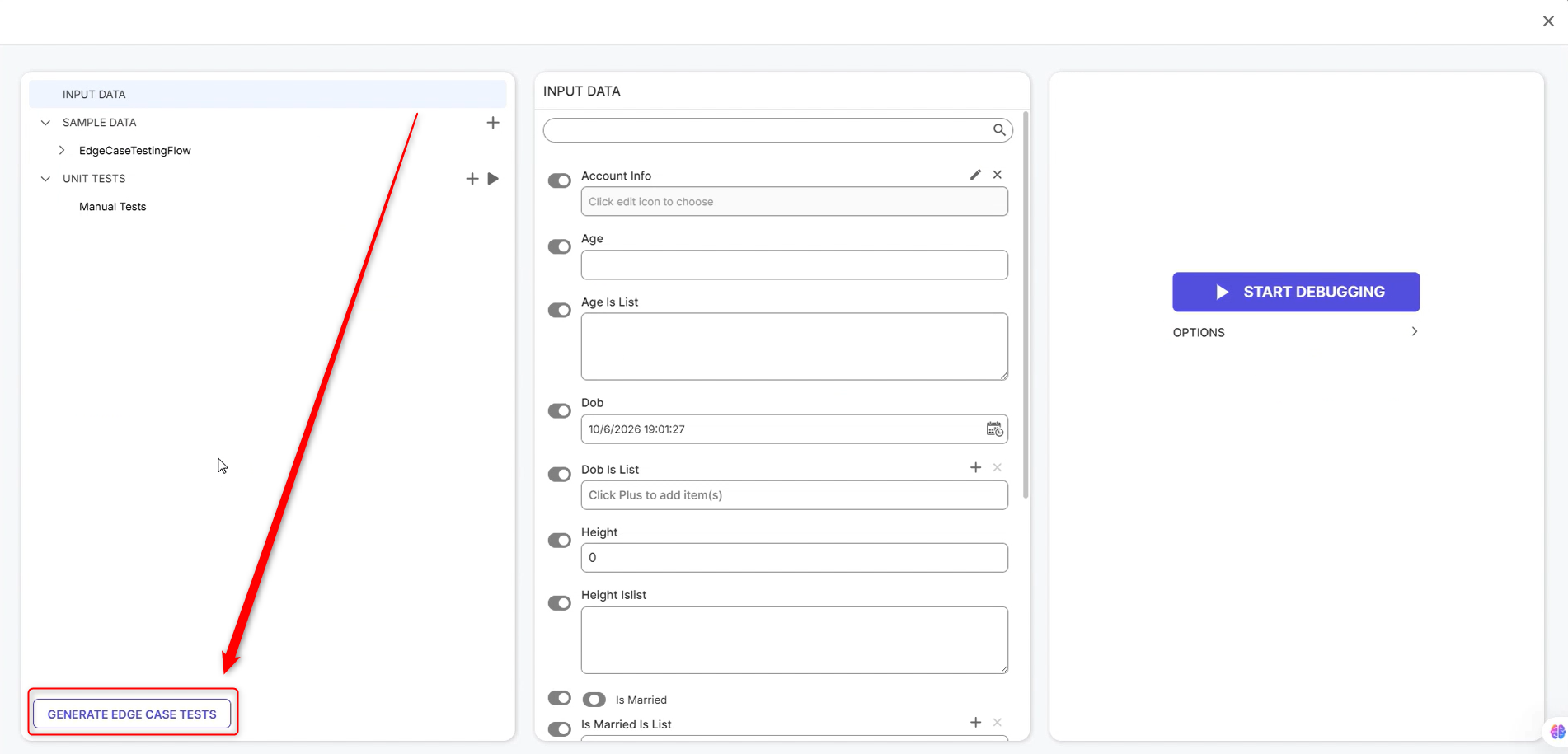
- Open the Debugging Panel, navigate to the Debugging view of the desired designer element ( Flow, Rule, RuleSet Element, Truth Table, Rule Table, External Truth Table, or Matrix Rule) with defined input parameters, and select Generate Edge Case Tests.
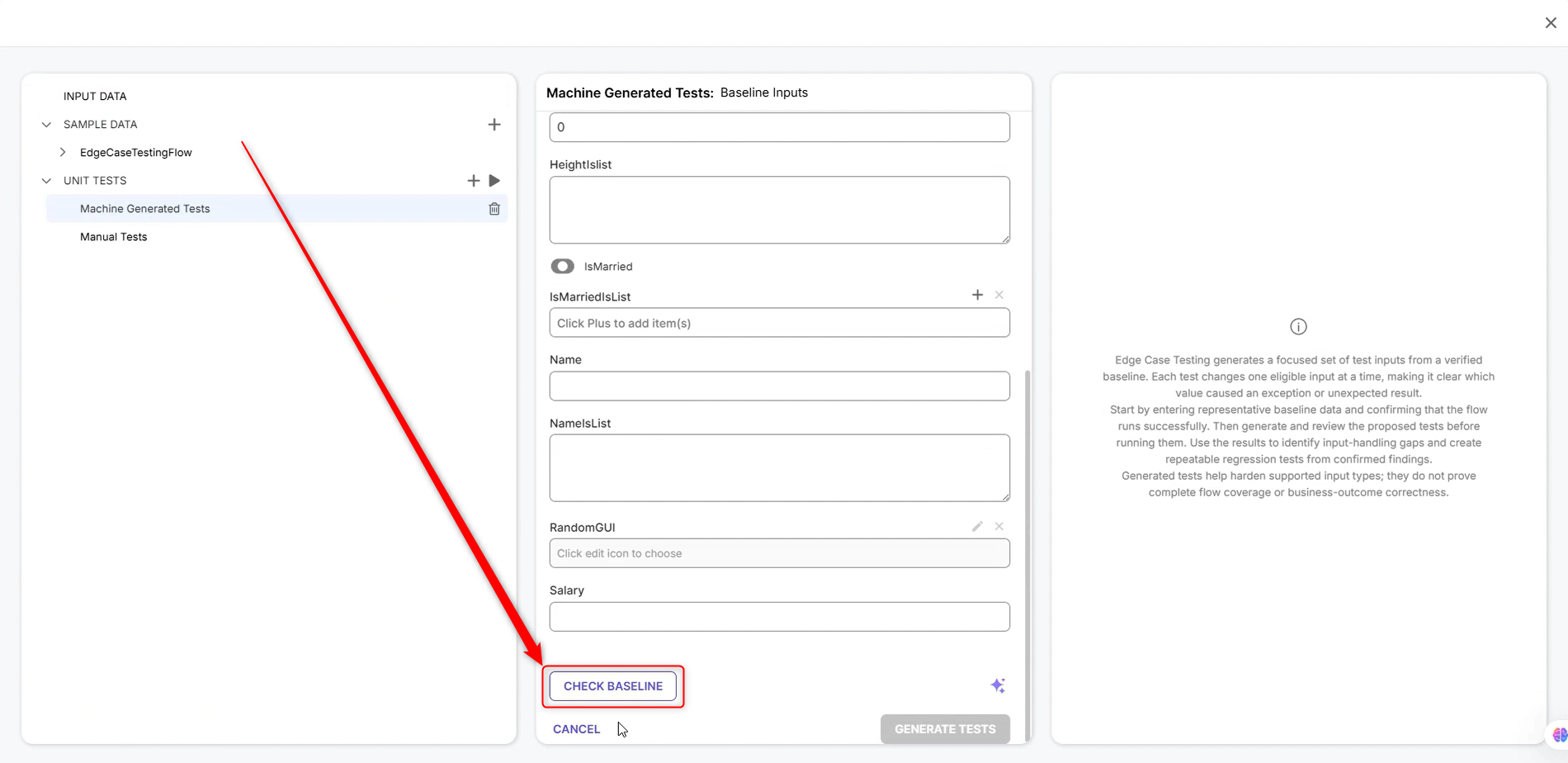
- Set and Validate Baseline: Enter a set of valid standard inputs and click Check Baseline to confirm the element runs.
 Test case generation is enabled once the baseline status returns Baseline Passed.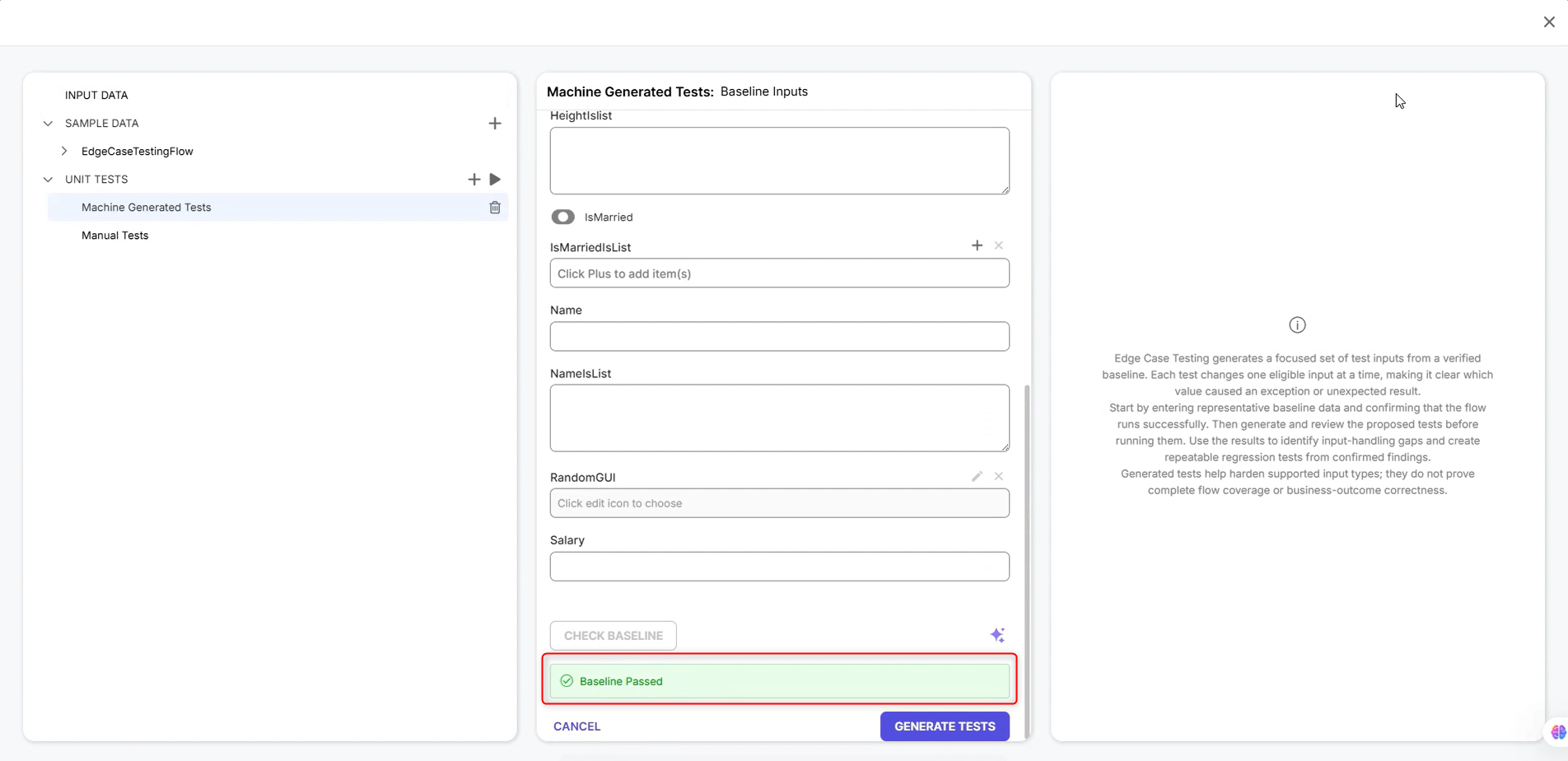
- Generate Variations: Click Generate Tests to view the generated input variations across supported data types.
.png)
- Review and Save: Select the specific edge cases you want to retain and click Save As Unit Tests. Unselected test variations will be discarded upon confirmation.
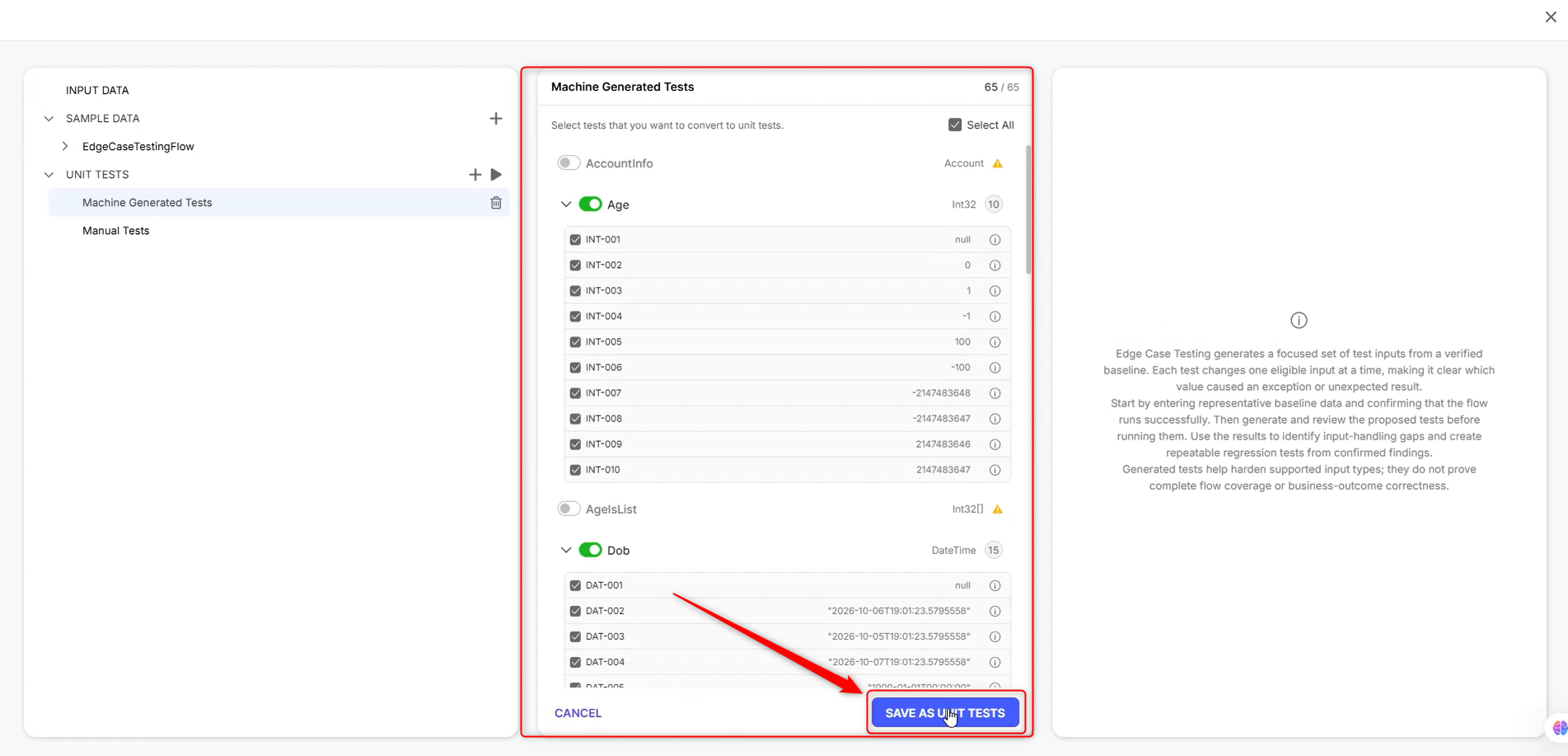
- Execute and Track: Users can access saved unit tests anytime by navigating to the Unit Tests tab to run execution suites, review results (Pass, Fail, Error, Stale), and ensure future edits do not break existing boundary logic.