Overview
Users can use either the Convert Document or the Convert Document To HTML step to convert FileData input from Word, PDF, or Excel files. The Convert Document step converts the file into a Word, PDF, or Excel document, while the Convert Document To HTML step outputs the document as HTML.
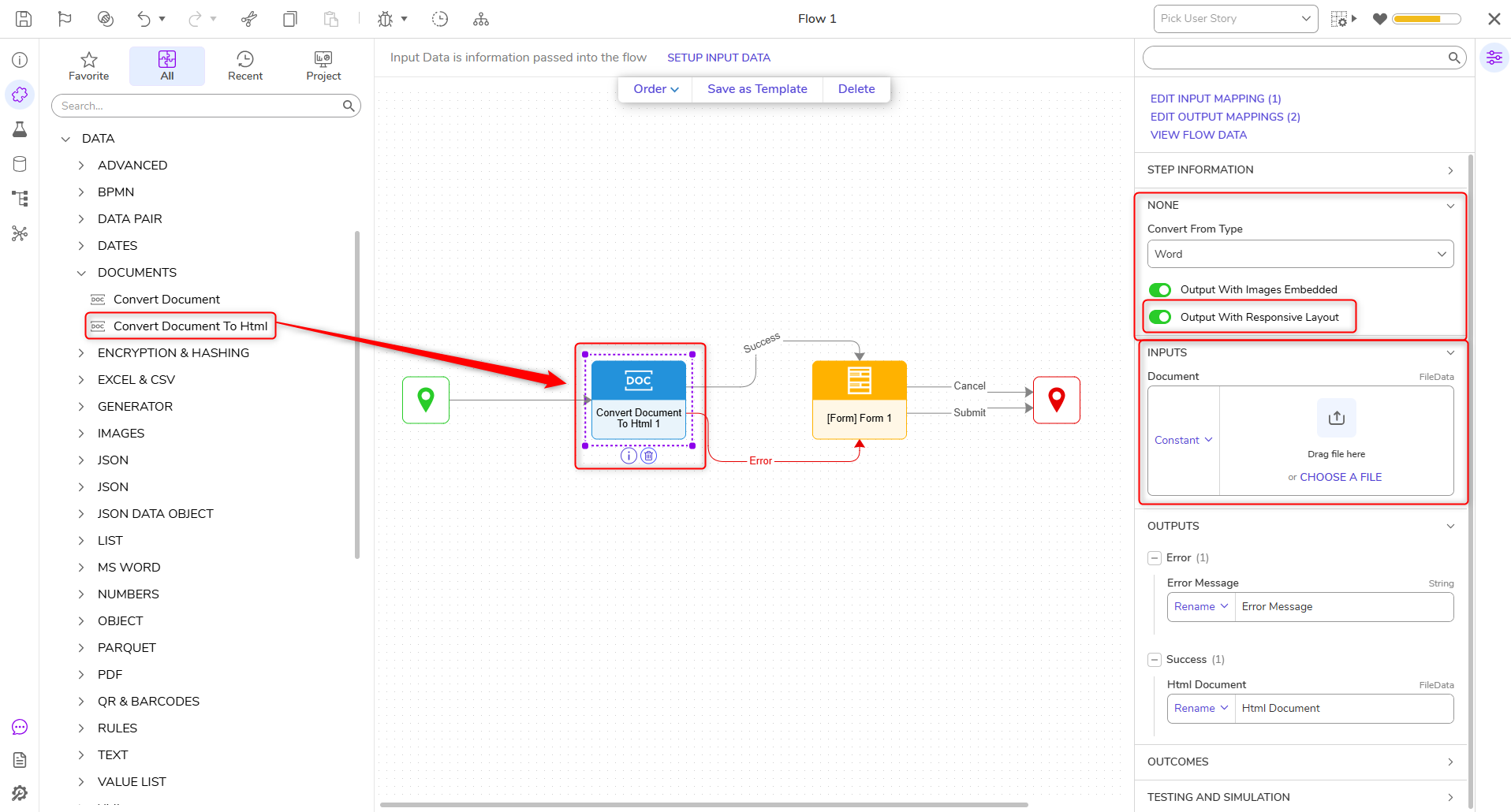
When converting Word documents to HTML, the Convert Document To HTML step can also generate responsive HTML that reflows to fit the browser viewport instead of preserving fixed page dimensions.
Both of these steps will convert the document, and the default Output save location is C:\Program Files\Decisions\FileStorage\Primary\temp\.
Convert Document Steps
The Convert Document steps are located in the Toolbox panel under DATA > DOCUMENTS.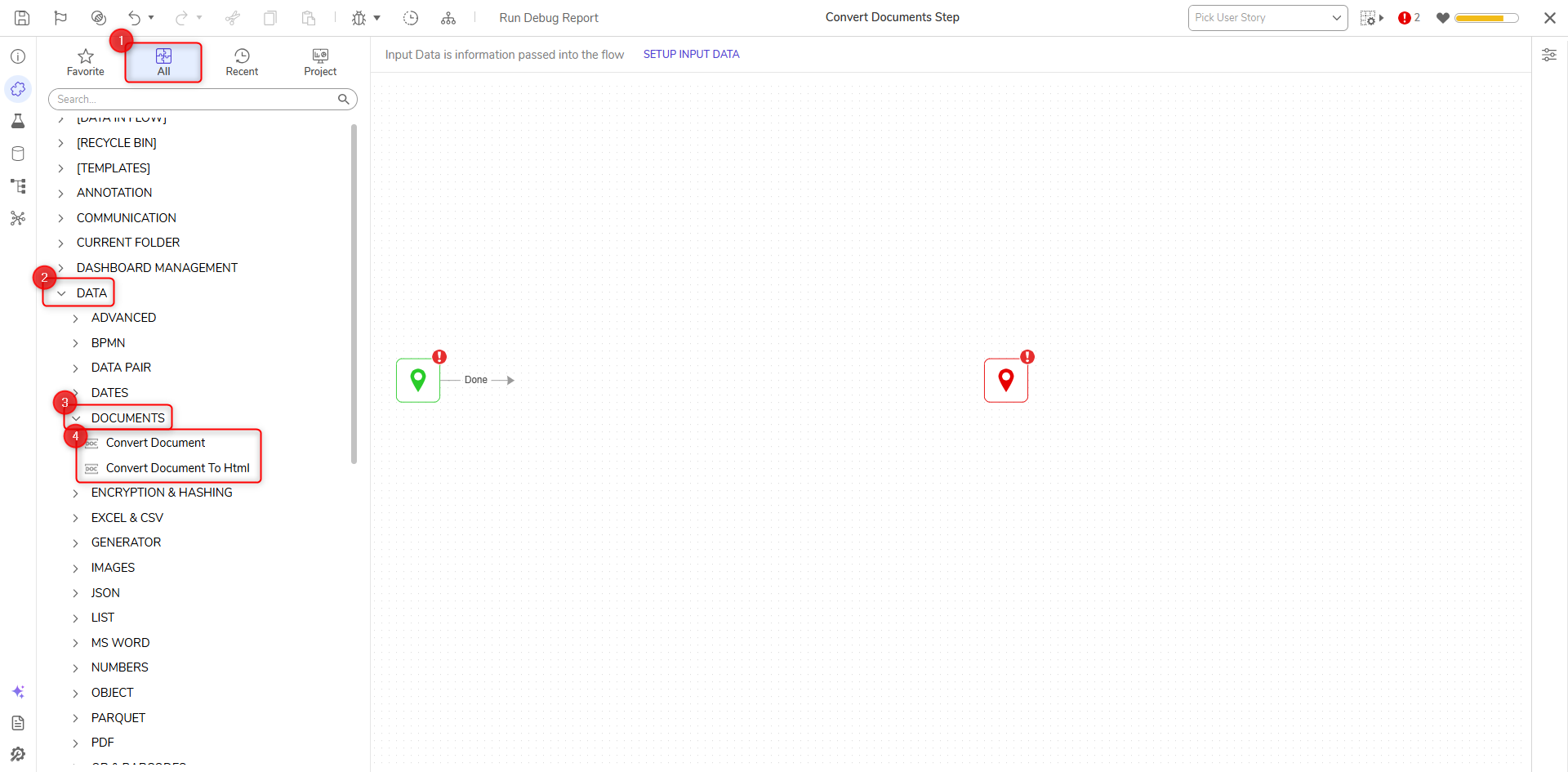
Convert Document Step
| Parameter | Description |
|---|---|
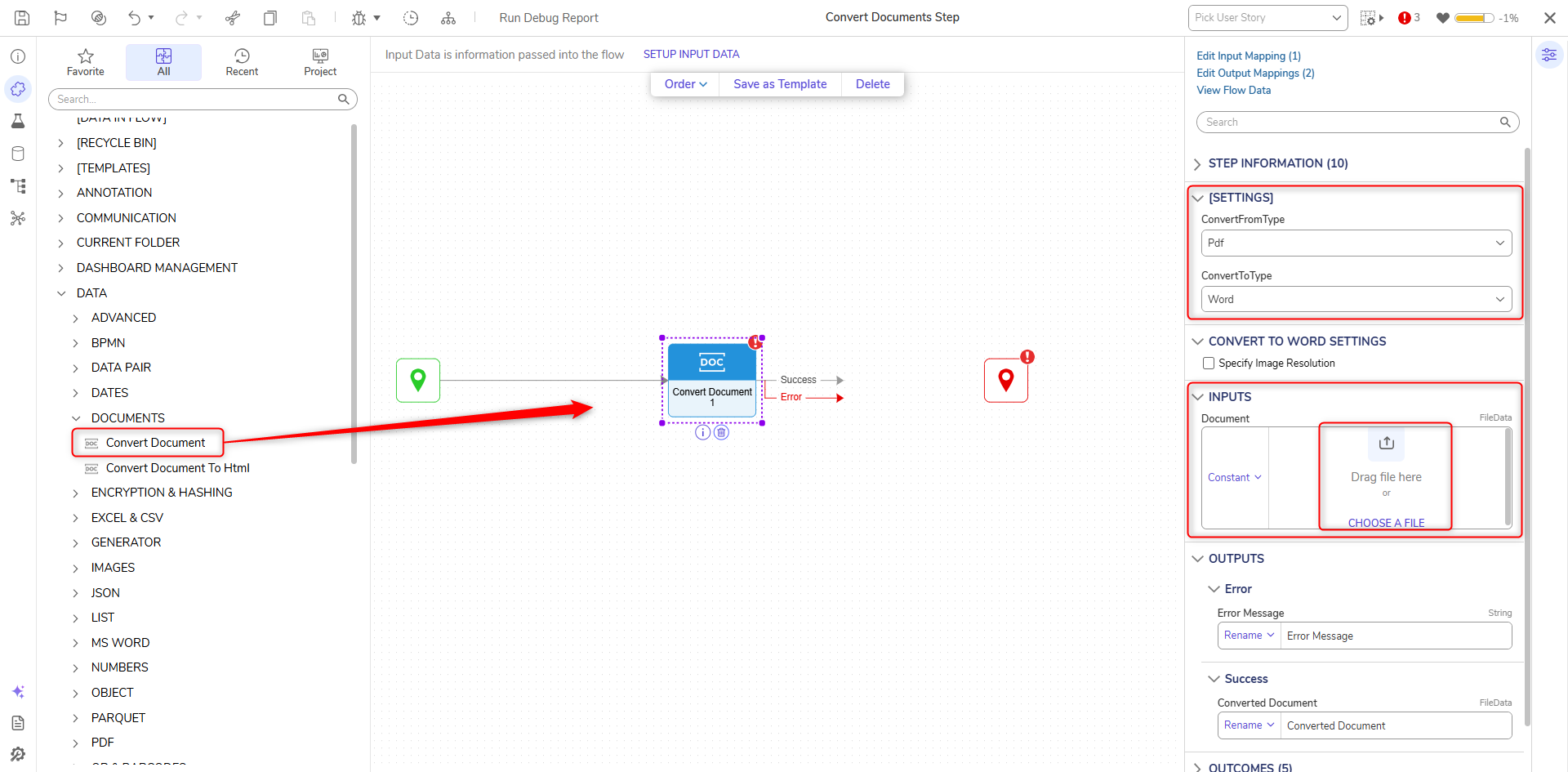
| ConvertFromType | The file extension of the input file |
| ConvertToType | File extension to convert the file to |
| Document | The desired file to convert to the specified ConvertToType |
Convert Document To HTML Step
| Parameter | Description |
|---|---|
| Convert From Type | The file extension of the input file |
| Output With Images Embedded | Embeds images from the source document in the generated HTML instead of saving them as external files. |
| Output With Responsive Layout | When enabled for Word document conversions, the generated HTML reflows to fit the browser viewport instead of preserving fixed page dimensions. This option should be used with Output With Images Embedded enabled when the document contains embedded images. |
| Document | The desired file to convert to HTML |
For Word document conversions, enable Output With Responsive Layout to allow paragraphs to flex with the browser size. If the Word document contains images, enable Output With Images Embedded so images are included in the generated HTML instead of being stored in an external folder.